Project requests and approvals
Ask for a piece of work and have a project manager accept it, decline it or ask for more; and make a task an approval that only a named person can sign off.
Your words may differ. Each workspace can choose its own words: a class might be a cohort, program or group, a learner a participant, trainee or new hire, a session a module or lesson. These guides use the default words. The steps are the same whatever your workspace calls them. Change your workspace's words
Most of a training team's work starts as a request: a manager wants a refresher, a store asks for a job aid, a new hire wants something to rewatch. A request is how that ask lands in Skovrum before anyone has agreed to it. And once the work is under way, some steps need a named person's sign-off: the SME on the storyboard, the stakeholder on the final deck. An approval is a task only that person can tick off.
Ask for a project
- Open Projects and click Request a project.
- Say what you need, and under What and why what people should be able to do afterwards and what is going wrong today. Add who it's for, the date you'd like it by, a category if you know it, and any links: the current deck, the policy, a ticket.
- Click Send request.
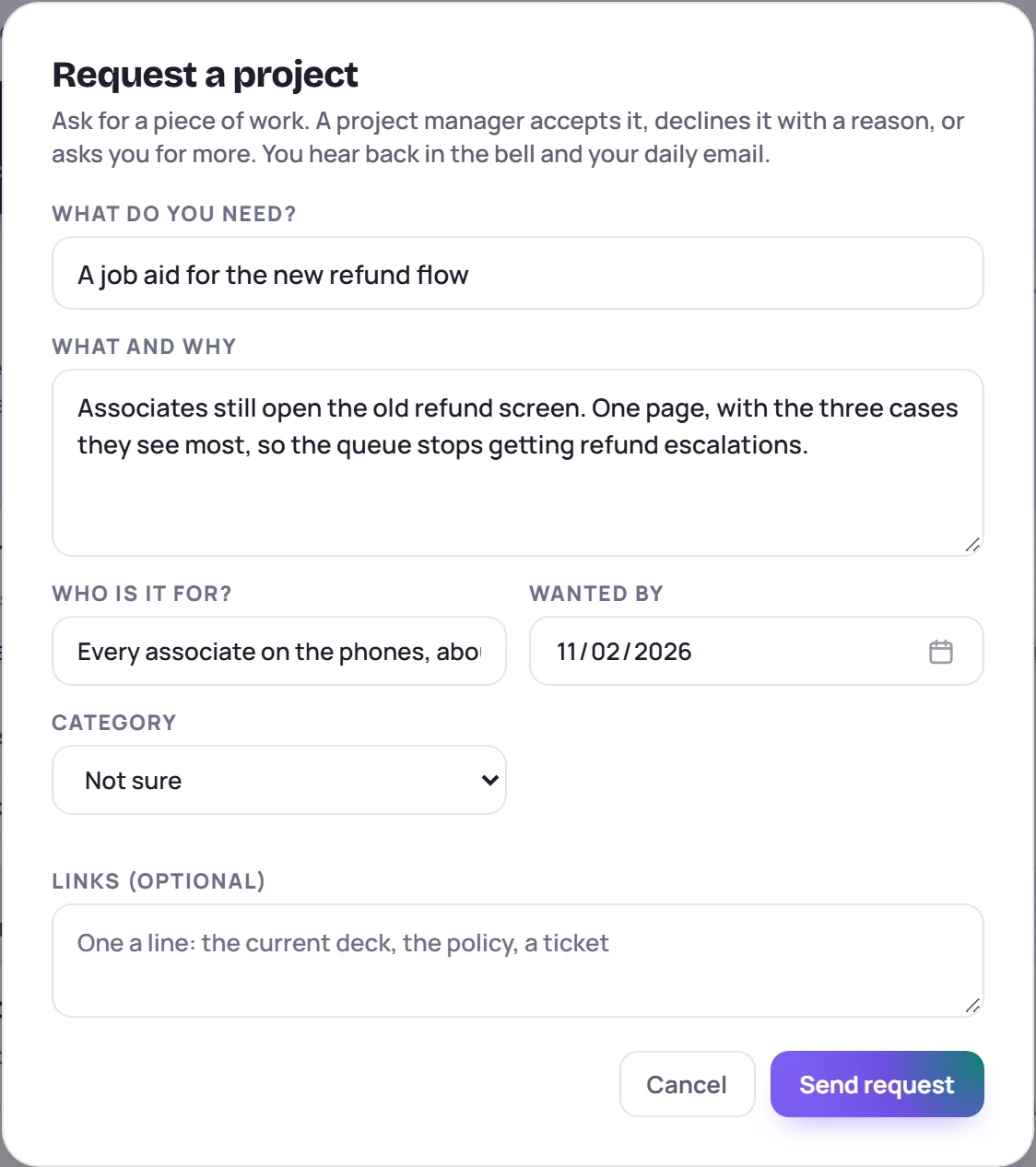
The request opens as a project with the status Requested. It isn't work yet: it takes no tasks, counts no hours in Team workload, and sits on neither the board nor the timeline. It has no owner until someone accepts it.
You can change your request until it's settled: edit the description, add links, change the date. The Requests view on the Projects screen shows your requests and what became of them, and the count on the view's name says how many are open.
Triage: accept, decline or ask for more
People with Manage projects find new requests under Requests on the Projects screen, in the bell as Request to triage, in their daily email and, on Mondays, at the top of the manager brief.
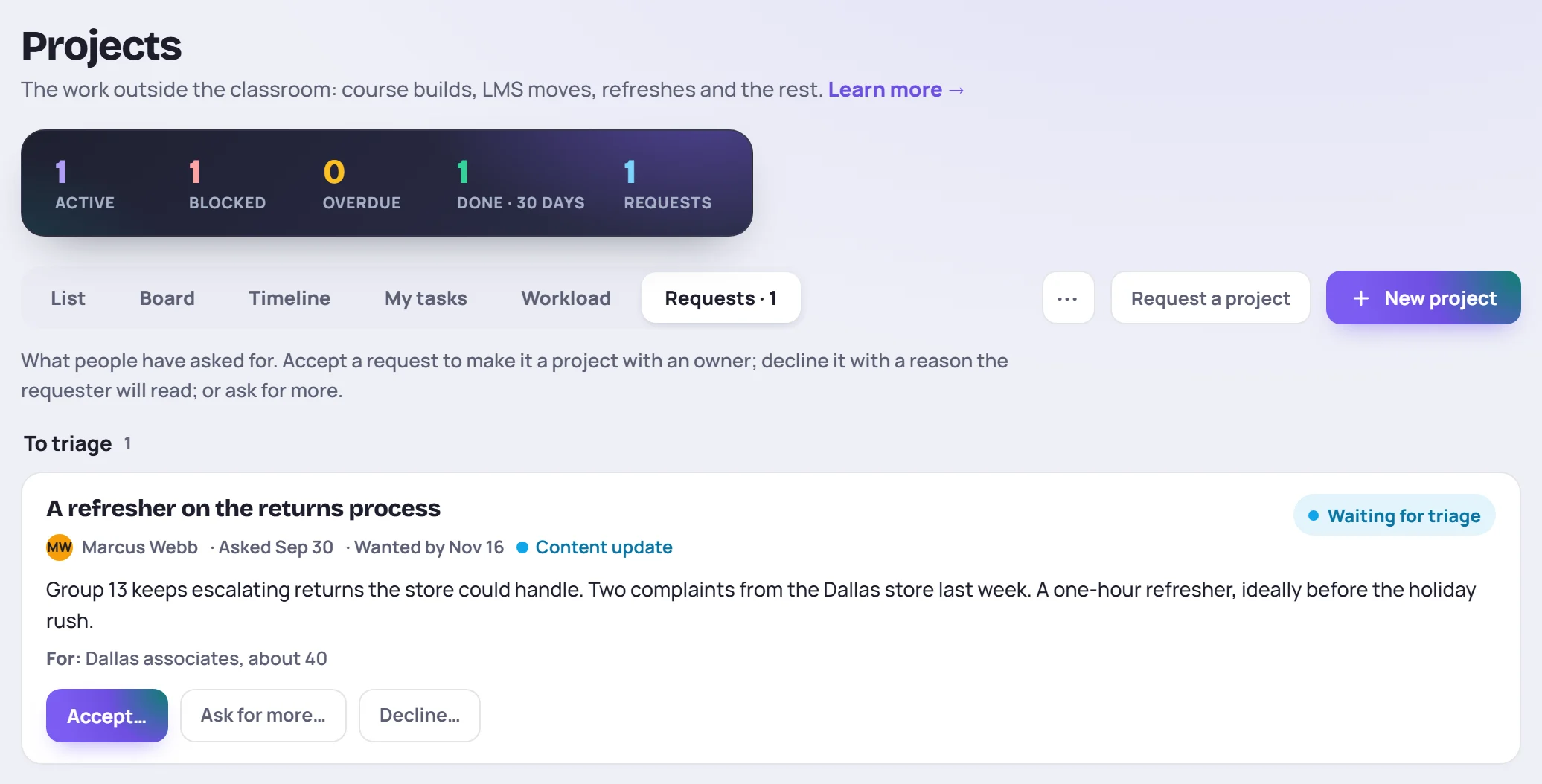
Each request has three buttons, on the Requests view and on the request itself:
| Button | What happens |
|---|---|
| Accept… | Choose an owner (you, unless you pick someone else) and, if you like, start and due dates. The request becomes a Planned project with that owner, ready for tasks. The date it's accepted with becomes its first due date, so slips are counted from there. |
| Ask for more… | Type a question. It lands on the request's discussion, and the requester sees it in the bell and their daily email until they answer, by editing the request or replying. |
| Decline… | Give a reason. The request becomes Cancelled with that reason, and the requester reads it in the bell and their daily email. |
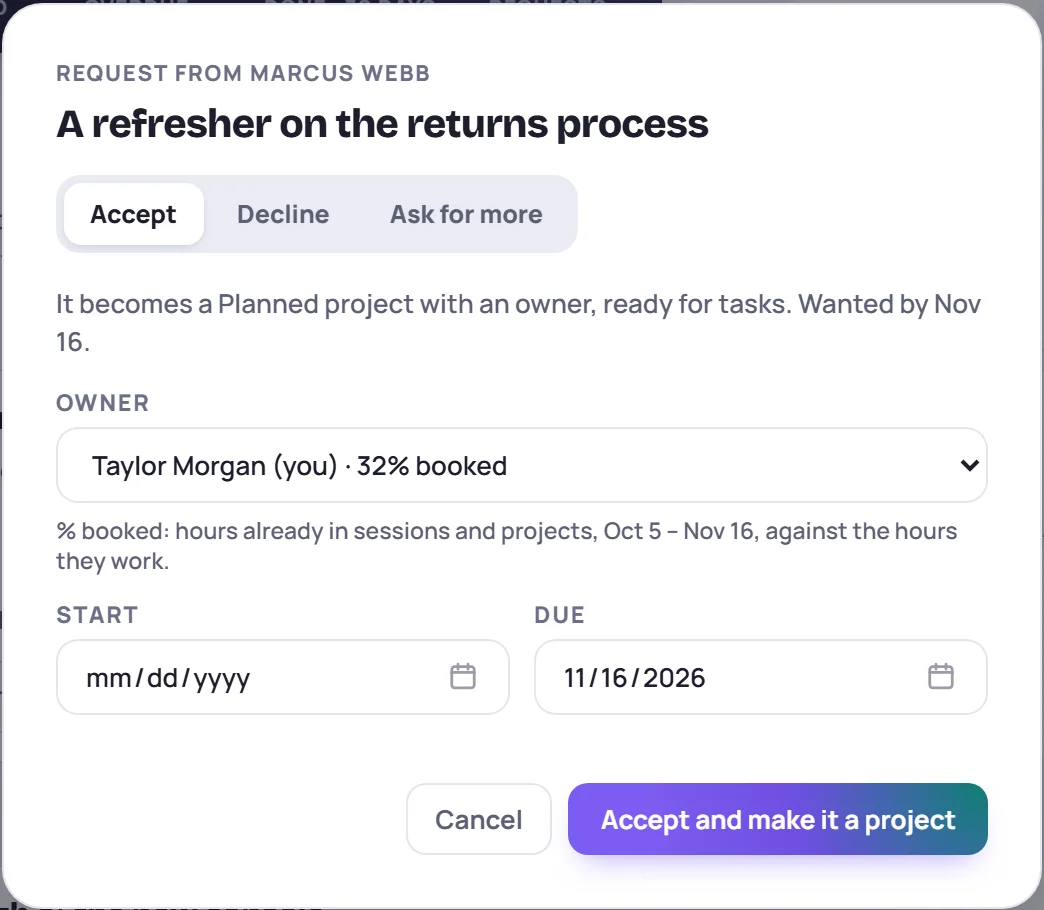
Changing a request's status with the status button does the same thing: anything but Cancelled accepts it, with you as the owner.
The requester stays as the person who made the project, so they can still change it and follow its discussion. The person who accepted or declined it, and when, is in the project's Activity, and giving it to someone else is written to the audit log.
Approval tasks
Any task in a project can become an approval:
- Open the task and, under Kind, click Approval.
- Choose who approves it under Approved by. The approver is a trainer in your workspace. They don't have to be on the task: the people under Assigned to do the work; the approver signs it off.
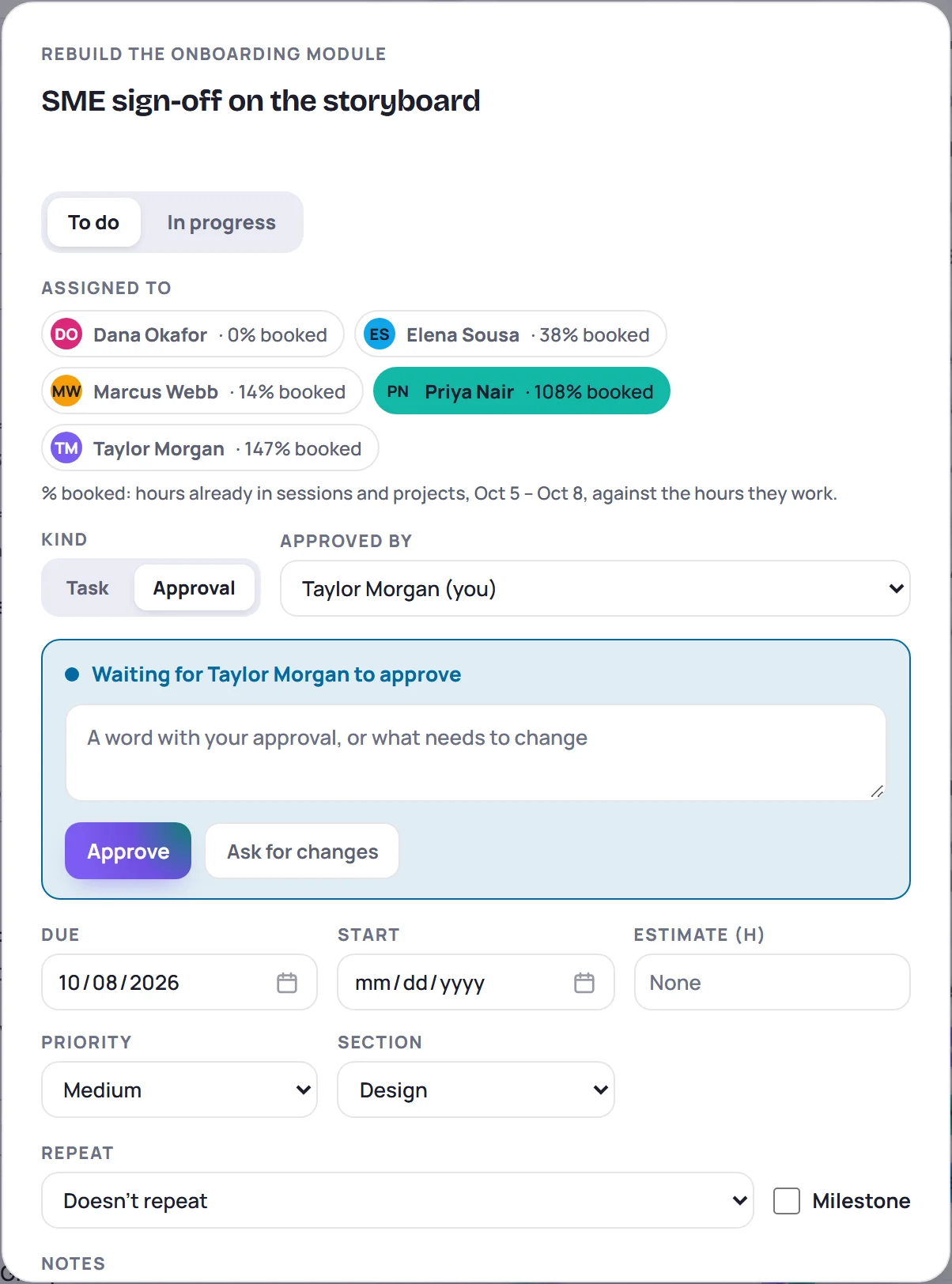
The task shows Approval · (name) in the project's task list, on the task board and under My tasks, where approvals waiting on you are listed first as Waiting for your approval. The approver also sees it in the bell as Waiting for your approval and in their daily email, whatever its due date, and as Approval overdue once the due date has passed.
To decide, the approver (or someone with Manage projects) opens the task:
- Approve ticks it off and records who approved it and when, with any note they typed. On the task, it reads Approved.
- Ask for changes sends it back with a note saying what needs to change. The task stays open, reads Changes asked, and leaves the approver's lists until the assignees have dealt with it and it's ready again. Then the approver approves it from the same box.
Nobody else can tick an approval off, not even the person who made it. Reopening it needs the approver or a project manager too, and clears the approval.
Under Kind, Task turns an approval back into an ordinary task and forgets the approver.
Requests and approvals in reports
Analytics → Projects counts requests in the range, how many are waiting, how long triage typically takes, and how many were accepted or declined. See Analytics.
Common questions
Can someone outside the team ask for a project?
Not yet. Requests come from people who sign in to Skovrum. Until then, add the person who asked as a Stakeholder with the role Requester on the request, so the project remembers who it's for.
Can I ask for a project on someone else's behalf?
Yes. Make the request yourself and name them under Who is it for? or as a Stakeholder. You'll get the answers; pass them on.
What if a request is accepted but nobody has time?
Accept it anyway and set the status to Delayed with a date, or leave it Planned with no dates. A request only says the work is agreed; the owner decides when.
Can a to-do be an approval?
No. Approvals live in projects. For a quick sign-off that isn't part of a project, make a to-do assigned to the person and say so in its text.