Wrap up a session
Run the end-of-session checklist, share today's survey, and leave notes for whoever runs the next session.
Your words may differ. Each workspace can choose its own words: a class might be a cohort, program or group, a learner a participant, trainee or new hire, a session a module or lesson. These guides use the default words. The steps are the same whatever your workspace calls them. Change your workspace's words
The wrap-up is a short checklist at the end of each session. It makes sure nothing was forgotten (attendance, follow-ups, notes) and lets you leave a message for the next session. It usually takes under a minute if you took notes and attendance during the day.
Open the wrap-up
On the session screen, click Wrap up in the top right.

You can also open it from the session tools (the four squares in the toolbar). On a phone, Wrap up appears on the session's title line once the session has started.
Go through the checklist
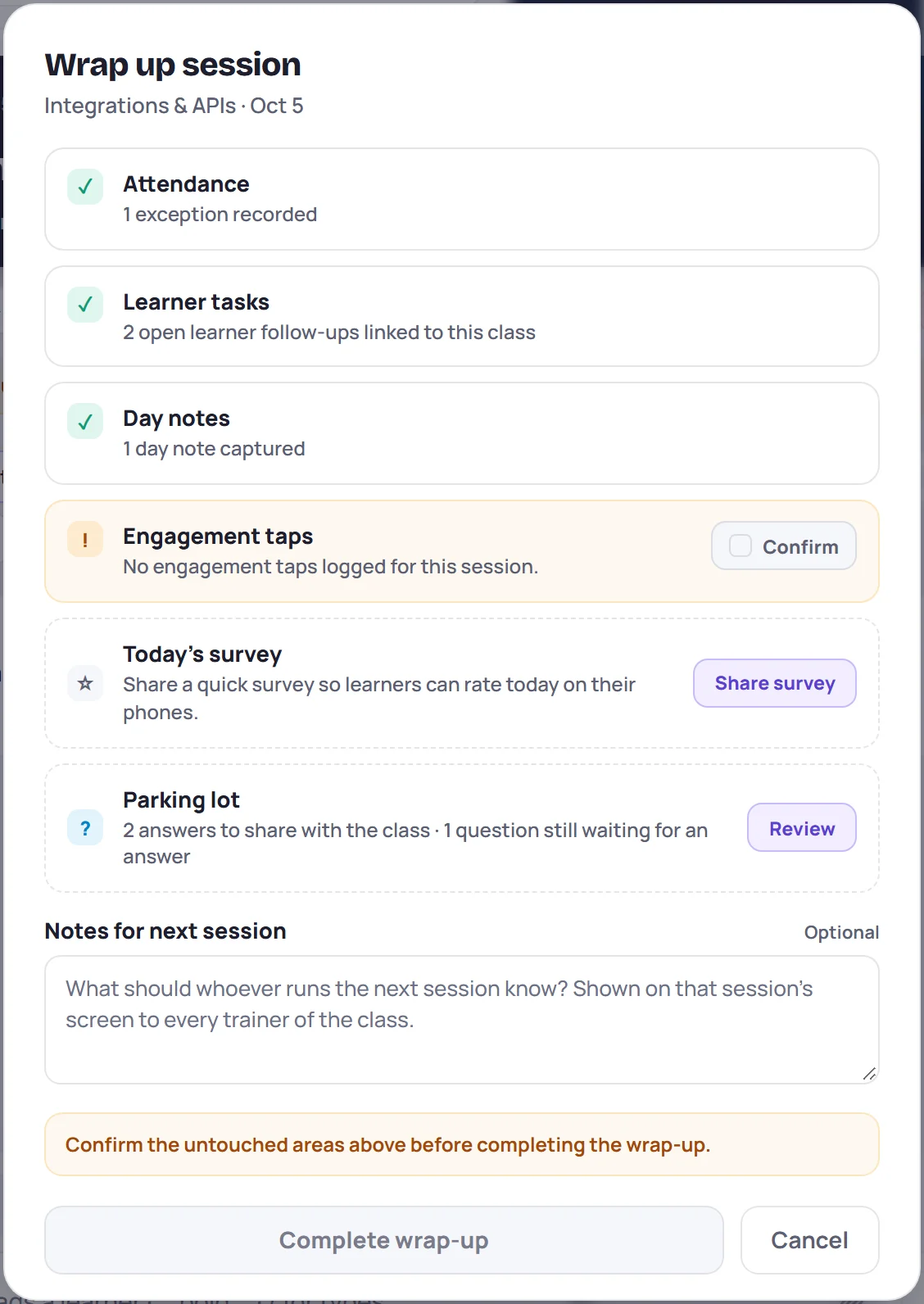
The checklist has four areas. An area with something recorded is ticked for you. An area with nothing in it is marked ! with a Confirm button, so that "nothing" is a decision rather than something you forgot.
| Area | Ticked when | If you confirm it instead, you're saying |
|---|---|---|
| Attendance | At least one exception (late, absent, excused, early leave) is recorded | Everyone stayed Present |
| Learner tasks | There are open learner to-dos in this class | No learner needs a follow-up |
| Day notes | You wrote at least one note, observation or action item for the day | There's nothing to note |
| Engagement taps | At least one engagement tap was logged | You didn't track engagement today |
Ratings on their own don't tick Attendance: if nobody was late or absent, confirm it.
You can't complete the wrap-up until every area is ticked or confirmed. Until then Skovrum shows Confirm the untouched areas above before completing the wrap-up.
To fix something instead of confirming it, click Cancel, make the change on the session (see Take attendance or Engagement, to-dos and history), and open the wrap-up again.
Share today's survey
The Today's survey row is optional and never holds up the wrap-up.
- Share survey shares a feedback survey for today. If there's exactly one survey that fits the class, its link is created and copied for you. Otherwise the survey links window opens so you can choose.
- Once a link exists, the row counts the responses so far and offers Copy link.
- If there's no survey template for this type of class yet, the row says so. An Admin can add one under Manage → Data.
See Share a survey link.
Check the parking lot
If the class has questions in its parking lot, a Parking lot row says how many answers are waiting to be shared and how many questions are still waiting for an answer. Review opens the class's Questions tab. This row is a reminder only.
Leave notes for the next session
Notes for next session is optional. Write what whoever runs the next session should know: where you got to, who needs help, what to start with.
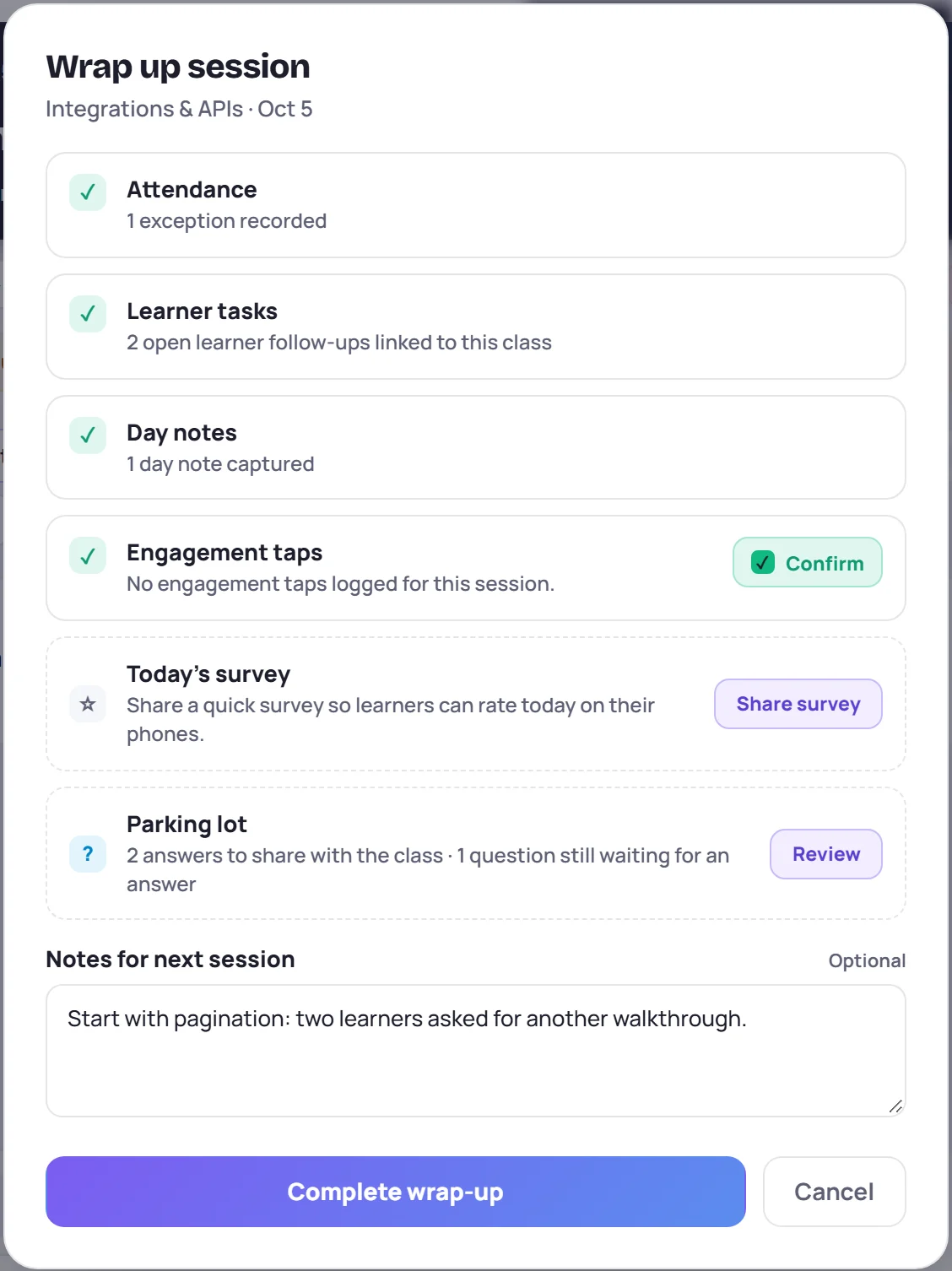
Your note appears on the next session's Since card, under Notes for this session, for every trainer of the class. See Since last session.
Complete it
Click Complete wrap-up. Skovrum confirms with Session wrapped up. Then:
- The wrap-up icon in the session tools turns green.
- If you were in live mode, live mode closes and its topic clock is cleared, and a presenter window shows that the session has wrapped up.
To change anything later, open the wrap-up again. It shows Completed, keeps your note, and the button reads Update wrap-up.
Common questions
Do I have to wrap up every session? It isn't required, but it's how the next trainer gets your notes, and the checklist catches forgotten attendance.
My co-trainer wrapped up. Do I need to? Each trainer's wrap-up is their own. Your co-trainer's note for next session still appears on the next session for both of you.
Can I wrap up a session from an earlier day? Yes. Open that session and click Wrap up.