Invite and manage users
Invite people to your workspace, resend an invitation, change someone's role or email, sign them out, and deactivate or reactivate them.
Your words may differ. Each workspace can choose its own words: a class might be a cohort, program or group, a learner a participant, trainee or new hire, a session a module or lesson. These guides use the default words. The steps are the same whatever your workspace calls them. Change your workspace's words
Everyone who signs in to your workspace is a user: trainers, Admins and read-only viewers alike. You add them, choose what they can do and remove them again in one place, Manage → Users. Learners never sign in, so they aren't users and don't appear here.
The list of users
Each row shows a person's name, sign-in email and role, followed by when they were last active.
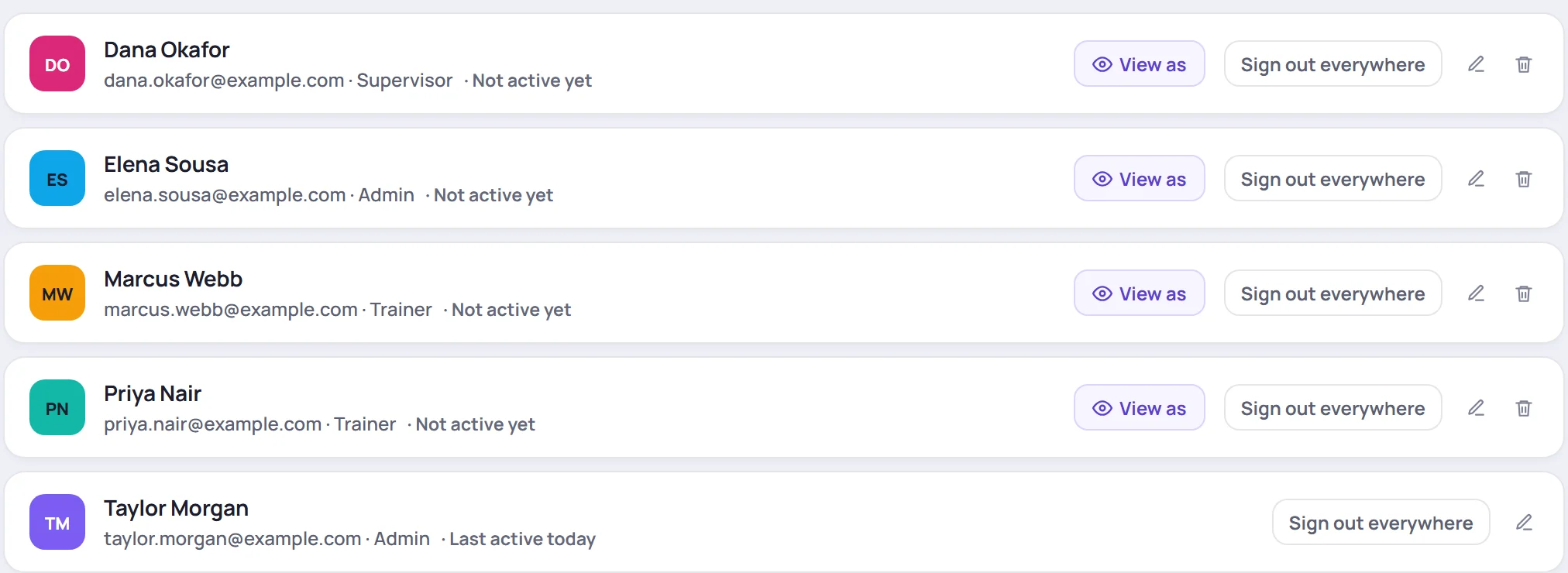
| You see | It means |
|---|---|
| Last active today, 3 days ago … | When they last signed in |
| Not active yet | No sign-in has been recorded for them yet |
| PASSWORD UPDATE REQUIRED | They haven't set their password yet. Usually this is someone you invited who hasn't opened the email. |
| DEACTIVATED | They can't sign in. See Deactivate someone below. |
The buttons on each row:
- View as shows Skovrum from that person's side, with a Viewing as bar in the sidebar. Click Exit in that bar to go back to your own view.
- Sign out everywhere ends that person's sign-ins on every device.
- The pencil opens Edit login: name, email, role and a new password link.
- The bin deactivates them.
Invite someone
- Scroll to Add user under the list.
- Type their Full name and Email address. The email is what they sign in with.
- Choose their role. Read-only roles are marked (read-only).
- Click Send invite.
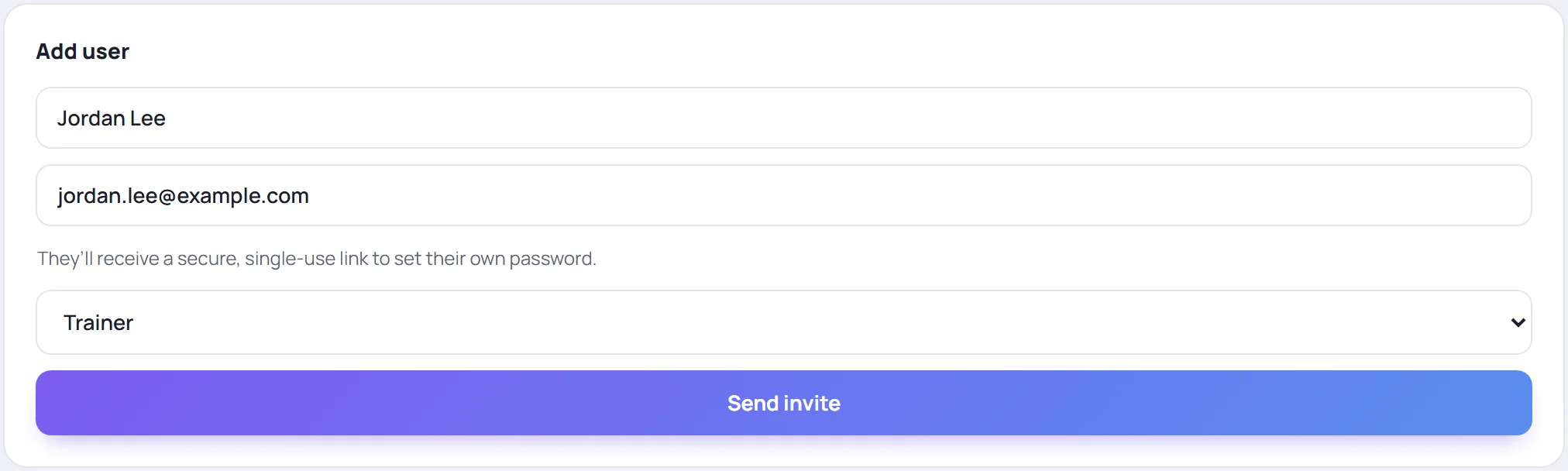
They appear in the list straight away, marked PASSWORD UPDATE REQUIRED until they set a password.

Nobody chooses a password for them, including you. Skovrum never sends passwords by email.
What the invitation email says
The email's subject is You're invited to [your organization] on Skovrum. It says who invited them, gives your workspace's web address and the email they sign in with, and has a Set your password button.
The link works once, for seven days. If it has expired, they can open your workspace's address and choose Forgot password? for a new one, or you can resend the invitation (below). What they see when they open it is in Accept your invitation.
If the email couldn't be sent, Skovrum still adds the person and tells you that the invite email could not be delivered. Resend it later, or ask them to use Forgot password?.
If the invite is refused
Your plan decides how many people can have a role that writes (a trainer seat) and how many read-only viewers you can add. If every seat is taken, Skovrum says so and nothing is created. You can still invite the person with a read-only role if you have a read-only seat free. See Seats and read-only viewers.
You also can't give a role with more access than your own, and only the built-in Admin can make someone an Admin. See Custom roles.
Resend an invitation or send a password link
- Click the pencil on their row to open Edit login.
- Tick Send password-reset link.
- Click Save login.
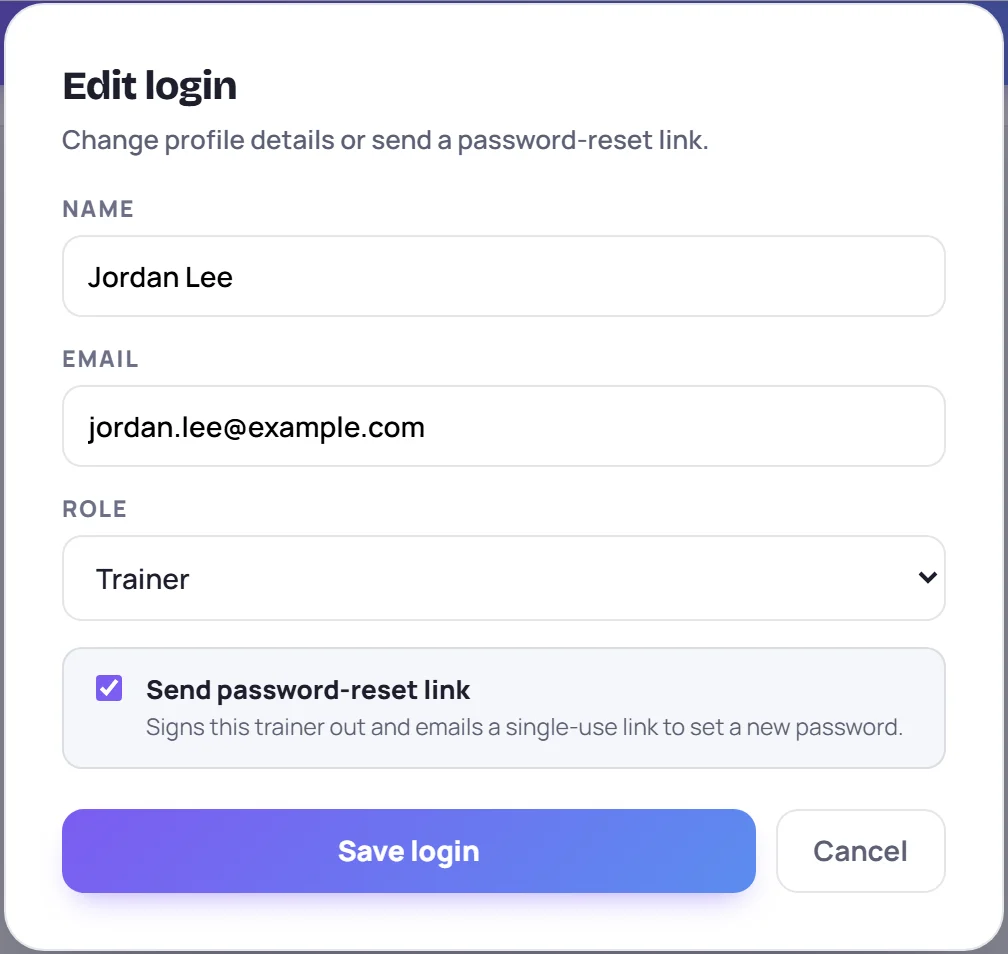
What they get depends on whether they've ever signed in:
| They have… | They get |
|---|---|
| Never signed in | The invitation again, with a new seven-day link |
| Signed in before | A password reset email. The link works once, for one hour. |
Either way, any older link stops working, they're signed out everywhere, and their current password stops working, so they have to use the new link.
Change someone's name, email or role
Open Edit login with the pencil, change the Name, Email or Role, and click Save login.
- A new email becomes their sign-in. It has to be one nobody else in the workspace uses.
- A new role takes effect without them signing out. See Roles and permissions.
A role change that needs a seat you don't have is refused, like an invitation. Changing a role or a sign-in email is recorded in the audit log.
Change several people's roles at once
Click Select above the list, tick the people, then use Role ▾ in the bar at the bottom of the screen. Deactivate is in the same bar. You can't select yourself (your row says YOU). Click Done when you're finished.
Sign someone out everywhere
Click Sign out everywhere on their row, then confirm.

Every device they're signed in on is signed out. Their password doesn't change, so they can sign straight back in. Use it when someone has left a shared computer signed in. If you think their password is known to someone else, send them a password link instead (above).
On your own row the same button signs you out too, including on this device.
Deactivate someone
When someone leaves, click the bin on their row. There's no confirmation, because it's easy to undo.

A deactivated user:
- can't sign in, and is signed out of every device at once;
- shows as Removed user elsewhere in Skovrum;
- keeps everything they wrote. Notes, tasks and classes stay where they are.
Deactivating frees their seat. To bring them back, click Reactivate on their row. That takes a seat again, so it's refused if your plan has none free.
You can't deactivate yourself.
Rules that keep the workspace safe
- There's always an Admin. The last active Admin can't be deactivated or moved to another role. Make someone else an Admin first.
- Someone must be able to manage users. Skovrum won't let you deactivate, or change the role of, the last active person who can.
- You can't hand out more than you hold. See Custom roles.
Inviting, deactivating, reactivating, password links, role changes, sign-in email changes and Sign out everywhere are all recorded in the audit log on the Team and Business plans.
Common questions
Someone says they never got the invitation. Check the email address on their row. Then resend it from Edit login, and ask them to look in their spam folder. They can also use Forgot password? on the sign-in page.
Can I delete a user completely? Not from Manage. Deactivate them instead. Their past notes and classes stay attributed to them, and their seat is freed.
Does a read-only viewer use a seat? Not a trainer seat. Read-only viewers have their own allowance. See Seats and read-only viewers.
How do I make someone an Admin? Choose Admin as their role. Only the built-in Admin can do this. Someone with a custom role that manages users can't.