How surveys work
The two kinds of survey, where their links come from, how long a link stays open, and where the answers show up.
Your words may differ. Each workspace can choose its own words: a class might be a cohort, program or group, a learner a participant, trainee or new hire, a session a module or lesson. These guides use the default words. The steps are the same whatever your workspace calls them. Change your workspace's words
Surveys let learners tell you how training went, and how confident they feel, without signing in to anything. Every survey is a link: learners open it on a phone or in any web browser, answer, and their answers appear in Skovrum straight away.
Two kinds of survey
| Kind | What learners do | Where you start it | Where the answers go |
|---|---|---|---|
| Feedback survey | Rate the session or the trainer, pick options, write comments. Adding their name is optional. | A session's survey panel | The class's Surveys tab, the trainer's survey scores, and your notifications |
| Pre/post self-assessment | Rate their own confidence in each competency the class uses, once before the class and once after. They choose their name. | The class's Surveys tab | The class's Self-assessment results and each learner's Confidence card |
Both kinds start from a template. A feedback template holds its own questions. A self-assessment template has no questions of its own: Skovrum builds them from your competencies when the link is created. See Pre/post self-assessments.
Templates, links and answers
- A template is the reusable form, kept under Manage → Data → Survey templates. Each template is for one class type (Onboarding, Workshop or Development) or for Any class type. A new workspace already has an End-of-training feedback survey, an End-of-day pulse for onboarding classes and a Confidence self-assessment for workshops.
- A link is made for one session from one template. Everyone in that session gets the same link. When the link is created, it takes a copy of the template's questions, so editing the template later never changes a link that's already out.
- The answers belong to that session and its class.
Where links come from
Open a session and choose Survey links from the session tools. The panel lists the surveys that fit the class's type. Create & copy makes the link and copies it, and shows a QR code you can put on screen. See Share a survey link.
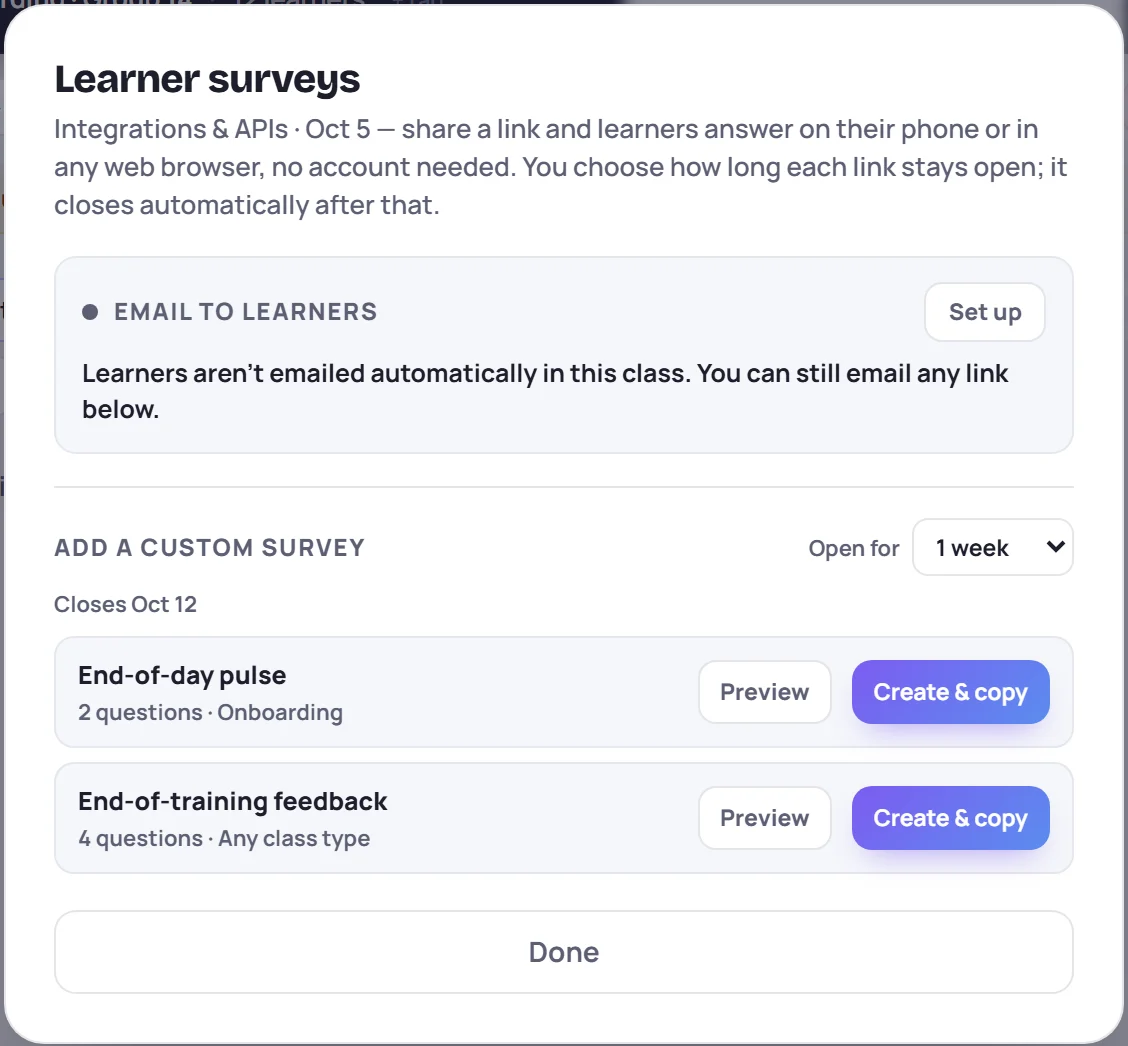
You don't have to share links by hand. A class can email each session's link to its learners automatically, a set number of minutes before the session ends.
The wrap-up checklist also has a Today's survey line, so you can share the link while you close the session.
How long a link stays open
Links open and close on their own, so there's nothing to tidy up.
- A feedback link opens the day before its session. It stays open for the time you choose when you create it: 1 day, 3 days, 1 week, 2 weeks or 30 days after the session date. 1 week is the default.
- A Pre self-assessment opens a week before the class's first session and closes on that day.
- A Post self-assessment opens the day before the class's last session and stays open for two weeks after it.
Once a link closes, learners who open it see This survey has closed. You can also stop a link early with Revoke, or give it a new address with Replace link. Answers already in are always kept.
What learners see
Learners don't need an account. They get a short form headed with the session's class and date, answer, and press Send feedback (or Save my answers for a self-assessment). On a feedback survey their name is optional, so answers are anonymous unless they choose to add it. See What learners see.
Where the answers show up
Answers appear on the class's Surveys tab: the self-assessment card at the top, then every feedback response grouped by session, with a rating trend and an optional AI summary of the comments.
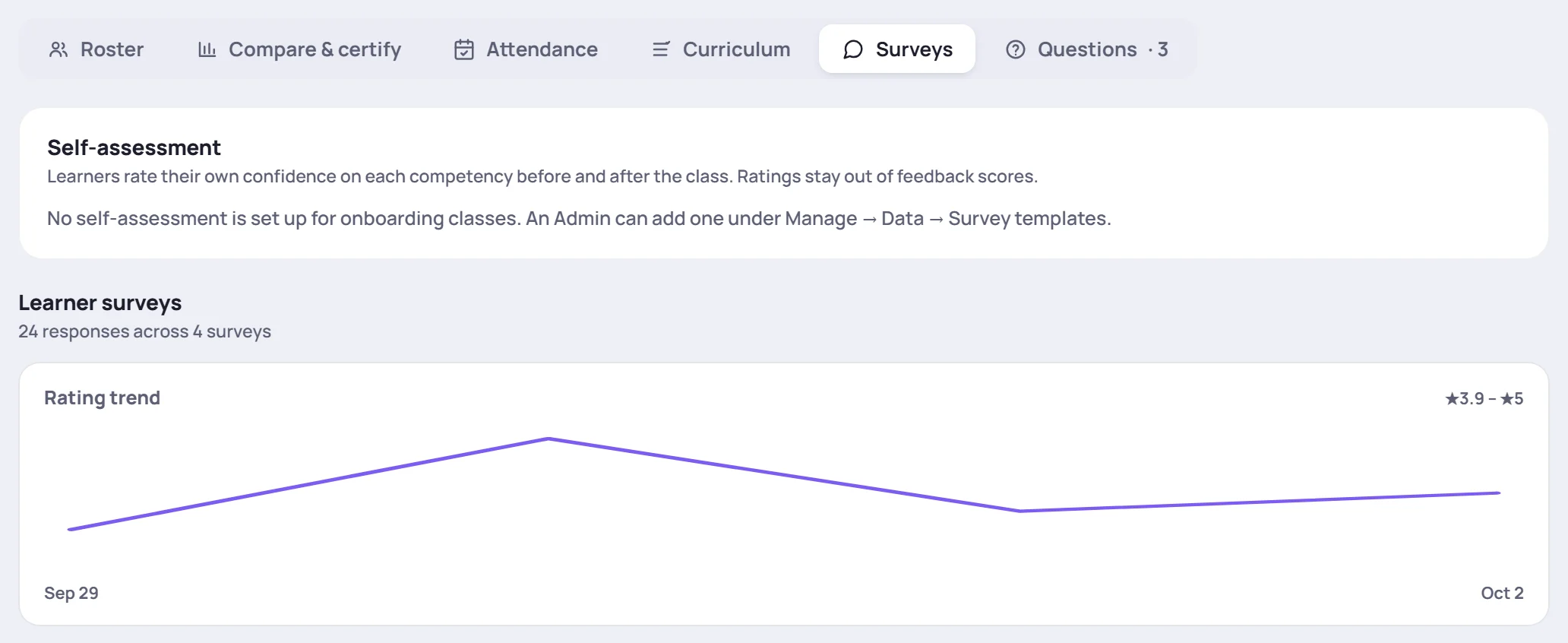
Feedback answers also appear in a few other places:
- The bell. Trainers get a Survey feedback notification when new responses arrive for their sessions.
- Trainer scores. Ratings marked as being about the trainer feed the trainer's survey rating in Analytics and on their development profile.
- The learner's timeline, when a learner added their name.
Self-assessment ratings never count toward feedback scores. They appear only in the self-assessment results and on the learner's profile.
Common questions
Can learners answer more than once? On a feedback survey, yes. The link is shared, so Skovrum can't tell people apart unless they add their name. On a self-assessment, each name can answer each link once.
Can I use more than one survey in a session? Yes. Each template that fits the class type can have its own link in the same session.
Do learners get reminders? No. Skovrum doesn't send reminders. A class with survey emails on sends each learner one email per session, and nobody is emailed the same link twice.