Find and filter learners
Search the Learners directory, filter it by class, status and flag, pin the people you follow, add several learners to a class at once and export the list.
Your words may differ. Each workspace can choose its own words: a class might be a cohort, program or group, a learner a participant, trainee or new hire, a session a module or lesson. These guides use the default words. The steps are the same whatever your workspace calls them. Change your workspace's words
Learners in the sidebar lists every learner in your workspace, in every class, once each. Someone who has been in three classes is one row, with a chip for each class. Open a row to see their profile.
The directory at a glance
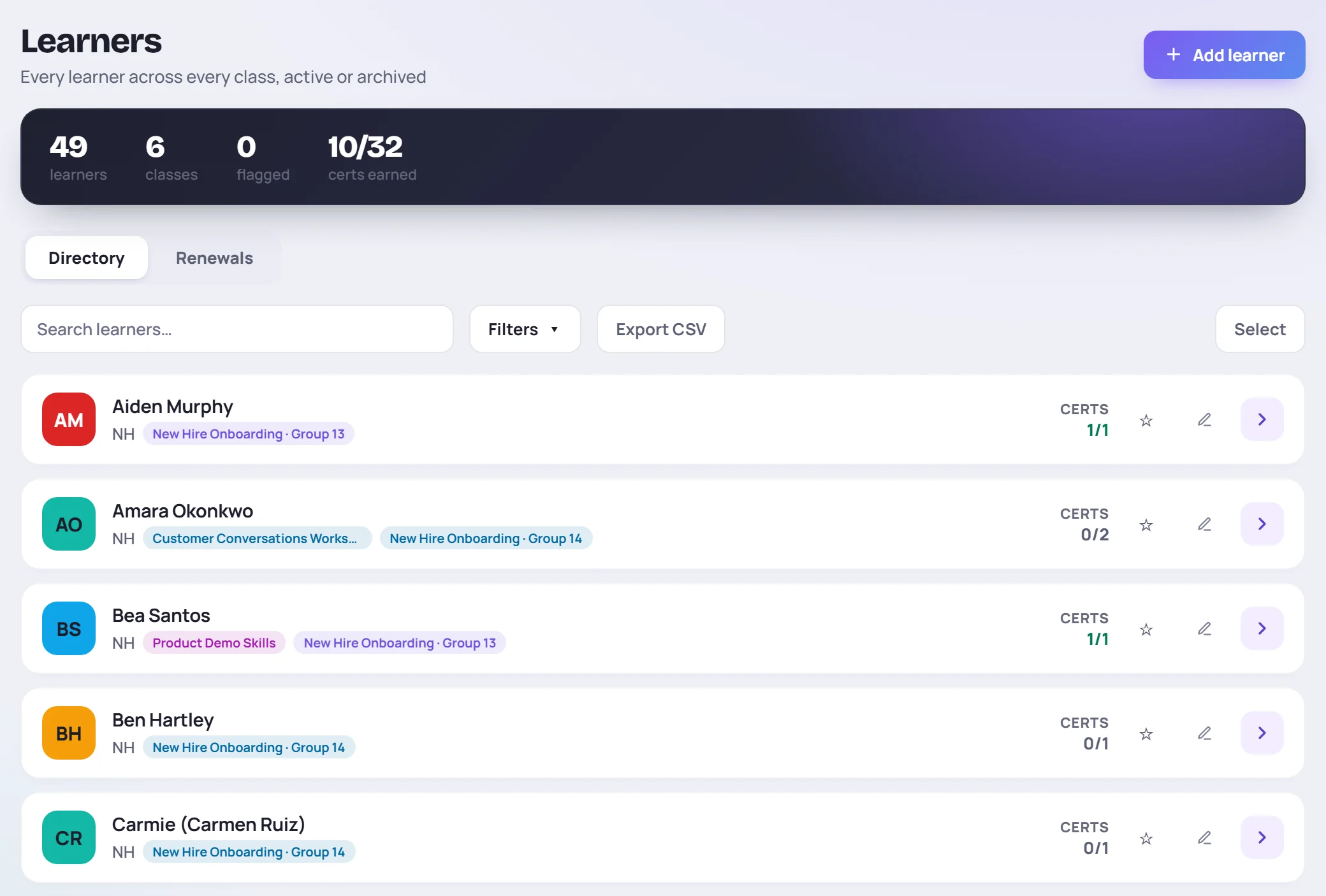
- The dark band counts your learners, the classes they're in, how many are flagged and the certs earned out of all certifications they're working toward.
- Directory is the list. Renewals lists certifications that are due for renewal; see Track renewals.
- Each row shows the learner's name, their role, a chip for each class (click a chip to open that class) and Certs, the certifications they've passed out of the ones their classes include. A STRONG or WATCH label means someone has flagged them.
- The star pins a learner. Pinned learners stay at the top of the list, whatever the sort. They're also offered first in the command palette (see Find your way around).
If a learner goes by a preferred name, the row shows both, for example Carmie (Carmen Ruiz).
Search
Type in Search learners… to narrow the list as you type. The search looks at the full name, the preferred name, the role and the names of their classes, so typing a class name lists everyone in it.
Filter and sort
Click Filters to open the panel.
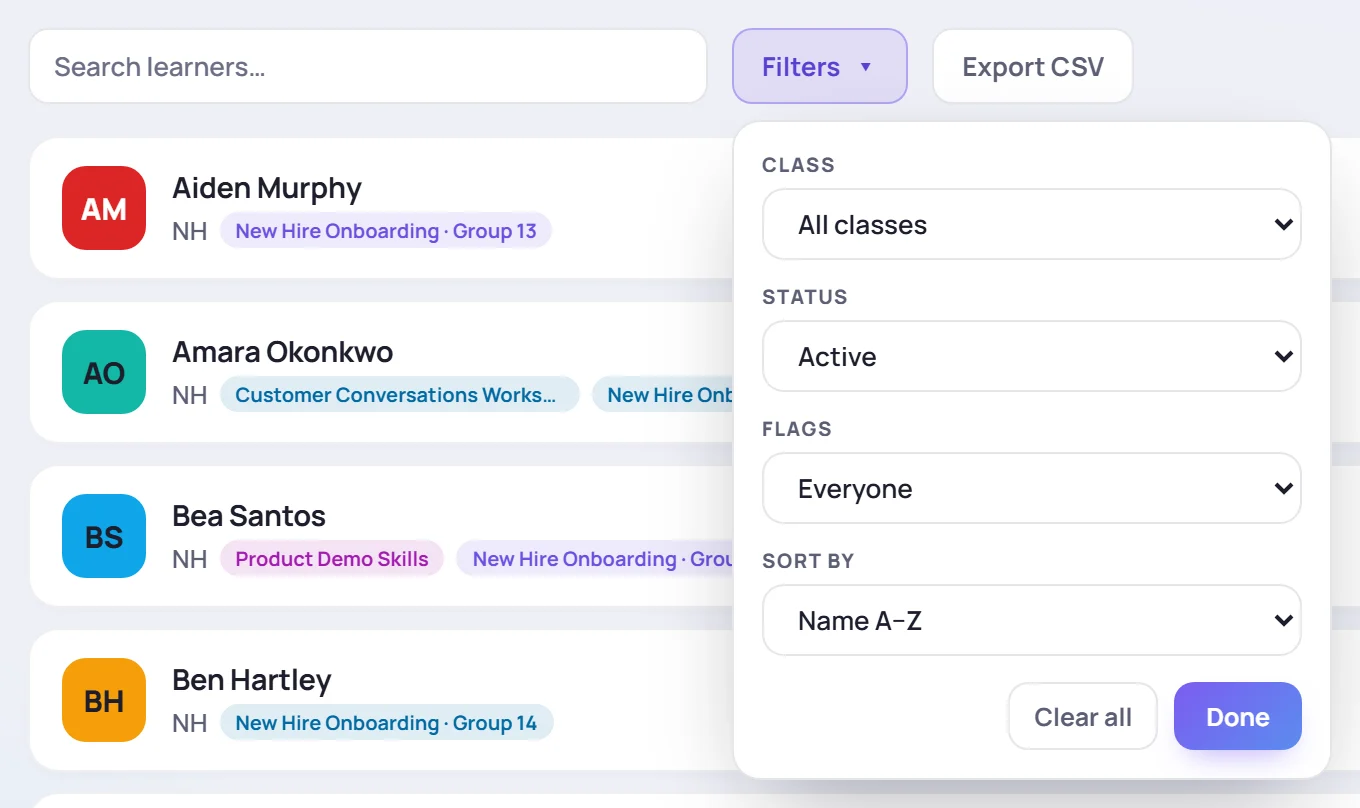
| Filter | Choices |
|---|---|
| Class | All classes, or one active class |
| Status | Active (the default), Archived or All |
| Flags | Everyone or Flagged only |
| Sort by | Name A–Z, Recently updated or Cert progress |
Each filter you set appears as a chip under the toolbar. Click its × to remove it, or Clear all in the panel to start again. A line above the list says how many learners you're seeing, for example Showing 12 of 49 learners.
If your workspace groups classes by client or business unit, there's also a filter for that.
Filters reset when you reload the page, so a forgotten filter never hides anyone for long.
Work with several learners at once
Click Select at the right of the toolbar. Click rows to tick them, or Select all to tick everyone the current search and filters show. A bar appears at the bottom of the screen.
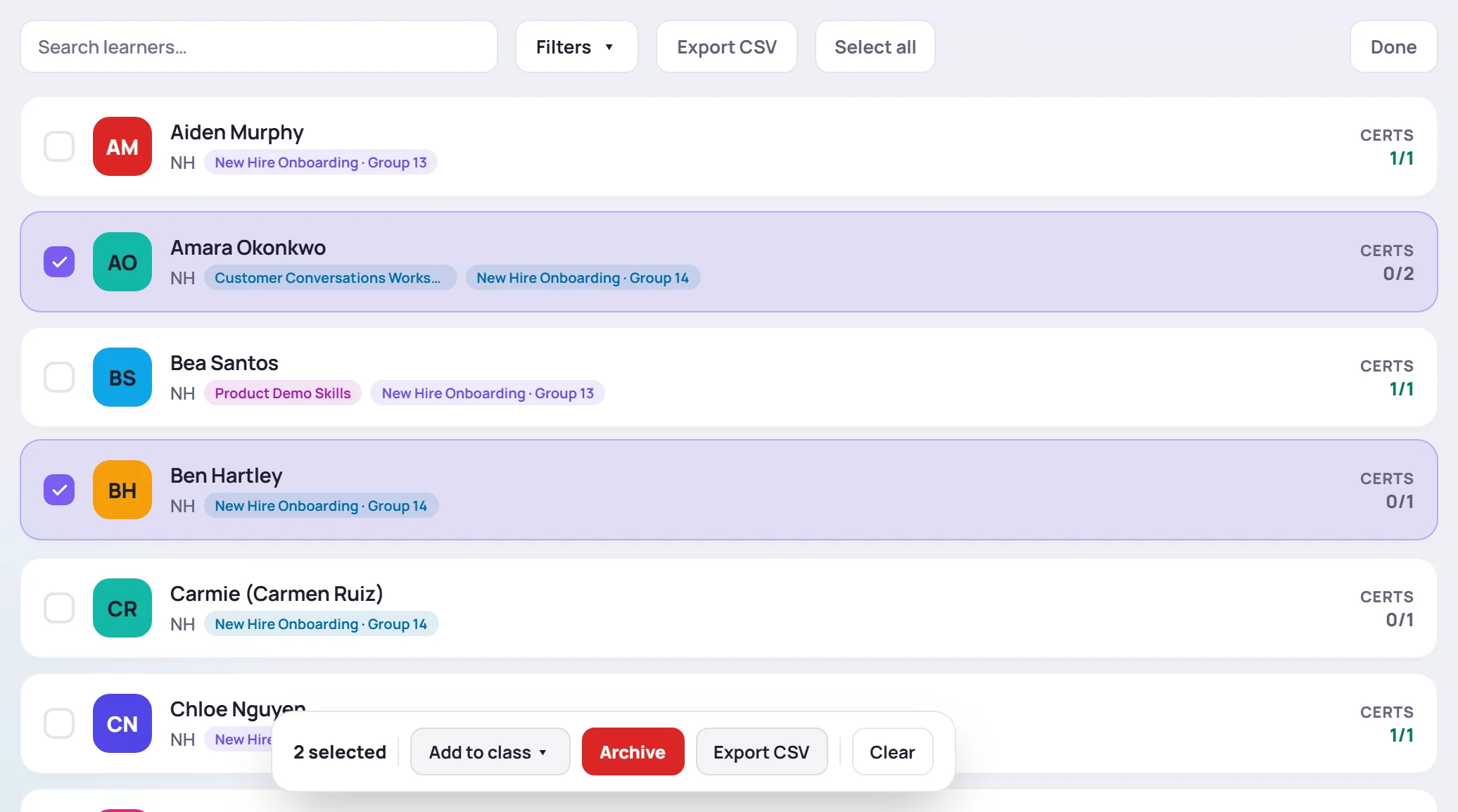
- Add to class enrolls everyone you selected in a class you choose. Only classes you can edit are listed, and anyone already in that class is skipped.
- Archive takes them off every active class roster. Their history stays. If you don't lead every active class they're in, the button is replaced by a note saying so.
- Export CSV downloads the selected learners.
- Clear empties the selection.
Click Done when you've finished.
Export the list
Export CSV in the toolbar downloads everyone the current search and filters show, not only the rows on screen. The file has one row per learner with their Name, Role, Flag, Classes, Status (Active or Archived), Certs earned and Certs total. Private context is never included. See Export to CSV.
Common questions
Why don't I see everyone? Check the count line above the list. It tells you when a search or filter is hiding learners, and when archived learners are hidden.
Can I add a learner from here? Yes. Click Add learner at the top right. See Add learners.
What's the difference between this and Manage → Learners? Admins also have a learner list under Manage. It has the same search and filters, plus the duplicate check, merging, archiving and deleting. See Merge duplicate profiles.