Use the parking lot
Park a learner's question you can't answer on the spot, find an answer later, and tell the class once you have it.
Your words may differ. Each workspace can choose its own words: a class might be a cohort, program or group, a learner a participant, trainee or new hire, a session a module or lesson. These guides use the default words. The steps are the same whatever your workspace calls them. Change your workspace's words
A learner asks something you can't answer right now. Instead of losing it in your notes, park it. Every class has a parking lot: a list of its learners' questions that you come back to, answer, and then share with the class. It works on every plan.
Park a question during a session
On the session screen, click Question in the note box. Type the question and press Enter. Question added to the parking lot confirms it.

- Who asked. Type
@and pick the learner, as you would in a note. The question is linked to them. - Which topic. If you're writing in one of the class's note topics, the question is filed under that topic, which helps the next trainer who teaches it.
- Class-wide. A question parked while you're viewing the class-wide notes belongs to the class rather than to the day's session.
A parked question doesn't appear in your notes. It goes straight to the parking lot.
The Parking lot chip
When the class has questions waiting, a Parking lot chip appears above the session's notes, with a count. Click it to open the list.
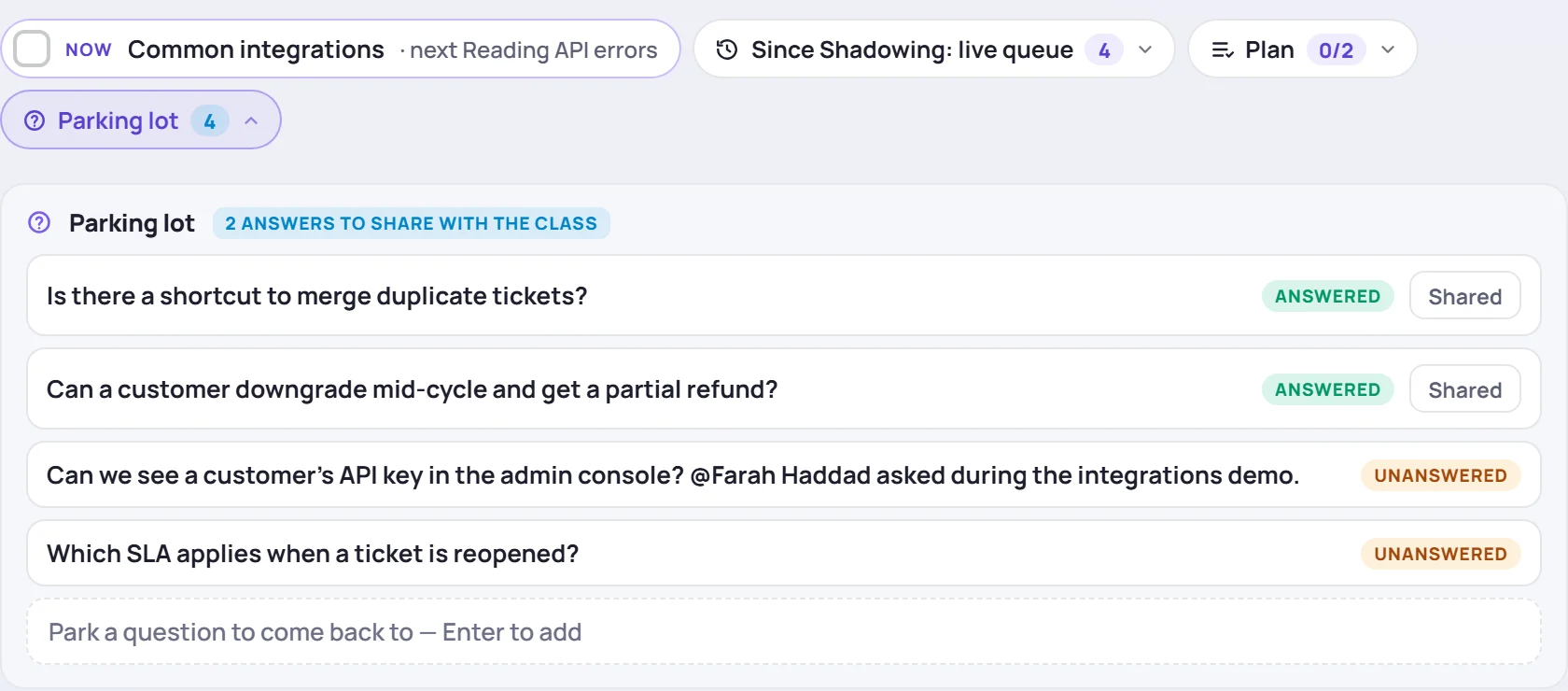
It shows up to six of the class's unanswered and answered questions, answered ones first. See all … in the class opens the rest. You can park another one in the box at the bottom: type it and press Enter.
In live mode
Live mode keeps the parking lot on the right. Press Q to jump to its box, type the question and press Enter. You never leave the lesson.
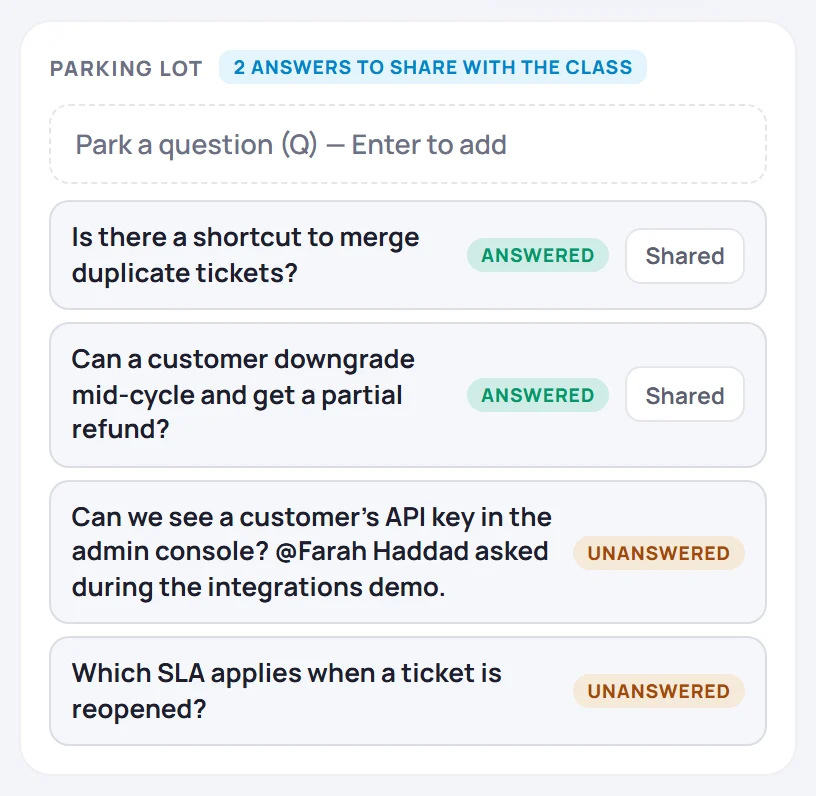
The class's Questions tab
Every question the class has parked lives on the class's Questions tab. The number on the tab counts the questions that are still unanswered or waiting to be shared.
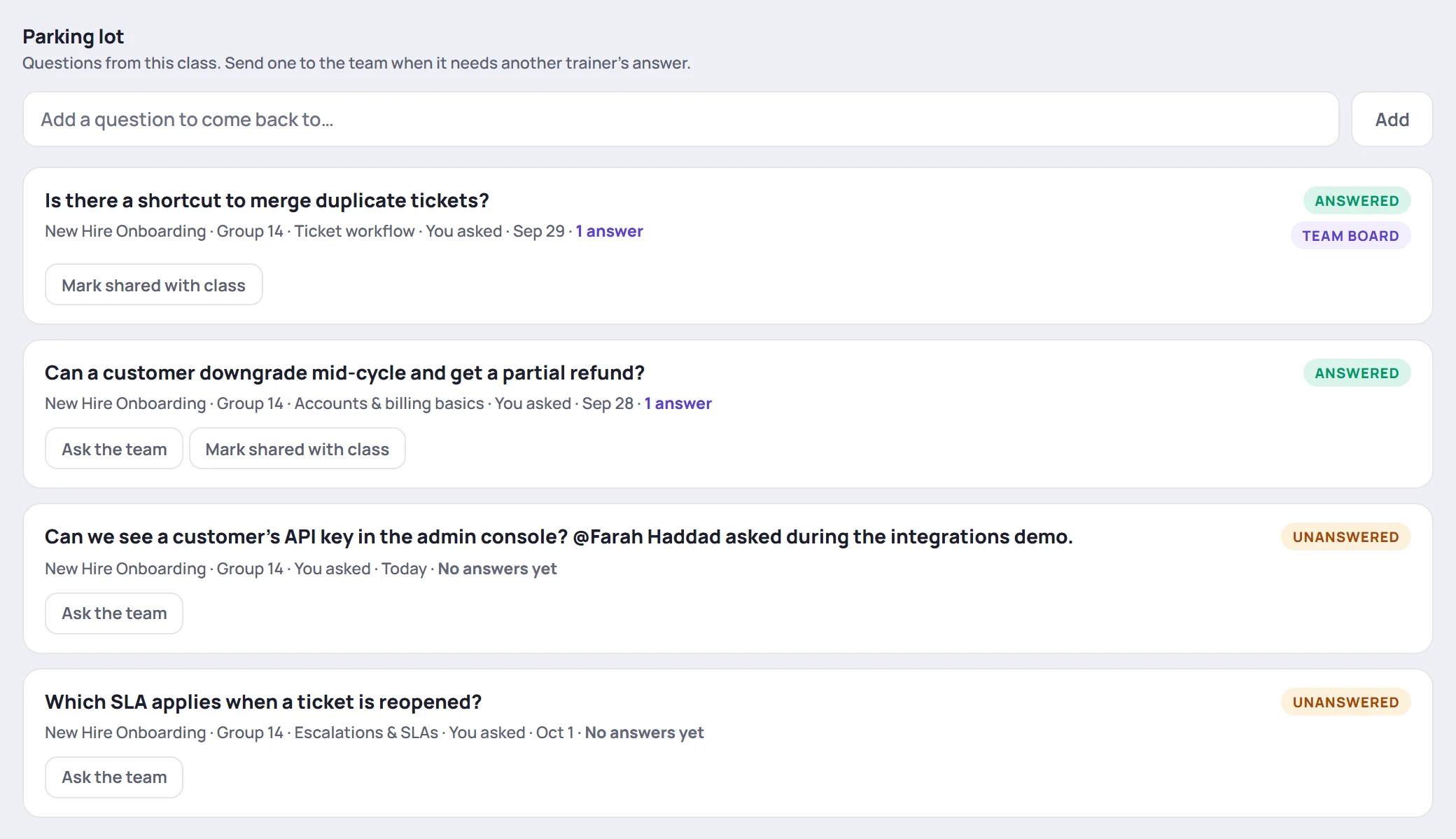
Each question shows who asked it, when, its topic and how many answers it has. Answered questions come first, because those are the ones to pass on. You can also add a question here: type it in Add a question to come back to… and click Add.
Click any question to open it, read its answers, or answer it yourself. See Answer, accept and share.
What the statuses mean
| Status | Means |
|---|---|
| Unanswered | Nobody has answered yet, or no answer has been accepted. |
| Answered | An answer has been accepted. It's ready to share with the class. |
| Shared with class | You've told the class the answer. |
| Closed | Put aside, for example because it no longer applies. |
A question can also carry Team board, which means it has been sent to the whole team.
Get help from the team
If you don't know the answer, click Ask the team on the question. It moves to the Questions board, where every trainer and Supervisor can answer it. It stays in your class's parking lot too. The Questions board is on the Team and Business plans.
Before you park something new, watch for Already asked? under the parking-lot boxes (on the session's panel, the Questions tab and in live mode). Once you've typed a few words, Skovrum lists up to three answered questions worded the same way. Click View answer → to read one. If it already covers it, you don't need to park it.
Close the loop
Once a question is answered, tell the class and click Mark shared with class on the question (or Shared in the session's and live mode's lists). It leaves the to-do pile but stays on the Questions tab.
Skovrum reminds you in a few places:
- Wrap-up. When you wrap up a session, a Parking lot row counts the answers to share and the questions still waiting. Review opens the Questions tab.
- The bell. You get a New answer to your question notification when someone answers one you asked.
- The sidebar. On the Team and Business plans, the Questions item shows how many questions are waiting in class parking lots, or ! when an answer to one of your questions is ready to share.
- The daily email. Answers to your questions are included in the daily email if you've turned it on.
Common questions
Can learners see the parking lot? No. Learners never sign in to Skovrum. Telling the class the answer is up to you.
What happens to the questions if the class is deleted? The class's own questions are deleted with it. Questions that were sent to the team stay on the Questions board, without the link to the class.
Is there a limit on length? A question can be up to 500 characters.