Choose a plan and reserve or buy
Compare Solo, Team and Business, pick an address for your workspace, and reserve it or pay for it on skovrum.com.
Your words may differ. Each workspace can choose its own words: a class might be a cohort, program or group, a learner a participant, trainee or new hire, a session a module or lesson. These guides use the default words. The steps are the same whatever your workspace calls them. Change your workspace's words
Every team gets its own Skovrum workspace, with its own address such as brightwater.skovrum.com. You choose a plan and that address on skovrum.com, and you become the workspace's first Admin. Filling in the form takes about a minute if you know how many trainers will write in Skovrum.
Not sure yet? Try the demo first. It's a sample training team you can click through, with nothing to install.
Compare the plans
Go to skovrum.com/pricing. Each plan has a card, and a full comparison table sits underneath.
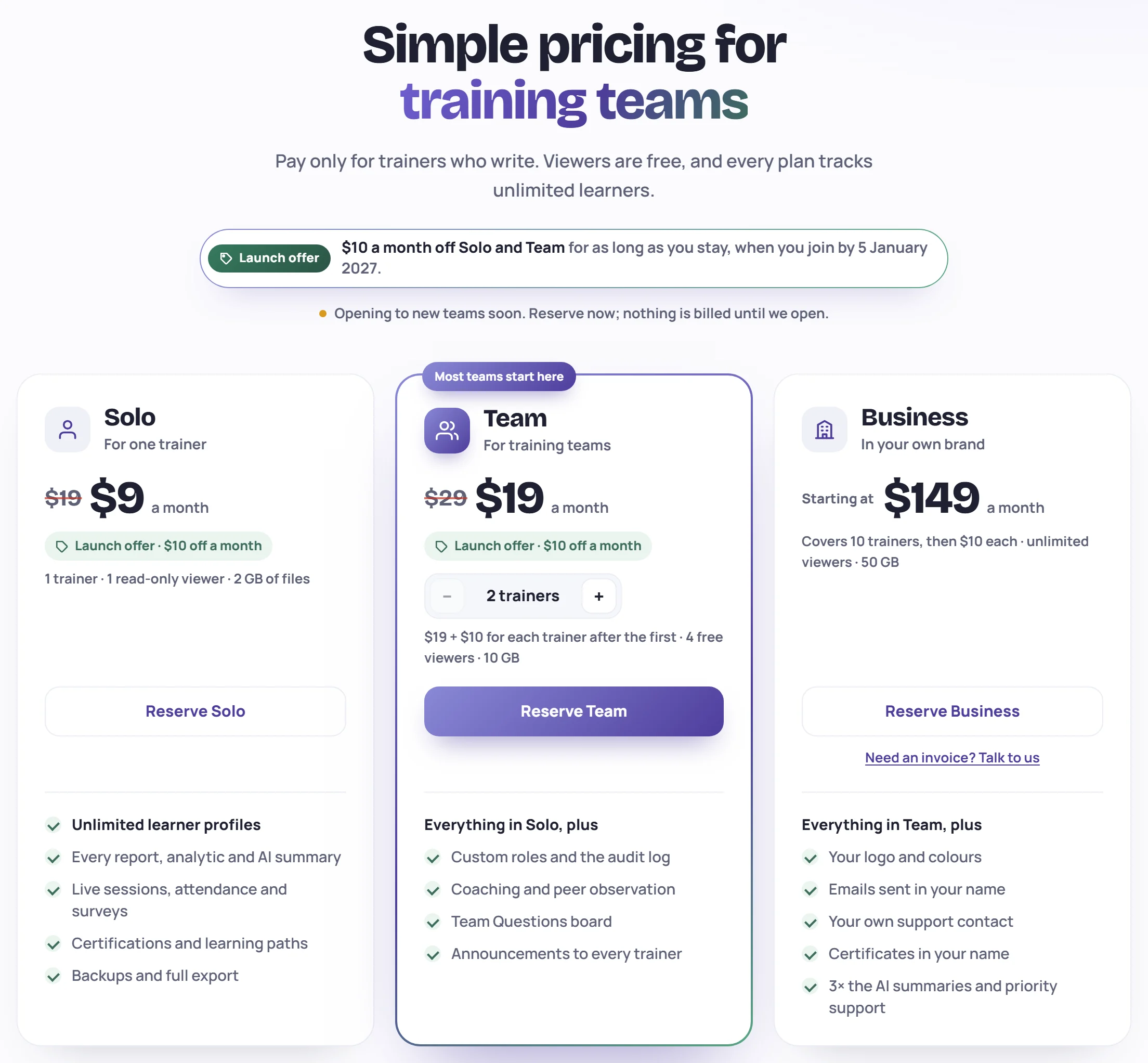
| Solo | Team | Business | |
|---|---|---|---|
| Price a month | $19 | $19, plus $10 for each trainer after the first ($29 for two) | From $149, which covers 10 trainers, then $10 for each trainer in use |
| Trainers | 1 | 2 or more | 10 included, then as many as you need |
| Read-only viewers | 1 | 2 per trainer | Unlimited |
| File storage | 2 GB | 10 GB | 50 GB |
| Adds | Every report, analytic and AI summary | Custom roles, the audit log, coaching and peer observation, the team Questions board, announcements | Your logo and colors, emails sent in your name, your own support contact, certificates in your name, 3× the AI summaries, priority support |
Prices are in US dollars a month, before tax, billed monthly. You can cancel at any time. Every plan tracks unlimited learners, because learners never sign in and never use a seat. For what each feature does, see Plans and features.
Who counts as a trainer
You pay for the people who write in Skovrum: trainers, training leads and Admins. People who only read, such as a manager checking reports, are read-only viewers and are free up to your plan's allowance. See Seats and viewers.
On the Team card, use + and − to set the number of trainers. The price, the free viewers and the link to the next step update as you go. From 10 trainers, the card also tells you how much more Business would cost at that size. For more than 50 trainers, talk to us.
The launch offer
Join by 5 January 2027 and you pay $10 a month less on Solo or Team for as long as your subscription lasts:
- Solo is $9 a month instead of $19.
- Team is $19 a month instead of $29 for two trainers, plus $10 for each trainer after that, as usual.
If you reserve a workspace before that date, the offer is kept for you until you pay, even if that's later. Business isn't part of the offer. After the date, the pages show the usual prices on their own.
Fill in your workspace
Click the button on the plan you want. It opens skovrum.com/start with that plan already chosen. You can still switch between Solo, Team and Business at the top.
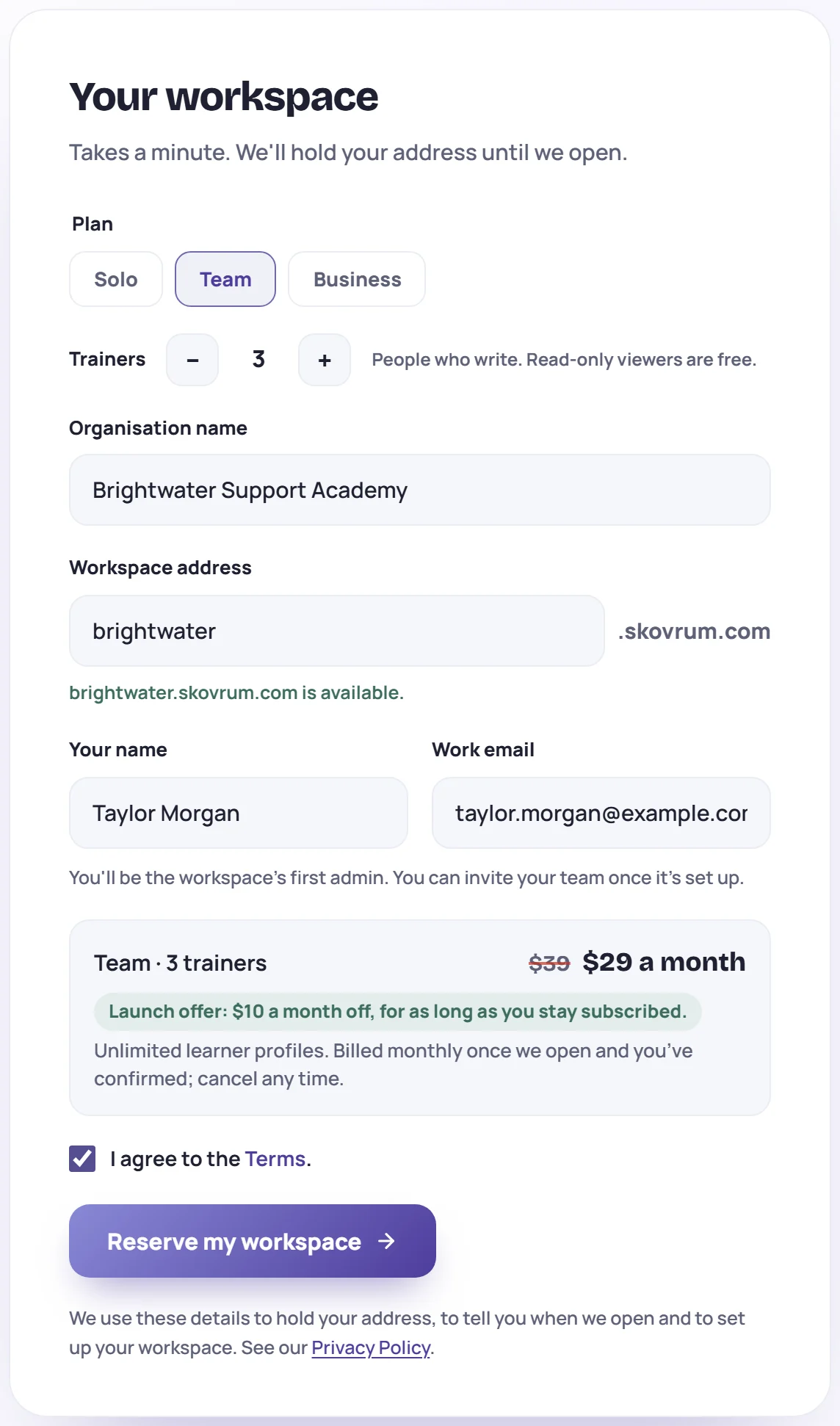
- Plan, and Trainers if you chose Team. These are the people who write. Read-only viewers are free.
- Organisation name, such as Brightwater Support Academy. Your workspace starts with this name.
- Workspace address. Skovrum suggests one from your organization's name and checks it as you type. Use lowercase letters, numbers and dashes, up to 40 characters, starting and ending with a letter or number. When it's free you'll see, for example, brightwater.skovrum.com is available. If it says That address is taken, try another.
- Your name and Work email. You'll be the workspace's first Admin, and this is where your invitation goes. You can invite your team once the workspace is set up.
- Check the summary. It shows the plan, the trainers and the price a month, with the launch offer if it applies.
- Tick I agree to the Terms, then click the button at the bottom.
Reserve, or pay now
What the button does depends on whether Skovrum is taking payments for your plan yet.
If the button says Reserve my workspace
Skovrum is opening to new teams soon, so this reserves your plan and address. Nothing is set up and nothing is billed.
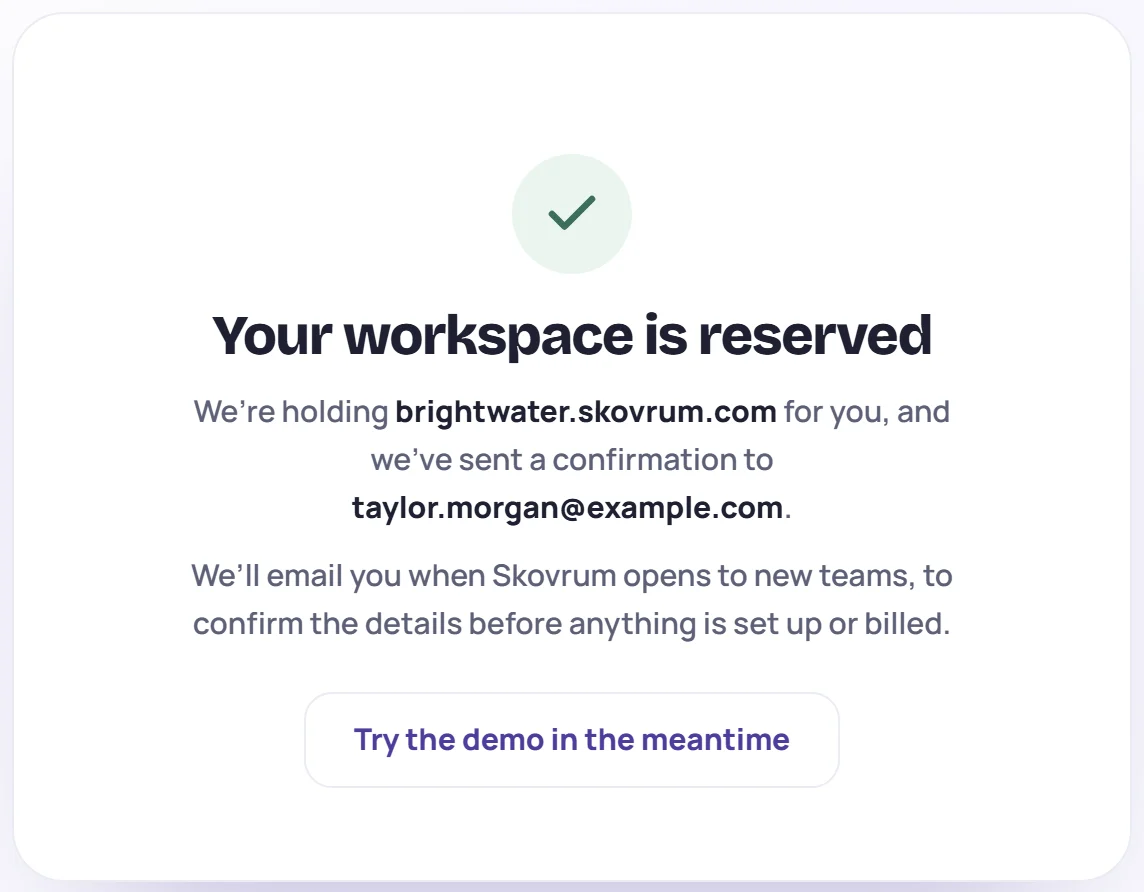
You'll see Your workspace is reserved, and a confirmation email titled Your Skovrum workspace is reserved arrives with your plan and price. Your address is held for you. When Skovrum opens, you get an email to confirm the details and pay. See Confirm a reservation and pay.
If the button says Continue to payment
You pay by card on a secure payment page. The form says You'll pay securely on Stripe's page. Billing starts that day, plus any tax.
- If you go back without paying, you return to the form with your details still filled in, and Payment cancelled, and nothing was charged. Nothing was set up.
- Once you've paid, a page shows Your workspace is being built and ticks off Payment received, Creating and deploying your workspace, Sending your invitation and Ready. It's usually ready within a few minutes. You can close the page, because you'll get an email either way.
When it's ready, check your email for your invitation and set your password. See Accept your invitation.
Common questions
Can I change plan or trainers later? Yes, up or down. Moving to a smaller plan never deletes anything. See Billing and Plans and features.
What happens to my data if we cancel? It's yours. An Admin can export everything or download a full backup at any time. When a subscription ends, the workspace is paused, and Admins can still sign in and download everything for 30 days. See Paused or cancelled workspaces.