The session screen
A tour of the screen you teach from: the session header, the toolbar, the brief chips, your notes and the roster.
Your words may differ. Each workspace can choose its own words: a class might be a cohort, program or group, a learner a participant, trainee or new hire, a session a module or lesson. These guides use the default words. The steps are the same whatever your workspace calls them. Change your workspace's words
The session screen is where you spend a training day. It shows one session of one class: what was planned, what carried over from last time, the notes you take, and the learners in the room. Everything you record here is filed under that session and its class.
Open a session
There are several ways in:
- Click Session Notes in the sidebar. It opens the session you last had open, or today's.
- On Today, click Open session in the top right.
- Click a session on the Calendar.
- Press Cmd/Ctrl+K and type the session or class name.
Once you're on a session, press J for the class's next session and K for the previous one.
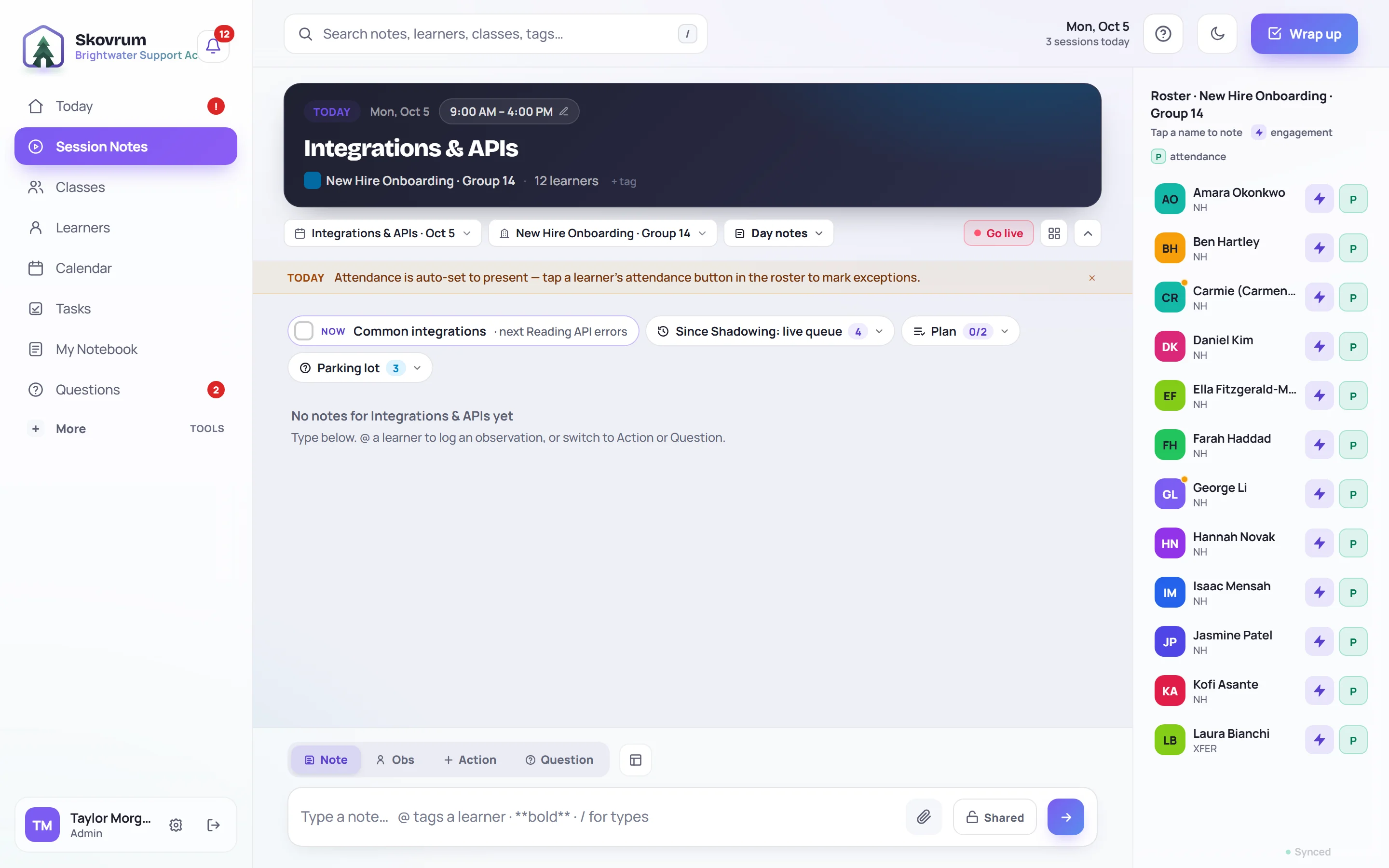
The session header
The dark card at the top names the session and its class.
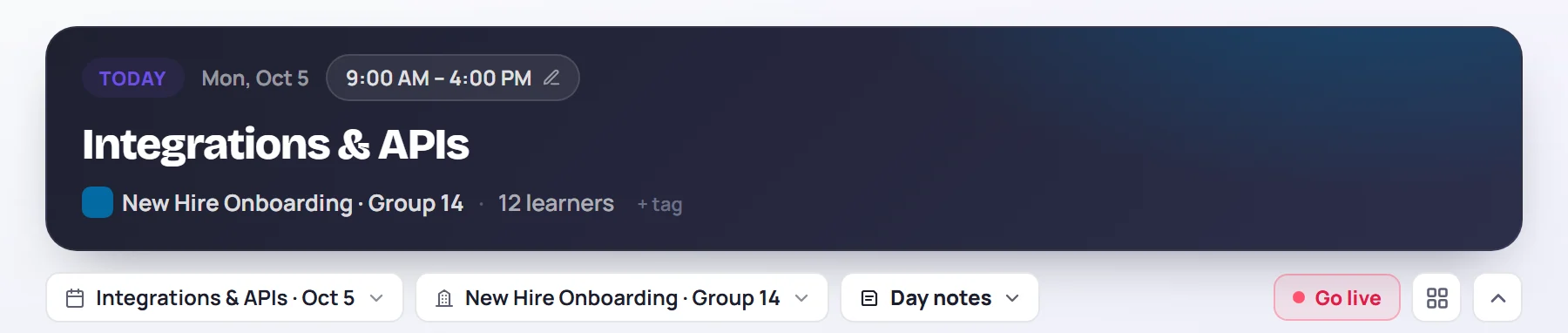
- The status badge says where the session sits in time: TODAY, UPCOMING or PAST SESSION.
- The time (for example 9:00 AM – 4:00 PM) opens a small form where you can change this session's date, start and end time. Changes apply to this session only; the class's other days keep their times. See Reschedule sessions.
- The class name and the number of learners in the session.
- + tag adds a tag to this session only. Click a tag to search for it, or × to remove it.
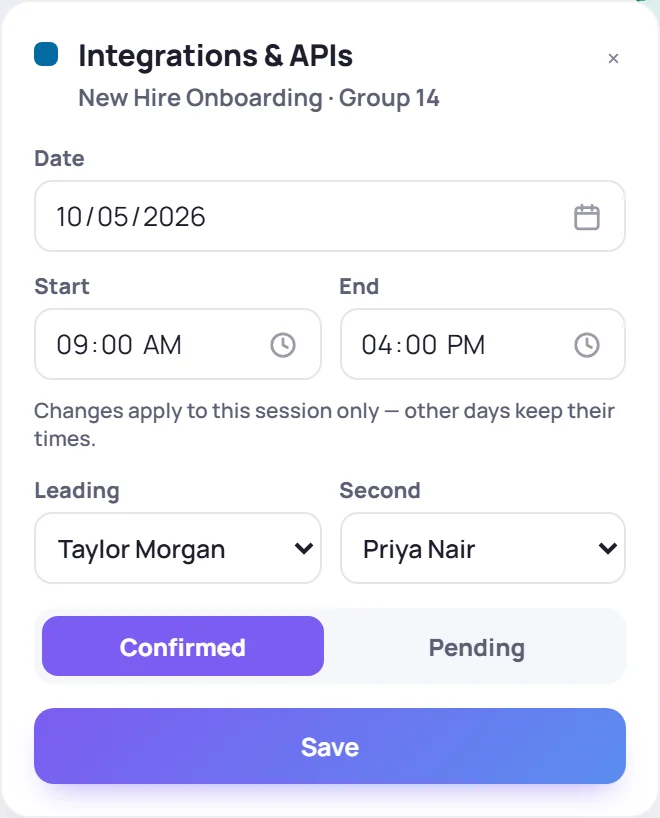
The schedule form also has Confirmed and Pending, for a session that isn't certain yet. If your role can assign trainers, Leading and Second change who runs this one day without changing the rest of the class.
The arrow at the right end of the toolbar collapses the header, which leaves more room for notes on a small screen. Click it again to bring the header back.
The toolbar
Under the header, one row tells you where you are and holds the session's buttons.
| Control | What it does |
|---|---|
| The day (Integrations & APIs · Oct 5) | Switch to another session of the same class. |
| The class | Switch to another class. Archived classes are listed separately at the bottom. |
| Day notes | Choose which notes you're reading and writing: this session's, the class-wide notes, or a note topic. See Take notes during a session. |
| Go live | Teach full screen in live mode. The L key does the same. |
| Observe | Shown on sessions you don't lead, for writing a peer observation. |
| Session tools (the four squares) | Opens a row of tools, below. |
Session tools
Click the four-squares button to open the tools:
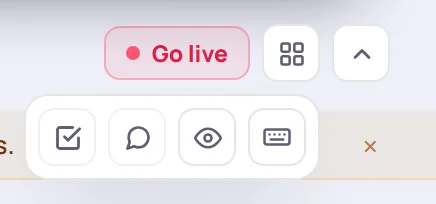
- Wrap up runs the end-of-session checklist. The icon turns green once you've wrapped up. See Wrap up a session.
- Survey links shares a feedback survey for this session. See Share a survey link.
- The eye hides your private notes on this screen, which is handy when you're sharing your screen. A dot on the four squares reminds you they're hidden. Click the eye again to show them.
- The keyboard opens the list of keyboard shortcuts.
The Wrap up button in the top right of the page opens the same checklist.
The brief: what needs you today
Above your notes, a row of chips sums up what's waiting. A chip only appears when it has something in it, and only one opens at a time. Click a chip to open its panel and click it again to close it.

| Chip | What it shows |
|---|---|
| Now | While the session is running, the first topic you haven't checked off, and the one after it. Tick the box to mark it covered. |
| Since (previous session) | What the class's previous session left behind: open follow-ups, learners to keep an eye on, notes for this session, answers to share and unfinished topics. See Since last session. |
| Plan | This session's topics and how many are covered. See Today's topics. |
| Parking lot | The class's open questions. See Use the parking lot. |
Before the session starts, the Since panel opens by itself if anything carried over. When there's nothing to show, the row says so in a quiet line instead, such as Nothing carried over, First session of this class or No topics planned. If you can edit the class, No topics planned comes with a Plan topics link to the class's Curriculum tab.
On today's session, a banner reminds you that attendance starts at Present. Close it with × once you've read it.
Notes
The middle of the screen lists the notes for the day, in the order they were written. The box at the bottom is where you write them: notes, observations, action items and questions for the parking lot. Everything about writing notes is in Take notes during a session.
Below the notes, Topics from this day links to any note topics that have notes on this day.
The roster
The right-hand column lists the learners in this session. Learners who joined the class after this date, or left before it, aren't listed.
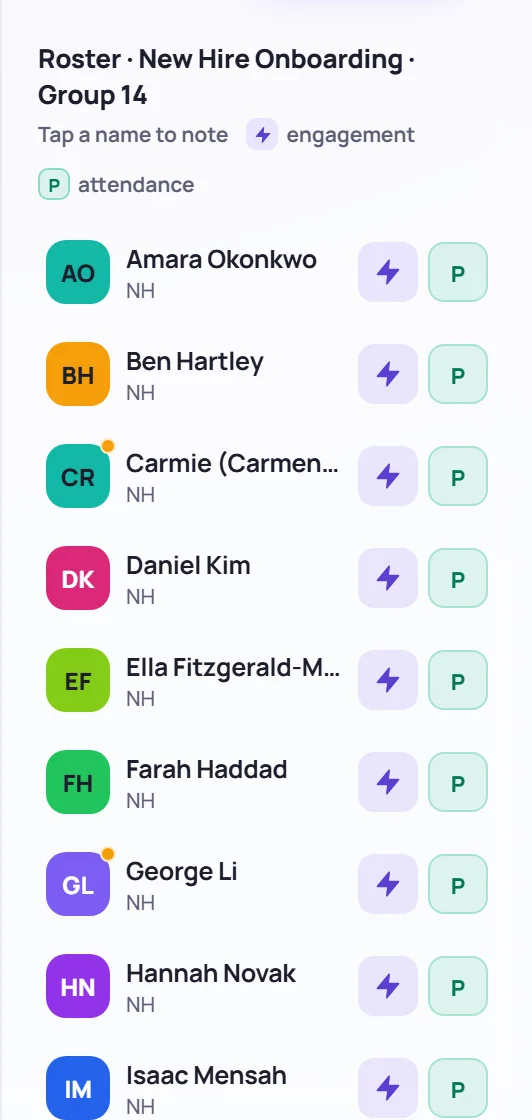
Each learner has:
- Their initials. Click them to open the learner's recent observations and to-dos. An amber dot means they have open to-dos. See Engagement, to-dos and history.
- Their name. Click it to start an observation about them in the note box.
- The lightning bolt. Each click records one engagement tap.
- The attendance button, P for Present to begin with. Click it to mark an exception or give a daily progress rating. See Take attendance.
On a phone, the roster sits in a drawer above the note box. Tap it, or drag it up, to open it.
Class-wide notes
Choose Class-wide notes from the Day notes menu for notes that belong to the whole class rather than one day, such as a seating plan. The header then says Class-wide, the attendance buttons disappear from the roster, and below the notes Notes from this class links to each day and topic that has notes.
On a phone
The header shrinks to one line with the session name and time. Tap it to see the rest. Once the session has started, a Wrap up button rides on that line until you've wrapped up.
Common questions
Why can't I write anything on this session? You can write only on sessions you lead or co-lead, unless you're an Admin. Read-only roles can't write at all. Ask an Admin to add you to the session or the class.
The session I want isn't in the day list. The day list shows the sessions of the class that's selected. Pick the other class first, then its day.
Can I change the time of just one day? Yes. Click the time in the header, change it and click Save. The other days of the class keep their times.