For managers and supervisors
How team leads and read-only viewers keep an eye on every class through reports, analytics, renewals and learner profiles.
Your words may differ. Each workspace can choose its own words: a class might be a cohort, program or group, a learner a participant, trainee or new hire, a session a module or lesson. These guides use the default words. The steps are the same whatever your workspace calls them. Change your workspace's words
You lead a team of trainers, or you need to see how training is going without running it yourself. This page shows where to look, in a sensible reading order. Each step links to a full guide.
What your role lets you do
Most managers have one of two built-in roles:
- Supervisor can see every class, learner and report but can't change anything. It's read-only, with one exception: Supervisors can answer questions on the Questions board.
- Admin can see and change everything, including users and workspace settings.
Your workspace may also have a custom role made for managers, with its own mix of permissions. If something on this page is missing for you, see Why can't I see a feature?
1. Understand the building blocks
Read How everything connects first. It explains classes, sessions, learners and certifications, and where everything trainers record ends up. It takes about five minutes to read.
2. Read a class report
Every class has a report: attendance and progress, curriculum coverage, observations by competency, certification results and session notes, with an optional AI-written summary. Open a class and click Export report. See The class report.
Reports never include anyone's private notes.
3. Look across classes with Analytics
Analytics (under More in the sidebar) compares every class over a week, month, quarter or year: pass rates, scores, attendance, ratings and survey results. Filter by class type or trainer.
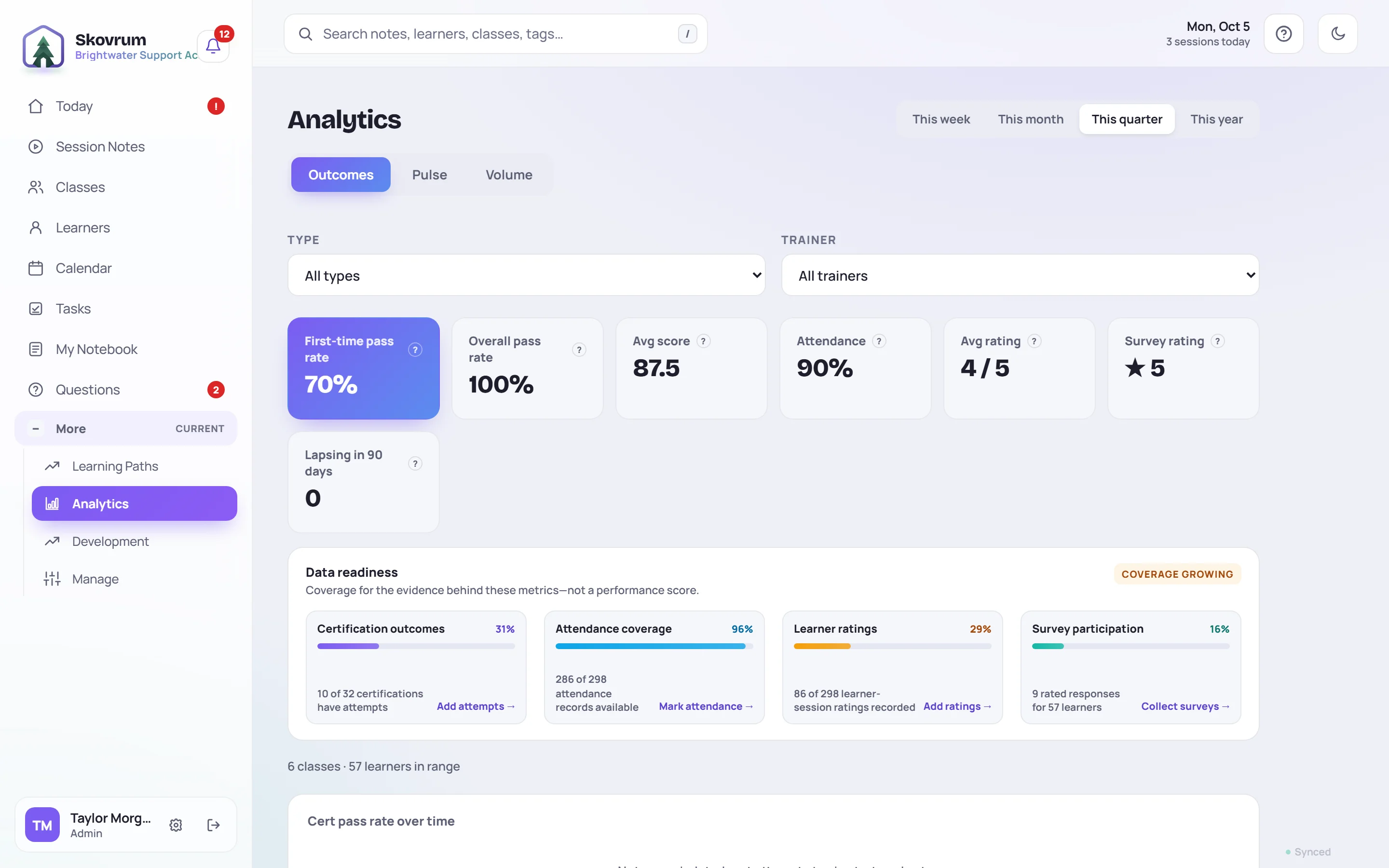
Data readiness under the headline numbers shows how complete the records behind them are, so you know how far to trust them. See Analytics.
4. Keep certifications current
Learners → Renewals lists every certification that has an expiry date. Filter by Expired, Within 30 days, Within 60 days, Within 90 days or All.
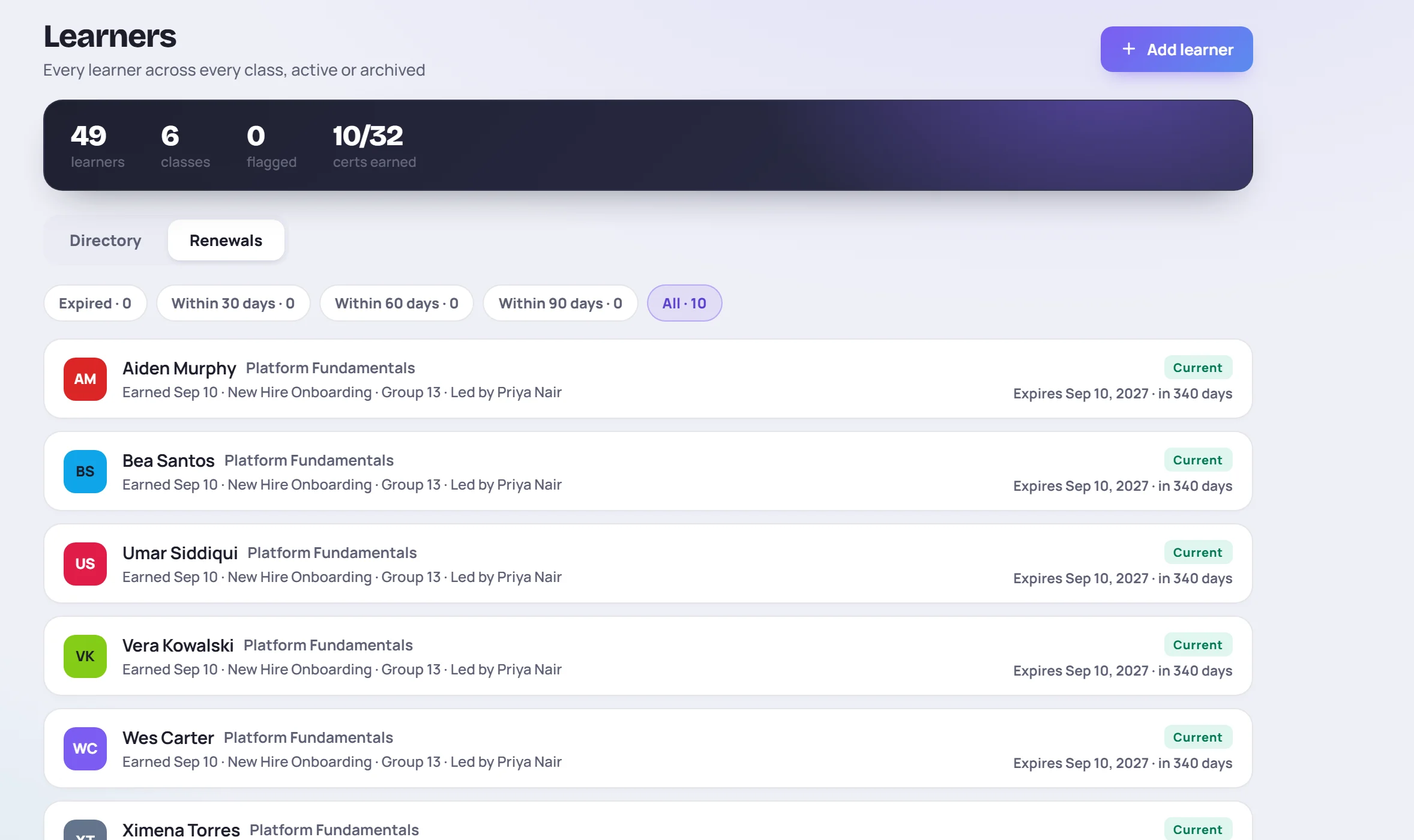
Renewals coming up also appear on Today and under the bell. See Track renewals.
5. Look up a learner
Click any learner's name to open their profile: their classes, observations and ratings, attendance, scores, certificates and what they've missed, all in one place. The Timeline tab lists everything that happened to them in order. See The learner profile.
When a learner moves to a new team, a handoff packet gives their new manager a one-page summary.
6. Answer your trainers' questions
On the Team and Business plans, the Questions board collects questions trainers couldn't answer in class. Answering them builds a shared FAQ for each topic. See The Questions board.
7. Coach your trainers
If you coach the trainers themselves, Development keeps each trainer's development profile: coaching notes, quarterly reviews, reviews of practice and live training, and peer observations. It's on the Team and Business plans, for roles that can coach trainers. See Trainer development.
Stay up to date without logging in
- The daily email can send you a morning summary, including renewals and learners who need attention.
- The calendar feed puts sessions in your own calendar.
- Export to CSV when you need the numbers in a spreadsheet.