Learning paths
String courses and certifications together into a longer journey, assign learners to it, and watch their progress fill in by itself.
Your words may differ. Each workspace can choose its own words: a class might be a cohort, program or group, a learner a participant, trainee or new hire, a session a module or lesson. These guides use the default words. The steps are the same whatever your workspace calls them. Change your workspace's words
A learning path is an ordered set of courses and certifications that someone works through over time, such as everything a new support specialist does in their first year. Nobody ticks anything off by hand: progress fills in from the classes learners have taken and the certifications they've passed, including ones from before the path existed.
The Learning Paths screen
Click More in the sidebar, then Learning Paths. Each path shows how many steps it has, how many learners are on it and how many have finished.

Click a path to open it.
Create a path
- Click New path.
- Give it a Name and, optionally, a Description of who it's for and what it leads to.
- Add the steps with + Course and + Certification, and choose one from the list for each. The lists come from your workspace's catalog, so a course or certification has to exist there first.
- Each step starts as Required. Click it to make it Optional. Optional steps show on the path but don't hold up finishing it.
- Put the steps in order with the ↑ and ↓ arrows, or remove one with ×.
- Click Save.
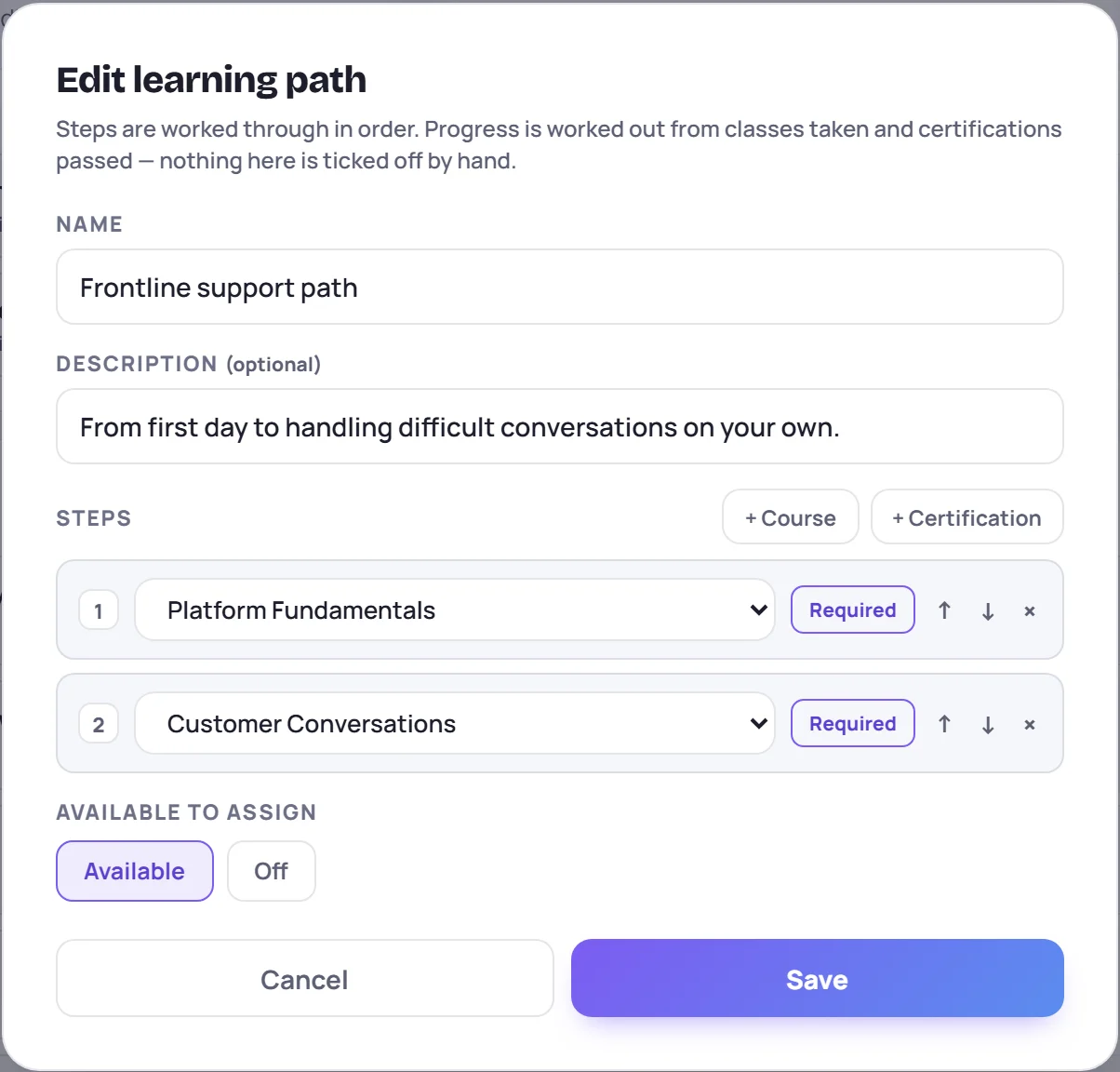
The order is the order you'd suggest to a learner. Skovrum counts a step as soon as it's done, whatever order it happened in.
To change a path later, open it and click Edit.
When a step counts as done
| Step | Done when the learner… |
|---|---|
| Course | was in a class of that course that has ended, and didn't leave before the end. Being in a class that's still running doesn't count yet. |
| Certification | passed that certification in any class. See Record scores. |
A learner has finished a path when every required step is done. Once a learner has finished, they stay finished, even if a record changes afterwards. For example, if a class is later unlinked from its course, the path still shows Finished, with record kept beside it.
Assign learners
- Open the path and click Assign learners.
- Search for people and tick them, or click a class under Or add a whole class roster to tick everyone in it.
- Click Assign.
Trainers can assign learners from the classes they lead. Anyone else they pick is skipped, and the message says how many. Learners already on the path are left as they are.
Follow progress
The path's page lists its steps, then everyone on it.
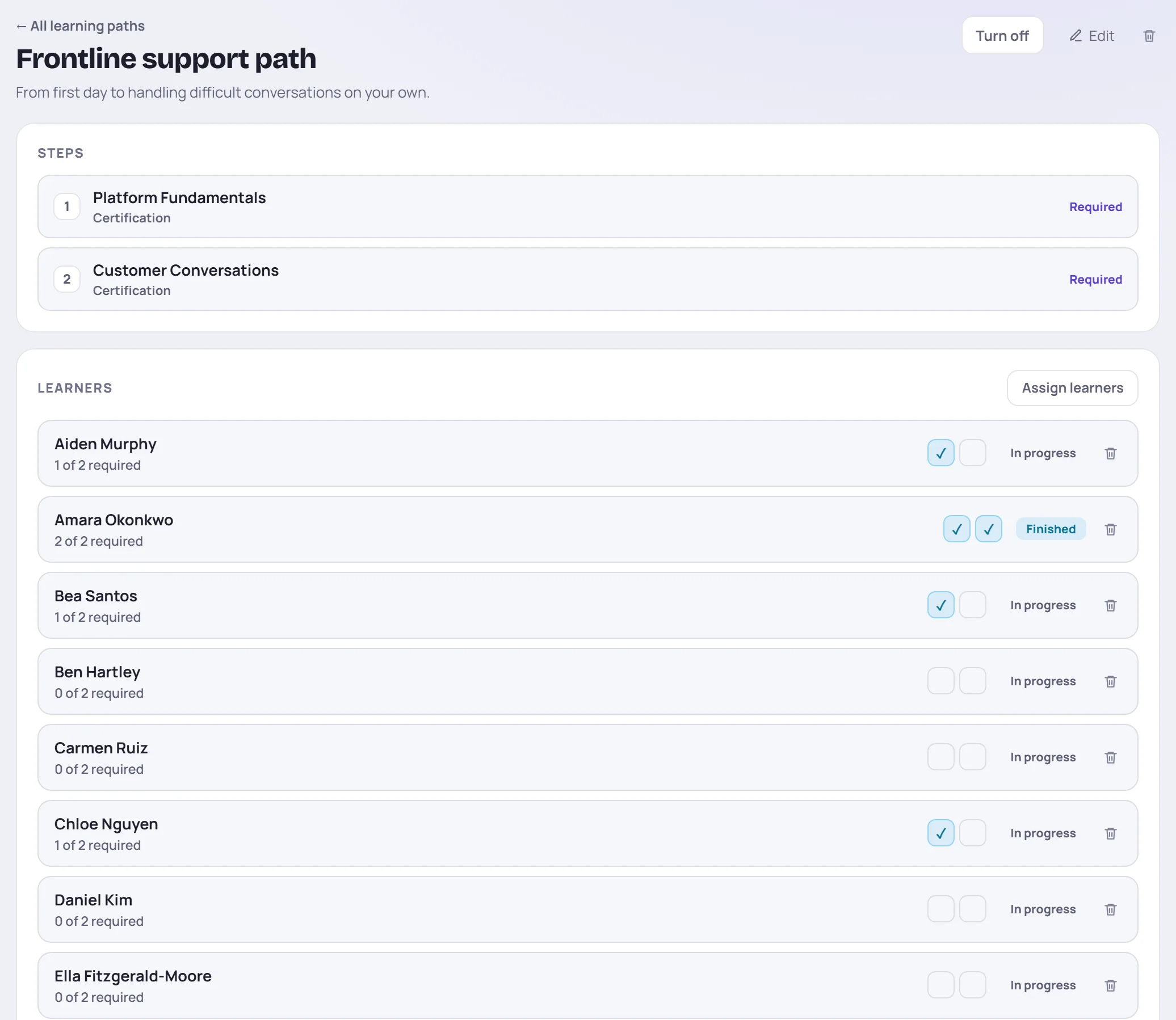
For each learner you see N of N required, a box per step (ticked when it's done) and In progress or Finished. Hover over a ticked box to see what completed it, such as the score and date. Click a name to open the learner's profile.
To take someone off a path, click the trash icon on their row and confirm. Their class and certification history is untouched.
On the learner's profile
Every path a learner is on also appears on their profile, on the Timeline tab under Learning paths, with each step and how it was completed.
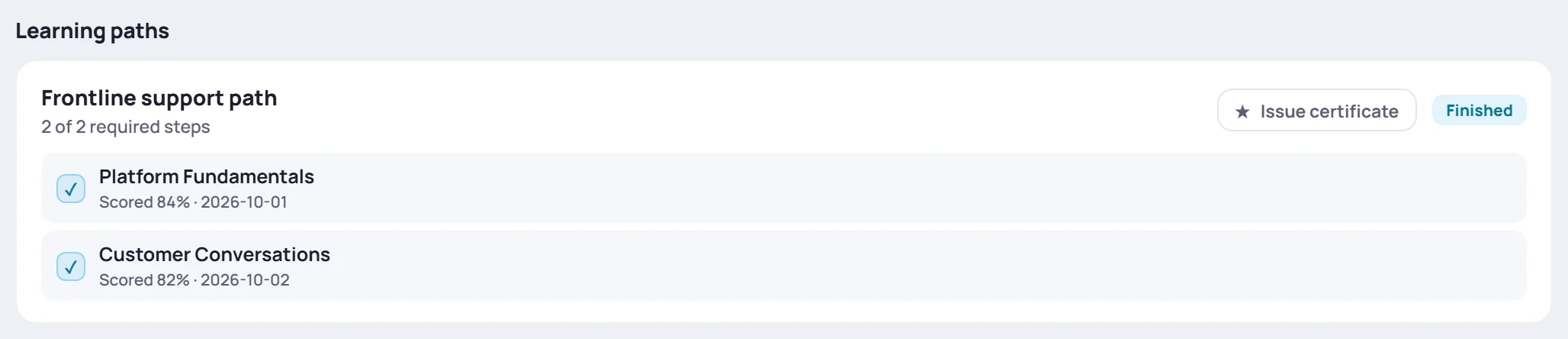
When they finish, Issue certificate prints a numbered certificate for the path, and the trainers of their most recent class on the path get a Path complete reminder in the bell. See Certificates. Finished paths are also listed in the learner's timeline and in their handoff packet.
Turn off or remove a path
- Turn off, on the path's page, marks the path OFF in the list. Learners already on it keep it and their progress. Click Turn on to bring it back.
- The trash icon at the top of the path removes it, but only once nobody is on it. Turn it off instead if people are still assigned.
Common questions
A learner passed the certification, but the step isn't ticked. The step counts passes on the catalog certification. If the class typed the name differently from the catalog, it isn't linked. See How certifications work.
The course step isn't ticked, but the learner was in the class. The class must be linked to that course and must have ended. Classes still running count once their last day has passed.
Can a learner be on more than one path? Yes. Each path tracks its own progress, and a pass or a class can count towards several paths at once.