Sign in and passwords
Find your workspace's address, sign in, reset a forgotten password, and what to do if you're locked out.
Your words may differ. Each workspace can choose its own words: a class might be a cohort, program or group, a learner a participant, trainee or new hire, a session a module or lesson. These guides use the default words. The steps are the same whatever your workspace calls them. Change your workspace's words
Each team has its own Skovrum workspace at its own address, such as brightwater.skovrum.com. You sign in there with your email and password. If you haven't set a password yet, start with your invitation email instead (see Accept your invitation).
Find your workspace
Your workspace's address is in your invitation email, next to Workspace. If you don't have it to hand, go to skovrum.com/signin:
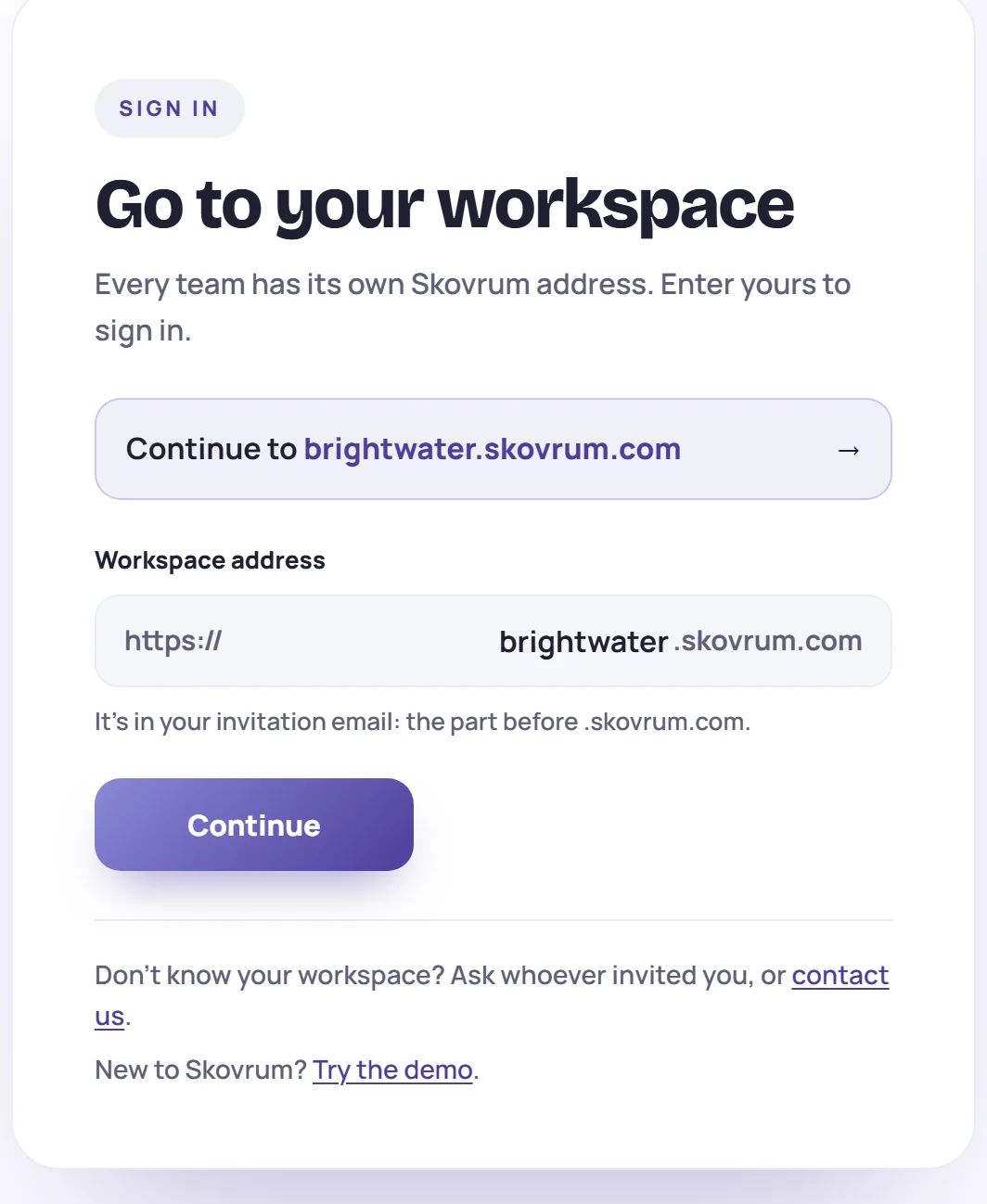
- Type your workspace's name in Workspace address. That's the part before .skovrum.com, such as brightwater.
- Click Continue. Skovrum takes you to your workspace's sign-in screen.
Next time, this browser remembers it: click Continue to and your workspace's address at the top. If Skovrum says We couldn't find a workspace called that name, check the spelling in your invitation email. Still stuck? Ask whoever invited you.
Sign in
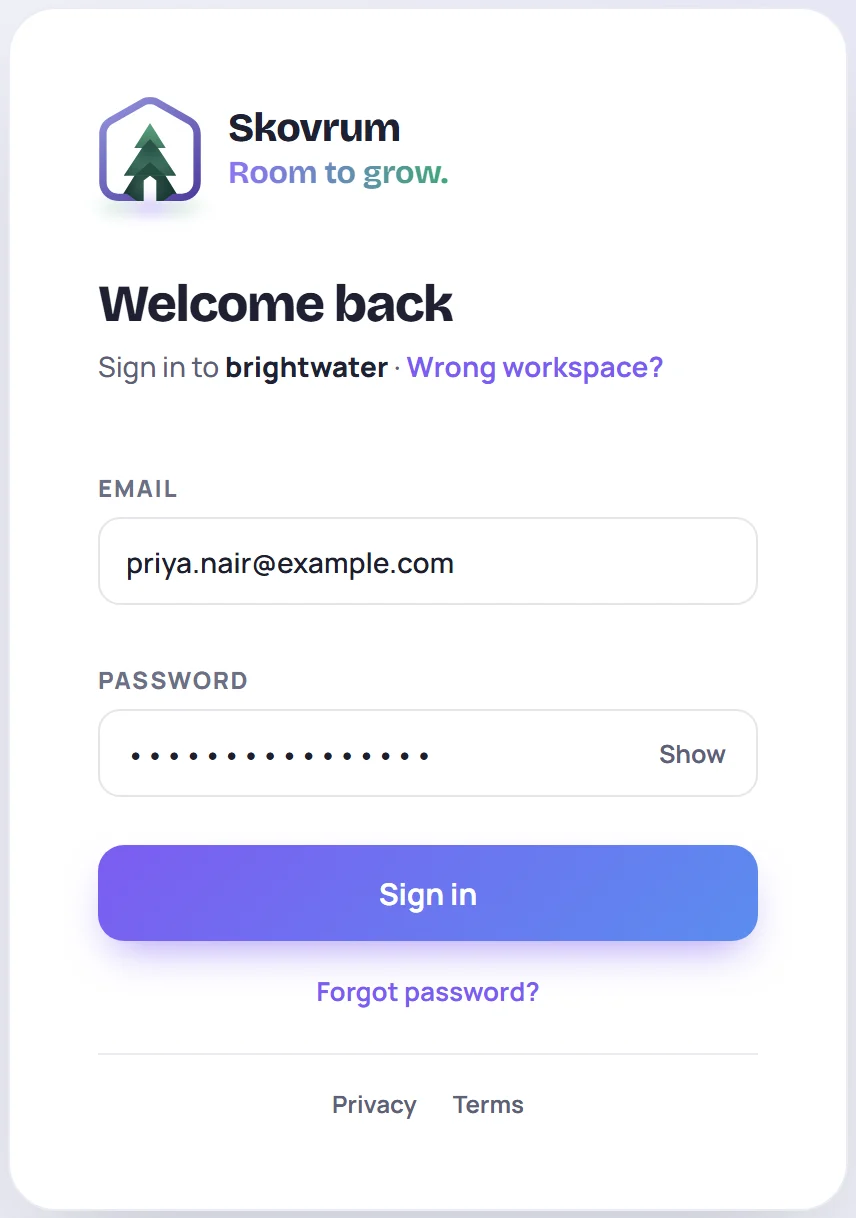
Enter your Email and Password and click Sign in. Show reveals the password as you type it.
The screen names the workspace under Welcome back, for example Sign in to brightwater. If that's not yours, click Wrong workspace? to go back to skovrum.com/signin.
You stay signed in on that browser for 30 days unless you sign out.
Forgot your password?
- On the sign-in screen, click Forgot password?
- Enter your email and click Send reset link.
- Open the email titled Reset your Skovrum password and click Reset password.
- On Choose a new password, type a new password of at least 8 characters twice and click Update password.
- Click Go to sign in and sign in with the new password.
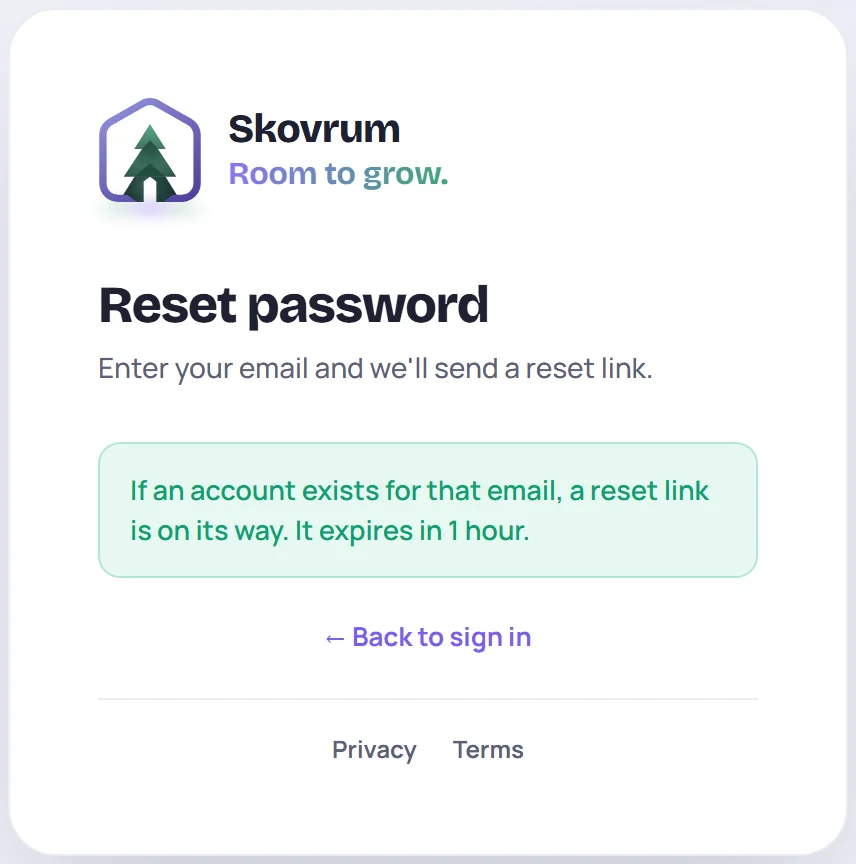
The reset link works for 1 hour and only once. For your security, Skovrum always says If an account exists for that email, a reset link is on its way, whether or not that email has an account. If nothing arrives, check your spam folder and that you used the email you sign in with. Skovrum sends at most three reset emails to one address in 15 minutes.
If the link has expired or was already used, the page says so. Click Email me a new link to start again.
Setting a new password signs you out on every other device and browser.
Locked out after wrong passwords
After 5 wrong passwords for one email within 15 minutes, Skovrum stops accepting sign-ins for that email for 15 minutes:
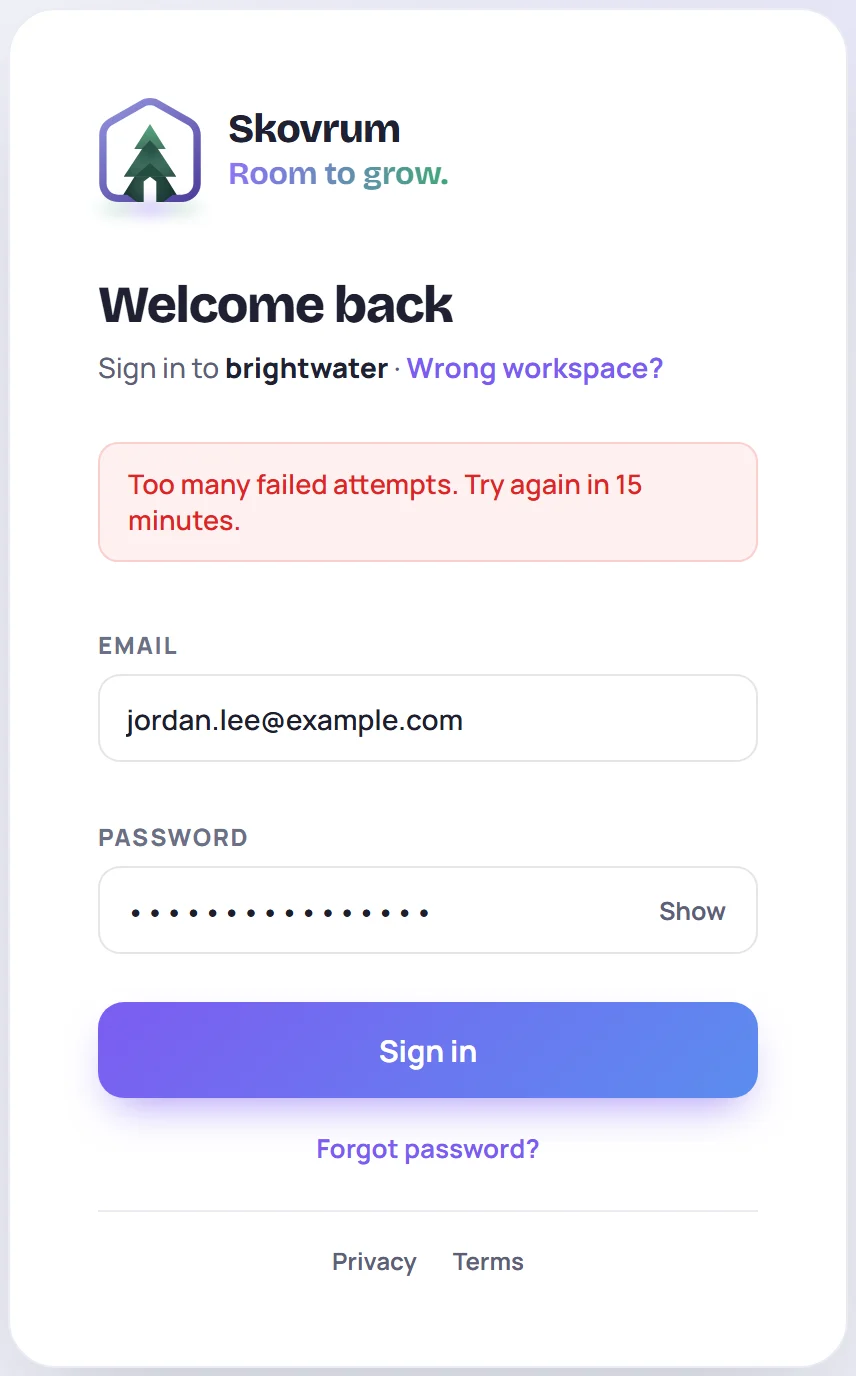
Wait for the time shown, then try again. During the wait, even the right password is refused, and resetting your password doesn't shorten it. Too many failed sign-ins from one network (20 within 15 minutes) pause that network the same way, whatever the email.
Other messages you might see:
| Message | What it means |
|---|---|
| Invalid credentials | The email or password is wrong. Check for typos, or reset your password. |
| This account has been deactivated. Contact an administrator. | An Admin has removed your access. Ask them. |
| This workspace is paused… | The workspace's subscription has ended. Admins can still sign in for 30 days to download its data. See Paused or cancelled workspaces. |
If Skovrum asks you to update your password
Sometimes Skovrum asks you to choose a new password right after you sign in. You'll see Update password with Current password, New password and Confirm password. Fill them in (at least 8 characters) and click Update password to carry on, or click Sign out.
Sign out
Click the sign-out button next to your name at the bottom of the sidebar. If you have changes that haven't synced yet, Skovrum asks you to wait until they have, so nothing is lost (see Working offline).
To sign out on every other device at once, for example after using a shared computer, use Sign out everywhere else in your account settings. See Your account settings.
Common questions
Can I sign in to two workspaces? Yes. Each workspace has its own address and its own account, and you sign in to each separately.
Do learners sign in? No. Learners never sign in to Skovrum. They only see the survey links you send them.