Find, filter and pin classes
Search the Classes screen, filter it by type, trainer and status, pin the classes you use most, and export the list.
Your words may differ. Each workspace can choose its own words: a class might be a cohort, program or group, a learner a participant, trainee or new hire, a session a module or lesson. These guides use the default words. The steps are the same whatever your workspace calls them. Change your workspace's words
Click Classes in the sidebar to see a card for every class you can see. Cards are sorted by start date, newest first, and archived classes are hidden.
Search and filter
Type in Search classes… to narrow the list. It matches a class's name, code, country, client or business unit, and tags. Click × to clear it.
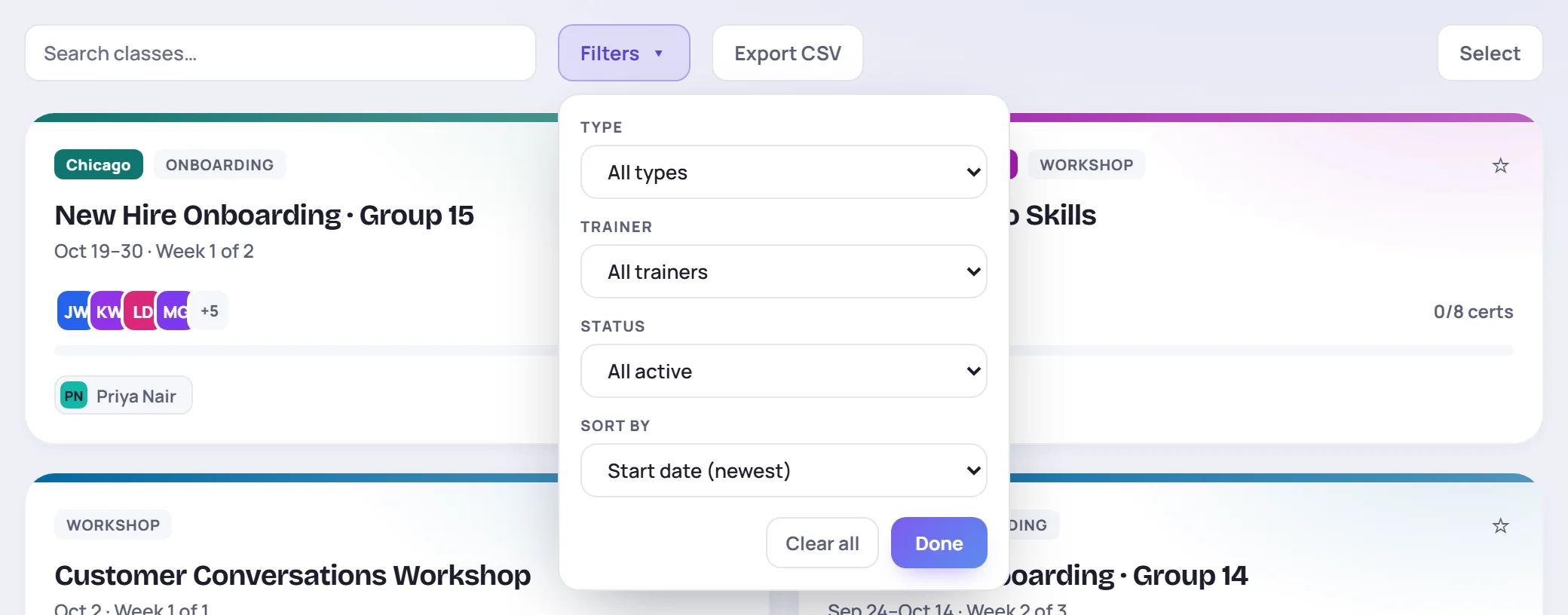
Click Filters to filter by:
| Filter | Choices |
|---|---|
| Type | Onboarding, Workshop or Development. |
| Trainer | The class's primary trainer. |
| Status | All active (the default), Upcoming, In progress, Completed, Archived, or All (incl. archived). |
| Sort by | Start date (newest), Name A–Z or Recently updated. |
Two more filters appear when your workspace uses them: one for clients or business units, and Country once an Admin has added countries.
Each active filter shows as a chip under the toolbar; click its × to remove it, or Clear all in the panel. The line under the chips says how many classes match, for example Showing 3 of 6 classes. Filters reset when you reload the page.
Pin the classes you use most
Click the star in the top right of a card (Pin class). Pinned classes have a filled star and always come first in the list, ahead of the sort order. Click the star again to unpin.
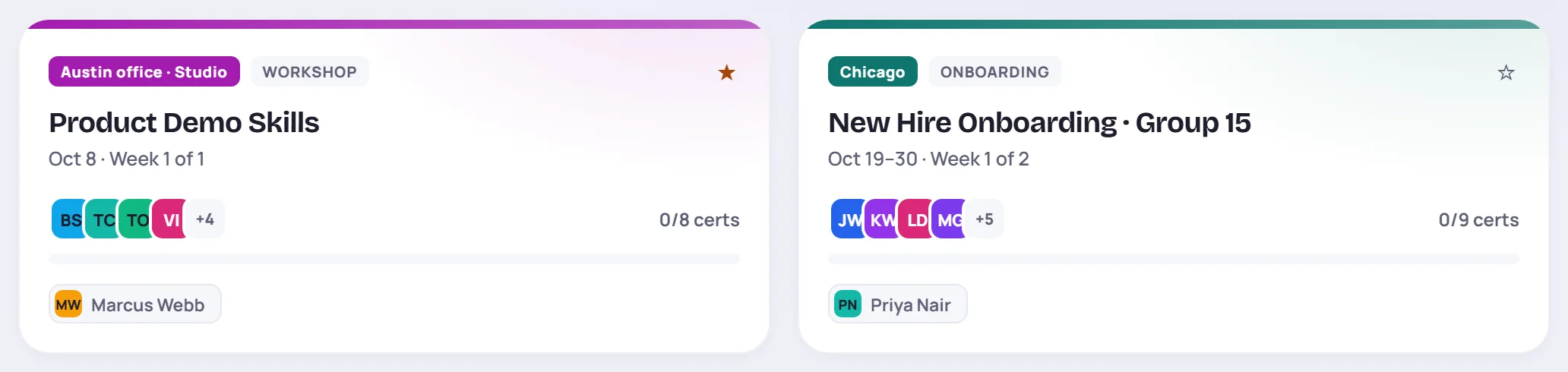
Pins are saved to your account, so they follow you to other devices. Pinned classes also come first in the command palette (Ctrl+K, or ⌘+K on a Mac) before you type anything. See Find your way around.
Export the list
Click Export CSV to download the classes that match your search and filters, including any not loaded on screen yet. The file has each class's name, code, country, location, type, start and end dates, primary trainer, number of learners, certifications earned and status.
Other ways to find a class
- Click a #tag on a card to search for everything with that tag.
- Type the class's name in the command palette, or in the search box at the top of the app.
- When there are many classes, the list shows 60 at a time. Click Show … more at the bottom.