The class report
Print a progress report for a class over any dates, with attendance, scores, curriculum, notes and an optional AI-written summary.
Your words may differ. Each workspace can choose its own words: a class might be a cohort, program or group, a learner a participant, trainee or new hire, a session a module or lesson. These guides use the default words. The steps are the same whatever your workspace calls them. Change your workspace's words
The class report turns everything recorded in a class into one printable document: who attended, how they scored, what was covered, what trainers noted, and, if you like, a short summary written by AI. Use it for a weekly update to a client, an end-of-class review, or a handover to the team that takes the learners next.
Open the report
Open the class and click Export report at the top right.
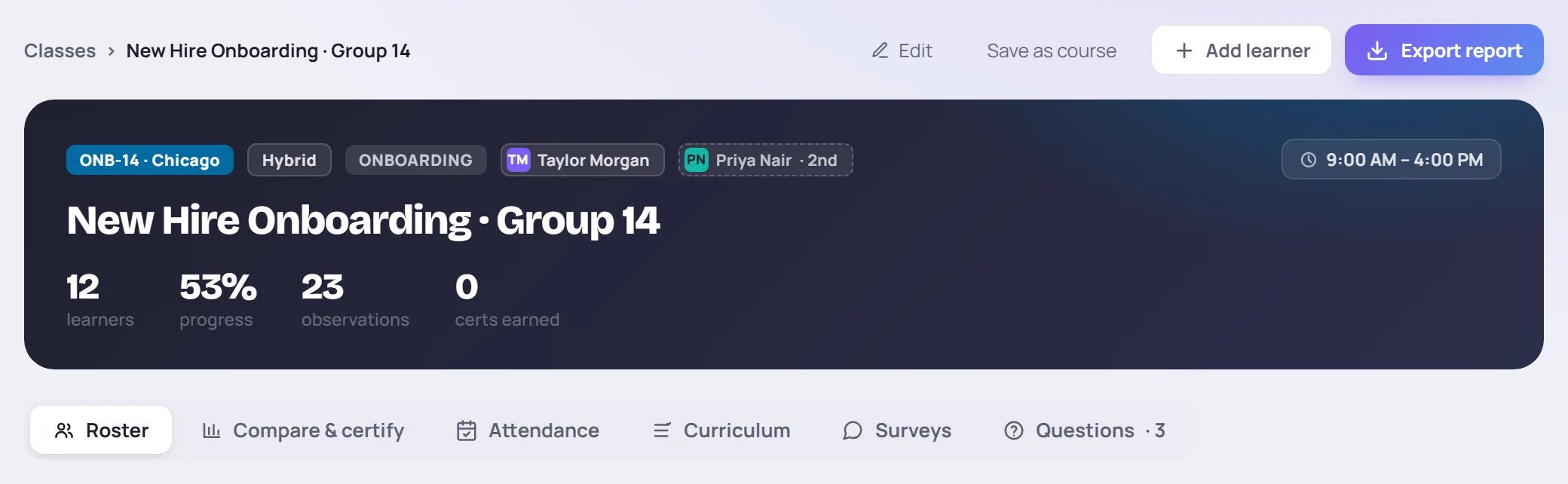
The Export report screen opens on the Class report tab, set to that class.
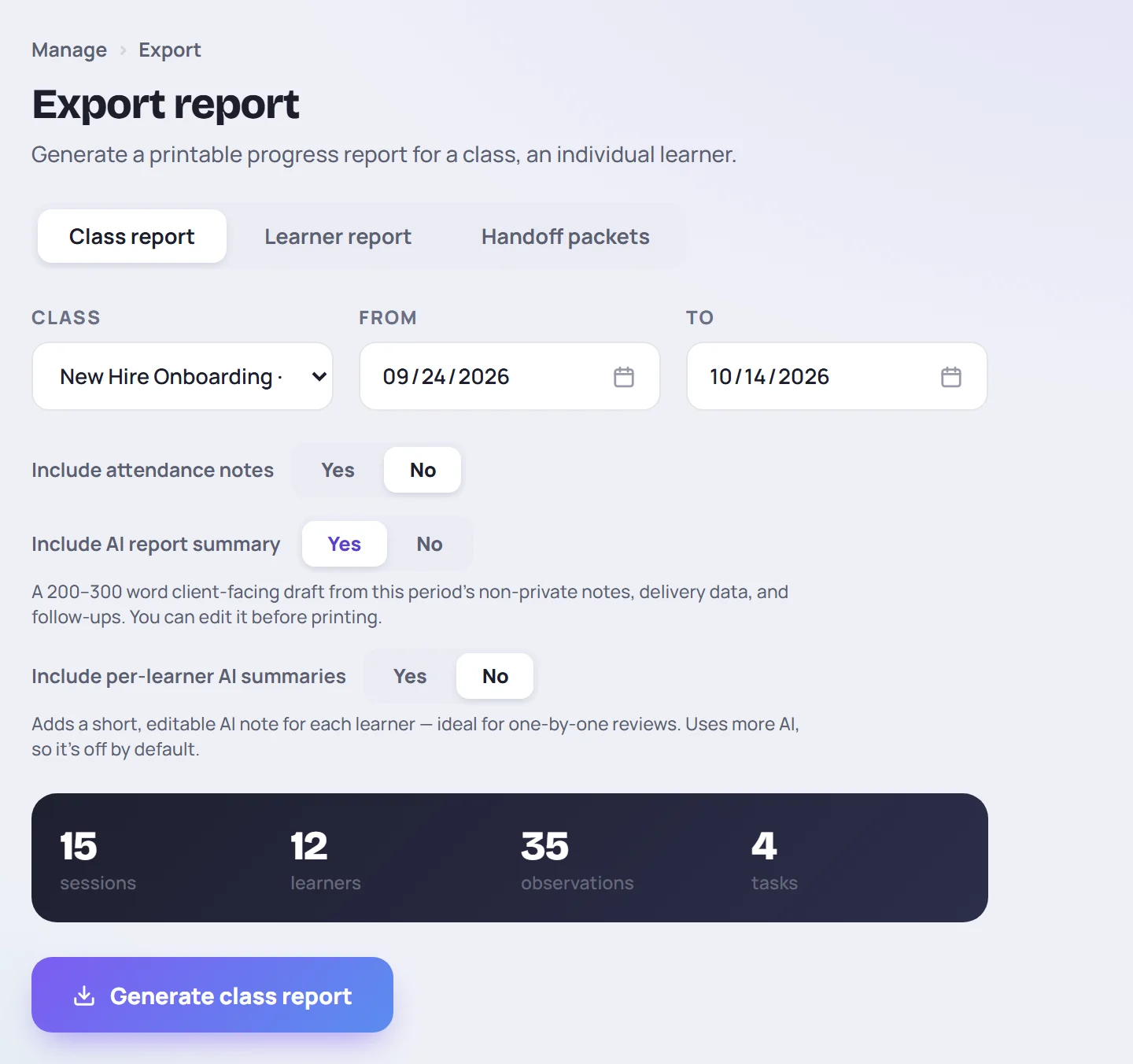
Choose what goes in
| Option | What it does |
|---|---|
| Class | The class to report on. You can switch to any class you're allowed to report on. |
| From and To | The reporting period. They start as the class's first and last day, and reset when you pick another class. Sessions, notes and attendance outside these dates are left out. |
| Include attendance notes | Adds the comments recorded with absences, late arrivals and other exceptions. Off by default. |
| Include AI report summary | Adds a short written summary of the period at the top. On by default. |
| Include per-learner AI summaries | Adds a short AI note about each learner. Off by default, because it uses much more AI. |
The dark panel counts what falls in the period: sessions, learners, observations and tasks. If it says 0 sessions, check the dates.
For a weekly client update, set From and To to that week. For an end-of-class review, keep the class's own dates.
Generate and print
Click Generate class report. If you asked for AI summaries, the button says Generating AI summary… while it works, which usually takes a few seconds.
The report opens in a new browser tab, and your browser's print window opens over it.
- To print, choose your printer.
- To keep a PDF, choose Save as PDF (or Microsoft Print to PDF) as the destination.
- To edit the AI text first, close the print window, click into the summary and change it, then print from the tab (Ctrl+P, or ⌘+P on a Mac).
The report isn't saved in Skovrum. Generate it again whenever you need a fresh copy.
What's in the report
The sections appear in this order. Most sections are left out when they have nothing to show.
The header and the numbers
The class name, the reporting period and the primary trainer, then three numbers: Sessions in range, Observations logged and Certs earned.
Training Summary (AI)
A client-facing summary of the period, written by AI from what was recorded: delivery, progress, highlights, risks and next steps. Its length depends on the period:
| Period | Length |
|---|---|
| One day | About 140–220 words |
| Two or three days | About 160–250 words |
| Longer | About 200–300 words |
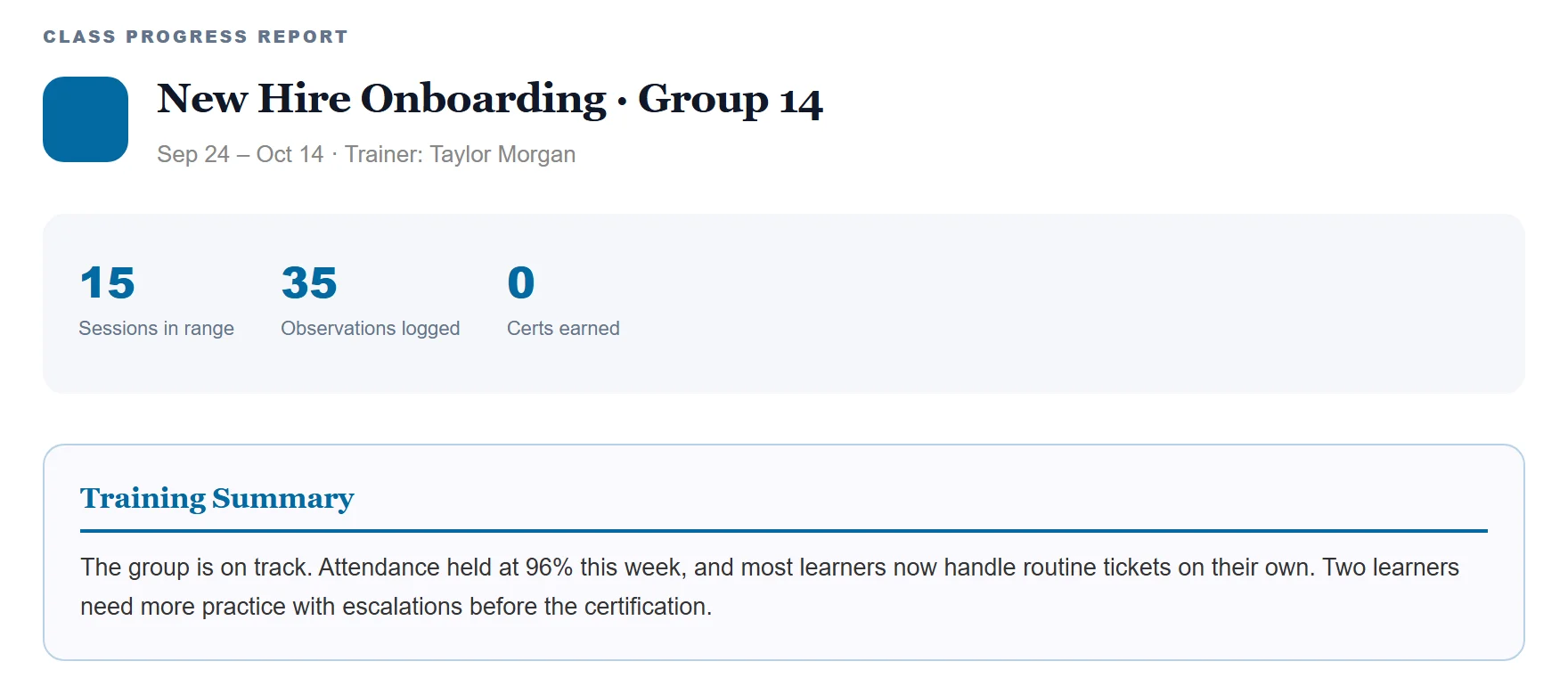
The AI is told not to name individual learners, and it never sees private notes. Read the summary before you share it, and edit anything that's off by clicking into the text.
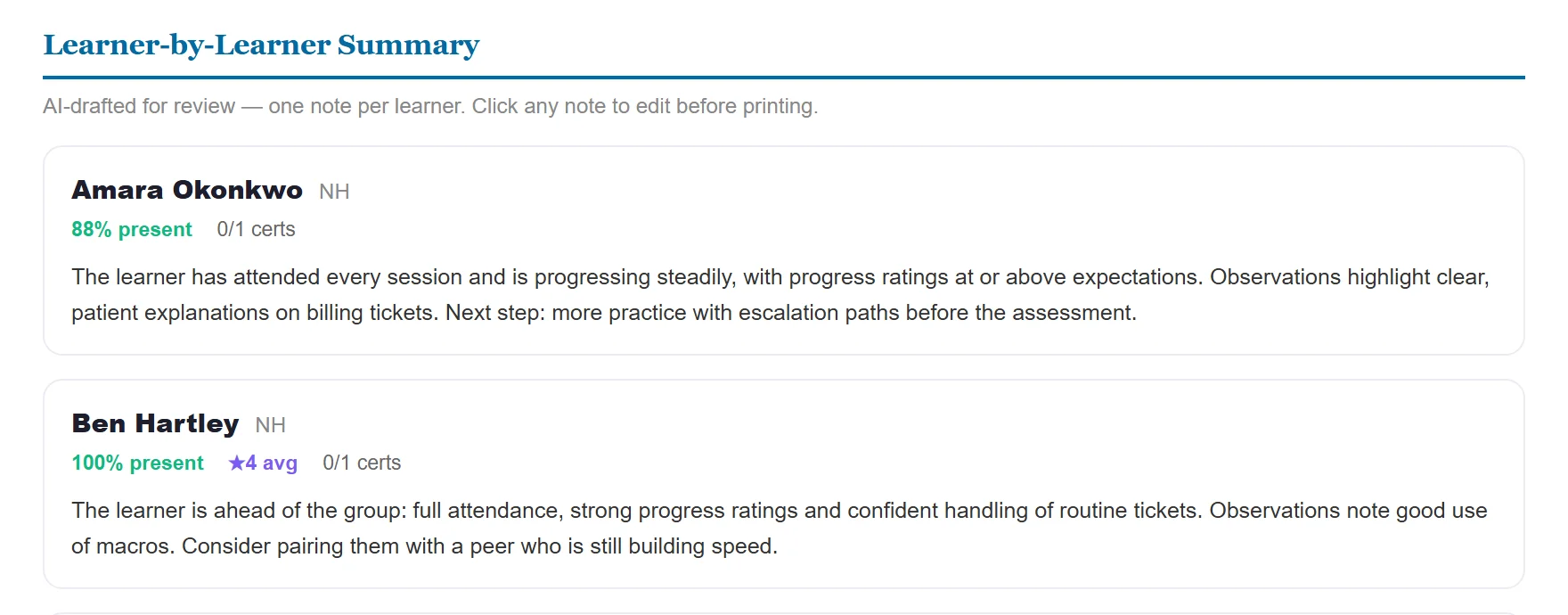
Learner-by-Learner Summary (AI)
One card per learner on the roster, with their attendance, average progress rating and certifications, and a two-to-four sentence AI note. A learner with nothing recorded in the period gets No recorded activity in this period. instead. Each note is editable, like the summary.
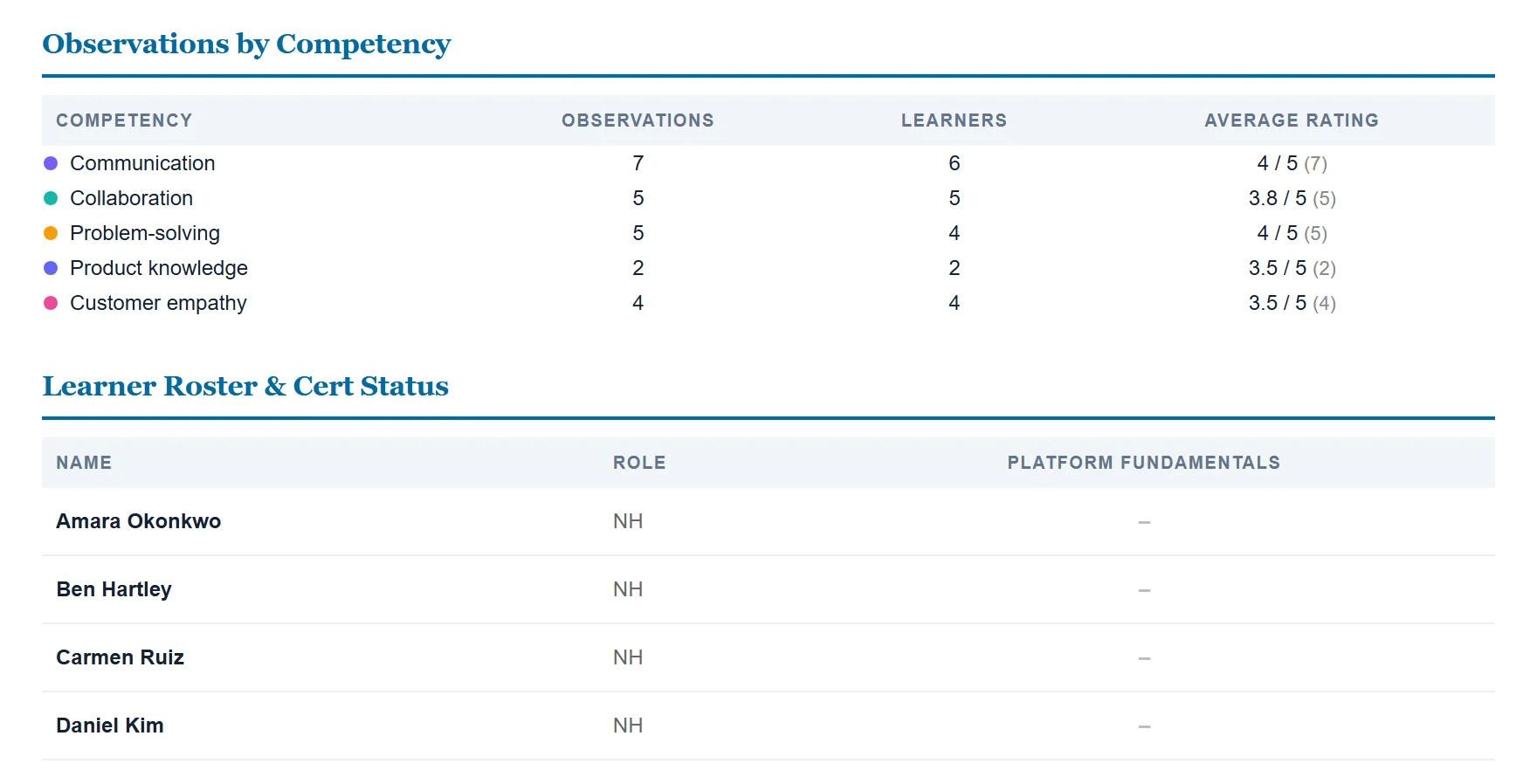
Observations by Competency
For each competency, how many observations were logged, how many learners they covered, and the average 1–5 rating (with the number of ratings in brackets). Private notes are left out. See Competency trends.
Learner Roster & Cert Status
Every learner with their role and a column per certification: ✓ passed, ◐ attempted but not passed yet, – not started. Learners who left or were termed are marked.
Certification Attempt Details
For each certification, every learner who attempted it: their status, number of attempts, best score and the history of scores with dates. Scores are judged against each certification's own pass mark. See How certifications work.
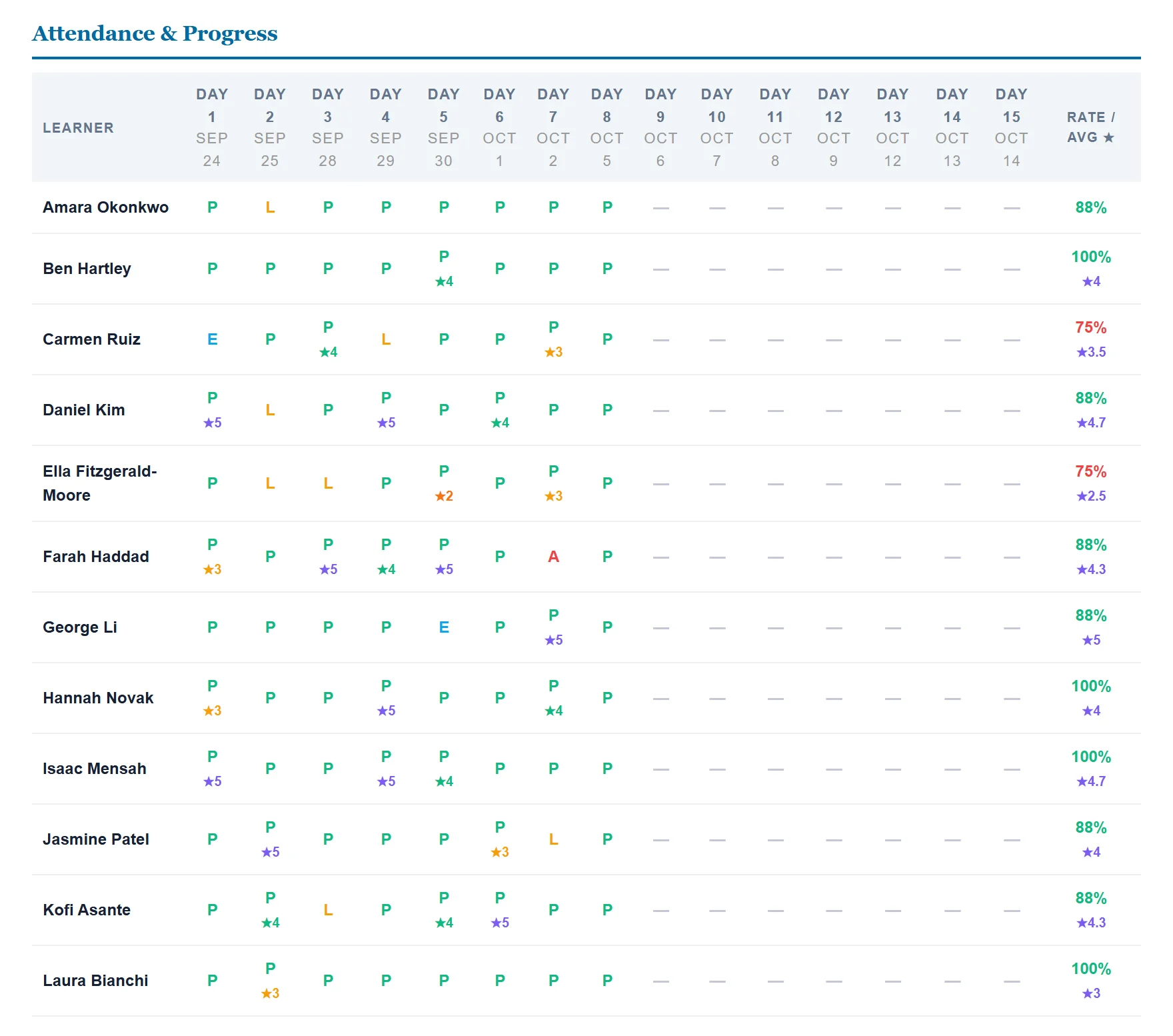
Attendance & Progress
A grid of learners against the sessions in the period. Each cell shows the attendance code (P, L, A, E or UEL) and the day's progress rating, if any. Sessions that haven't happened yet show a dash. The last column gives each learner's attendance rate (sessions marked Present, out of the sessions they were enrolled for so far) and average rating. A rate under 80% shows in red.
Attendance Notes
Only with Include attendance notes on. Every comment recorded with an exception: date, learner, status, comment and who recorded it. Cells with a comment are marked with an asterisk in the grid.
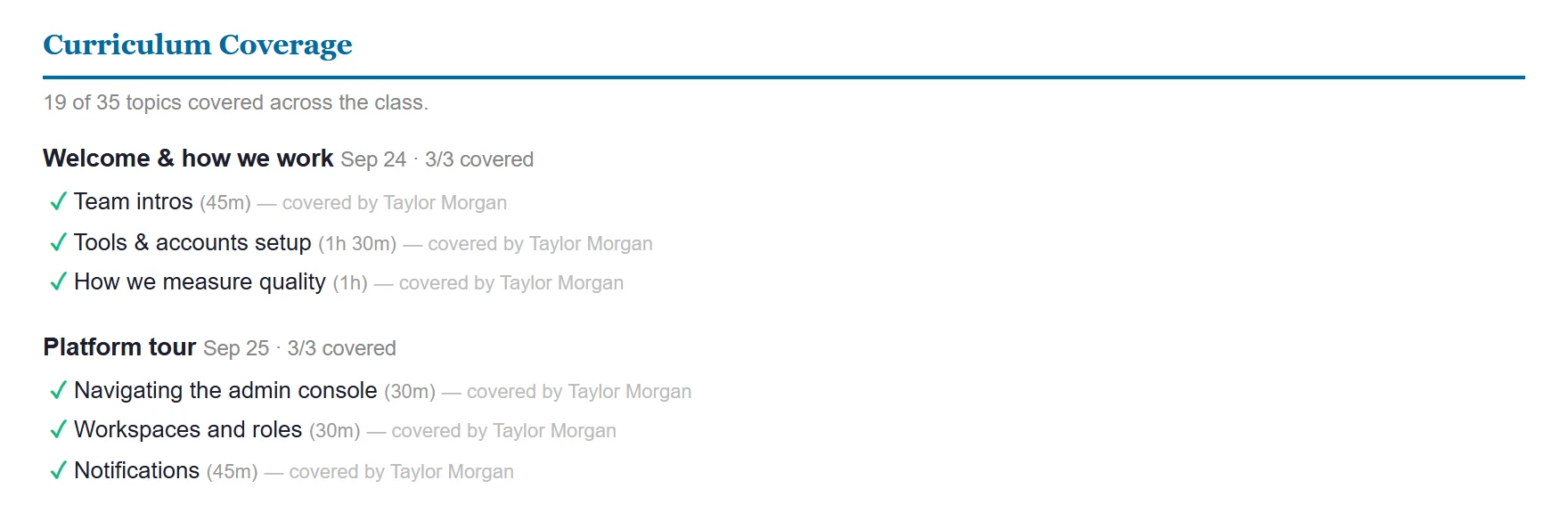
Curriculum Coverage
How many of the class's topics have been covered, then, for each session in the period, its topics: ✓ covered or ○ not yet, with time estimates, who covered it and any objectives. Topics not assigned to a session are listed under Not yet scheduled. See Build the curriculum.
Class-Level Notes and Session Notes
The class-wide notes, then each session in the period with its notes, including notes filed under a topic. Private notes and action items are left out. A session with no notes says No notes recorded.
The footer shows when the report was generated and by whom, and is marked Confidential.
What's never in a class report
- Private notes. Not in the notes, the observation table or the AI text. See Private notes.
- Private context from learner profiles. See Private context.
- Tasks. The preview counts them, but the report doesn't list them. Open follow-ups do feed the AI summary.
About the AI summaries
The AI summary covers at most 31 days. For a longer period, the report is generated without it and Skovrum says AI summaries are limited to 31 days. Shorten the dates to get one. Other reasons the summary can be missing:
- No sessions in this reporting period.
- Not enough recorded activity in this period to summarize: no attendance, notes, topics or scores yet.
- Daily AI report-summary limit reached.
In each case the rest of the report is still generated. Per-learner notes cover up to 24 learners per report. For what AI reads and the daily limits, see What AI sees.
Common questions
Why can't I see Export report? Your role can't export reports, or, as a Trainer, you don't lead this class. Ask an Admin.
Can I send the report to a client directly from Skovrum? No. Save it as a PDF and send that.
Can I report on just one learner? Yes. Use the Learner report tab, or click Export report on the learner's profile. See Learner and client reports.
I need the numbers in a spreadsheet. Use the CSV exports instead. See Export to CSV.