Keyboard shortcuts
Every key Skovrum responds to, on any screen, in the note box, in live mode and in the presenter window.
Your words may differ. Each workspace can choose its own words: a class might be a cohort, program or group, a learner a participant, trainee or new hire, a session a module or lesson. These guides use the default words. The steps are the same whatever your workspace calls them. Change your workspace's words
Skovrum can be used almost entirely from the keyboard. Press ? on any screen to see the main shortcuts in a panel. This page lists them all.
On a Mac, use ⌘ wherever this page says Ctrl.
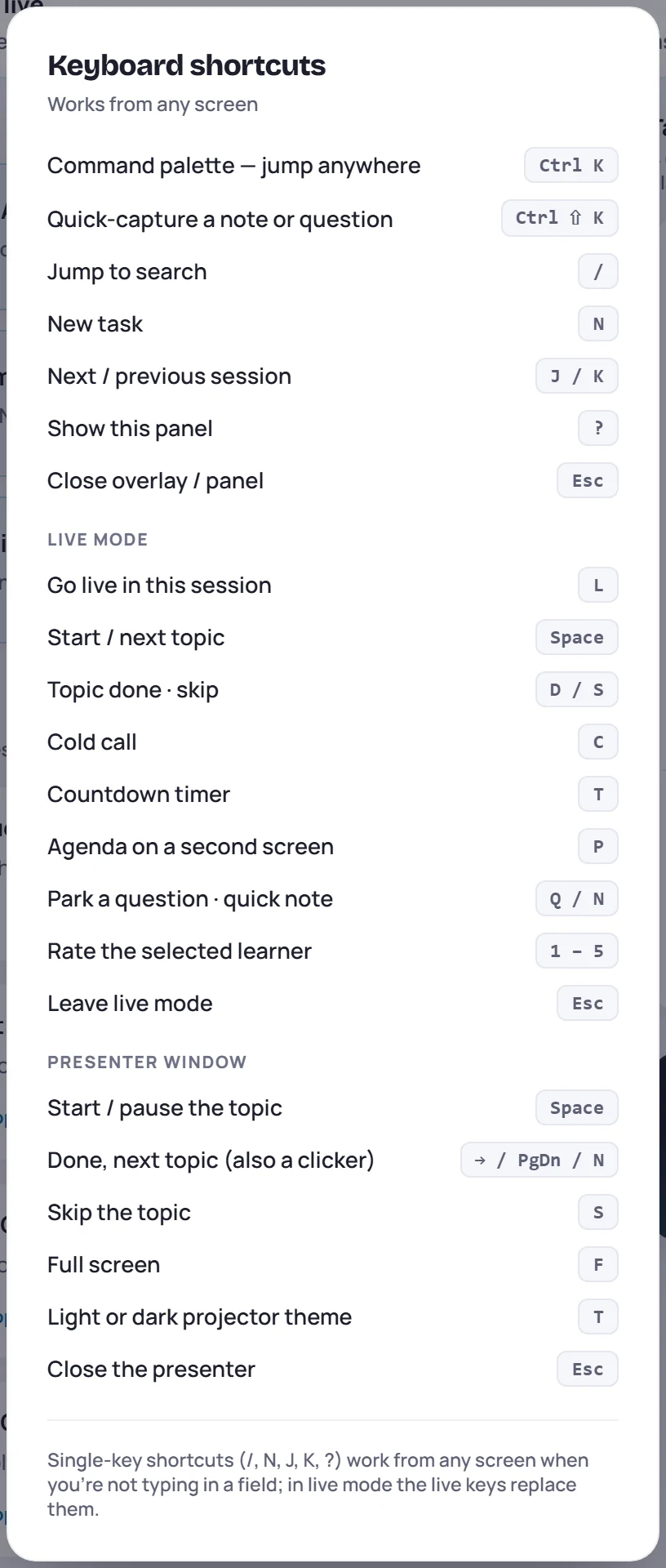
Any screen
| Key | What it does |
|---|---|
| Ctrl+K | Open the command palette to jump to any class, learner or session, or run an action |
| Ctrl+Shift+K | Quick capture a note or question |
| / | Jump to search |
| N | New task |
| J / K | Next or previous session in the same class. Elsewhere, opens your current session. |
| L | On a session, teach it in live mode |
| ? | Show the shortcuts panel |
| Esc | Close whatever is open on top: a menu, a dialog or a panel |
The single keys (/, N, J, K, L, ?) only work when you're not typing in a box, and not while a dialog is open. N isn't available to read-only roles, which can't create tasks.
The command palette
| Key | What it does |
|---|---|
| ↑ / ↓ | Move through the results |
| Enter | Open the highlighted result |
| Esc | Close the palette |
The note box
These work in the box at the bottom of a session. See Take notes during a session.
| Key | What it does |
|---|---|
| / in an empty box | Switch type: Note → Obs → Action → Question |
| @ | Mention a learner or trainer |
| # | Tag the note |
| ↑ / ↓ then Enter | Pick a name or tag from the list |
| Enter | Save a one-line note |
| Shift+Enter | New line |
| Ctrl+Enter | Save any note, however many lines |
| Esc | Close the name or tag list |
In quick capture, Tab switches between a note and a question.
Live mode
In live mode these keys replace the single keys above.
| Key | What it does |
|---|---|
| Space | Start the topic, or move on to the next one |
| D | Mark the topic done |
| S | Skip the topic |
| C | Cold call: pick a learner |
| T | Countdown timer |
| P | Open the agenda on a second screen (presenter window) |
| Q | Go to the parking lot, to park a question |
| N | Go to the quick note box |
| 1–5 | Rate the selected learner |
| Esc | Close what's open, or leave live mode if nothing is |
The presenter window
In the presenter window on the projector, only these keys do anything. A presentation clicker sends → or Page Down, so it moves you to the next topic.
| Key | What it does |
|---|---|
| Space | Start or pause the topic |
| →, Page Down or N | Mark the topic done and move to the next |
| S | Skip the topic |
| F | Full screen |
| T | Switch the projector theme between light and dark |
| Esc | Close the presenter window |