Attach images and PDFs
Add screenshots, photos and PDFs to notes, replies and learner profiles.
Your words may differ. Each workspace can choose its own words: a class might be a cohort, program or group, a learner a participant, trainee or new hire, a session a module or lesson. These guides use the default words. The steps are the same whatever your workspace calls them. Change your workspace's words
You can attach files to session notes and observations, to replies, and to a learner's profile. Useful for a screenshot of a learner's work, a photo of the whiteboard, or a worksheet as a PDF.
| You can attach | Limit |
|---|---|
| Images: PNG, JPG, GIF, WebP, HEIC | 25 MB per file |
| PDFs | 25 MB per file |
Other file types are refused with images and PDFs only.
Attach to a note
In the note box on the session screen, you can:
- click the paperclip and choose a file (one at a time);
- paste a screenshot straight into the box with Ctrl+V (⌘+V on a Mac);
- drag one or more files onto the box.
Files start uploading at once and wait above the box until you save the note. Click × on one to remove it.
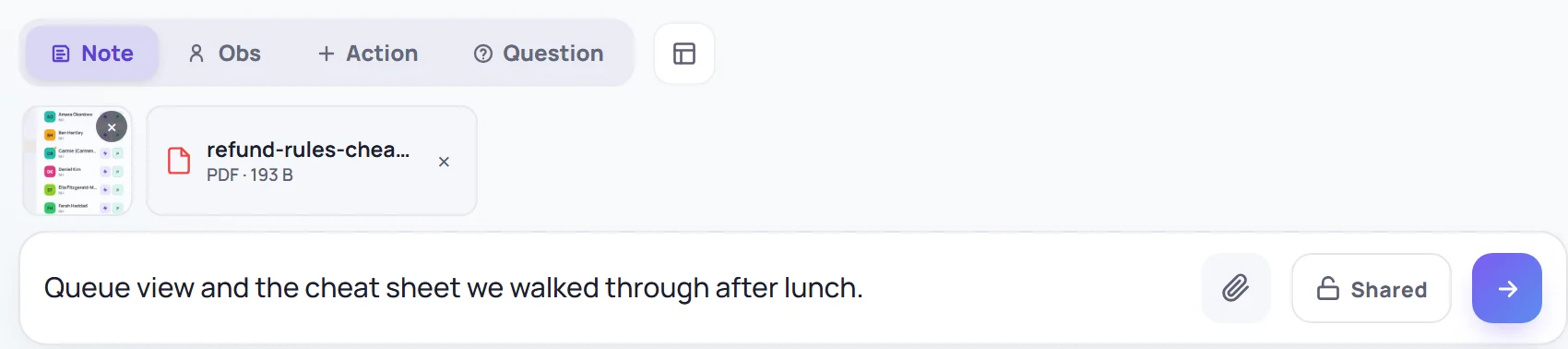
When you save, the files appear under the note:
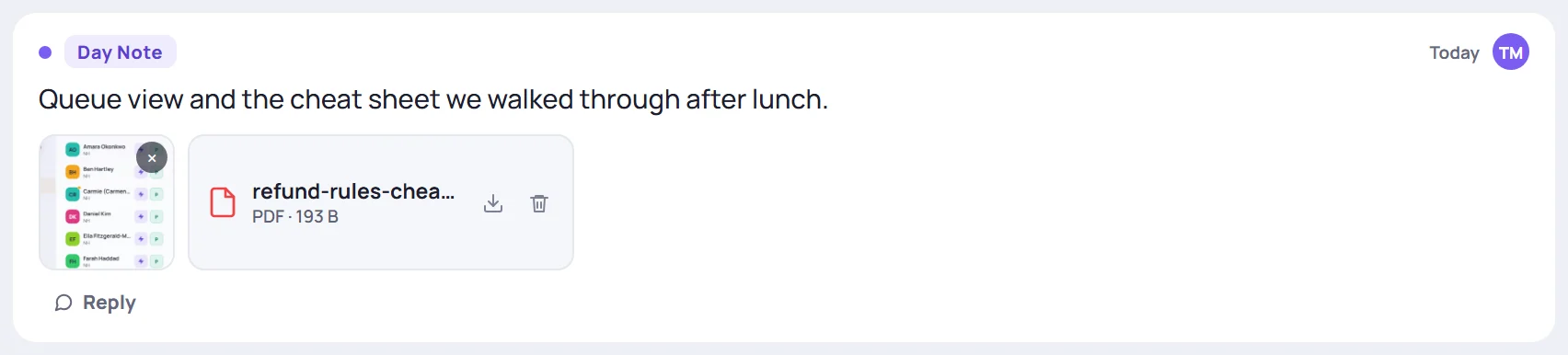
- Click an image to see it full size.
- Click a PDF to open it in a new tab, or use the download arrow.
Replies work the same way: use the paperclip in the reply box, paste or drag.
Attach to a learner's profile
For files about the learner rather than one session, such as a certification screenshot, open their profile and click Add on the Files card. Everyone who can see the learner can see these files.
Who sees a file
A file has the same audience as the thing it's attached to. Files on a private note are visible only to you, like the note.
Delete a file
Click the trash can on a PDF, or the × on an image, then confirm. Deleting a file can't be undone. You can delete files you uploaded; Admins can delete any file. Deleting a note also deletes its files.
Storage
Each workspace has file storage space, depending on its plan:
| Plan | Storage |
|---|---|
| Solo | 2 GB |
| Team | 10 GB |
| Business | 50 GB |
When it's full, uploads stop with a message saying so. Delete old files, or contact Skovrum to add storage.