Handoff packets
Print a one-page summary of a learner for whoever coaches them next, for one learner or a whole class, with an optional AI-drafted handoff note.
Your words may differ. Each workspace can choose its own words: a class might be a cohort, program or group, a learner a participant, trainee or new hire, a session a module or lesson. These guides use the default words. The steps are the same whatever your workspace calls them. Change your workspace's words
When a learner moves on, from onboarding to their team, or from one trainer to another, a handoff packet tells the next person what they need to know: strengths and gaps, attendance, certifications, open follow-ups and anything still to catch up. Each learner gets one page, ready to print or save as a PDF.
Print a packet
There are three places to start:
- For one learner: open their profile and click Handoff packet at the top right. The packet covers every class of theirs you can report on, and includes an AI handoff note.
- For a whole class that has ended: open the class and click Handoff packets. You get one page for each learner still on the roster.
- From Export report, for any class, at any time, with or without the AI note (below).

Skovrum opens the packet in a new window and then the print dialog. Print it, or choose Save as PDF as the printer. If nothing opens, your browser blocked the pop-up: allow pop-ups for Skovrum and try again.
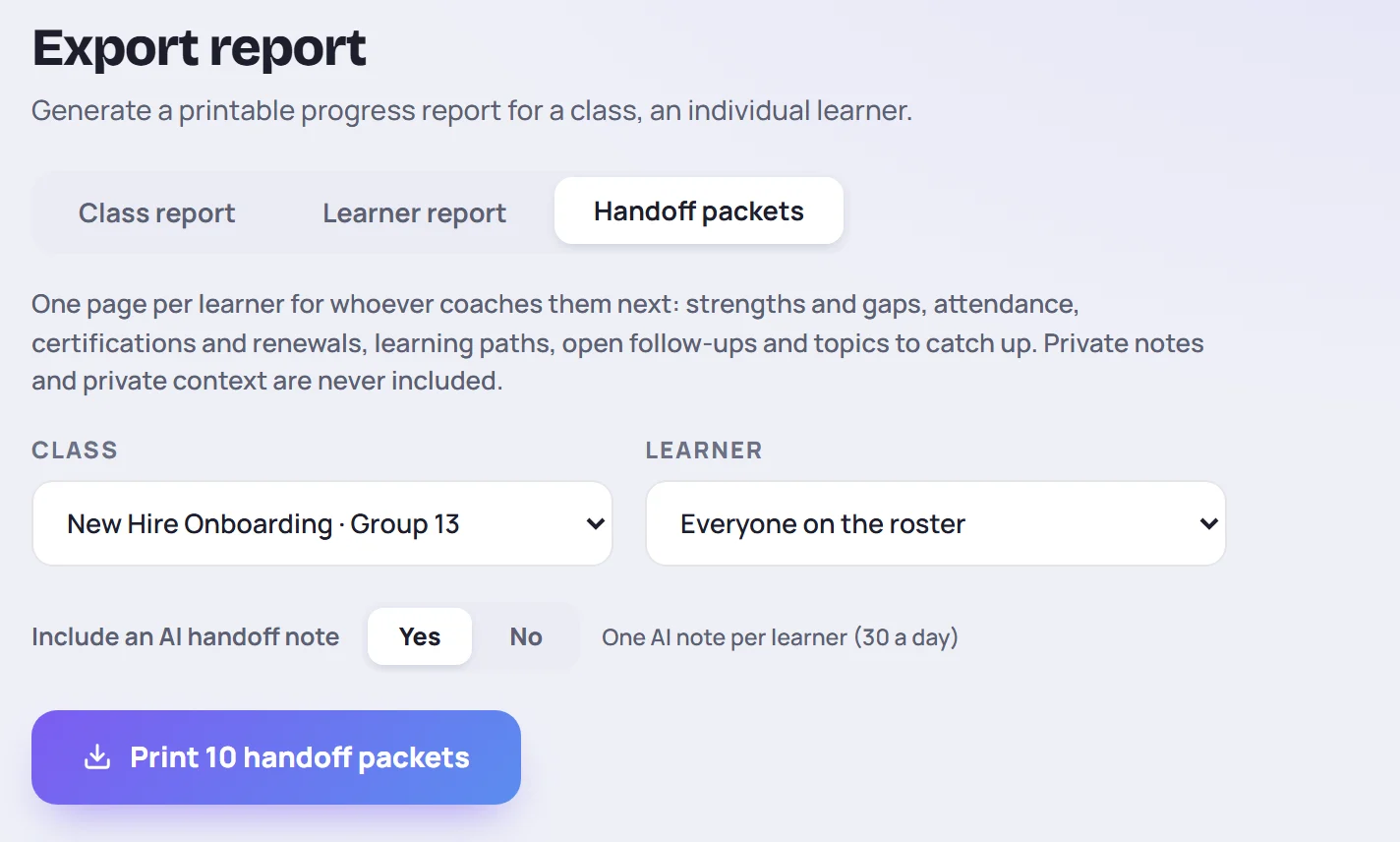
From Export report
- Open a class and click Export report.
- Choose Handoff packets at the top.
- Pick the Class, and in Learner either one learner or Everyone on the roster.
- Under Include an AI handoff note, choose Yes or No.
- Click Print handoff packet (or Print … handoff packets for the whole roster).
What's in a packet
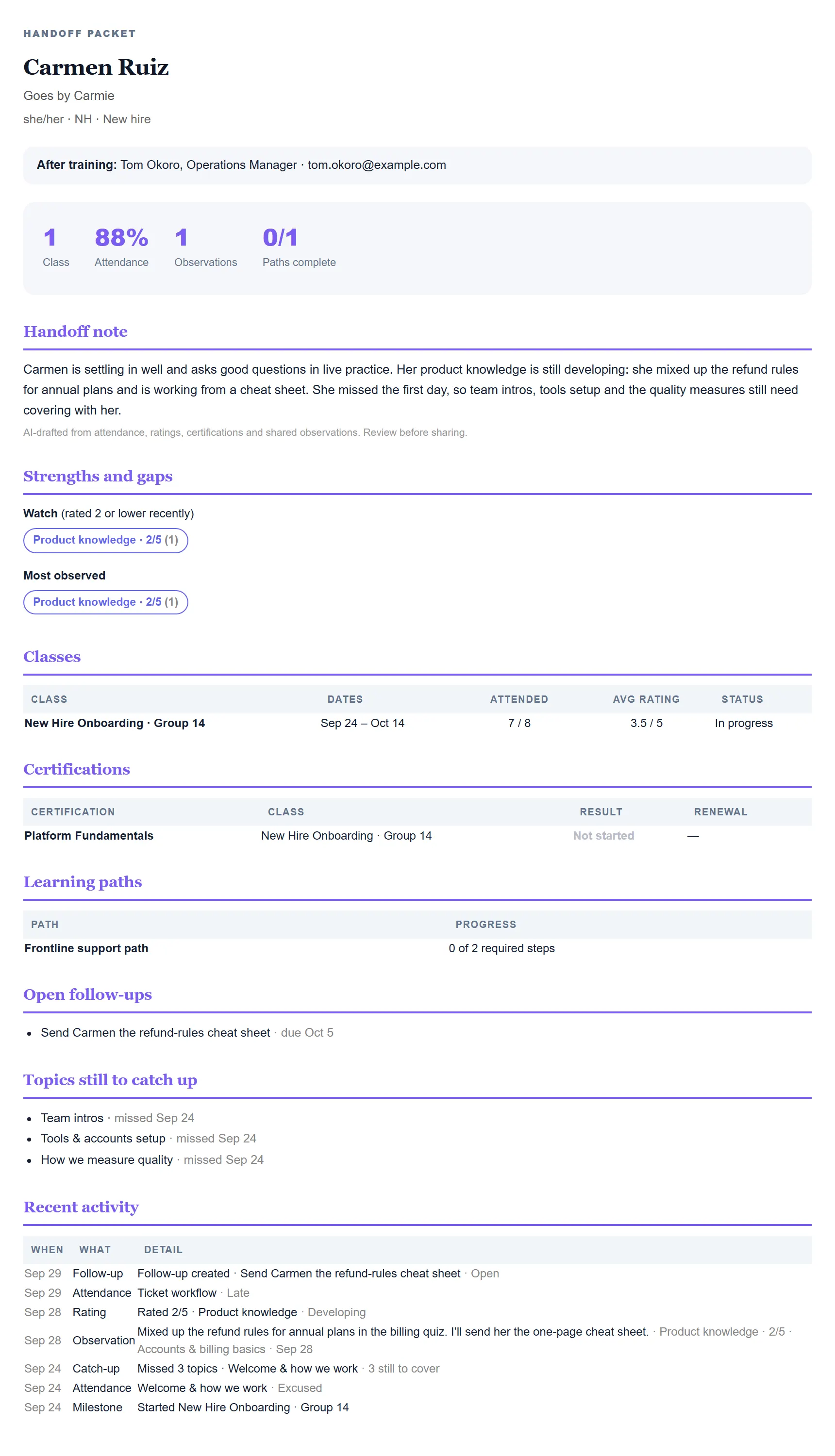
| Section | What it shows |
|---|---|
| The heading | Their name, the name they go by, pronouns and role, and the manager they report to After training |
| Summary | How many classes, their attendance, how many observations, and learning paths complete |
| Handoff note | A short AI-drafted summary, if you asked for one. It's marked Review before sharing. |
| Strengths and gaps | Strengths are competencies last rated 4 or 5. Watch lists those rated 2 or lower recently (in the last 30 days, or as the latest rating), and says if they're flagged Watch. Most observed shows where most observations were made. |
| Classes | Each class with its dates, sessions attended (late arrivals count as attended), average rating and status |
| Certifications | Each result, and when it's due for renewal |
| Learning paths | Progress on each path |
| Open follow-ups | Open tasks about them, with due dates |
| Topics still to catch up | Topics they missed that haven't been covered yet |
| Recent activity | Their 12 latest timeline entries |
Certifications, learning paths, follow-ups, topics to catch up and recent activity are left out when there's nothing to show.
What's never included
- Private notes, including your own.
- Private context.
- What the learner wrote in surveys, and the text of attendance notes.
The AI note is drafted from the same shared information: attendance, ratings, certifications and observations that aren't private. See What AI sees.
The AI handoff note
Each learner's note counts toward a daily limit per person (see Limits). If the note can't be made, for example because the limit has been reached, the packet still prints without it, and the reason is shown on the page. The note is drafted each time you print and isn't saved.
Common questions
Why don't I see Handoff packets on my class? The class button appears once the class has ended. Before that, use Export report → Handoff packets.
Why is a learner's other class missing from their packet? A packet only covers classes you can report on. Trainers can report on the classes they lead or co-lead.
Can I change what's in the packet? No. To leave the AI note out, use Export report and choose No.