Learner and affiliate reports
Print a progress report for one learner, or a roll-up of every active class for one client or business unit.
Your words may differ. Each workspace can choose its own words: a class might be a cohort, program or group, a learner a participant, trainee or new hire, a session a module or lesson. These guides use the default words. The steps are the same whatever your workspace calls them. Change your workspace's words
Besides the class report, the Export report screen prints two more reports: one about a single learner, and one about every class for an affiliate (a client, business unit or department). Both open in a new tab, ready to print or save as a PDF.
A learner report
Open the learner's profile and click Export report. Or open Export report from a class and choose the Learner report tab.
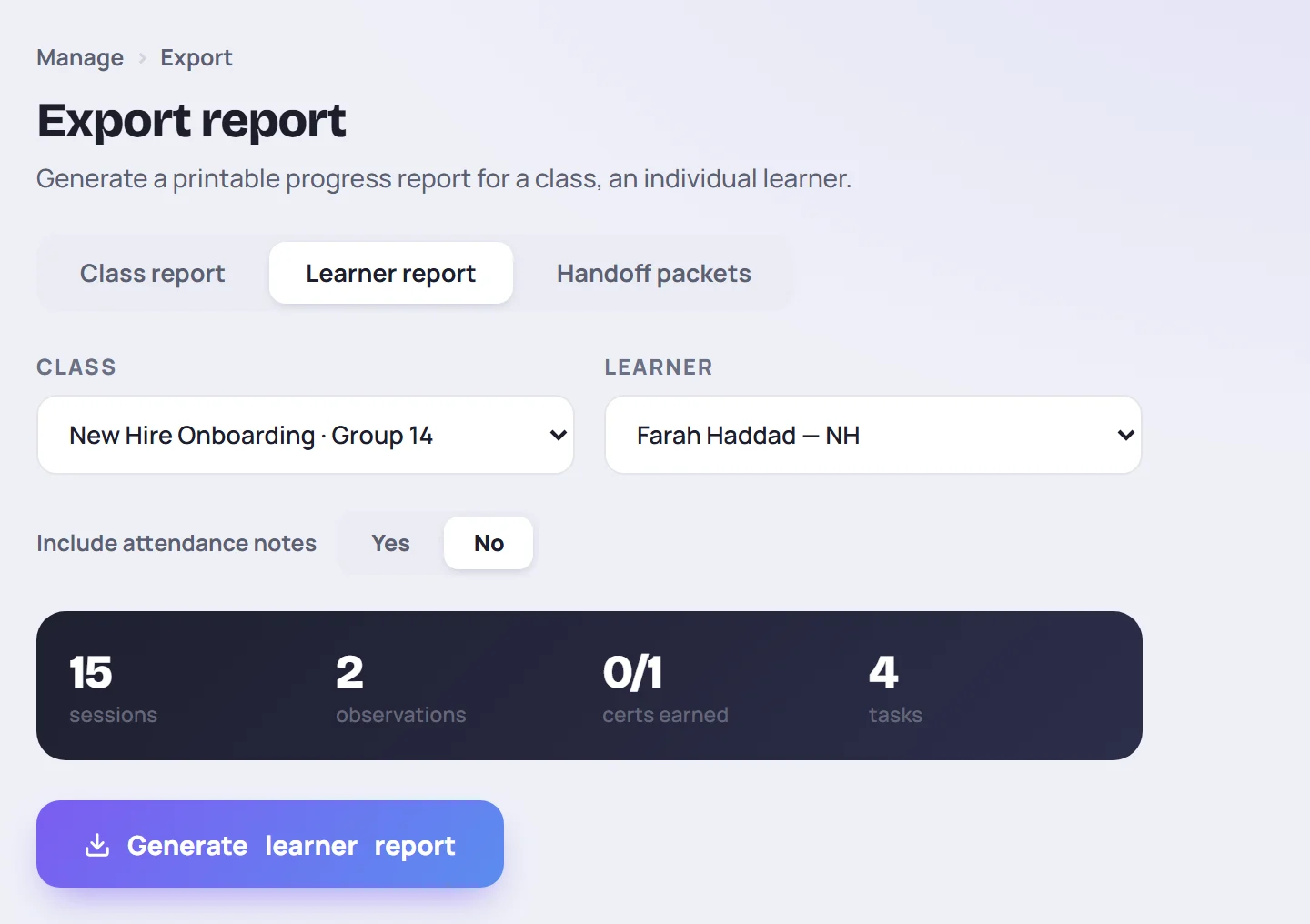
Choose the Class and the Learner, decide whether to Include attendance notes, and click Generate learner report. The report is about one class, so for a learner in several classes, generate one for each.
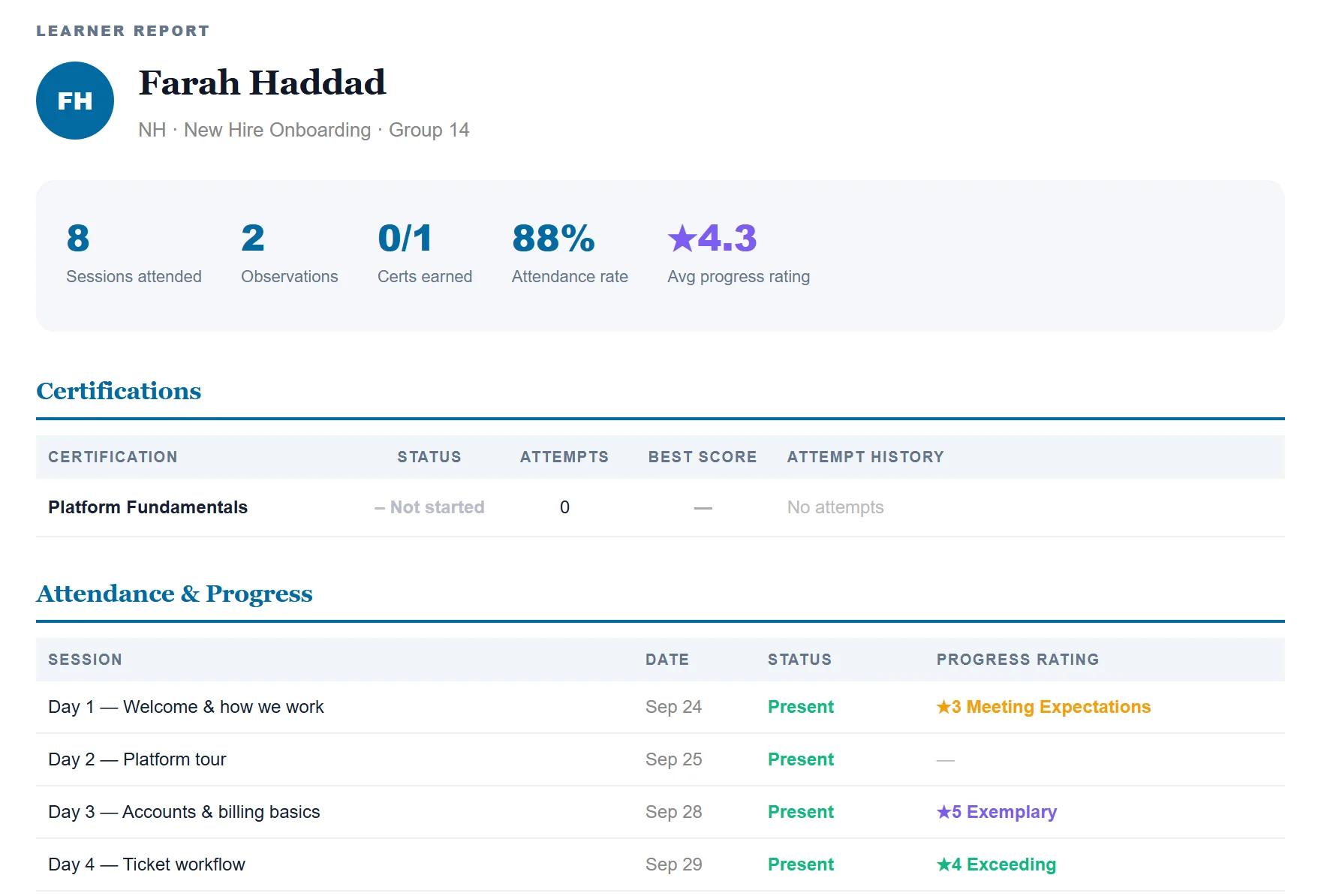
The report covers the whole class, not a date range. It contains:
- The numbers. Sessions attended (the class's sessions so far while they were enrolled), Observations, Certs earned, Attendance rate and, if they've been rated, Avg progress rating.
- Certifications. Status, attempts, best score and the history of attempts.
- Attendance & Progress. Each session with its date, attendance and progress rating.
- Attendance Notes, if you included them.
- Observations. Each one with its date, session, competency and rating.
- Session Notes Mentioning This Learner.
Private notes are never included, whoever wrote them.
There's no AI summary in a learner report. For a summary written for the learner's next coach or manager, print a handoff packet instead.
An affiliate report
Choose the Affiliate report tab on Export report. If your workspace calls affiliates something else, such as clients, the tab uses that word.
Pick the affiliate. The panel shows how many active classes and learners it has. Click Generate affiliate report.
The report covers every active (not archived) class for that affiliate, with sessions up to today:
- The numbers. Active classes, Learners, Certs passed (the share of certifications passed), Avg attendance and Observations.
- One section per class, with its type, dates and learner count, and a row per learner: role, certifications passed, observations and attendance rate.
Common questions
Why don't I see the affiliate tab? Either your workspace doesn't group classes by affiliate, or your role can't run that report. An Admin can switch on affiliates in Manage → Workspace and give roles the Affiliate roll-up report permission.
Can I choose dates for a learner or affiliate report? No. Only the class report has a date range.