Create a class
Set up a new class in one go, including its type, trainers, learners, schedule, curriculum and certifications.
Your words may differ. Each workspace can choose its own words: a class might be a cohort, program or group, a learner a participant, trainee or new hire, a session a module or lesson. These guides use the default words. The steps are the same whatever your workspace calls them. Change your workspace's words
A class is the center of everything in Skovrum. Its sessions, its learners, the notes you take, attendance, certifications and reports all belong to one (see How everything connects). The new-class form sets all of that up in one pass. Filling it in usually takes about five minutes if you have your dates and learner list ready, and you can change any of it afterwards.
Before you start
It helps to have these ready. Only the start date is required:
- The dates and times. You need the first day, the daily start and end times, and how many days or sessions there are.
- Your learner list. A spreadsheet is fine, since you can paste straight from Excel or Google Sheets. You can also add learners later.
- What's taught. That means a curriculum template and the certifications, if your class has them.
Open the new-class form
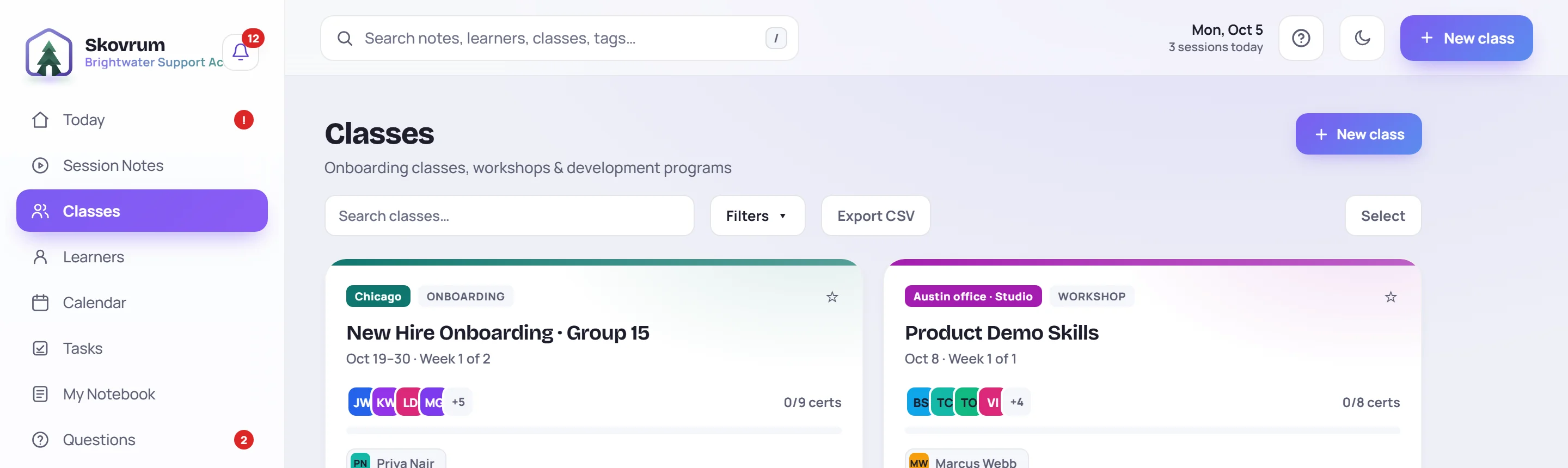
Go to Classes in the sidebar and click New class in the top right. On the Today screen the same button appears whenever you have no session running.
The form has four numbered cards, plus a fifth for survey emails if your role can email learners. A Summary on the right keeps a running tally as you fill them in. Nothing is saved until you click Create class.
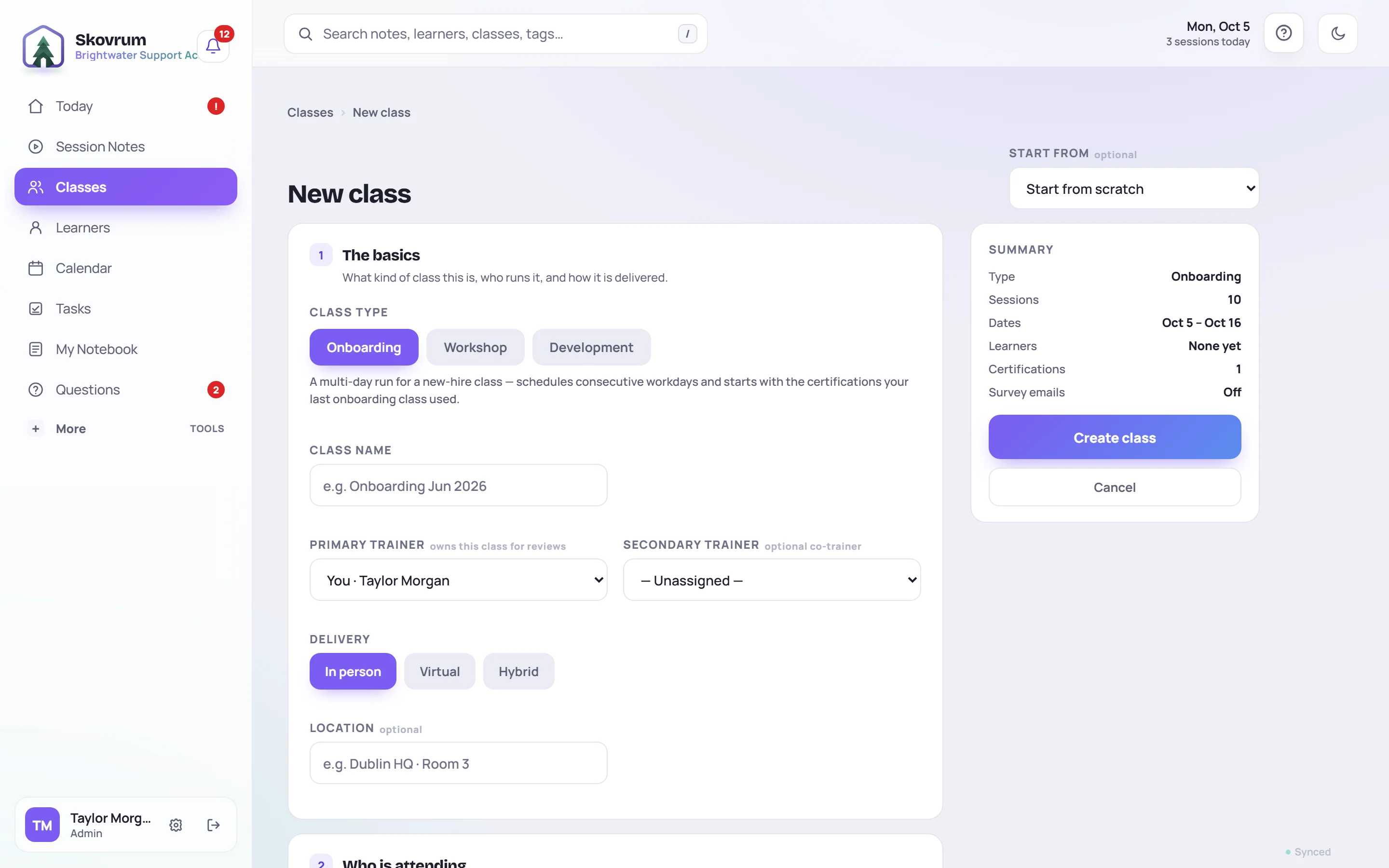
1. The basics
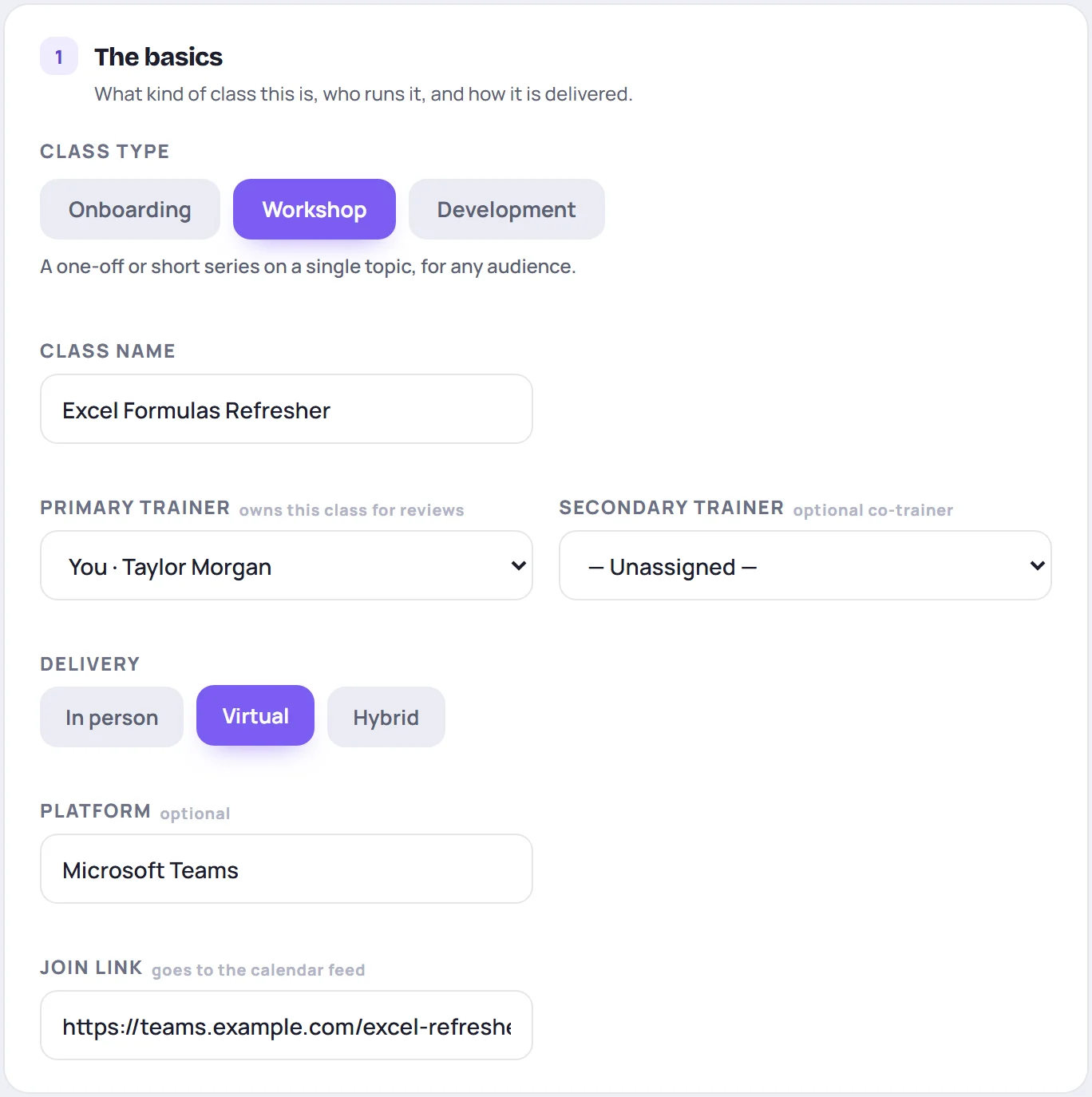
Class type decides how the schedule is built and how the class is grouped in reports and analytics:
| Type | Use it for | What changes |
|---|---|---|
| Onboarding | A multi-day run for new hires | Sessions fill consecutive workdays, the name is optional, and it starts with the certifications your last onboarding class used. |
| Workshop | A one-off or a short series on one topic | You choose how often it repeats. A name is required. |
| Development | Ongoing growth for people already in role: coaching, upskilling, refreshers | Same as a workshop. Choose it so reports keep development work apart. |
Topics and curriculum templates are shared by every class of the same type. A topic you add to one onboarding class is offered to all of them.
Class name is required for workshops and development classes. Leave it blank on an onboarding class and Skovrum names it from the type and start date, for example Onboarding · Nov 16. Each session is named after the class and its day, such as Excel Formulas Refresher · Day 2.
Primary trainer is the person the class belongs to for reviews and reports. Secondary trainer is an optional co-trainer. They're added to every session and can do everything the primary trainer can in this class. If your role can't assign trainers, these fields are hidden and you become the primary trainer.
Delivery is In person, Virtual or Hybrid. The next field changes to match:
- Location for in person, such as Dublin HQ · Room 3.
- Platform for virtual.
- Room & platform for hybrid.
Virtual and hybrid classes also get a Join link. It's added to every session in the trainers' calendar feeds.
2. Who is attending
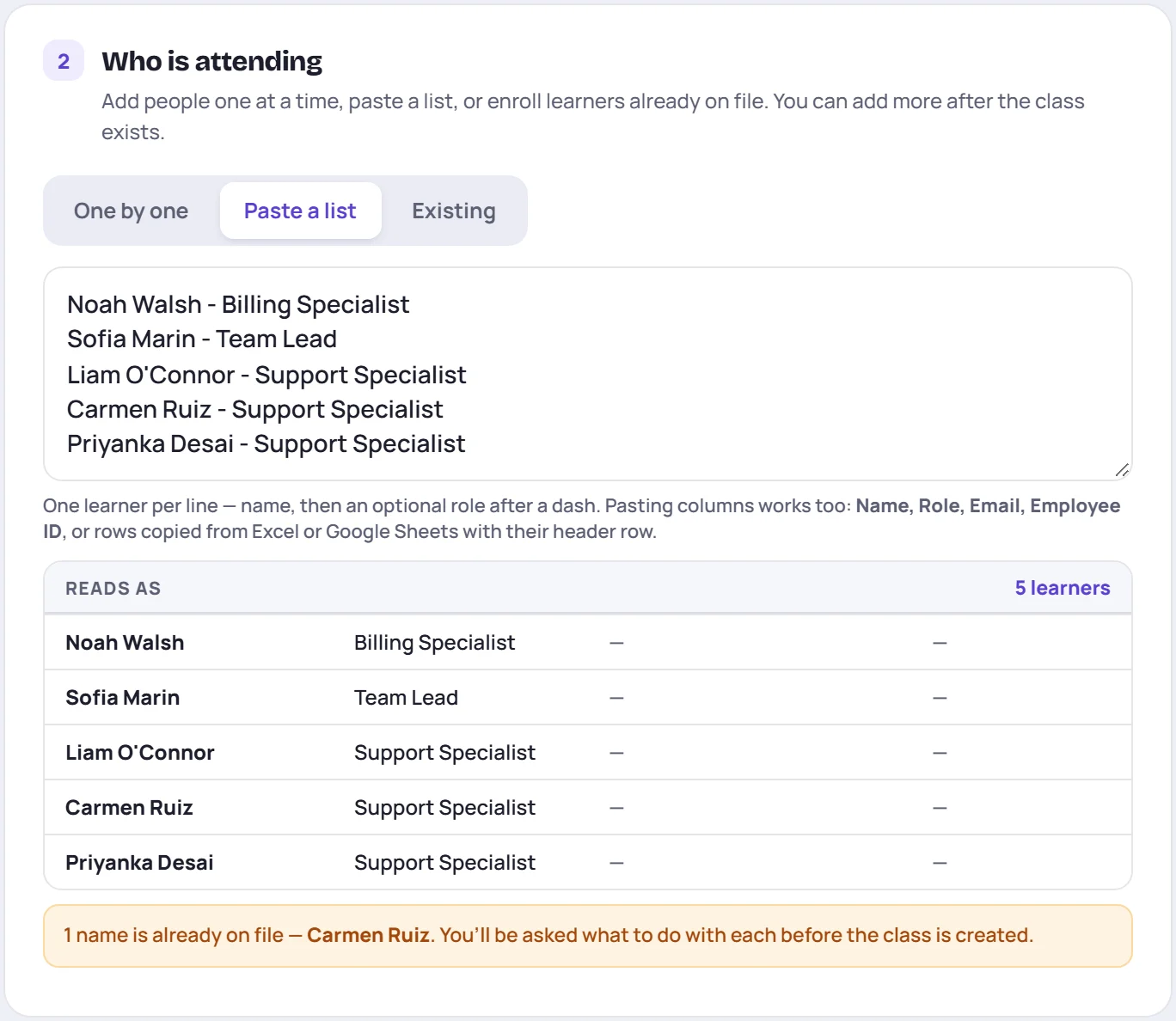
Choose how to add people:
- One by one gives you a row per person. Only the name is required. Role, email and employee ID are optional, but an email or ID lets Skovrum recognize the same person exactly when they join another class later.
- Paste a list takes one person per line, as Name - Role. You can also paste columns (Name, Role, Email, Employee ID) or rows copied from Excel or Google Sheets, including the header row. Reads as shows how each line was understood, so check it before you carry on.
- Existing finds learners who are already in your workspace and enrolls them. To add people to a class that already exists, see Add learners.
Anyone without a role is added as New Hire. You can skip this card entirely and add learners once the class exists.
If someone is already on file
When you click Create class, Skovrum checks the new names against your existing learners. If any match, it stops and asks you about each one before anything is saved.
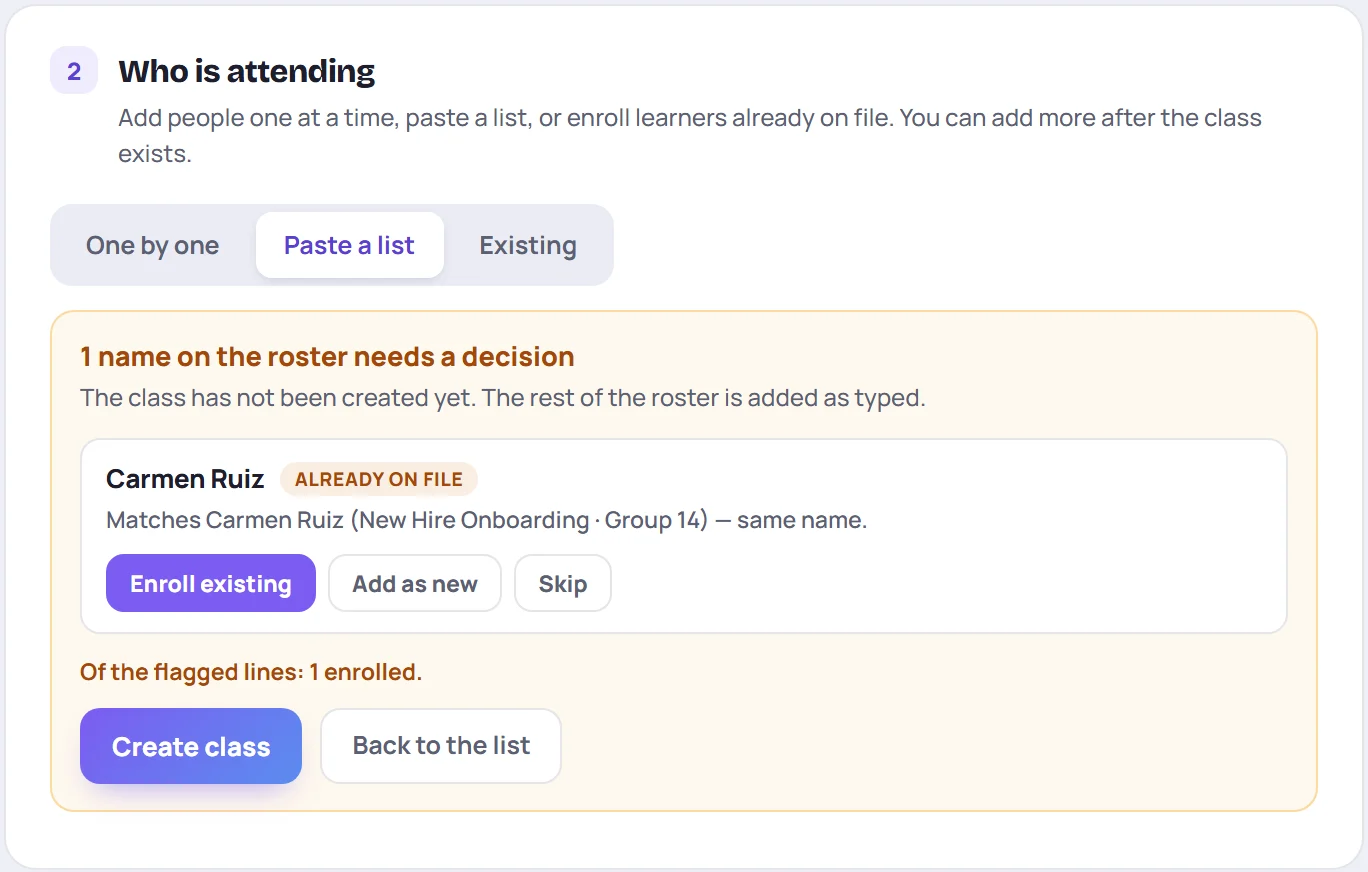
| You see | It means |
|---|---|
| Already on file | The email, employee ID or full name matches an existing learner. |
| Possible match | A similar name exists. Check it's the same person. |
| Repeated line | The same person appears twice in what you pasted. |
For each one, choose Enroll existing to keep their history in one profile, Add as new if they're a different person, or Skip. Then click Create class again. The rest of the list is added as typed.
3. When it runs
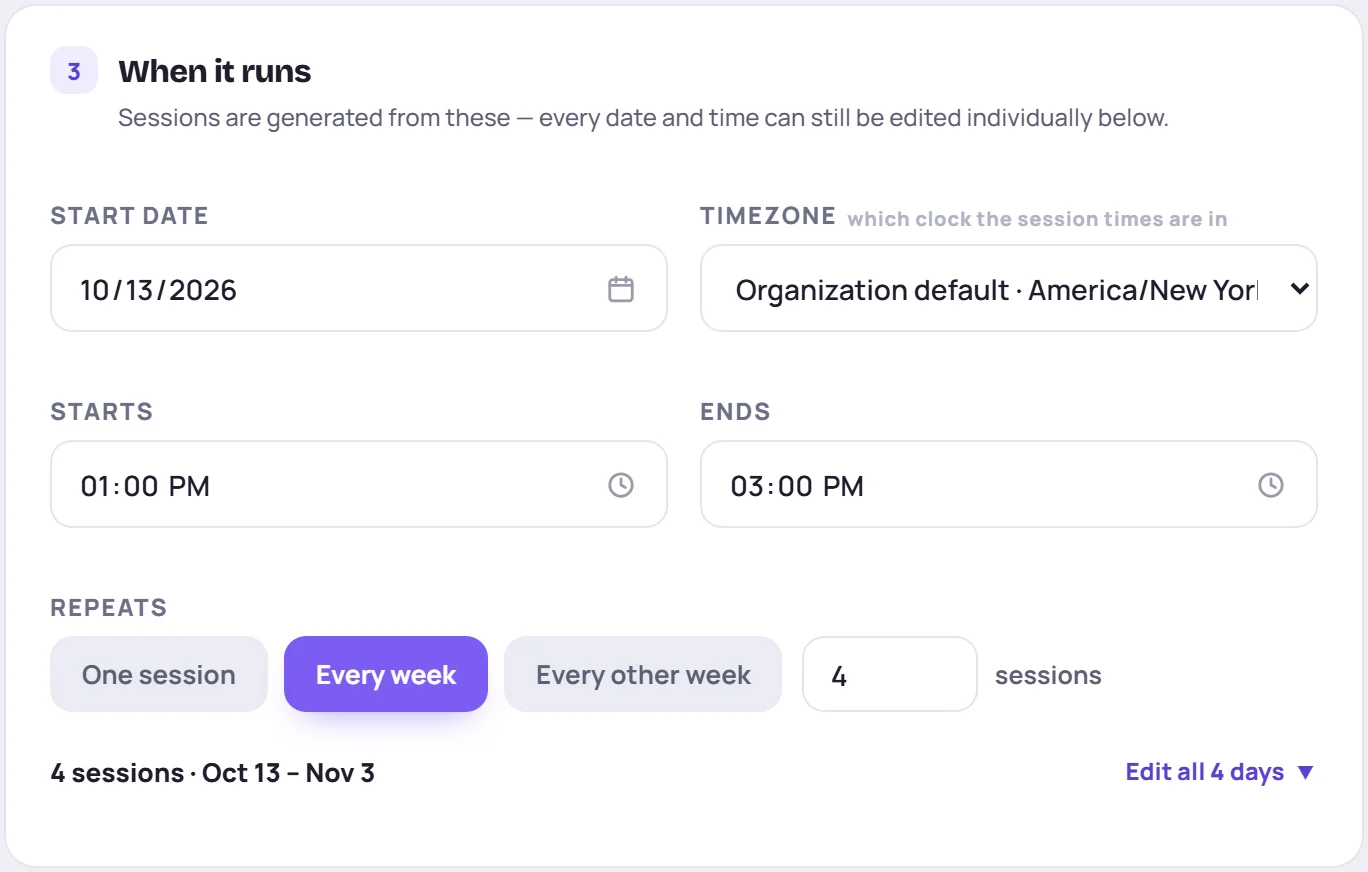
Set the Start date, the Starts and Ends times, and the Timezone. The time zone defaults to your organization's, which an Admin sets in workspace settings. Choose another one for a class that runs in a different region, so the times you enter are read on that region's clock.
How many sessions there are depends on the class type:
- Workshop and development classes use Repeats: One session, Every week or Every other week, plus the number of sessions.
- Onboarding classes use Duration in workdays. Weekends are skipped automatically. List any Holidays to skip as dates (YYYY-MM-DD), one per line. Skovrum moves the end date out to make up for them.
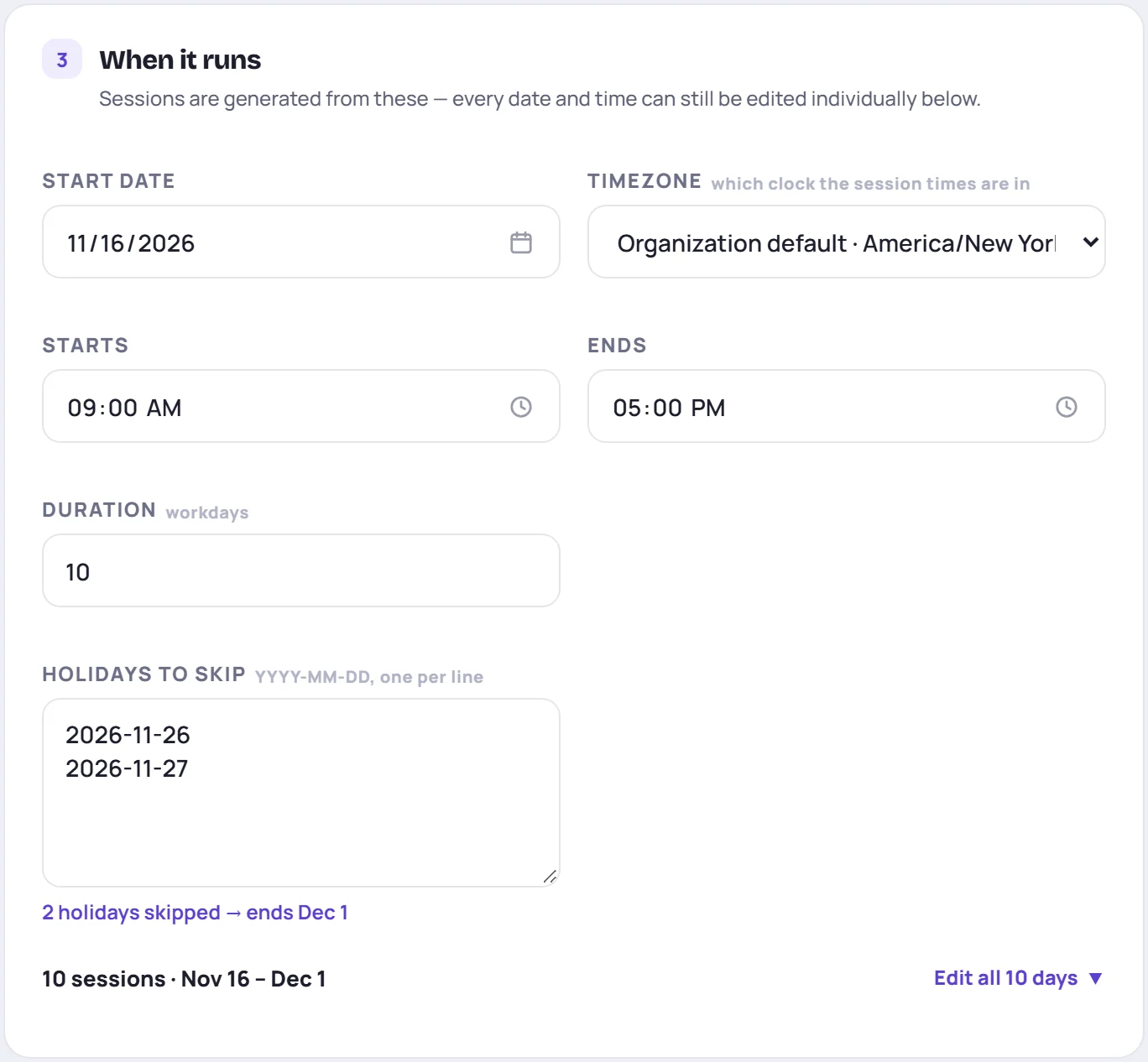
The line under the fields sums up what will be created, for example 10 sessions · Nov 16 – Dec 1. To change a single day, click Edit all … days. You can then:
- give any day its own date or times;
- remove a day with ×;
- add one with + Add day.
Reset to generated undoes your changes. If a session ends earlier than it starts, it's marked next day, which is right for an overnight shift.
4. What is taught
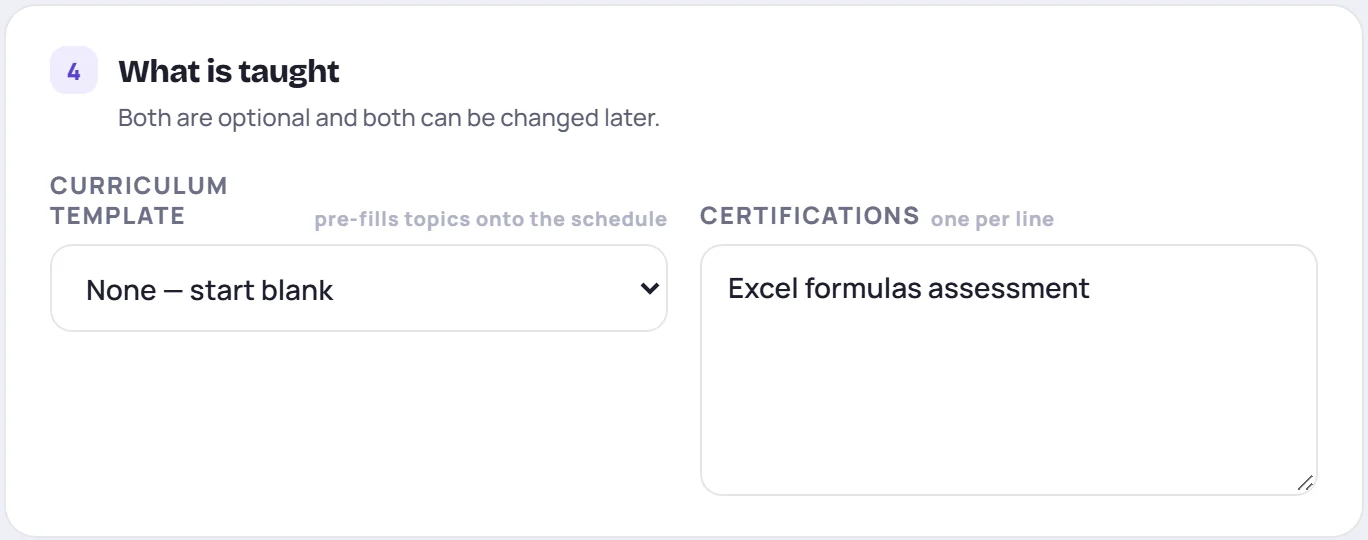
Both fields are optional, and you can change both later.
- Curriculum template fills the schedule with topics from a template saved for this class type. If there isn't one yet, build the topic list on any class's Curriculum tab and choose Save as template (see Build the curriculum). It will then appear here for every class of that type.
- Certifications takes one per line. A name that matches a certification in your workspace's catalog links to it and uses its pass mark and renewal period. See How certifications work.
5. Survey emails (optional)
This card only appears if your role can email learners. Switch on Email learners a survey at the end of every session to send each session's feedback survey automatically. Then choose the Survey, When to send it, and how long the Link stays open.
Sessions need an end time for this to work. Skovrum skips learners with no email address, anyone marked absent or excused, and anyone who has unsubscribed. You can change this later from any session's survey panel. See Email surveys automatically.
Check the summary and create
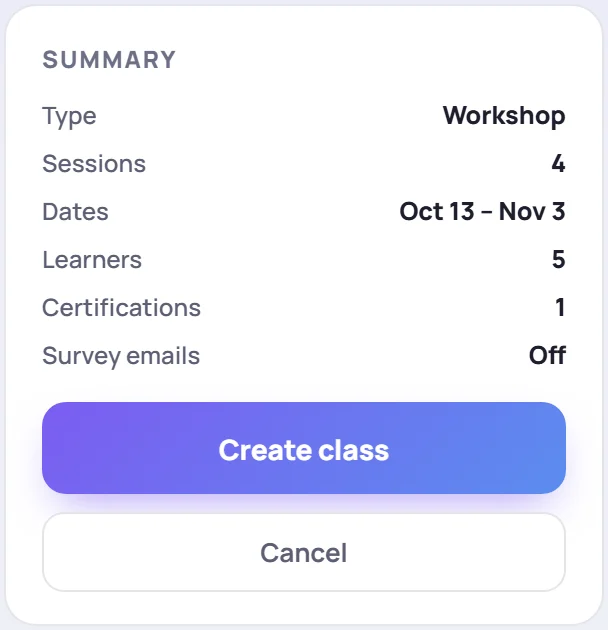
Check the Summary. Anything that would stop the class being created is listed under it, such as a missing name or a session that starts and ends at the same time. Then click Create class. You'll go back to Classes, where the new class is waiting, and Class created! appears briefly.
What happens next
Once the class exists:
- The class appears in Classes, and its sessions appear in the Calendar and in each trainer's calendar feed.
- Its learners appear in Learners, ready for attendance and notes.
- Next steps: open the class to build its curriculum, or open its first session to take notes.
Common questions
Can I change things after creating the class? Yes. Open the class and click Edit to change its name, trainers, delivery, dates, sessions and certifications. Add learners with Add learner. See Edit a class.
Why is Create class not doing anything? Look under the Summary. Each problem is listed there and under its own field: a missing name, a session that starts and ends at the same time, no session days, a join link that isn't a web address, or survey emails switched on without a survey.
What's the difference between a workshop and a development class? They're scheduled the same way. The type says what the class is, and reports, analytics and shared topics are grouped by it.
Why can't I see New class? Your role doesn't allow creating classes. An Admin can give you a role that does, in Manage → Users (see Invite and manage users).