Seats and viewers
Who uses a trainer seat, who counts as a free read-only viewer, how many of each your plan includes, and what happens when they're all in use.
Your words may differ. Each workspace can choose its own words: a class might be a cohort, program or group, a learner a participant, trainee or new hire, a session a module or lesson. These guides use the default words. The steps are the same whatever your workspace calls them. Change your workspace's words
Skovrum charges for the people who write, not for everyone who signs in. Each person in your workspace is one of two kinds:
- A trainer seat is anyone whose role lets them write: add notes, run sessions, change classes. Trainers, training leads and Admins all use a trainer seat.
- A read-only viewer is anyone whose role can only read, such as a manager who checks reports. The built-in Supervisor role is read-only. Viewers are free up to your plan's allowance.
Learners never count. They don't sign in, and every plan has unlimited learner profiles.
How many your plan includes
| Trainer seats | Read-only viewers | |
|---|---|---|
| Solo | 1 | 1 |
| Team | As many as you pay for (2 or more) | 2 for each trainer seat |
| Business | No limit (10 included, then billed on the trainers in use) | Unlimited |
So a Team workspace with 5 trainer seats can also have up to 10 read-only viewers. See What's in each plan.
What counts
- It's the role that decides. A person counts as a trainer seat if their role can write anything at all. If you make a custom role, turning writing on for it moves everyone who has that role into a trainer seat.
- Active people count, from the day they're added. Someone you've invited counts straight away, even before they've signed in for the first time.
- Deactivated people don't count. Deactivating someone frees their seat. What they wrote stays in the workspace.
See how many are in use
Go to Manage, then the Workspace tab. The plan card at the top shows Trainer seats and Read-only seats (the app's name for viewers), each as the number in use out of your plan's limit.

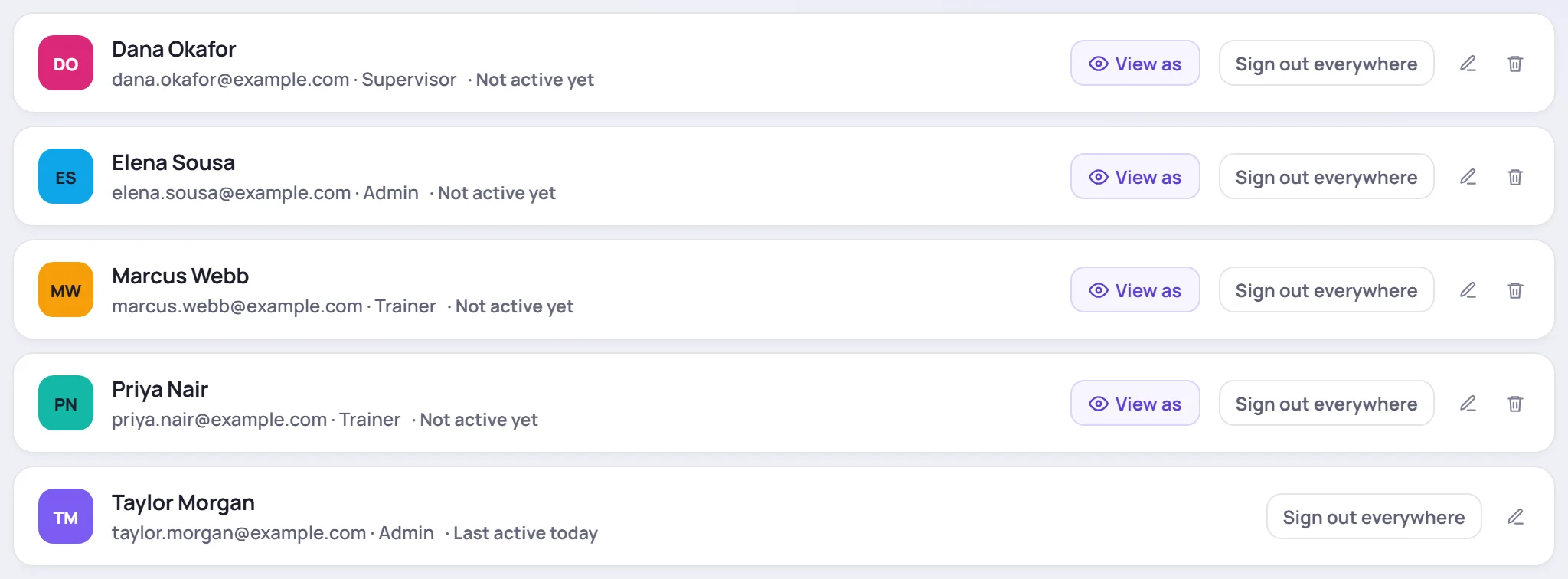
To see who's who, open the Users tab. Each person's role is shown after their email address. In this example, the Admins and Trainers use trainer seats and the Supervisor is a read-only viewer.
When all your seats are in use
When every trainer seat is taken, Skovrum won't let you add another person who writes. That applies when you:
- invite someone with a role that writes;
- change someone's role from read-only to one that writes;
- reactivate someone who was deactivated;
- turn on writing for a custom role that people already have.
You'll see a message such as Your Team plan includes 5 trainer seats, and all are in use. It also tells you what to do next. You have three options:
- Add them as a read-only viewer instead, if you still have viewer room. The message says so when you do.
- Free a seat. Deactivate someone who no longer needs access, or give someone who only reads a read-only role. See Invite and manage users.
- Add seats. If your workspace pays by card, use Manage billing and plan on Manage → Workspace. Otherwise, contact Skovrum. See Billing.
The same applies to read-only viewers once your viewer allowance is used up.
These checks only stop you from adding people. They never take a seat away from anyone who already has one.
Common questions
We moved to a smaller plan and now have more trainers than seats. What happens? Nothing changes straight away. Your Admins have 7 days to free or add seats. See More trainers than seats.
Does an Admin use a seat? Yes. Admins can write, so they use a trainer seat like anyone else.
Can a read-only viewer do anything at all? They can read what their role allows and, if the role includes them, run reports and export. They can also change their own account settings. Some read-only roles can answer questions on the team Questions board.