Private context
Keep background the team needs to know about a learner, such as an accommodation, on their profile without it ever leaving the app.
Your words may differ. Each workspace can choose its own words: a class might be a cohort, program or group, a learner a participant, trainee or new hire, a session a module or lesson. These guides use the default words. The steps are the same whatever your workspace calls them. Change your workspace's words
Private context is a short note on a learner's profile for things the next trainer should know but that don't belong in a report: an accommodation, a schedule constraint, or background shared with you in confidence. It's for the team in the app only.
Add or change it
- Open the learner's profile and click Edit.
- Scroll to Private context and type what the team should know. It can be up to 4,000 characters.
- Click Save.
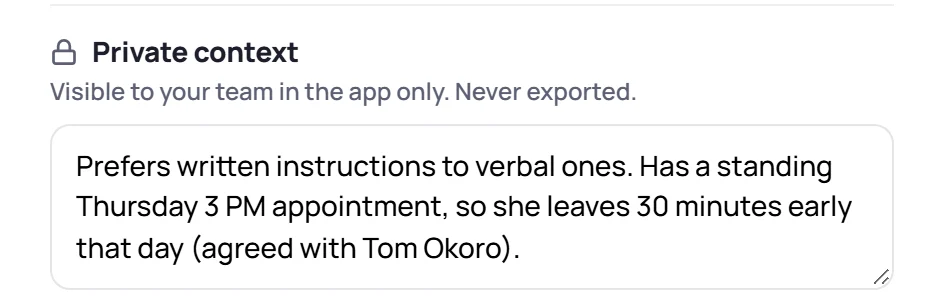
To remove it, clear the field and save.
Where it shows
It appears on the learner's Overview, next to After training, marked with a lock.

Where it never goes
Private context is left out of:
- CSV exports and printed reports, including the learner report and the class report;
- handoff packets;
- anything sent to AI for a summary;
- the daily email;
- the copy of your workspace each browser keeps for working offline.
The one exception is the full workspace backup an Admin can download. It holds everything (it's encrypted with a passphrase only that Admin knows) so a workspace can be restored. See Backups.
Common questions
Can a trainer add private context? Not with the built-in Trainer role. Ask an Admin to add it, or keep it in a private note of your own.
What happens to it if the learner is erased? It's erased with the rest of their record. See Archive, delete or erase.