My development
What you see on your own development profile, and how to ask for a peer observation.
Your words may differ. Each workspace can choose its own words: a class might be a cohort, program or group, a learner a participant, trainee or new hire, a session a module or lesson. These guides use the default words. The steps are the same whatever your workspace calls them. Change your workspace's words
My Development is your own development profile: what your coach has written about you, how your classes are going, and what learners and colleagues think of your sessions.
Open it
Click My Development in the sidebar.
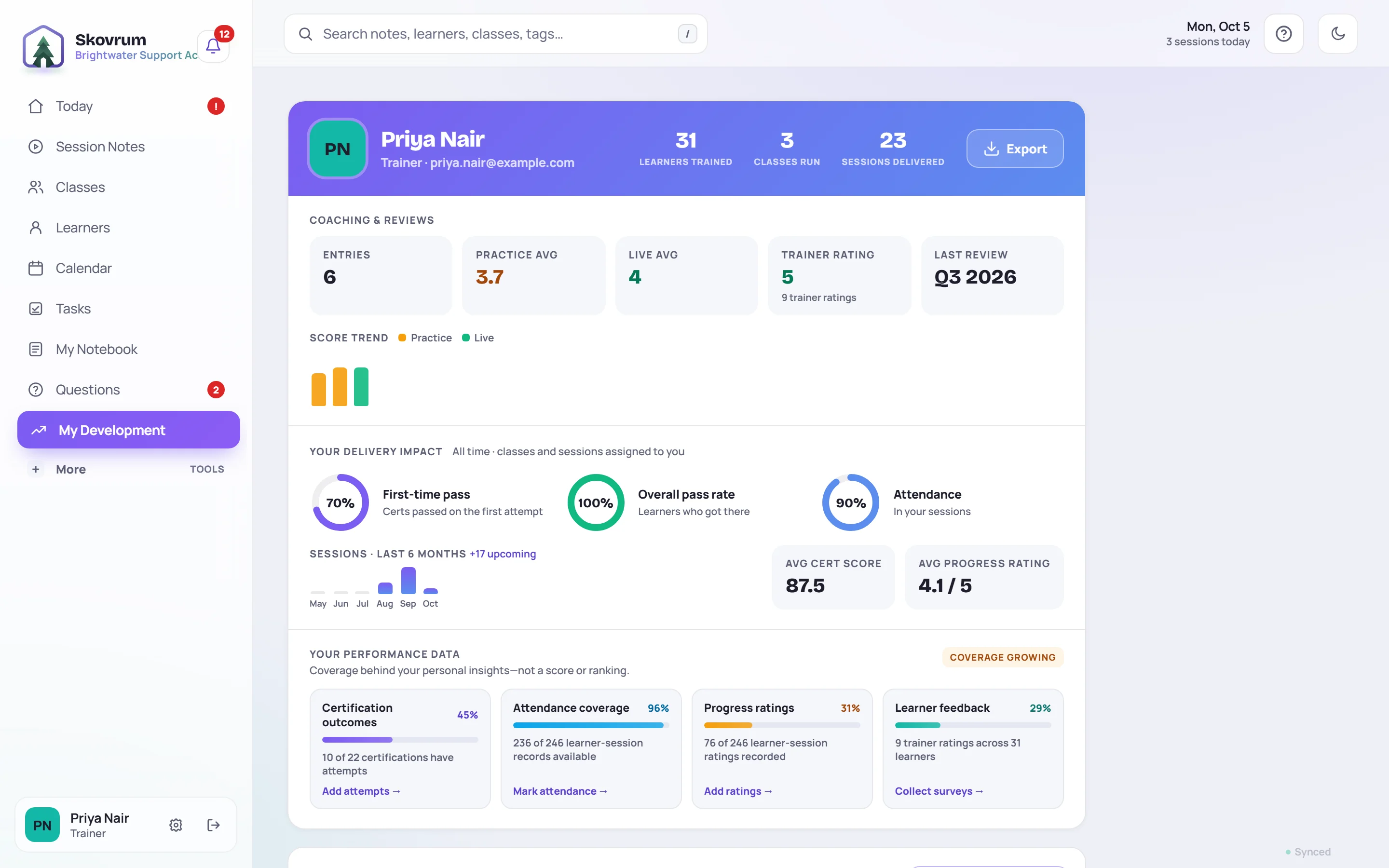
From the top:
- Your totals: learners trained, classes run and sessions delivered.
- Coaching & reviews: how many entries you have, your practice and live review averages, your rating from learner surveys, and your last quarterly review.
- Your delivery impact: pass rates and attendance in your sessions, sessions per month, and average certification score and progress rating. It covers all time.
- Your performance data: how complete the records behind those numbers are, such as how much attendance has been taken. It's not a score or a ranking. Each part has a button to fill the gap, such as Mark attendance.
Your entries
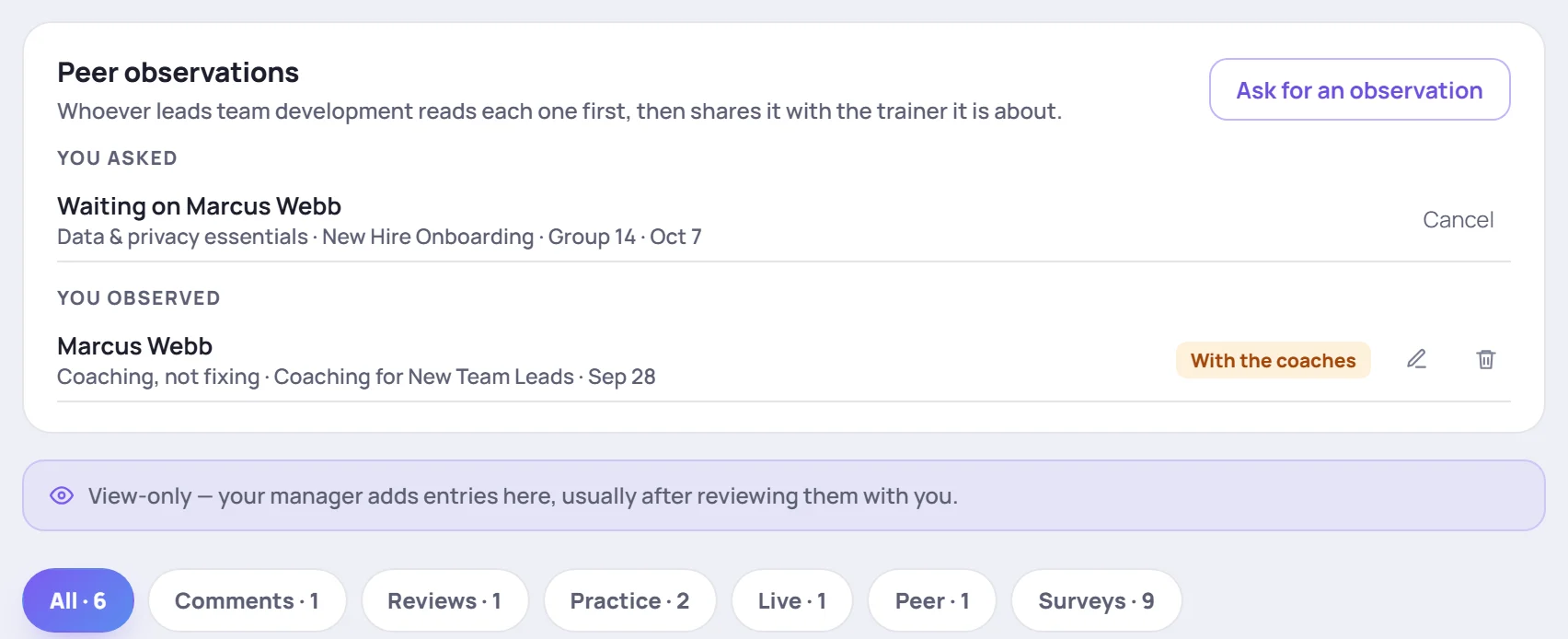
Below that, you'll find the entries your coach has added: comments, quarterly reviews, and reviews of your practice and live training. The page is view-only. Your coach adds the entries, often after talking them through with you.
Practice and live reviews start hidden, so a review appears here only once your coach makes it visible. You don't get a notification, so check back after a review. See Coaching entries and reviews.
Use the chips to filter. Surveys lists learner survey responses about you.
Peer observations
The Peer observations card lists:
- You asked: colleagues you've asked to observe you who haven't written it yet.
- You observed: observations you've written, either With the coaches or Shared with the colleague.
Click Ask for an observation to ask a colleague to sit in on one of your sessions. What they write goes to a coach first, who shares it with you. See Peer observation.
Print your report
Click Export, choose a period and click Generate report to print your development report or save it as a PDF. It never includes anything hidden from you.