Export to CSV
Download classes, learners, attendance, scores, tasks, sessions or survey responses as a spreadsheet file, and what each file contains.
Your words may differ. Each workspace can choose its own words: a class might be a cohort, program or group, a learner a participant, trainee or new hire, a session a module or lesson. These guides use the default words. The steps are the same whatever your workspace calls them. Change your workspace's words
When you need the numbers in Excel or Google Sheets, export a CSV file. Each Export CSV button downloads one file straight away. Open it in any spreadsheet app.
Export the list you're looking at
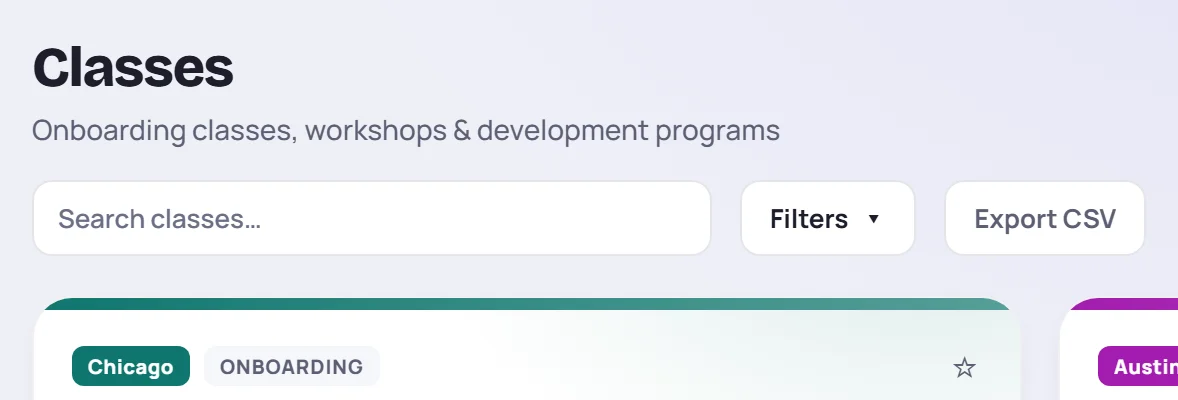
On Classes and Learners, Export CSV downloads the rows your search and filters are showing, all of them, not just the first page. The same button appears on Manage → Classes and Manage → Learners, and on their selection bars to export only the rows you've ticked.
| File | Columns |
|---|---|
| Classes | Name, Code, Country, Location, Type, Start, End, Trainer, Learners, Certs, Status |
| Learners | Name, Role, Flag, Classes, Status, Certs earned, Certs total |
Export everything of one kind
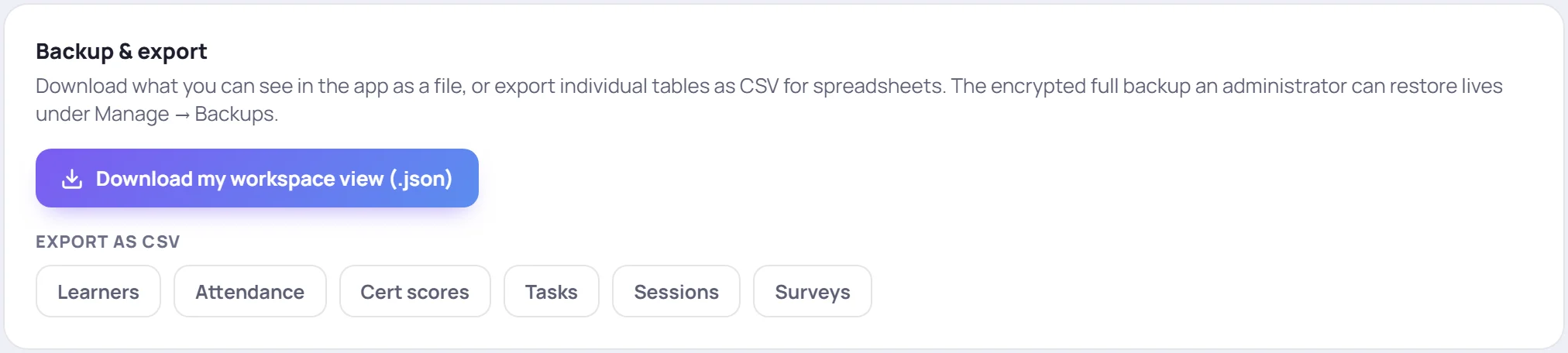
Go to Manage → Data and find Backup & export. The buttons under Export as CSV each download one kind of record for the whole workspace.
| Button | One row per | Columns |
|---|---|---|
| Learners | Learner in each class (someone in two classes appears twice) | Name, Role, Email, Employee ID, Class, Status, Left, Certs earned |
| Attendance | Learner in each past session they were enrolled for | Class, Session, Date, Learner, Status, Rating |
| Cert scores | Learner and certification | Class, Learner, Certification, Status, Best %, Attempts, History |
| Tasks | Task | Task, Priority, Due, Status, Class, Learner |
| Sessions | Session | Class, Session, Date, Start, End, Status, Roster size |
| Surveys | Survey response, newest first | Class, Session, Session date, Survey, Rating, Pace, Respondent, Comment, Custom answers, Attributed trainer, Submitted |
A few things to know:
- Attendance lists a session with no attendance taken as present, the same way the app counts it. Upcoming sessions aren't included.
- Cert scores puts every attempt in History, as score@date separated by
|. - Surveys shows Anonymous as the respondent unless the learner gave their name. Pre- and post-course self-assessments aren't included.
Download my workspace view (.json) on the same card saves everything you can see as one file, as a personal copy. It isn't a backup an Admin can restore. For that, see Back up and restore.
Good to know
- Files are named by date and time, for example skovrum-attendance-20261005-1030.csv.
- They open correctly in Excel, accented names included.
- They're safe to open. A value that starts with
=,+,-or@is saved with a leading'so a spreadsheet can't run it as a formula. - Column names use the default words (Class, Session) in most files, whatever your workspace calls them.
- The audit log has its own Download CSV. See The audit log.