Present on a projector
Show the session's agenda, the topic clock and the timer on a projector or second screen, and run it with a presentation clicker.
Your words may differ. Each workspace can choose its own words: a class might be a cohort, program or group, a learner a participant, trainee or new hire, a session a module or lesson. These guides use the default words. The steps are the same whatever your workspace calls them. Change your workspace's words
The presenter window puts the session's agenda on a screen the whole room can see: the topic you're on, how long it's been running, what's next, and any countdown timer. It never shows learners' names, ratings or notes, so it's safe to project.
Open the presenter window
- Open the session and go into live mode (Go live, or L).
- Click Present in the top bar, or press P.

A new browser window opens with the agenda. Drag it onto the projector or second screen, then click Full screen (or press F).
If nothing opens, your browser blocked the pop-up and Skovrum says so. Allow pop-ups for Skovrum and press Present again.
What the room sees
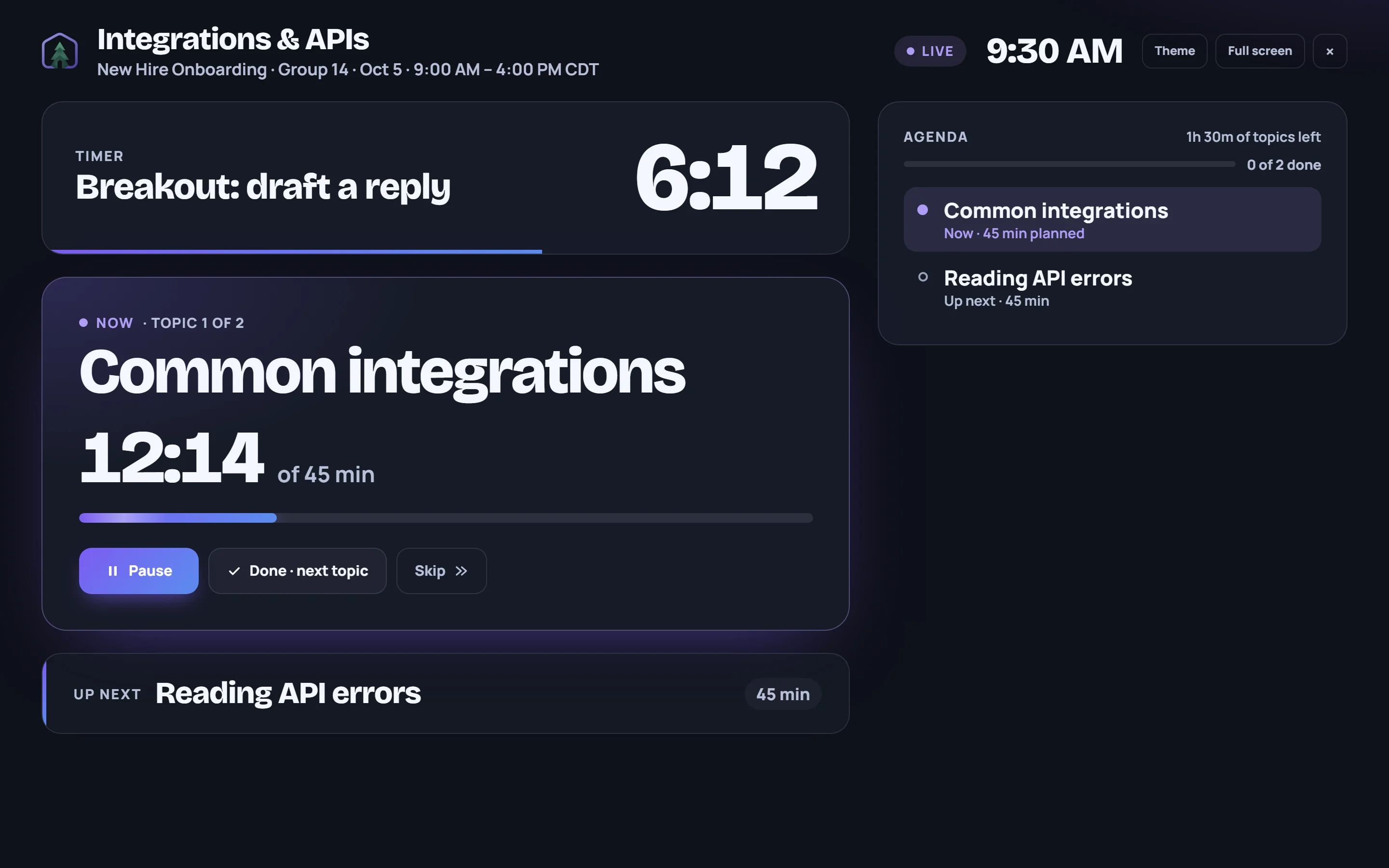
- The header: the session's name, its class, date and times, a Live badge while a topic's clock is running, and the time now.
- Timer: the countdown and its label, when one is running. It turns amber in the last minute and says Time's up at zero. See Cold call, timer and quick notes.
- Now: the current topic, its position (Topic 1 of 2), its clock against the planned time and a progress bar. Its objectives are listed underneath, if it has any. The clock turns amber near the planned time and red when it runs over.
- Up next: the next topic and its planned minutes.
- Agenda: every topic, crossed out with the time it took once done, plus how many are done and how much planned time is left. A skipped topic is marked Skipped for now.
When every topic is done, the window says Every topic covered.
Light or dark
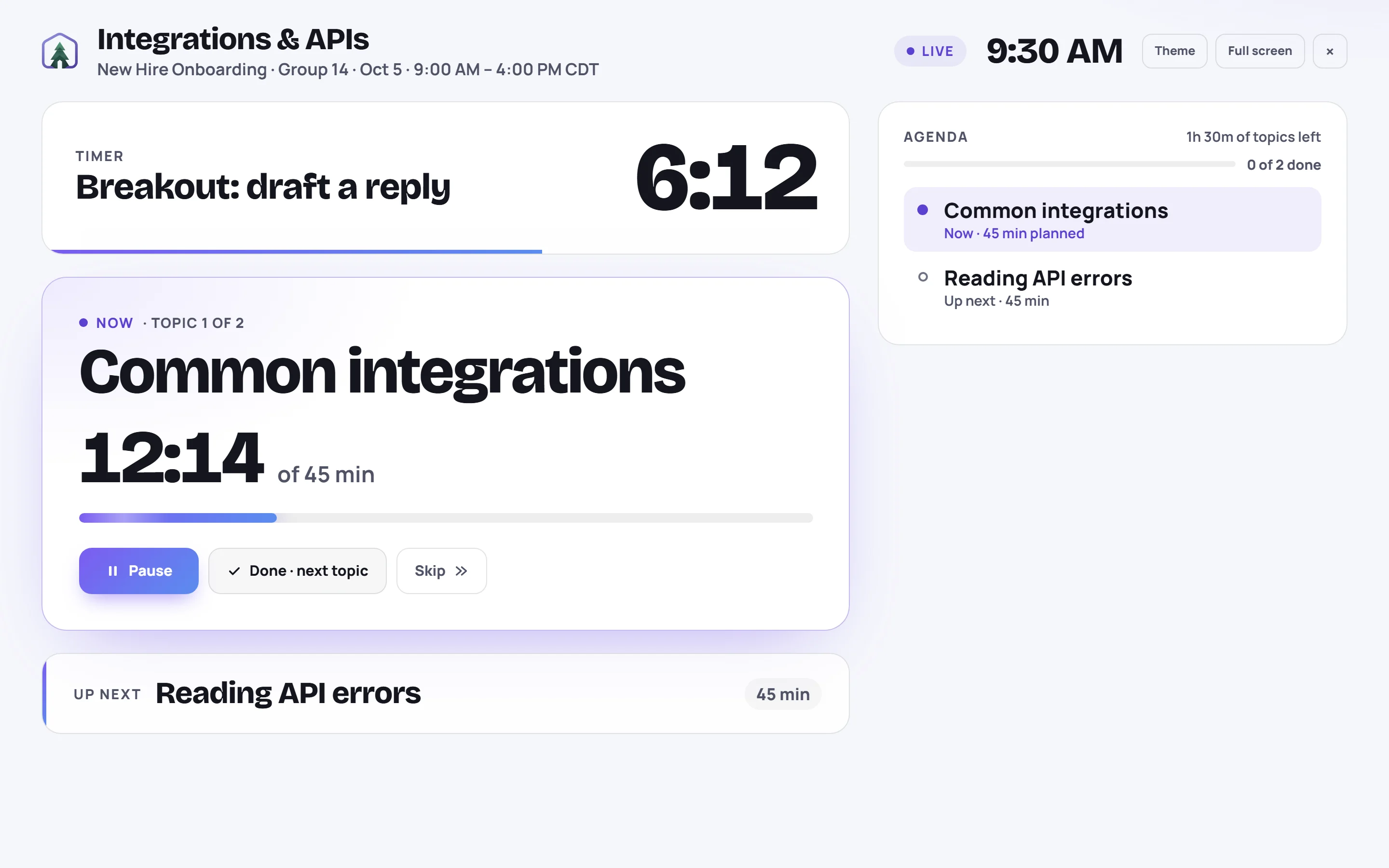
The window starts dark, which suits most projectors. Click Theme or press T to switch to a light screen. Skovrum remembers your choice on this computer.
Run the agenda from the presenter window
In a room with only one screen, you can run the agenda from the presenter window itself. Under the current topic:

| Button | Key | What it does |
|---|---|---|
| Start / Pause / Resume | Space | Start or pause the topic's clock |
| Done · next topic | →, PageDown or N | Mark the topic done and start the next one |
| Skip | S | Move the topic to the end of the agenda |
The buttons ask live mode to act, so live mode must stay open on your computer. If it doesn't answer, the window says The trainer's window didn't respond. Keep live mode open there.
Use a presentation clicker
Most clickers send → or PageDown for "next". With the presenter window in front, each click marks the current topic done and starts the next one. Click once on the presenter window first so it has the keyboard focus.
Close the presenter window
Click × in the top right or press Esc.
When you wrap up the session or leave live mode, the presenter window shows Session wrapped up and Thanks, everyone. You can close this window.
Common questions
The window says "Waiting for the trainer's window…". The presenter hasn't heard from live mode for a minute. Make sure live mode is open on this session in the main window, in the same browser. Press P there; the presenter updates on its own.
Does the presenter window show anything about learners? No. It shows only the session, its topics and times, and the timer's label. Keep timer labels free of names.
Can I open the presenter from a bookmark? It needs live mode running on the same session in the same browser. Open it with Present each time; if you opened it some other way, × can't close it, so close the tab from the browser.