Find your way around
The sidebar, the Today screen, the command palette, search and pins, and the keys that get you anywhere fast.
Your words may differ. Each workspace can choose its own words: a class might be a cohort, program or group, a learner a participant, trainee or new hire, a session a module or lesson. These guides use the default words. The steps are the same whatever your workspace calls them. Change your workspace's words
Skovrum has one sidebar on the left, a header across the top, and the screen you're working on in the middle. This page shows where everything lives and the quickest ways to jump between classes, learners and sessions.
Today: your home screen
You land on Today every time you sign in. It answers "what do I need to do today?"
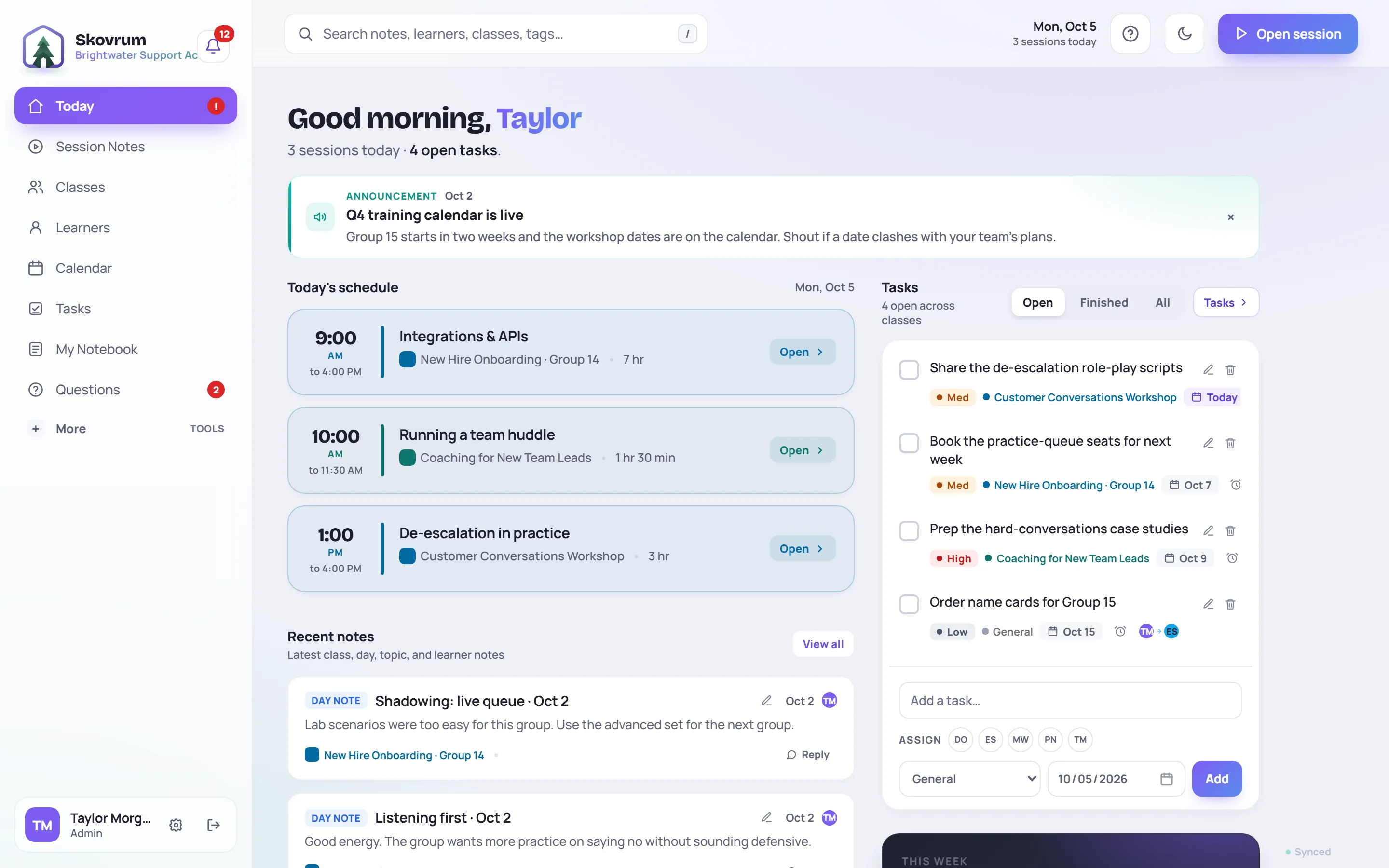
From top to bottom:
- Announcements from your team leads, if there are any. Click × to dismiss one.
- Set up your workspace, a checklist for Admins while a new workspace is being set up. See Set up your workspace.
- Today's schedule lists today's sessions in the classes you can see. Click Open to go to one. A session that's running now is marked LIVE.
- Recent notes shows the latest notes from your classes. View all opens them all in Search.
- Tasks lists open tasks. Switch between Open, Finished and All, and add a task at the bottom.
- This week counts this week's observations, sessions and certifications earned.
- Renewals coming up and Requested observations appear when there's something to show. See Track renewals and Peer observation.
The button in the top-right corner changes with the screen. On Today it's Open session, which opens the session you're working on, or New class if you don't have one yet.
The sidebar
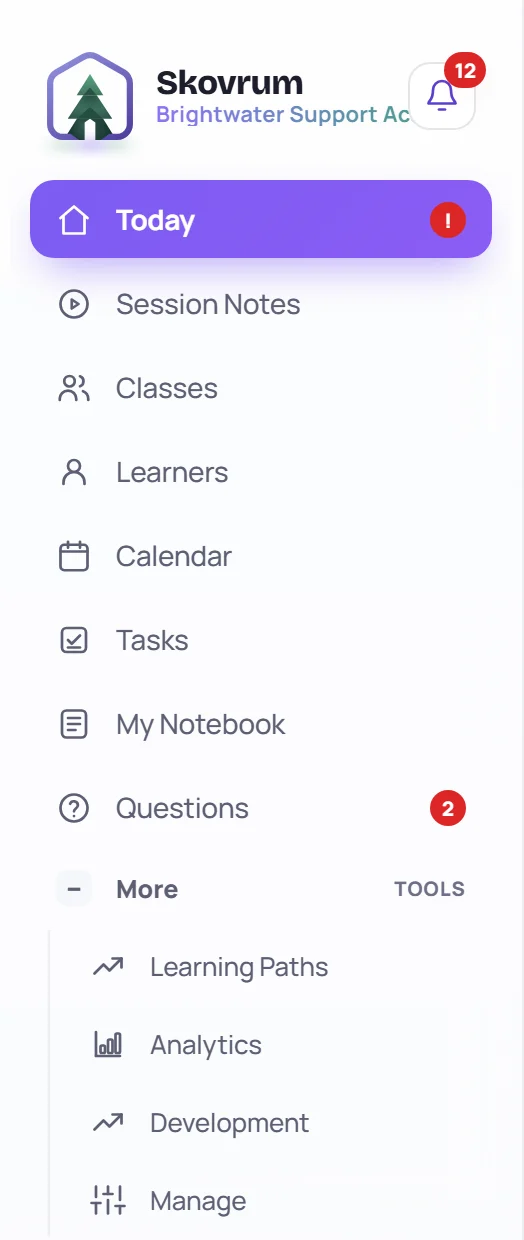
| Item | What it's for |
|---|---|
| Today | Your home screen. A red mark means a task or learner to-do is due today. |
| Session Notes | Jumps straight into the session you last had open, or today's. |
| Classes | Every class you can see. See Find, filter and pin classes. |
| Learners | Everyone in your classes. See Find and filter learners. |
| Calendar | Every session by day, week or month. See The calendar. |
| Tasks | The team's follow-ups. |
| My Notebook | Your own notes that don't belong to a class. See My Notebook. |
| Questions | The team's Questions board. A number counts unanswered questions parked in classes; ! means an answer to your question is ready to pass on. |
| My Development | Your development profile, if your workspace uses coaching. |
Click More for the tools: Learning Paths, Analytics, Development (for coaches) and Manage (for Admins).
At the bottom of the sidebar are your name and role. The gear opens your account settings, and the arrow next to it signs you out.
On a phone or a narrow window, the sidebar folds away. Tap the menu button in the top-left corner to open it.
Jump anywhere with the command palette
Press Ctrl+K (⌘+K on a Mac) from any screen. Start typing the name of a class, learner or session, then press Enter to open it.
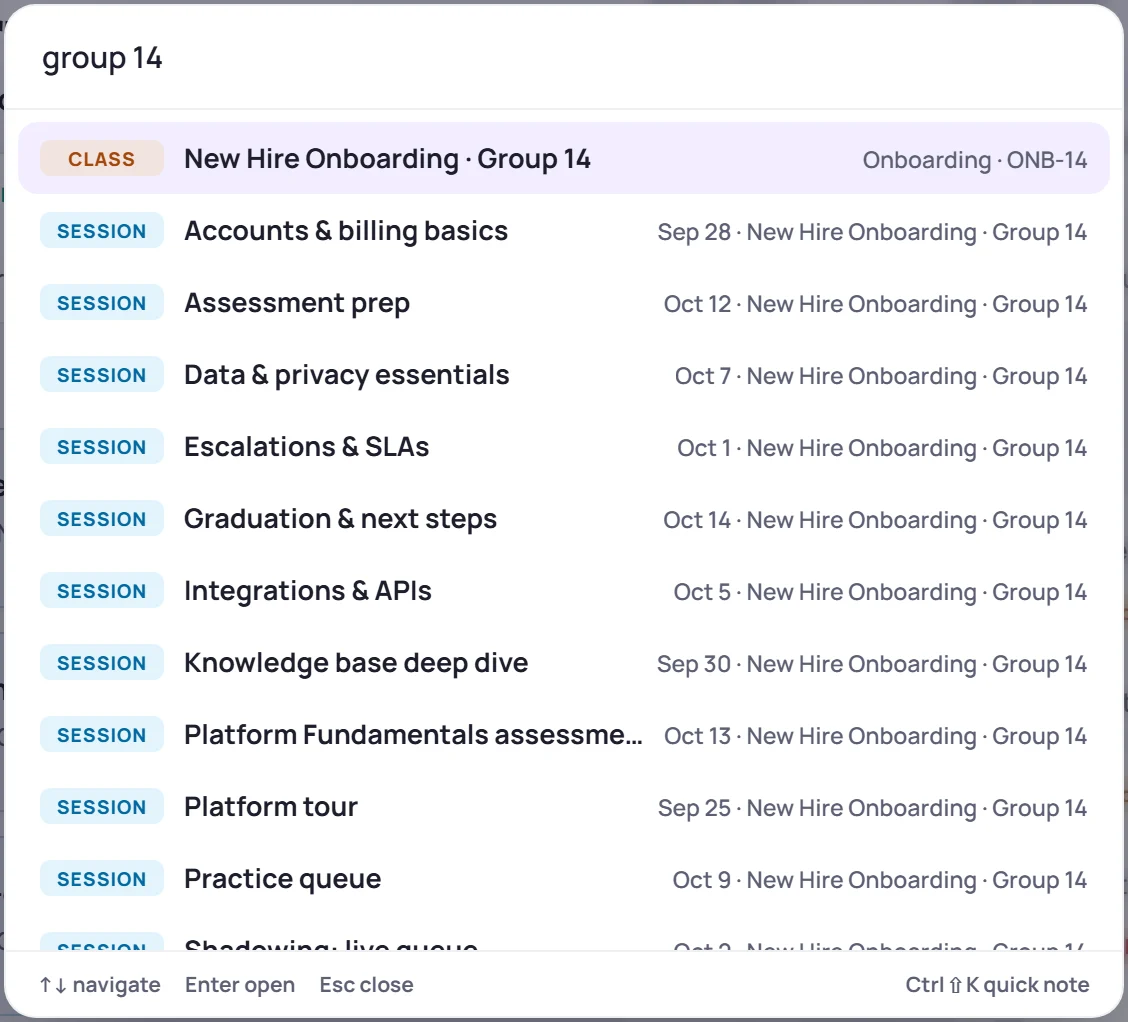
- You don't need the whole name. grp 14 still finds Group 14.
- Before you type, the palette lists what you've pinned, then what you opened recently, then quick actions.
- It also runs actions: New private note…, New task, Ask a question…, and Go to any screen. On a session screen it offers Go live.
- Questions show up too, once you type a few words of one.
Use the arrow keys to move, Enter to open and Esc to close.
Search notes, learners and classes
Click the search box at the top of any screen, or press /. Results update as you type.
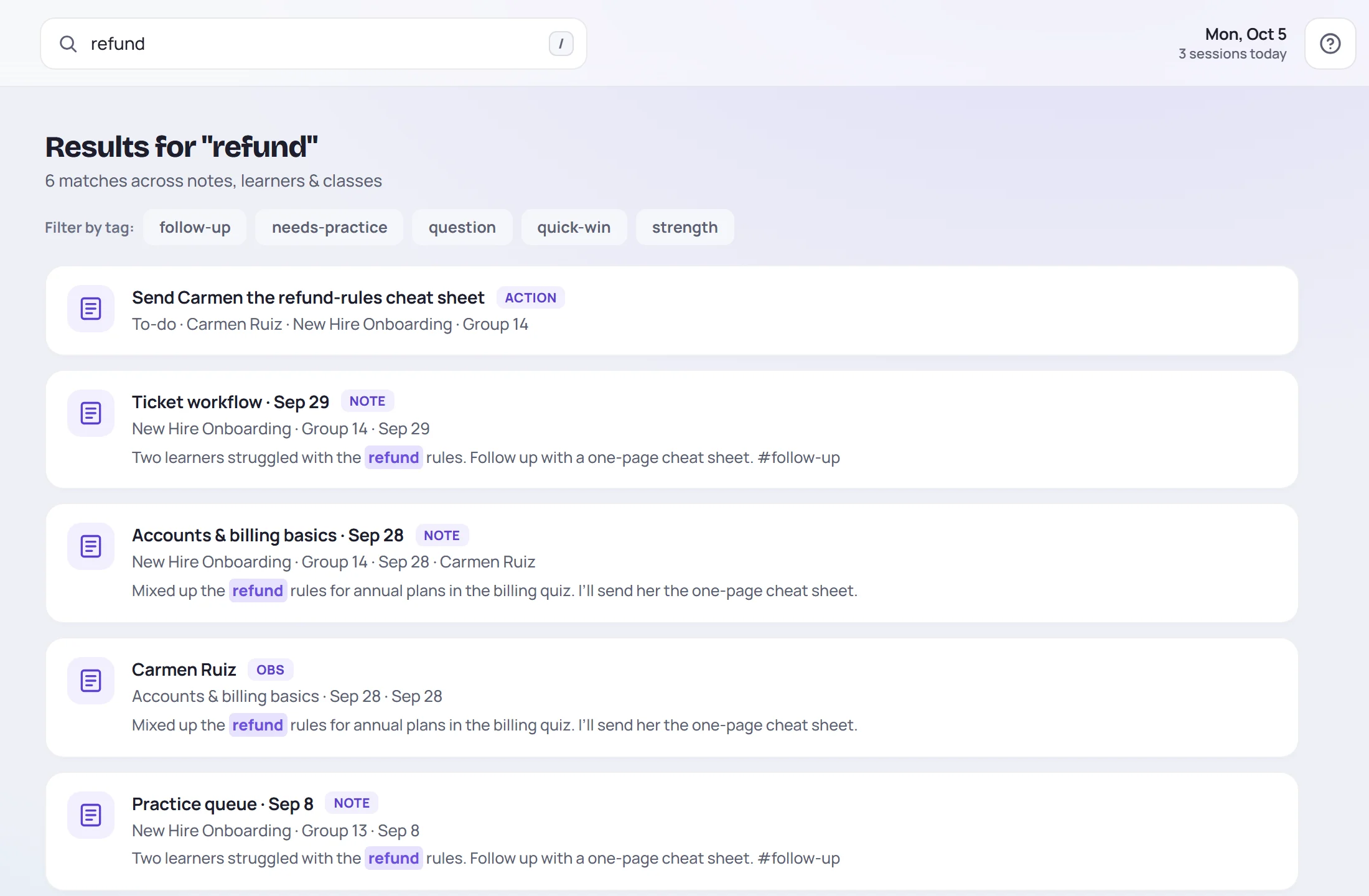
Search looks through:
- notes from sessions, classes and My Notebook, and observations about learners;
- learners and classes, by name;
- tasks and learner to-dos;
- sessions that have a #tag.
To see every note that shares a tag, click Filter by tag chips under the heading, or click a tag anywhere in the app. Pick several tags to narrow the list to notes that have all of them.
Pin the things you use most
Click the star (☆) on a class card or a learner's row to pin it. Pinned classes and learners move to the top of their lists and are the first things the command palette offers. Click the star again to unpin. Your pins are saved to your account, so they follow you to any computer.
Notifications, help and the theme
The icons in the header:
- The bell (next to the Skovrum logo) collects what needs you: being mentioned, renewals coming up, survey feedback and more. Click one to open it, or × to dismiss it. See Notifications.
- ? opens the help menu: the Help center, Help for this page (the guide for the screen you're on), Take a tour, Keyboard shortcuts, Send feedback, Contact support, System status and What's new. See Get help.
- The moon or sun switches between light and dark.
Keys worth learning
These work whenever you're not typing in a box:
| Key | What it does |
|---|---|
| Ctrl/⌘+K | Open the command palette |
| Ctrl/⌘+Shift+K | Quick capture a note or question |
| / | Search |
| N | New task |
| J / K | Next or previous session in the same class |
| L | Teach the open session in live mode |
| ? | Show every shortcut |
| Esc | Close whatever is open on top |
The full list, including live mode's keys, is in Keyboard shortcuts.