Take attendance
Mark who was late, absent, excused or left early, give a daily progress rating, and read the class's attendance log.
Your words may differ. Each workspace can choose its own words: a class might be a cohort, program or group, a learner a participant, trainee or new hire, a session a module or lesson. These guides use the default words. The steps are the same whatever your workspace calls them. Change your workspace's words
Attendance in Skovrum works by exception. On the day of a session everyone starts as Present, so you only touch the learners who weren't. That takes a few seconds a day, and it's all you need for the class's attendance rate, the learner's record and the catch-up list.
The attendance button
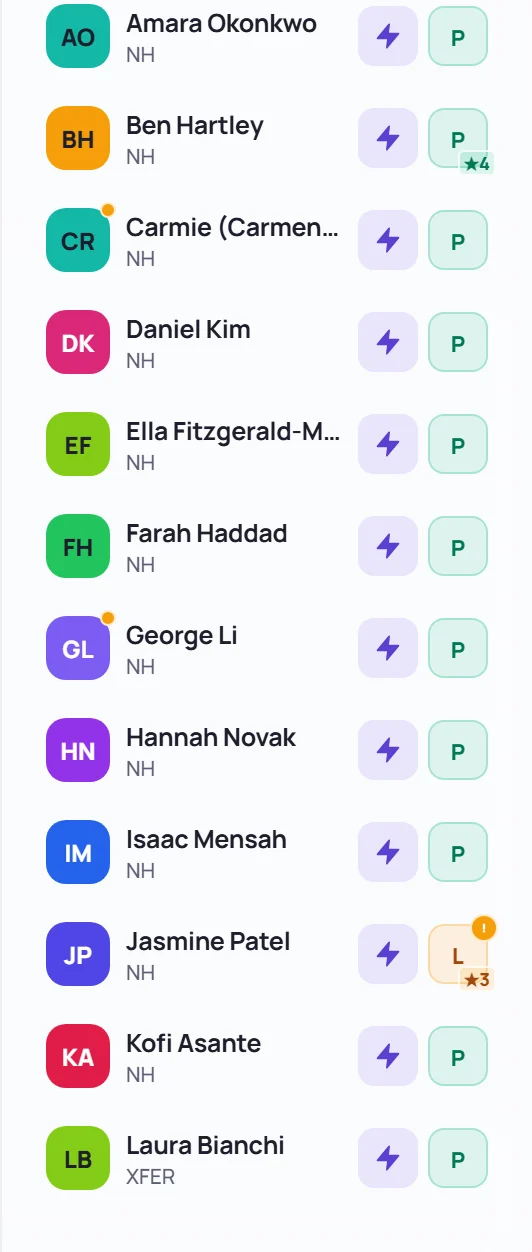
Every learner in the session's roster has an attendance button on the right. It shows a letter:
| Letter | Means |
|---|---|
| P | Present |
| L | Late |
| A | Absent |
| E | Excused |
| UEL | Early Leave |
| — | Not yet (a session in the future) |
Click the button to open Mark attendance for that learner.
Record an exception
- Click the learner's attendance button.
- Choose Late, Absent, Excused or Early Leave.
- Write the reason in the box. It's required: Skovrum asks Why, and how long?
- Optionally, choose a daily progress rating (below).
- Click Save exception.
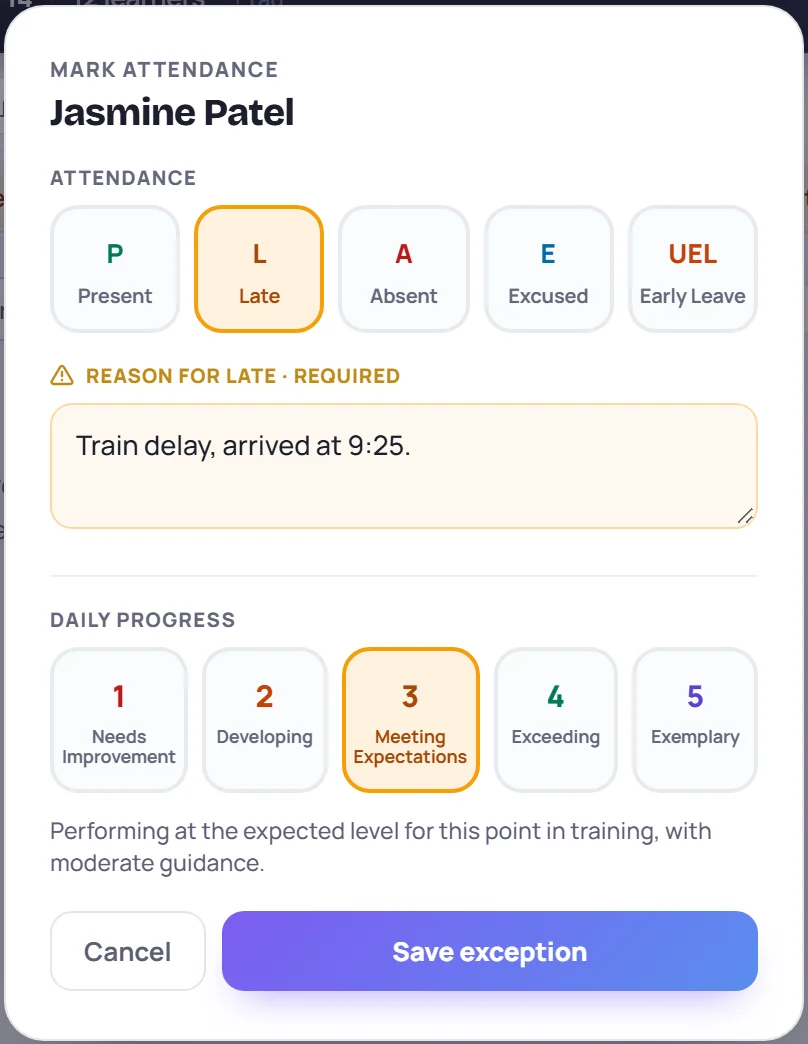
The button then shows the new letter, with an amber dot for the reason. Hover over the dot to read the reason and who wrote it.
To put someone back to Present, open the window and choose Present. That saves at once and removes the reason.
Give a daily progress rating
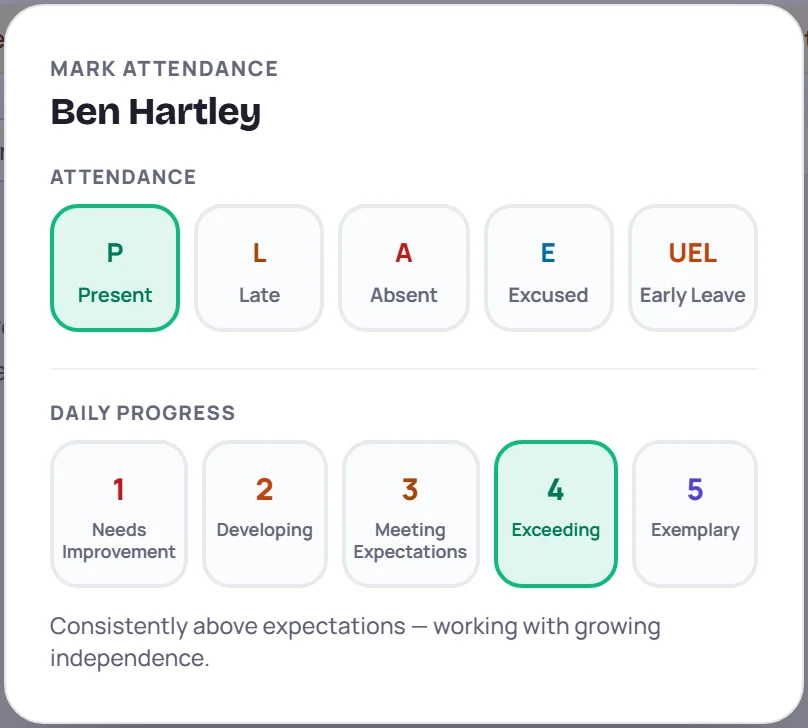
The lower half of the window is Daily progress: a rating from 1 to 5 for how the learner did that day. It's optional.
| Rating | Means |
|---|---|
| 1 · Needs Improvement | Not yet meeting expectations; needs close guidance and extra support |
| 2 · Developing | Building the fundamentals; progress is inconsistent |
| 3 · Meeting Expectations | At the expected level for this point in training |
| 4 · Exceeding | Consistently above expectations, with growing independence |
| 5 · Exemplary | Exceptional, fully independent work that sets the standard |
For a learner who is Present, clicking a rating saves it straight away. The window stays open so you can check it, and a description of the rating appears under the numbers. Close it with Esc or by clicking outside. For an exception, the rating is saved together with the reason when you click Save exception.
The rating shows as a small star and number on the attendance button, such as ★3.
What attendance feeds
- The next session. A learner who was late, absent, excused or left early, or was rated 2 or lower, appears under Keep an eye on on the next session's Since last session card.
- Catch-ups. Learners who were absent, excused or left early missed that day's checked-off topics. See Missed topics and catch-ups.
- Learner health. A low attendance rate or low ratings can mark a learner as needing attention. See Learner health.
- The wrap-up. The end-of-session checklist counts your exceptions and ratings. See Wrap up a session.
- Reports. The class report and analytics use the same records.
The class's attendance log
To see every session at once, open the class and choose the Attendance tab. The Attendance log has a row for each learner and a column for each session.
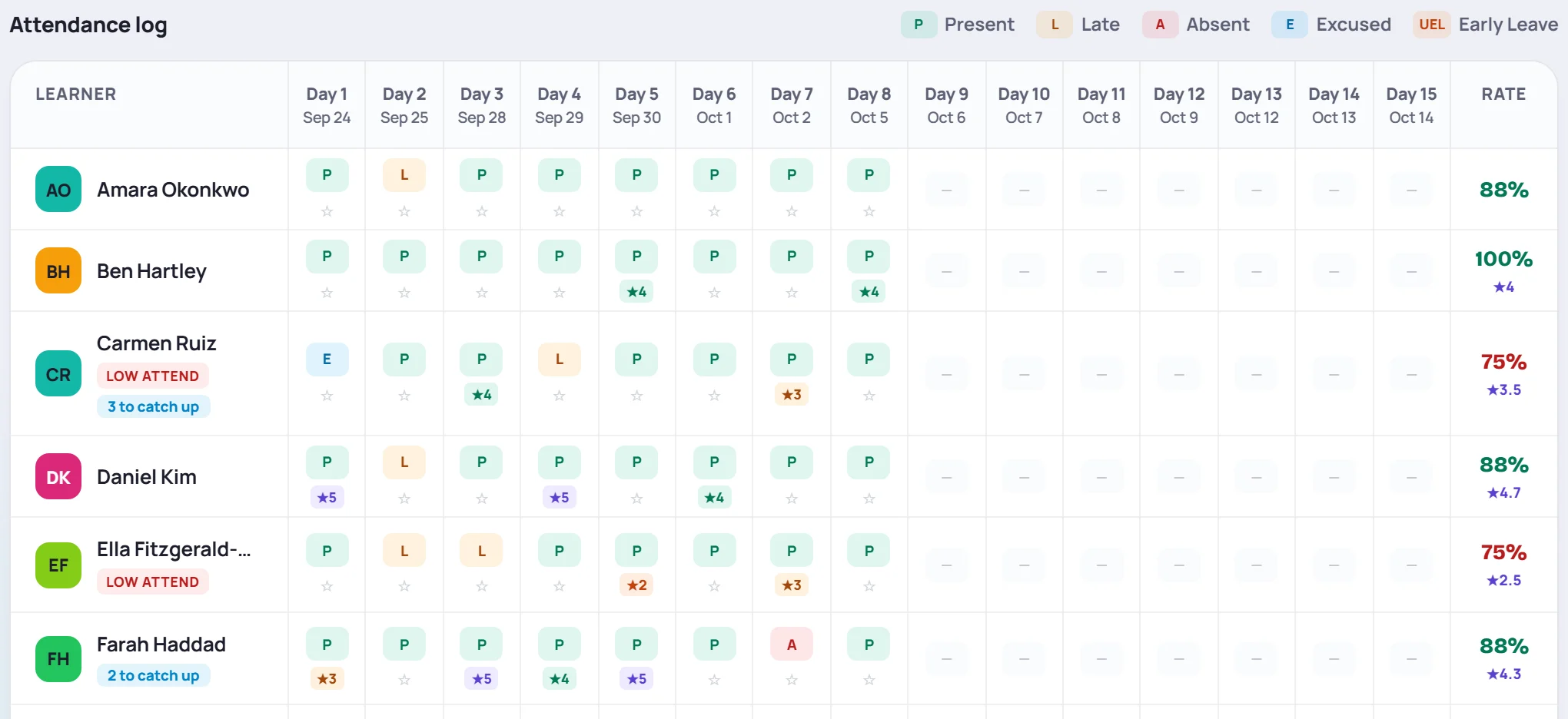
- Each cell shows the letter and, under it, the rating (or an empty ☆). An amber dot means there's a reason. Click a cell to change it, the same way as on the session.
- Rate on the right is the share of past sessions the learner was marked Present, with their average rating under it. Late counts against this rate.
- LOW ATTEND marks a learner whose rate is below 80%.
- Left or Termed marks a learner who has left the class. Sessions after they left, or before they joined, show a grey dash that can't be changed.
- 3 to catch up means the learner missed 3 topics that haven't been covered with them yet. See Missed topics and catch-ups.
Click a learner's name to open their profile.
In live mode
In live mode, each learner's tile has the same attendance button and a row of 1–5 rating buttons. Rating someone who isn't Present opens Mark attendance so you can add the reason.
Common questions
Do I have to mark everyone Present? No. Everyone in a past or current session counts as Present unless you record an exception.
Why can't I change attendance on this session? You can record attendance only in sessions you lead or co-lead, unless you're an Admin. A learner who wasn't in the class on that date can't be marked either.
Can I record attendance ahead of time? Yes. A future session shows — (Not yet), and you can still open the window, for example to mark a learner who's told you they'll be away as Excused.