Confirm a reservation and pay
When Skovrum opens to new teams, you get an email to confirm your reserved workspace and pay. Here's what happens next.
Your words may differ. Each workspace can choose its own words: a class might be a cohort, program or group, a learner a participant, trainee or new hire, a session a module or lesson. These guides use the default words. The steps are the same whatever your workspace calls them. Change your workspace's words
If you reserved a workspace while Skovrum was opening to new teams, nothing has been set up or billed yet. When we're ready for you, we email you to confirm the details and pay. Checking the details and paying takes a couple of minutes, and the workspace is usually ready a few minutes after you pay.
The email
It comes from Skovrum with the subject Skovrum is open: confirm and your address, for example Skovrum is open: confirm brightwater.skovrum.com.
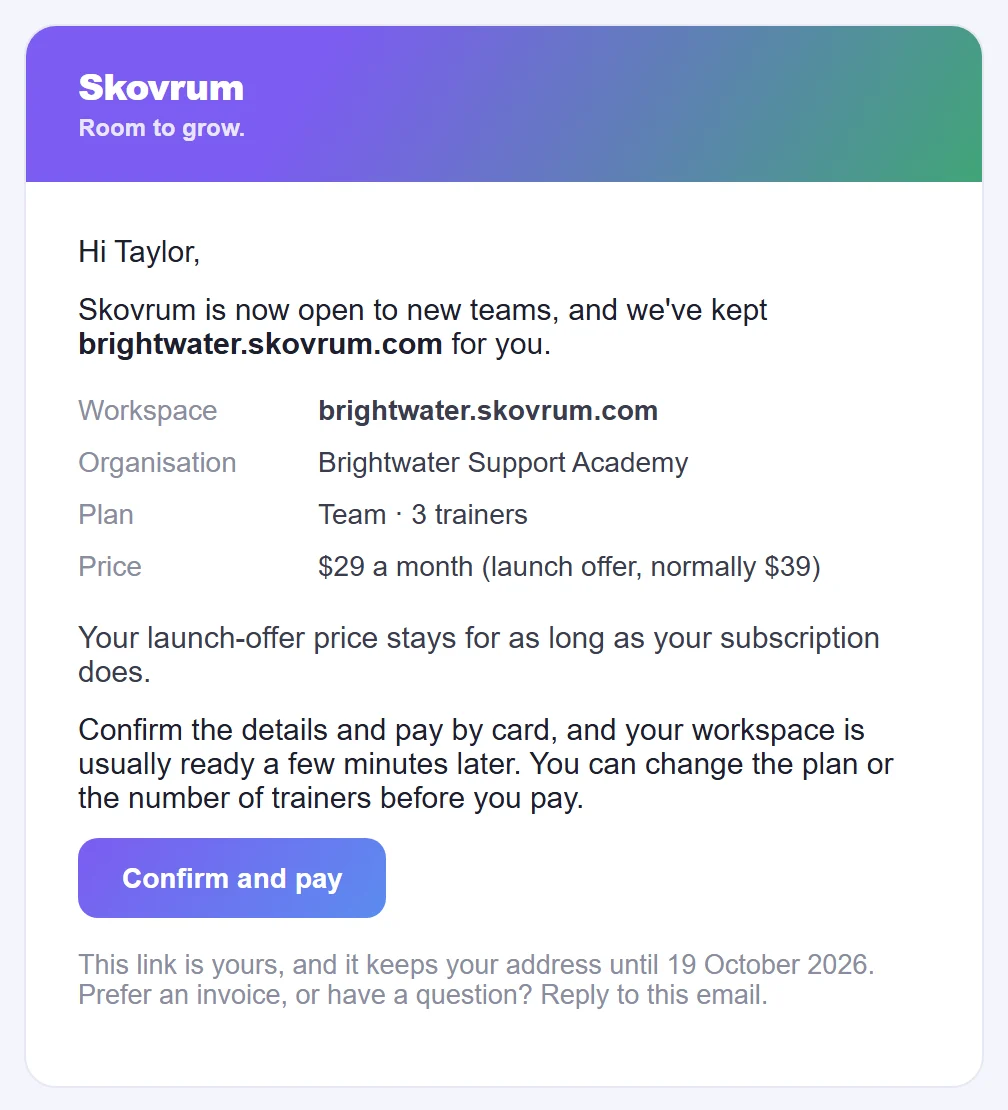
It lists your Workspace, Organisation, Plan and Price. If you reserved during the launch offer, the price includes it, and it stays for as long as your subscription does, even if the offer has ended since.
The link keeps your address for 14 days from the email. The email gives the date. A reminder comes after 7 days if you haven't paid. After 14 days the address is released, and we email you to say so. Nothing is set up or billed in that case. Reply to that email if you're still interested.
Prefer an invoice, or have a question? Reply to the email.
Confirm and pay
Click Confirm and pay. It opens the start page with your reservation filled in, and Welcome back. We've kept brightwater.skovrum.com for you.
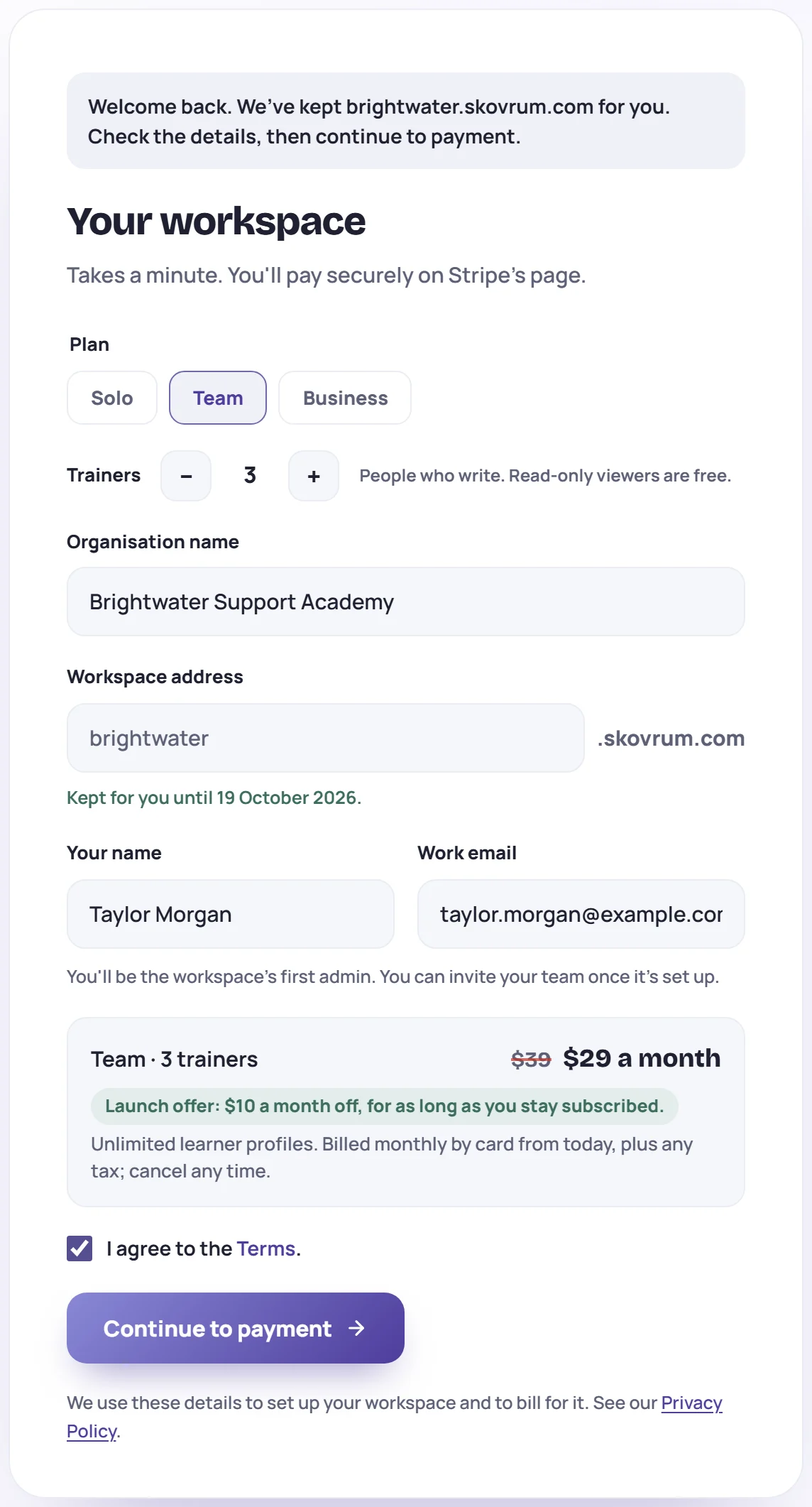
- Check the details. You can change the plan, the number of trainers, the organization name, your name and your email. The address is locked, and Kept for you until shows the date.
- Tick I agree to the Terms.
- Click Continue to payment and pay by card on the secure payment page.
If you leave the payment page without paying, nothing is charged. You come back to the form, and the link in your email still works until its date.
After you pay
A page shows Your workspace is being built, then Payment received, Creating and deploying your workspace, Sending your invitation and Ready. You can close it: we email you either way. Then:
- Open your invitation email and set your password. See Accept your invitation.
- Sign in at your workspace's address. See Sign in and passwords.
- Set up your workspace with the checklist on Today. See What's in a new workspace.
You're billed monthly by card from the day you pay, plus any tax. To change your card, plan or trainers later, see Billing.
Common questions
The link says it has expired or has already been used. The page says so at the top, and you can still start from the form below it. If your 14 days have passed, the address may have been released. Reply to our email and we'll help.
Can I pay by invoice instead? Business can be invoiced. Reply to the email before you pay.