Merge duplicate profiles
Find learners who have two profiles, and fold the duplicate into the profile you keep so their history is in one place.
Your words may differ. Each workspace can choose its own words: a class might be a cohort, program or group, a learner a participant, trainee or new hire, a session a module or lesson. These guides use the default words. The steps are the same whatever your workspace calls them. Change your workspace's words
Sometimes one person ends up with two profiles, for example when they were typed into two classes without an email or employee ID. Merging moves everything from the duplicate onto the profile you keep, then deletes the duplicate. It can't be undone, so check you have the right two people first.
Find possible duplicates
Go to Manage → Learners. If Skovrum finds learners who look like the same person, an amber box at the top says how many, for example 1 possible duplicate profile. Click it to see the pairs.

Each pair shows the two names, their classes and how sure the match is:
| Label | Means |
|---|---|
| Same identifier | The same email or employee ID |
| Same name | The same full name |
| Similar | Close names. Check before you merge. |
The box shows the first eight pairs. Merge those and the rest appear.
Merge a pair
- Click Review & merge next to the pair.
- Check which profile is in the green Keep this profile box. Skovrum suggests the one with more classes. If it's the wrong way round, click Swap — keep the other one.
- Read the red Merge in and delete box. It lists what moves across, such as class enrollments, observations and tasks.
- Click Merge and delete duplicate.
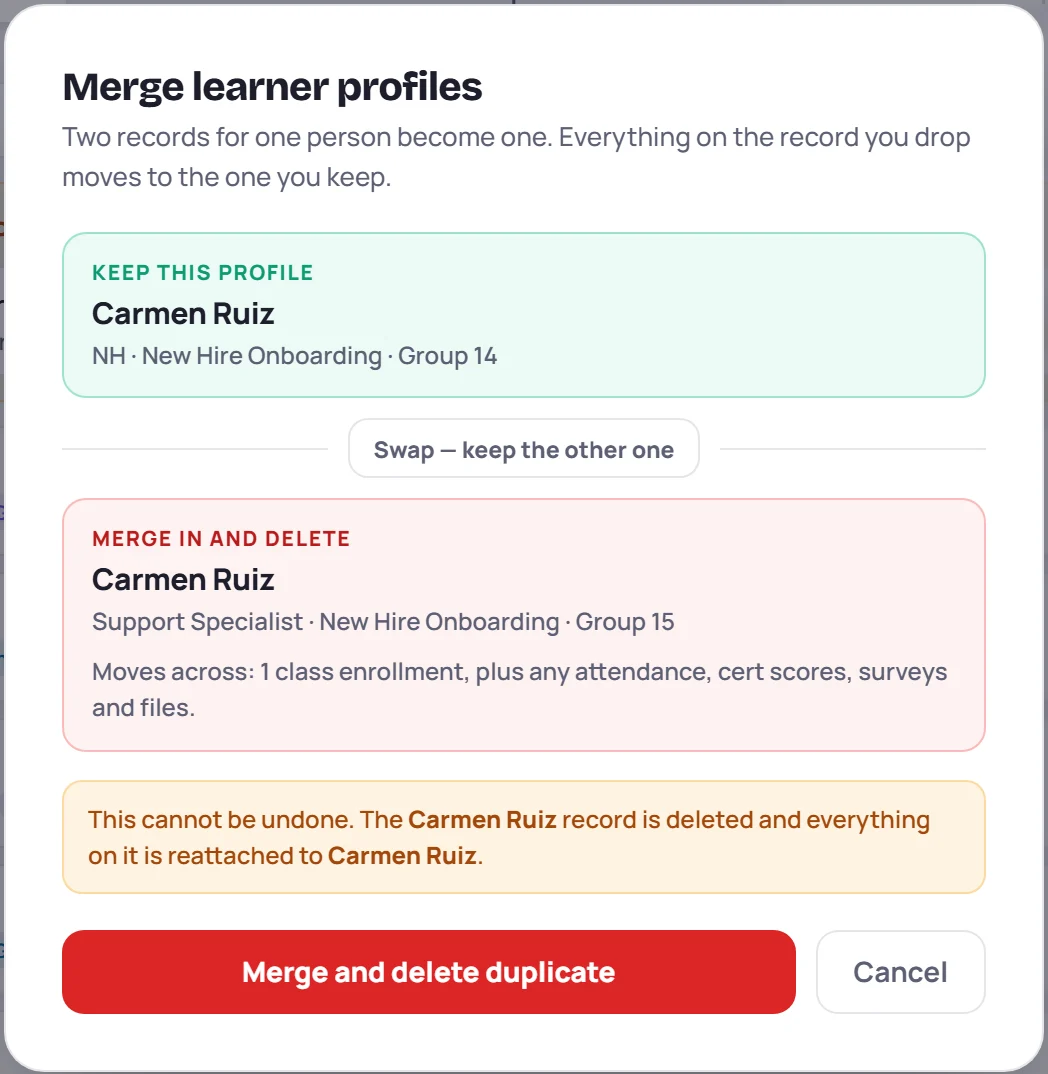
Skovrum reloads your data and confirms the merge, with how many linked records moved. You need to be online: a merge is never queued to run later.
Merge a duplicate the check didn't find
On any learner's row in Manage → Learners, click the merge icon (Merge a duplicate into this learner). That learner is the one you keep.
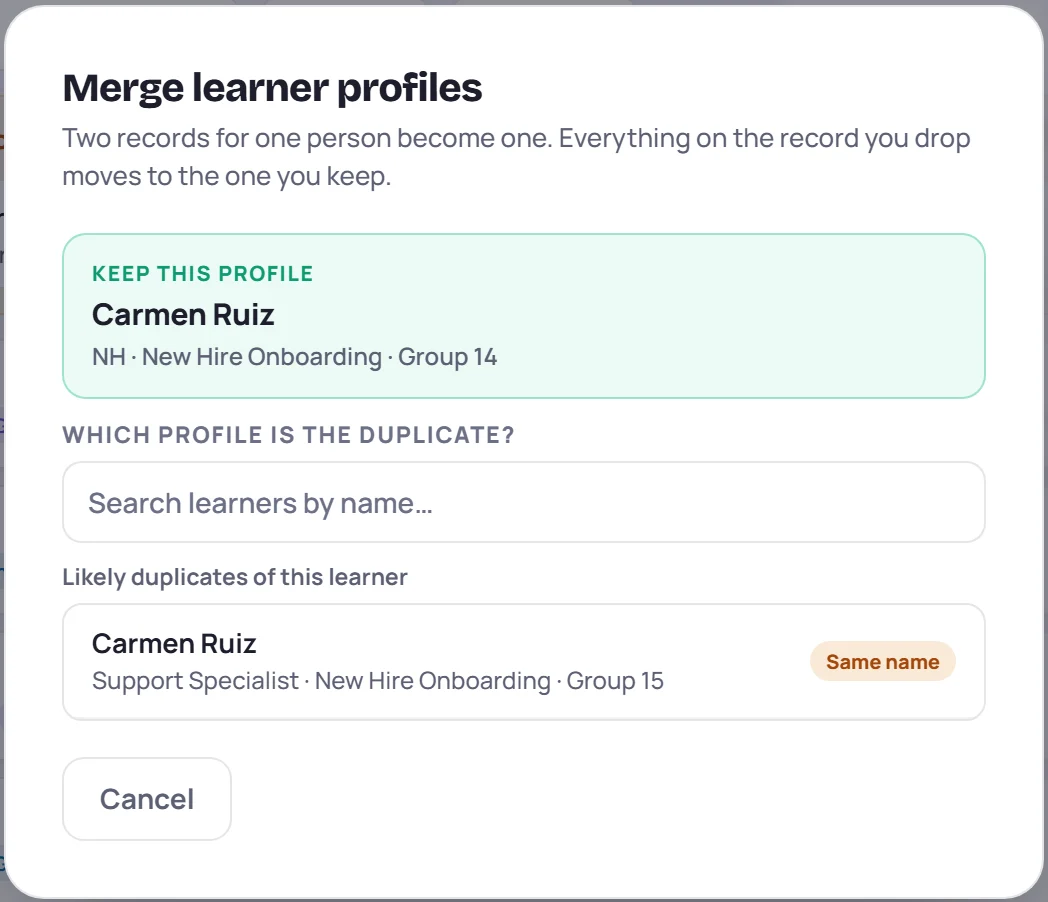
Under Which profile is the duplicate?, pick from Likely duplicates of this learner, or search by name. Then check both boxes and click Merge and delete duplicate as above.
What happens to their records
Everything on the duplicate is moved to the profile you keep:
- Observations, tasks, questions, survey answers, files and pins move across.
- Class enrollments move across. If both profiles were in the same class, they become one enrollment, starting at the earlier date and still open if either was.
- Attendance, certification scores and attempts, and catch-ups move across. Where both profiles have one for the same session, certification or topic, the kept profile's is kept and the duplicate's is dropped.
- Certificates move across. If both profiles had a live certificate for the same thing, the duplicate's is revoked rather than lost.
- Learning paths move across. A path finished on either profile counts as finished.
For the profile's own details, the kept profile's name always wins. Its role, email, employee ID, preferred name, pronouns, manager, private context and flag stay as they are, and any of them that's empty is filled in from the duplicate. The merged learner is active if either profile was.
The merge is recorded in the audit log.
Common questions
Can I undo a merge? No. The duplicate profile is deleted. Check the two boxes carefully before you confirm.
How do I stop duplicates in the first place? Add an email or employee ID when you add learners. Skovrum then recognizes the person exactly, and offers to enroll the existing profile instead of creating a new one.
Two different people have the same name. What do I do? Nothing. Leave them as two profiles. Giving each an email or employee ID makes them easier to tell apart.