Build the curriculum
List what's taught on each day of a class, paste topics from a spreadsheet, reuse templates, spread topics across days and catch up when you fall behind.
Your words may differ. Each workspace can choose its own words: a class might be a cohort, program or group, a learner a participant, trainee or new hire, a session a module or lesson. These guides use the default words. The steps are the same whatever your workspace calls them. Change your workspace's words
A class's curriculum is the list of topics you plan to teach, day by day, each with an optional time estimate and objectives. It drives the rest of the app: the session screen shows each day's topics under Today's topics, live mode times them, and learners who miss a day get a list of the topics to catch up on.
Open the Curriculum tab
Open the class and click the Curriculum tab.
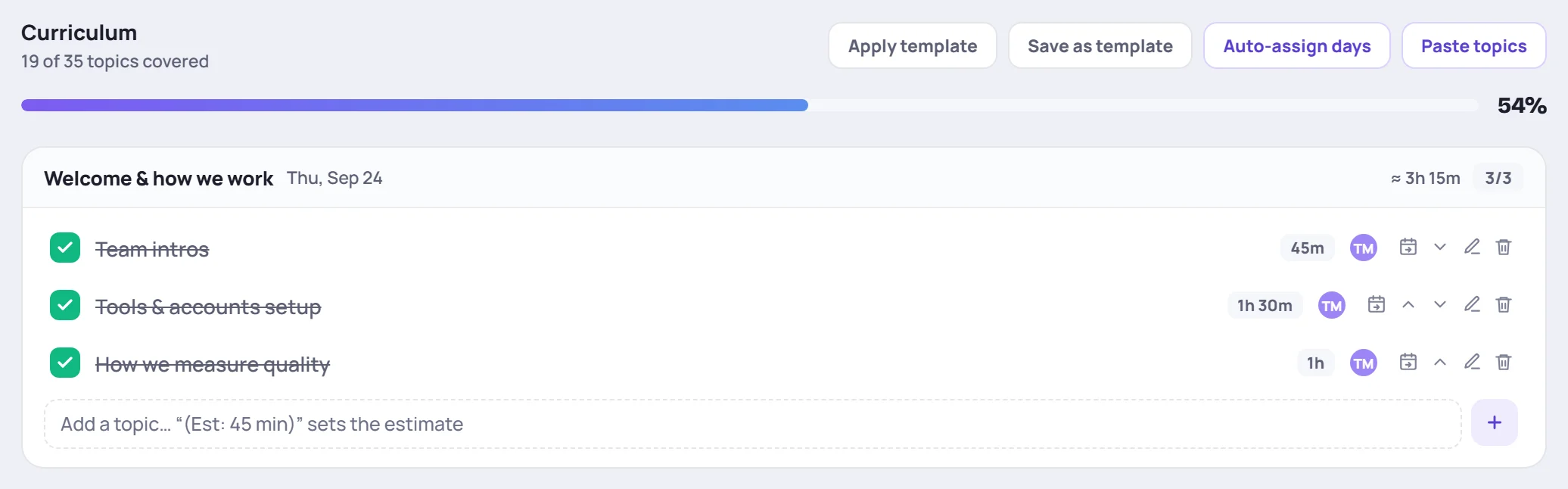
At the top you'll see how many topics are covered, for example 19 of 35 topics covered, and a progress bar. Below that is a card for each session of the class, in date order. Each card shows:
- the session's name and date, and TODAY on today's session;
- the total of its time estimates, for example ≈ 3h 15m;
- how many of its topics are covered, for example 3/3.
Topics that don't belong to a day yet sit in an Unassigned card at the end.
Add topics one at a time
Type in the Add a topic… box at the bottom of a day and press Enter, or click +. To give it a time estimate, end the line with the estimate in brackets:
| You type | Estimate |
|---|---|
| Ticket basics (Est: 45 min) | 45 minutes |
| Shadowing (Est: 1 hr 30 min) | 1 hour 30 minutes |
| Wrap-up (30 min) | 30 minutes |
Paste a list of topics
If your topics are in a spreadsheet or a document, paste them all at once.
- Click Paste topics.
- Paste one topic per line. You can copy a column straight from Excel or Google Sheets.
- In Add to, choose the day they belong to, or Unassigned.
- Click Add topics.
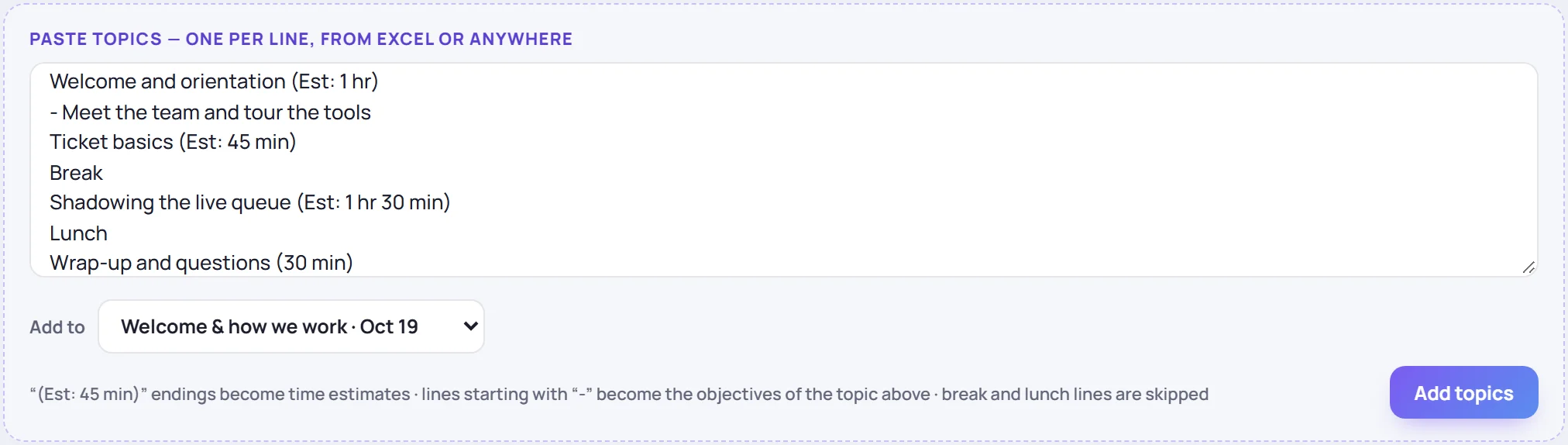
Skovrum reads each line like this:
- An estimate in brackets at the end, such as (Est: 45 min), becomes the topic's time estimate.
- A line starting with a dash (or a bullet, or indented) becomes an objective of the topic above it.
- Lines such as Break, Break 2, Lunch and No training are skipped.
If everything went onto one day, you can spread it out afterwards with Auto-assign days (see below).
Change a topic
Each topic has small tools at the right. On a computer they appear when you point at the topic.

- The calendar icon (Move to another day) moves the topic to the end of another day, or to Unassigned.
- The arrows (Move up, Move down) change its order within the day.
- The pencil (Edit topic) opens the topic.
- The trash can deletes it. Undo appears for a few seconds in case you didn't mean it.
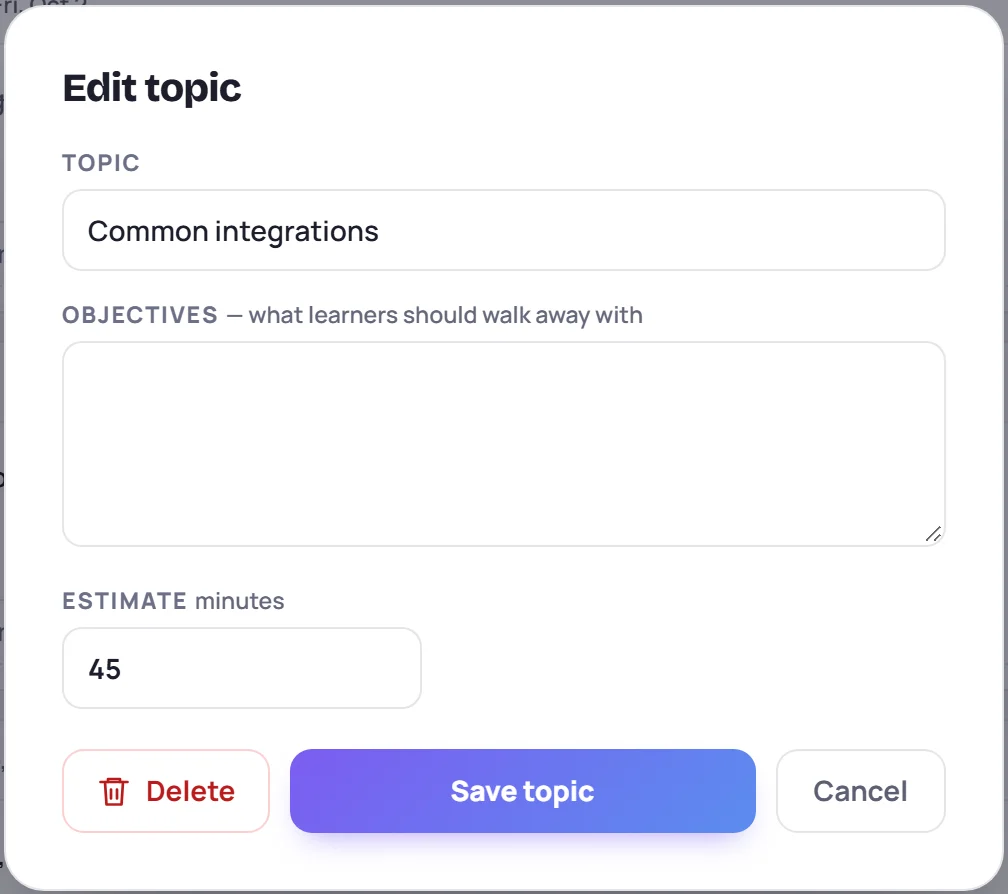
In Edit topic you can change the Topic, write its Objectives (what learners should walk away with), and set the Estimate in minutes. Click Save topic.
Check topics off
Click the box next to a topic when you've covered it. It's crossed out, and the initials of whoever checked it off appear next to it. Click the box again to reopen it.
You'll usually check topics off during the session itself, from Today's topics on the session screen or in live mode. It's the same list, so it updates everywhere.
Reuse a curriculum with templates
A curriculum template is a saved topic list with each topic's day, estimate and objectives. Templates are shared by every class of the same type: a template saved from an onboarding class is offered to every onboarding class.
Save a class's curriculum as a template
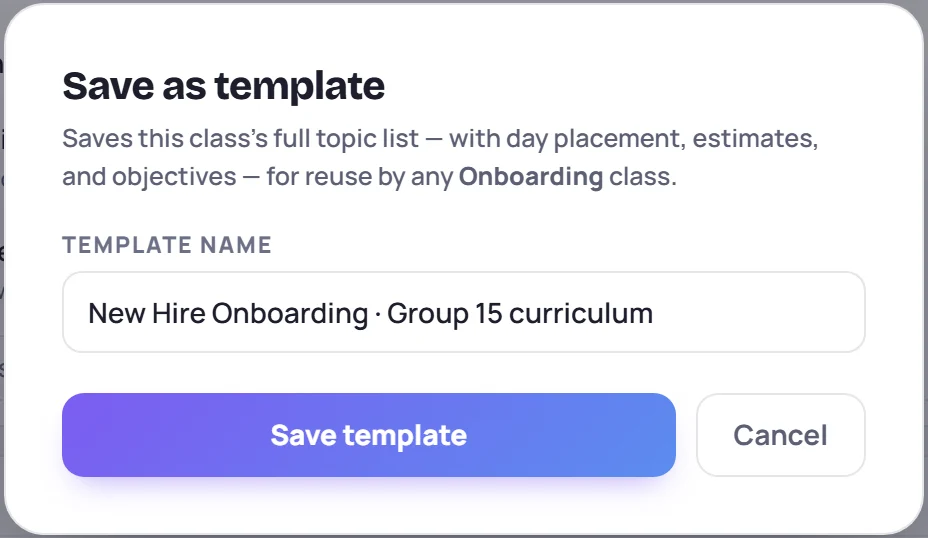
Click Save as template, give it a Template name, and click Save template.
Apply a template to a class
Click Apply template and click the template you want. Apply template only shows when there's at least one template for this class's type.
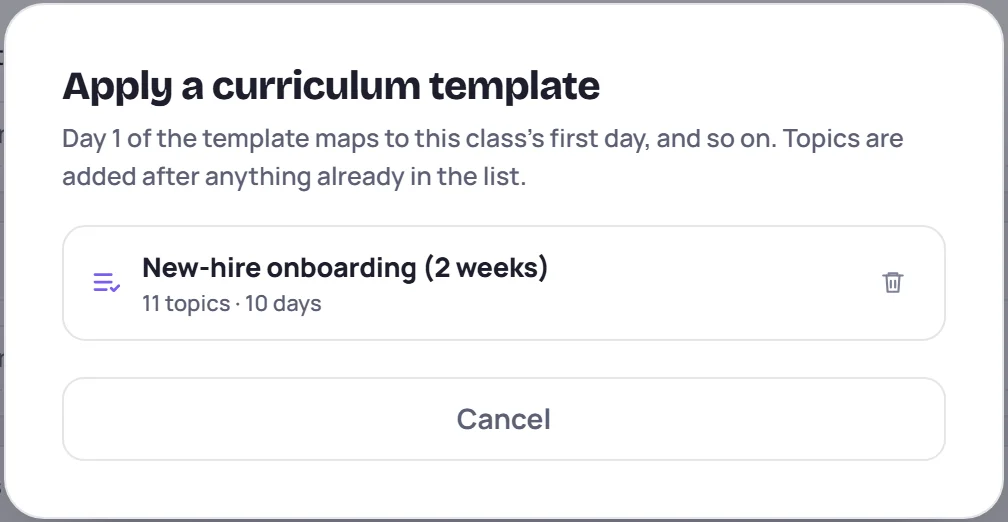
Day 1 of the template goes to the class's first session, Day 2 to the second, and so on. Topics are added after anything already on each day. If the template has more days than the class, the extra topics land in Unassigned.
To delete a template, click its trash can in the same list. Classes already built from it keep their topics.
Spread topics across the days
Auto-assign days fills the class's days for you, based on the time estimates. It shows a preview first, so nothing changes until you click Assign topics.
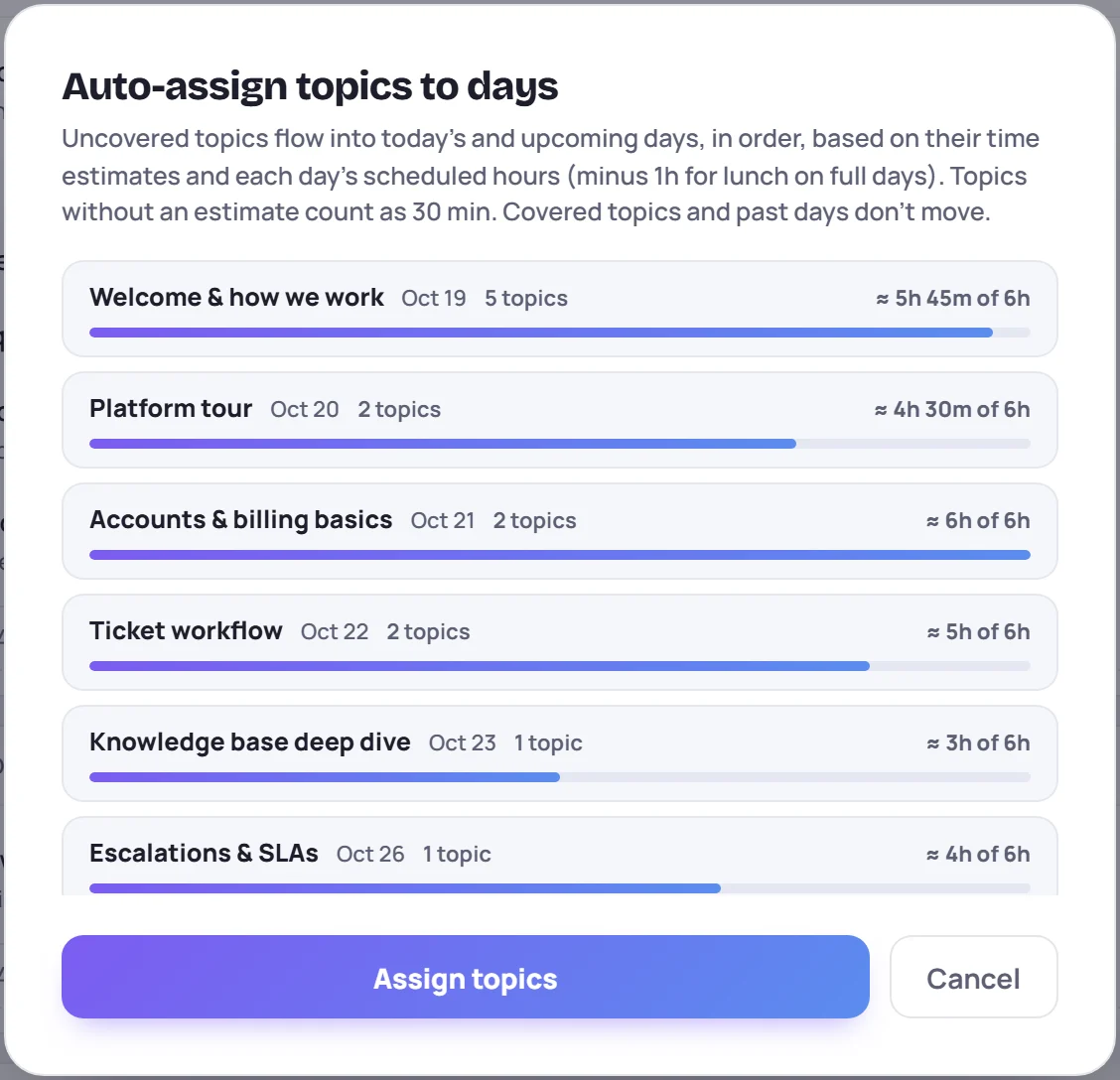
How it works:
- Topics that aren't covered yet flow into today's and the upcoming days, in their current order. That includes unassigned topics and uncovered ones from past days.
- Each day holds its scheduled hours, minus an hour for lunch on days of five hours or more.
- A topic without an estimate counts as 30 minutes.
- Covered topics and past days don't move.
If there are more topics than time, the extra topics go on the last day, which is marked OVERLOADED. Click Assign topics to apply the plan, or Cancel to leave things as they are.
Catch up when you're behind
If topics on past days weren't checked off, a banner at the top of the tab says how many, for example 1 topic from past days hasn't been covered.

Click Move to … to move all of them to the end of the next session (today's, if there's a session today). If they won't all fit there, use Auto-assign days afterwards to spread them out.
Learners who were absent when a topic was covered are tracked separately. See Missed topics and catch-ups.
Common questions
Can I add a topic during a session that wasn't planned? Yes. Add it here, on that day's card, or add it while you teach in live mode, and it joins that day's topics. See Cold call, timer and quick notes.
Why don't I see Apply template? There's no template saved for this class's type yet. Build the list once, then click Save as template.
What happens to a day's topics if the session is removed? They move to Unassigned, so nothing is lost.
Skovrum says my topic wasn't saved. You can only change the curriculum of classes you lead or co-lead, even though you can see other classes' tabs. If it's your class, check your connection and try again.