Your logo and colors
On the Business plan, put your logo and brand color on Skovrum, send emails in your organization's name, point help at your own support team and issue certificates in your name.
Your words may differ. Each workspace can choose its own words: a class might be a cohort, program or group, a learner a participant, trainee or new hire, a session a module or lesson. These guides use the default words. The steps are the same whatever your workspace calls them. Change your workspace's words
On the Business plan, Skovrum can wear your brand: your logo, your color, emails in your name and certificates from your organization. Everyone in the workspace sees it, and learners see your logo on survey pages.
On the Team and Solo plans
The card is there, but locked:

The plan card at the top of the same tab lists what Business adds:
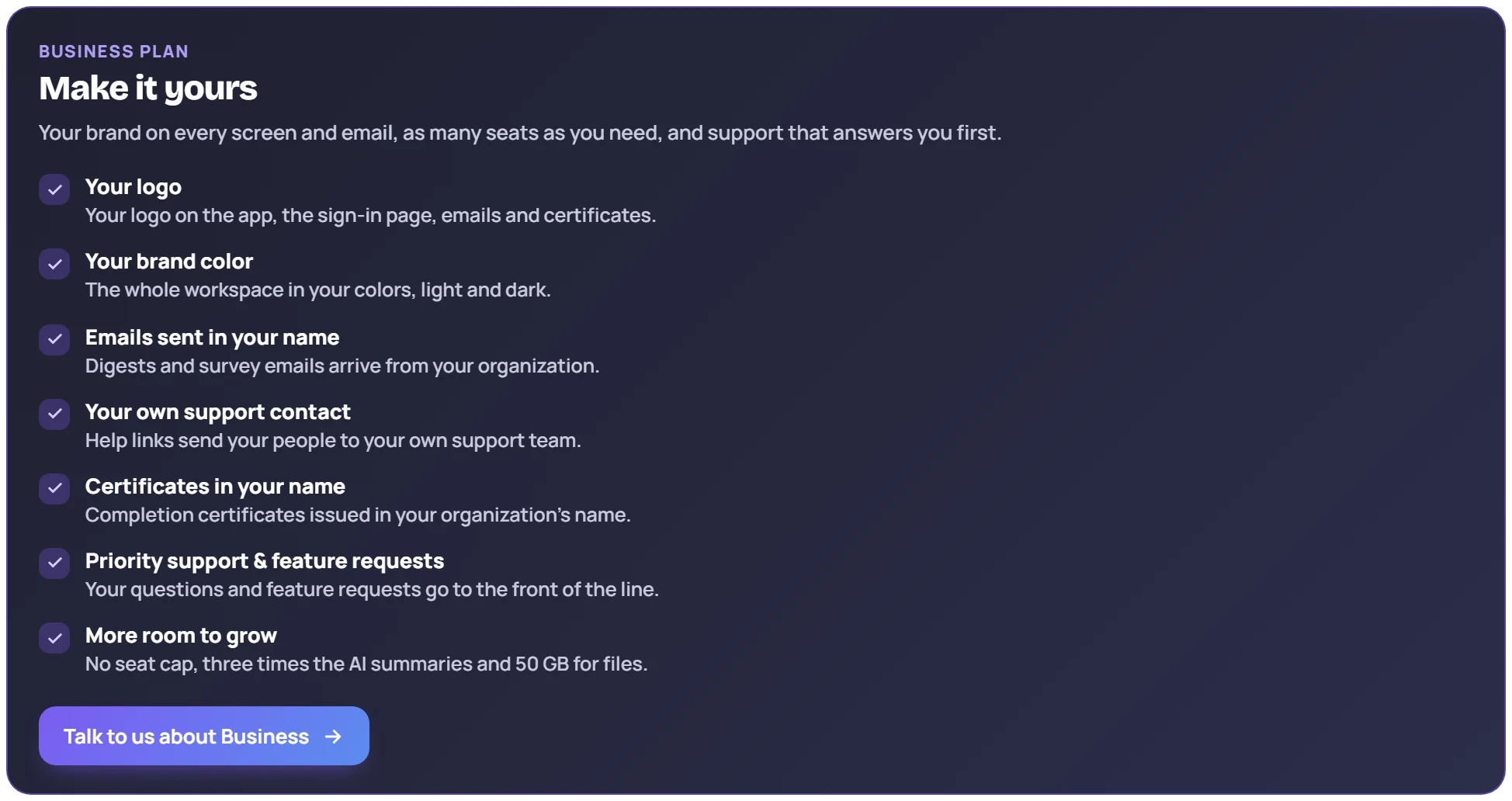
Click Talk to us about Business to ask about moving. See What's in each plan.
What the Branding card sets
On Business, the card has these parts:
| Setting | What it changes |
|---|---|
| Upload logo | Your logo in the app header, on the sign-in page and on survey pages, in emails and, if you choose, on certificates |
| Accent color | Your color on buttons, links and the header, for everyone in the workspace |
| Emails are from | The sender name on emails from your workspace |
| Replies go to | Where replies to those emails go |
| Support contact | Where the help menu's Contact support sends people |
| Certificates name your organization as the issuer | Who issues the certificates you print |
Add your logo
Click Upload logo and choose a PNG, JPEG or WebP image up to 256 KB. It's saved as soon as it uploads. Replace logo swaps it, and Remove takes it off.
Choose your color
Pick a color with the color picker, or type its hex code, such as #0b7a75. Two previews show it in the light and dark themes, on a button, a link and a chip.
Any color works. Skovrum works out the shades it uses so that text stays readable in both themes. If your color is too light for white text, buttons use a slightly deeper shade of it, and the card says so. Your color never replaces the colors that carry a meaning, such as red for overdue or green for passed.
Use Skovrum colors goes back to the standard purple and blue when you save.
Emails in your name
Type your organization's name in Emails are from. Emails from your workspace, such as the daily email and survey emails, then show it as the sender, with (via Skovrum) after it. The card shows how it will look.
Add an address in Replies go to if replies should reach your team.
Your own support contact
Put your help desk's email address in Support contact. The help menu's Contact support then writes to it instead of to Skovrum. See Get help.
Certificates in your name
Switch on Certificates name your organization as the issuer. Printed certificates then carry your organization's name, with your logo, instead of Skovrum's. The name is the Organization name in Workspace settings. Certificate numbers stay Skovrum's.
Save
Click Save branding. The logo is the exception: it saves on upload.
If you leave the Business plan
Your branding stops showing, and Skovrum's colors and name come back. The card is locked again until you're back on Business.
Common questions
Can I use an SVG logo? No. Use a PNG, JPEG or WebP up to 256 KB.
Does my color change the help center or skovrum.com? No. It applies to your workspace only.