Notifications
What the bell shows, how to open, mark as read and dismiss notifications, and how they relate to the daily email.
Your words may differ. Each workspace can choose its own words: a class might be a cohort, program or group, a learner a participant, trainee or new hire, a session a module or lesson. These guides use the default words. The steps are the same whatever your workspace calls them. Change your workspace's words
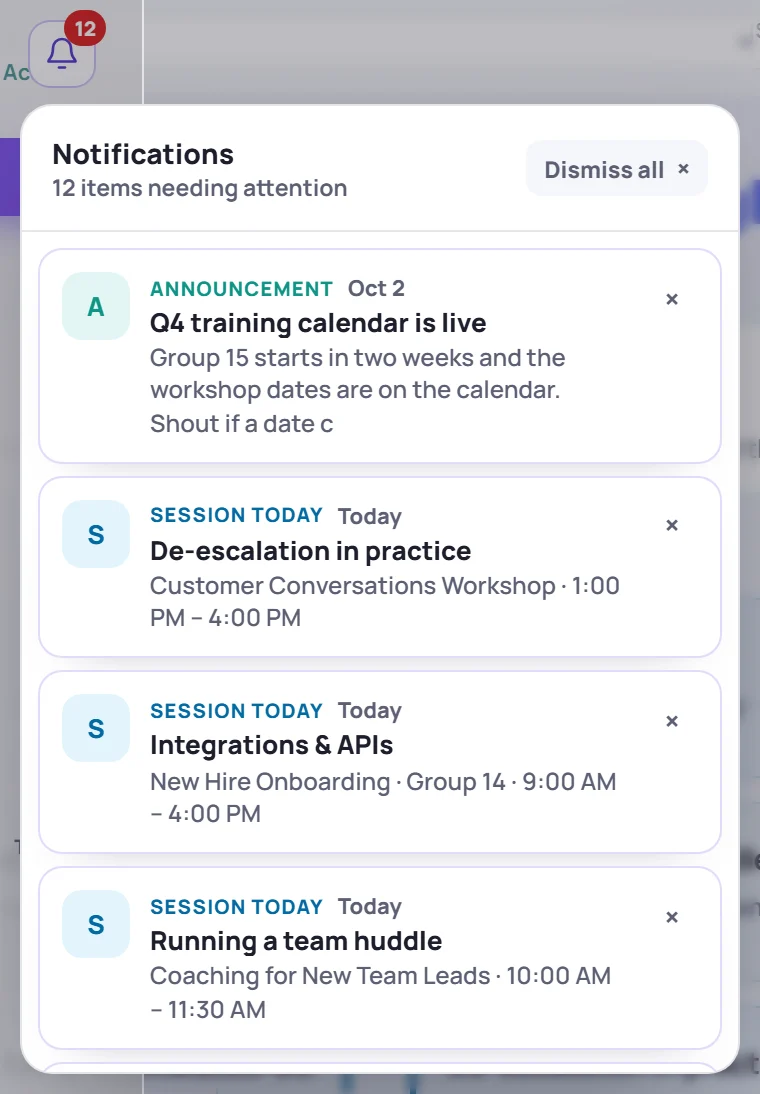
The bell gathers what needs your attention: work coming up, and things other people did that involve you. It sits at the top of the sidebar, next to the Skovrum name. On a narrow screen it's in the header instead. A red number on the bell shows how many items are waiting.
What shows up
| Label | What it means |
|---|---|
| Overdue task, Due today, Due tomorrow, Upcoming task | A task assigned to you, or to nobody, that's overdue or due in the next 7 days |
| Session today, Session tomorrow, Upcoming session | A session in the next 7 days |
| You were mentioned | Someone @mentioned you in a note, a reply, a task or a question |
| New reply | Someone replied to your note or to a task you created or were assigned |
| New answer to your question, Your answer was accepted | Activity on the Questions board |
| Renewal due, Certification expired | A learner's certification needs renewing. You see learners in your classes; Admins see everyone's. |
| Path complete | A learner finished a learning path and is ready for their certificate |
| Survey feedback | New survey responses for your sessions in the last 2 days |
| Announcement | An announcement to every trainer from an Admin |
| Observation request, Peer observations | Peer observation requests for you, and, for coaches, observations to review |
Mentions and replies stay for 7 days. The bell shows up to 12 items, the most urgent first.
Open, read and dismiss
- Click an item to go to it: the session, the task list, the learner or the question. The item is marked as read. It stays in the list, faded, with a Read label.
- Click × on an item to dismiss it.
- Click Dismiss all to clear the list.
Dismissed items stay hidden for your account, on every device. When there's nothing left, the bell says Nothing needs attention.
Get them by email
The bell only shows things while you're in Skovrum. To get a summary each weekday morning, turn on the daily email.