Replies
Reply under a note, an observation or a task to keep the conversation next to what it's about.
Your words may differ. Each workspace can choose its own words: a class might be a cohort, program or group, a learner a participant, trainee or new hire, a session a module or lesson. These guides use the default words. The steps are the same whatever your workspace calls them. Change your workspace's words
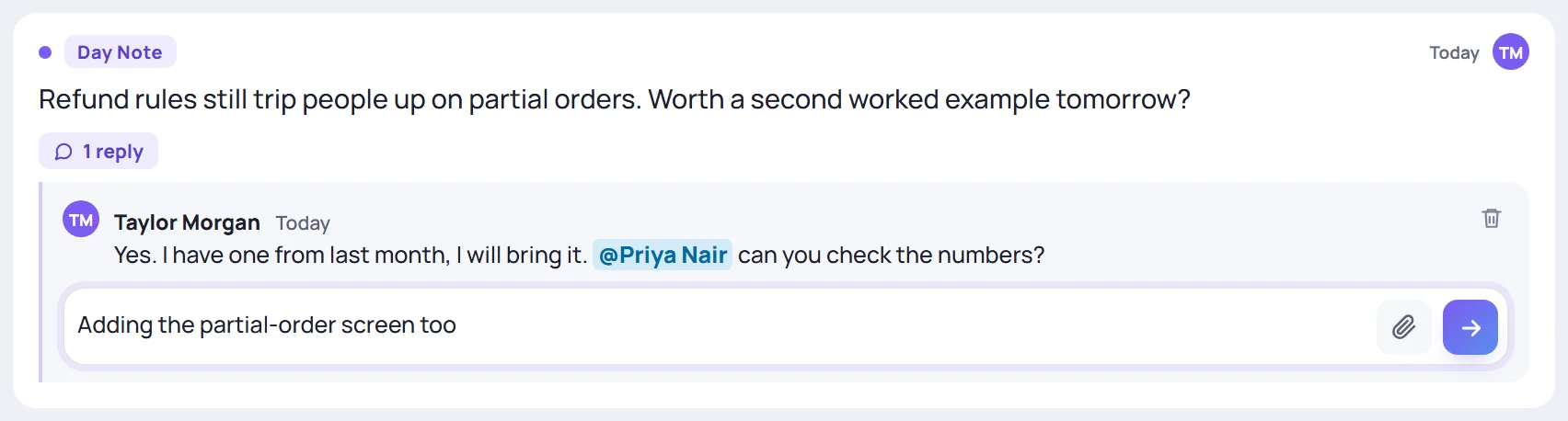
Every note, observation and task has a Reply button under it. Replies keep a conversation with a co-trainer, or a question for a colleague, right next to the note it's about.
Reply to a note
- Click Reply under the note. The thread opens with a box at the bottom.
- Type your reply. You can @mention trainers and the session's learners, add #tags, and attach an image or PDF with the paperclip, by pasting or by dragging.
- Press Enter to send. Shift+Enter adds a new line, and Esc closes the thread.
Where you can reply
| Under | Where it shows |
|---|---|
| A session note or observation | The session's notes, and Today's Recent notes |
| An observation on a learner's profile | The profile and the session it came from |
| An action item | The session's notes and the Tasks screen: it's the same thread |
| Any task | The Tasks screen |
Replies on a private note are private too.
Who hears about a reply
- The note's author, or a task's creator and assignee, sees New reply under the bell.
- Anyone you @mention sees You were mentioned.
- Both show in the daily email, under Replies and Mentions, for people who get it.
You don't get notified about your own replies.
Delete a reply
Click the trash can on the reply. Undo appears for a few seconds in case you change your mind. You can delete your own replies; Admins can delete anyone's. Replies can't be edited, so delete and write again to correct one.
Deleting a note also deletes its replies.