Read survey responses
Read a class's survey responses, ratings and participation, get an AI summary of the comments, and know who can see what.
Your words may differ. Each workspace can choose its own words: a class might be a cohort, program or group, a learner a participant, trainee or new hire, a session a module or lesson. These guides use the default words. The steps are the same whatever your workspace calls them. Change your workspace's words
Survey responses arrive in Skovrum as soon as learners send them. You read them on the class they belong to, session by session.
Open a class's responses
Open the class and click its Surveys tab. Under the self-assessment card, Learner surveys says how many responses there are, across how many surveys.
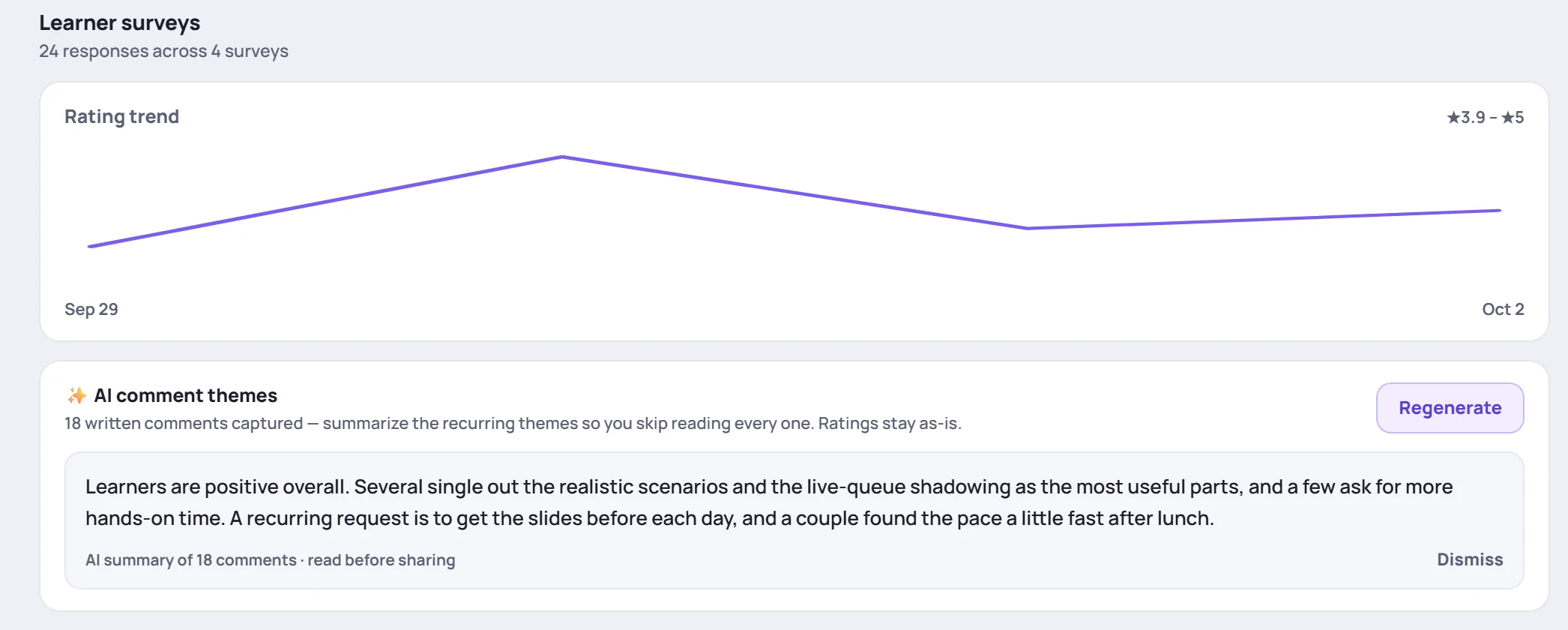
- Rating trend draws the average rating for each session date, from the first date with responses to the latest. The range in the corner is the chart's scale. It appears once responses span at least two dates.
- AI comment themes summarizes the written comments. See below.
Read a session's responses
Below that, each survey in each session has its own card, newest session first.
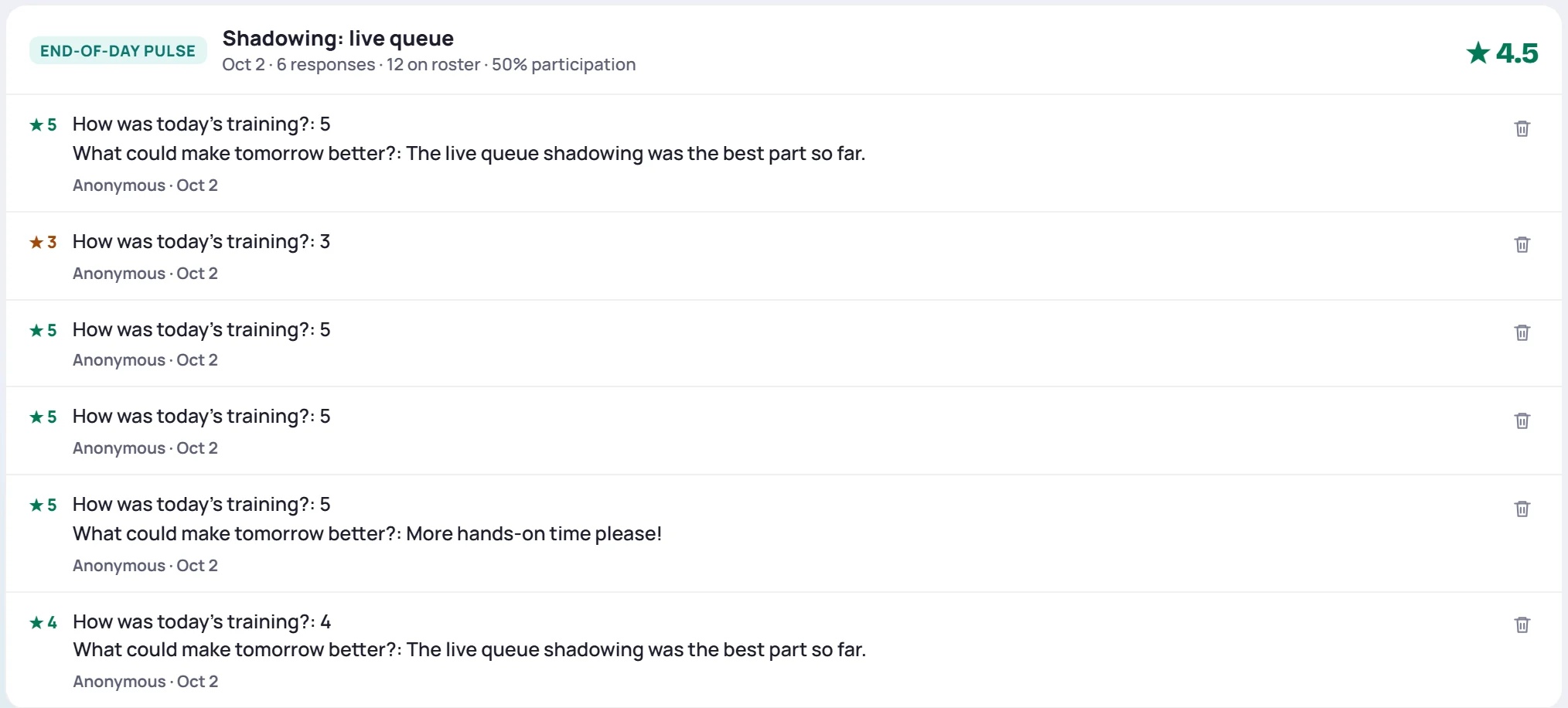
The card's header shows:
- the survey's name, the session and its date;
- how many responses came in, the size of the roster and the participation rate;
- the average rating across every rating question, in the top right.
Participation is the number of responses divided by the class roster. It's only an estimate, since a learner can answer more than once and anonymous answers can't be told apart, so it's hidden when there are more responses than learners.
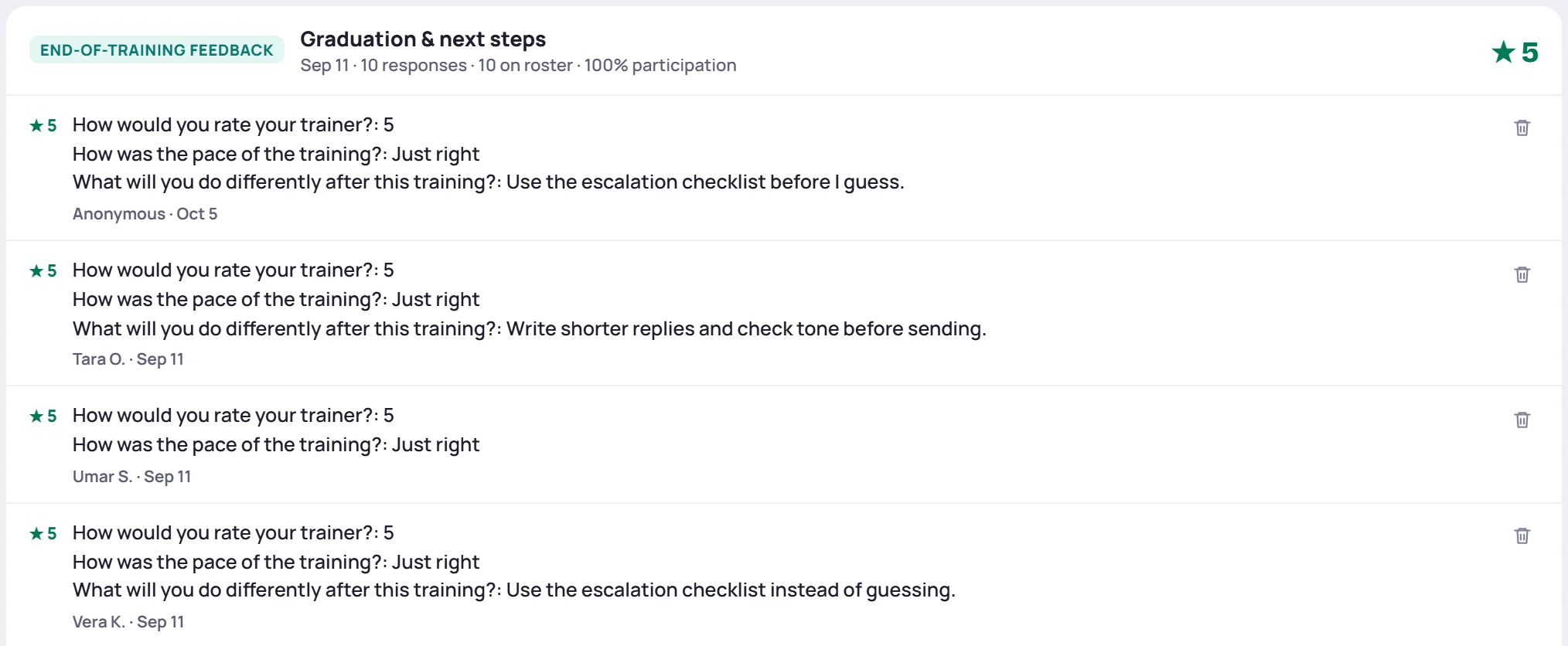
Each response lists its answers, one question per line, with its own average rating on the left. It's signed Anonymous, or with the short name the learner chose, such as Tara O.:
Self-assessment answers aren't listed here. They have their own results on the self-assessment card (see Pre/post self-assessments).
Summarize the comments with AI
Reading every comment takes time. Summarize comment themes asks AI to sum up the recurring themes in a few sentences: what learners praise, what they'd change, and roughly how many say so.
- Only the written comments are sent, never the ratings or anyone's name.
- It reads up to the 120 most recent comments in the class.
- The summary isn't saved. Regenerate writes a new one, and Dismiss hides it.
- Read it before you share it: it's a draft, as the line under it says.
The card only appears when the class has written comments and your role allows AI summaries. Trainers can summarize classes they lead; Admins and Supervisors any class. Each person can run up to 40 in any 24 hours (120 on the Business plan). See AI features.
Where else responses show up
| Where | What you see |
|---|---|
| The bell | N new survey responses for your sessions, for two days after they arrive |
| Analytics | The learner-survey rating: answers to rating questions marked Trainer performance |
| A trainer's development profile | Their trainer rating and session-quality rating from surveys |
| A learner's Timeline | Responses the learner put their name to |
| Manage → Data | Surveys under Export as CSV, for a spreadsheet (see Export to CSV) |
What a rating counts toward is set per question in its template. See Build a survey template.
Delete a response
Admins see a trash can on each response. Use it only for an accidental, test or inappropriate submission. Skovrum asks first, the deletion can't be undone, and it's recorded in the audit log.
Common questions
Why don't I see a response I expected? Responses only show for classes and sessions you can see. Check the session's date too: once a link has closed, nobody can answer it.
Can I tell who sent an anonymous response? No. Everyone in a session uses the same link, so an anonymous response isn't linked to anyone. Only learners who choose their name are identified.