Get help
Where to turn when you're stuck, from the tour and these guides to emailing support, checking the status page and sending feedback.
Your words may differ. Each workspace can choose its own words: a class might be a cohort, program or group, a learner a participant, trainee or new hire, a session a module or lesson. These guides use the default words. The steps are the same whatever your workspace calls them. Change your workspace's words
Everything below starts from the ? button in the top-right corner of Skovrum.
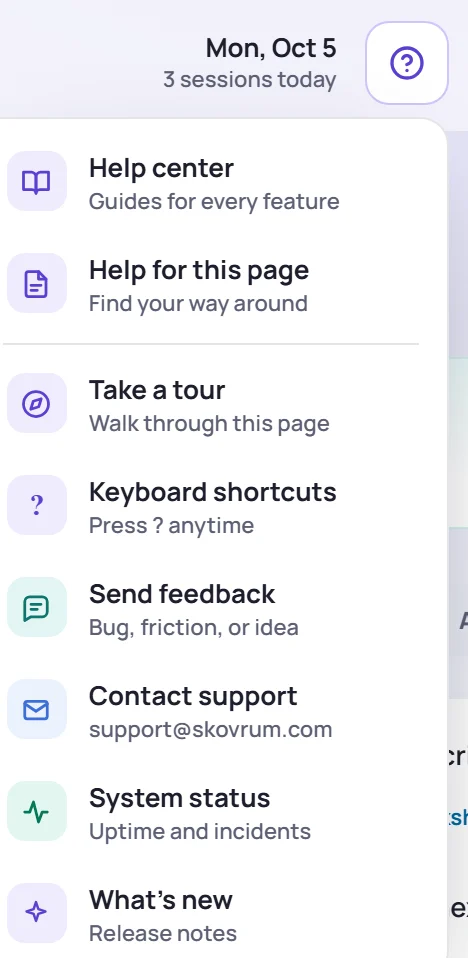
| Item | What it does |
|---|---|
| Help center | Opens these guides in a new tab |
| Help for this page | Opens the guide for the screen you're on. Its name is shown under the item. |
| Take a tour | Walks you through the screen you're on, one highlighted area at a time. Its last step links to the full guide. On a screen without a tour, it opens the guide instead. |
| Keyboard shortcuts | Shows the shortcuts panel. See Keyboard shortcuts. |
| Send feedback | Tells the Skovrum team about a bug, a rough edge or an idea |
| Contact support | Opens an email to support |
| System status | Opens the status page |
| What's new | Opens the release notes |
Guides are linked from inside Skovrum too. An empty screen, such as a class with no curriculum yet, has a Learn more link to its guide, and each tab in Manage has a Help link next to the tabs.
Something isn't where you expected
Check these first:
- A button or screen is missing. Your role or your workspace's plan may not include it. See Why can't I see a feature?
- Your changes haven't reached anyone else. Look at the bottom-right corner. If it shows changes waiting, you're offline or reconnecting, and they'll be sent when you're back. See Working offline.
- A new version is ready. Skovrum tells you next to the ? button. Click Reload to get it.
Check the status page
System status opens status.skovrum.com, which shows whether the website, the app, email and the demo are working, and lists any current incidents. If Skovrum isn't loading at all, go to that address directly.
Contact support
Contact support opens a new email to the address shown under it, usually support@skovrum.com. Tell us:
- what you were trying to do, and what happened instead;
- the screen you were on, and roughly when it happened;
- any message Skovrum showed.
Please don't include learners' personal details unless we ask for them.
Send feedback
Found something awkward, or have an idea? Send feedback goes straight to the Skovrum team from inside the app.
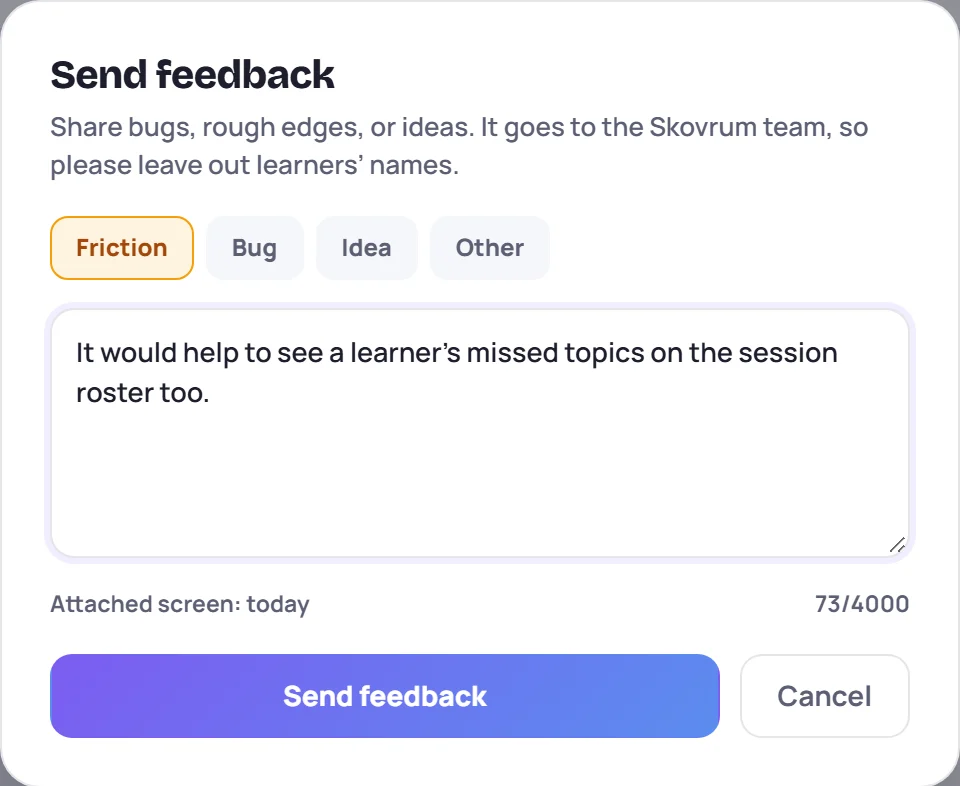
- Choose Friction, Bug, Idea or Other.
- Write your message, up to 4,000 characters.
- Click Send feedback.
The name of the screen you were on is attached, so we know where you were. Your name, and any learner, class or session, aren't passed on with it, and email addresses and @mentions in the message are removed before the team reads it. Even so, please leave learners' names out.