Missed topics and catch-ups
See which topics a learner missed while they were away, plan a catch-up for the next session, and mark topics covered as you go through them.
Your words may differ. Each workspace can choose its own words: a class might be a cohort, program or group, a learner a participant, trainee or new hire, a session a module or lesson. These guides use the default words. The steps are the same whatever your workspace calls them. Change your workspace's words
When a learner misses a day, Skovrum works out what they missed from two things you already record: attendance and the topics you check off in Today's topics. You don't keep a separate list. You only mark a topic when you've covered it with them.
What counts as missed
| Attendance | Shown as | Counts as |
|---|---|---|
| Absent | Absent | Missed |
| Excused | Excused | Missed |
| Early Leave | Left early | Partly missed |
The topics are the ones checked off as done in that session. A day where no topics were checked off doesn't appear, and if you change the attendance or the topics later, the list follows.
See what a learner missed
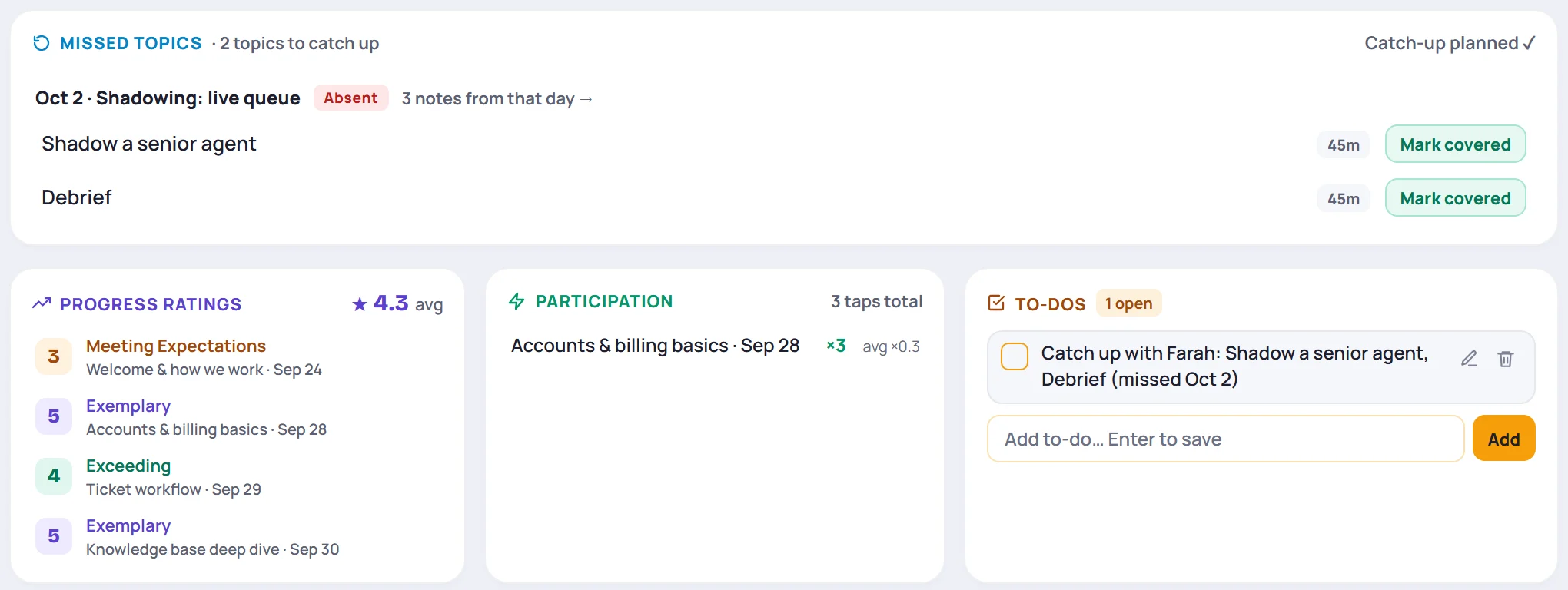
Open the learner's profile. On Overview, Missed topics lists each day they missed, with the topics taught that day and the time each was planned to take.

- The heading counts what's left, for example 2 topics to catch up, or All caught up.
- 3 notes from that day → opens the session, so you can read what the class did.
- For a learner in several classes, the card has a section per class.
You'll also see missed topics:
- On the session screen. Click a learner's picture in the roster to open their panel. It says what they missed, for example Missed 2 topics on Oct 2. Click that line to open their profile.
- On the class's Attendance tab, where a learner's row shows 2 to catch up.
- In live mode, in the context drawer.
- On their Timeline and in their handoff packet.
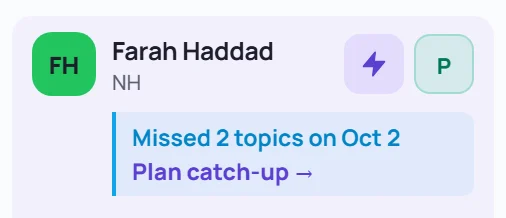
Plan a catch-up
Click Plan catch-up on the profile, or Plan catch-up → in the session roster panel. Skovrum adds one to-do for everything still uncovered in that class, for example Catch up with Farah: Shadow a senior agent, Debrief (missed Oct 2). It's:
- assigned to you;
- due on the class's next session (today's, if there's one today) and linked to it, so it shows in that session's roster and under Planned for this session on the Since last session card.
The button then reads Catch-up planned ✓. Only one catch-up can be open per learner and class at a time. The to-do appears on the learner's profile and on Tasks.
Mark topics covered
When you've gone through a topic with the learner, click Mark covered next to it. It leaves the list, and the count goes down.

Click Show covered (1) to see covered topics again, struck through with who covered them and when. Undo puts a topic back on the list. Hide covered tucks them away.
Covering topics doesn't tick off the catch-up to-do. Tick it yourself when you're done, on the profile or on Tasks.
Common questions
A learner was absent but nothing shows. Why? No topics were checked off as done in that session. Check them off in the session's Today's topics and the missed topics appear.
Why can't I click Mark covered or Plan catch-up? You need to lead or co-lead the class, and the learner must still be on its roster. Read-only roles, such as Supervisor, can see missed topics but not change them.
Does a late arrival count? No. Only absent, excused and early leave do.