The learner profile
Everything about one learner in one place, across every class they've been in: who they are, how they're doing, what they missed, and a timeline of everything that happened.
Your words may differ. Each workspace can choose its own words: a class might be a cohort, program or group, a learner a participant, trainee or new hire, a session a module or lesson. These guides use the default words. The steps are the same whatever your workspace calls them. Change your workspace's words
Every learner has one profile, however many classes they take. It gathers what you and your colleagues have recorded about them in every class: observations, ratings, attendance, certifications, to-dos and catch-ups. The profile has two tabs. Overview is for working with the learner today, and Timeline is their whole history in order.
Open a profile
Click a learner anywhere you see their name: in Learners, on a class's roster, in a session's roster panel, or from search and the command palette.
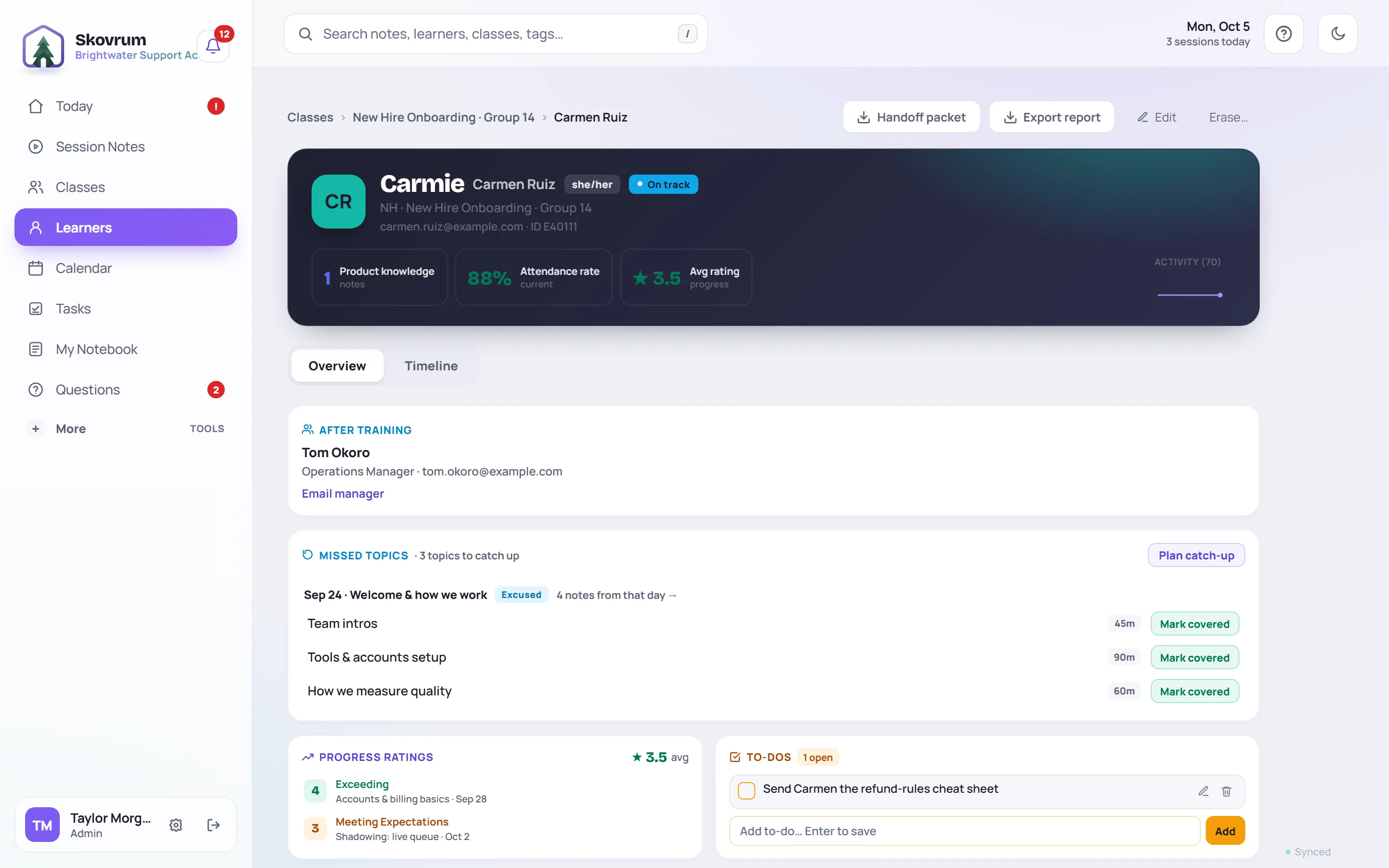
The header
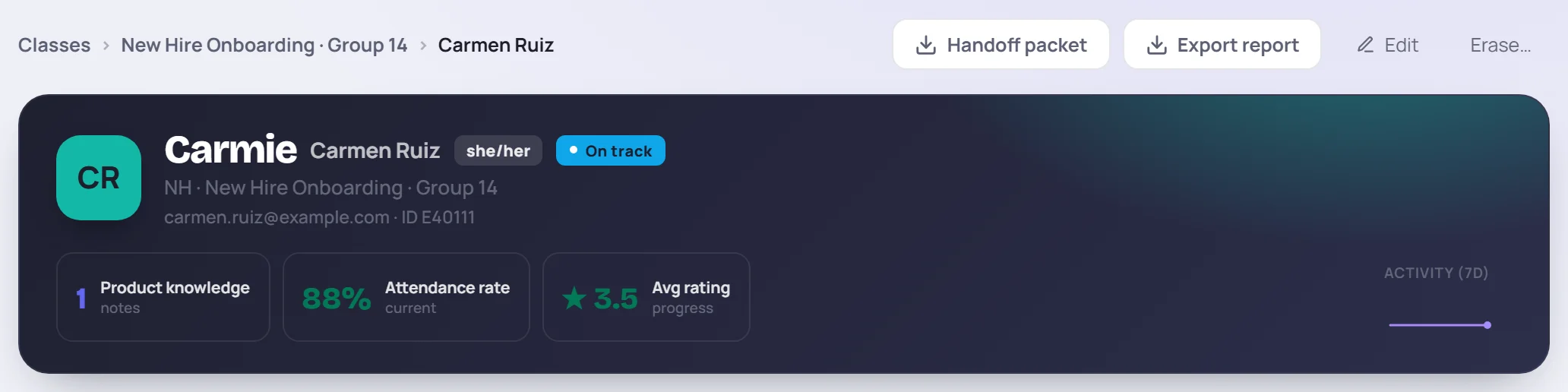
The top line shows where you came from (the learner's class, or 2 Classes if they're in more than one) and the profile's buttons:
| Button | What it does |
|---|---|
| Handoff packet | Prints a summary for whoever coaches them next. See Handoff packets. |
| Export report | Opens the printable learner report. See Learner and client reports. |
| Edit | Changes their name, contact details, preferred name, pronouns, status, flag and manager (Admins). See Edit a learner's details. |
| Erase… | Permanently erases their data, for a data-deletion request (Admins). See Archive, delete or erase. |
The dark band underneath shows:
- Their name. If they go by a preferred name, it's shown large with the full name beside it, for example Carmie Carmen Ruiz. Pronouns follow in a small tag.
- Labels. A STRONG or WATCH flag if someone has set one, a health label (Thriving, On track or Needs attention, see Learner health), and a renewal label when a certification is due for renewal.
- Their role and class, then their email and employee ID if recorded.
- Counts. Up to three tiles count their observations by competency (or engagement taps). Click one to show only those observations further down. Attendance rate is the share of their past sessions they attended, counting late arrivals as attended. Avg rating is the average of their daily progress ratings from attendance.
- Activity (7d) is a small line of how many observations were logged about them on each of the last seven days.
The Overview tab
The Overview shows cards only when there's something to show, so a new learner's profile is short. From the top:
- Confidence appears once the learner has answered a pre/post self-assessment. It lists their own before-and-after ratings per competency.
- After training shows the manager they report to once training ends, with an Email manager link. Admins fill it in with Edit.
- Private context shows background the team should know, such as an accommodation. It's never exported. See Private context.
- Missed topics lists the topics they missed while absent, excused or leaving early, and what's still to catch up. See Missed topics and catch-ups.

- Progress ratings lists each daily rating with its session and date, and the average.
- Participation lists the sessions where they got engagement taps, how many, and the class average for that session.
- To-dos are small follow-ups about this learner. Type in Add to-do… Enter to save and press Enter. Tick the box when it's done. Completed ones fold away under N completed. See Learner to-dos and tasks.
- Competency trends draws each competency's 1–5 ratings over time. One rating shows as a single point until a second one starts the trend. See Competency trends.
- Files holds images and PDFs about the learner, such as certificate screenshots or worksheets. Click Add to upload. See Attach images and PDFs.
Log an observation from the profile
You don't have to be in a session to note something about a learner.
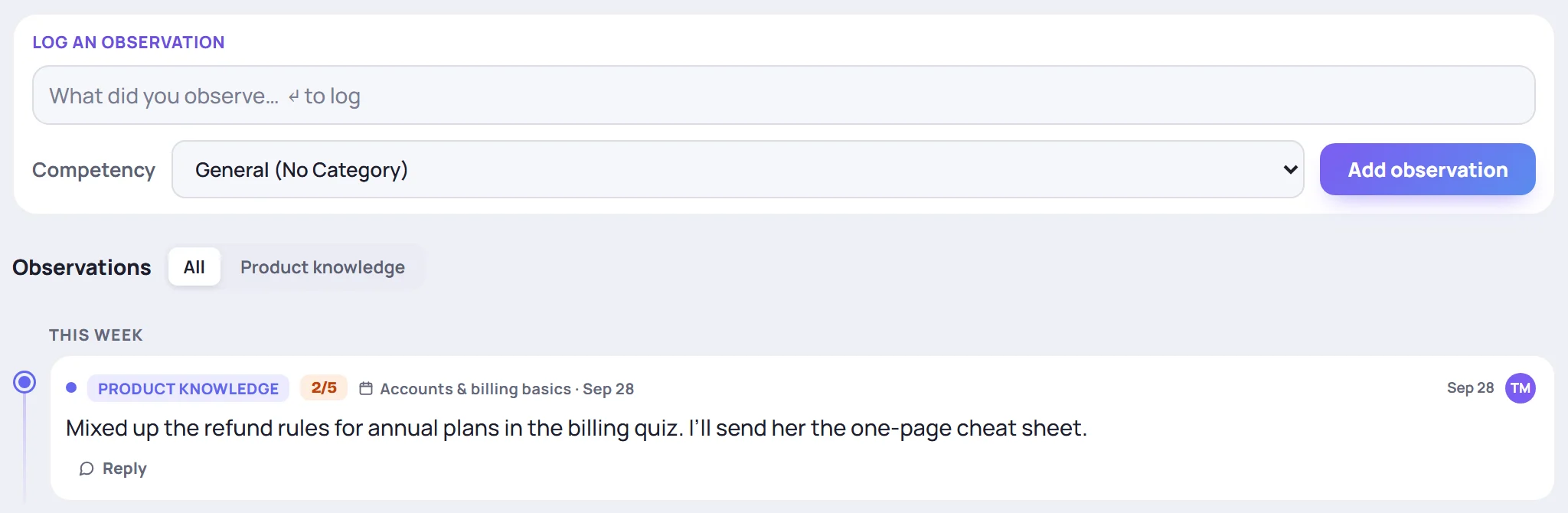
- Type in What did you observe…. You can use
@and#as in the session's note box. - Choose a Competency, or leave it on General (No Category).
- With a competency chosen, How did they do on this? appears. Pick 1 to 5 if you want to rate it.
- Press Enter or click Add observation.
If the learner is in more than one class you lead, choose which class the observation belongs to first. If they aren't in an active class you lead, the card says so, and you can't add one here. See Observations and competencies.
Observations below lists every observation about them, grouped by week (or by class, for someone in several). The pills above the list filter it by competency, and Class-wide shows observations that aren't tied to one session. Under each one you can Reply, and you can edit or delete your own (Admins can edit anyone's). Edited opens its edit history.
The Timeline tab
Timeline puts the learner's whole record in date order.
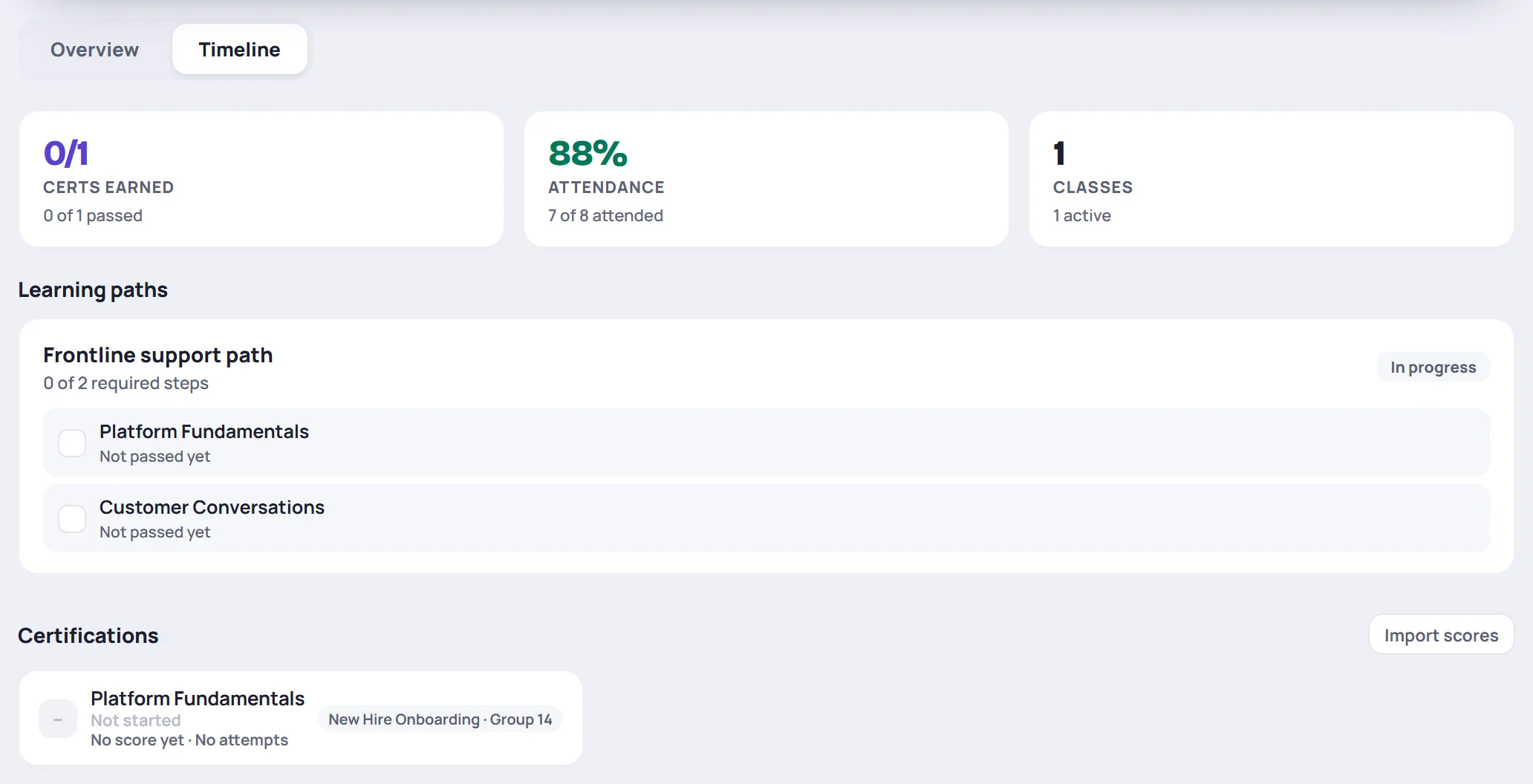
- Summary cards give their Certs earned, their Attendance (for example 7 of 8 attended) and how many Classes they've been in.
- Certificates lists certificates issued to them, with Print and, for Admins, Revoke. Any they've earned but haven't been given yet show Issue certificate. See Certificates.
- Learning paths shows each path they're on and which steps are done.
- Certifications shows each certification from their classes, its status and best score. Click one to record an attempt. Import scores brings in results from a spreadsheet. See Record scores.
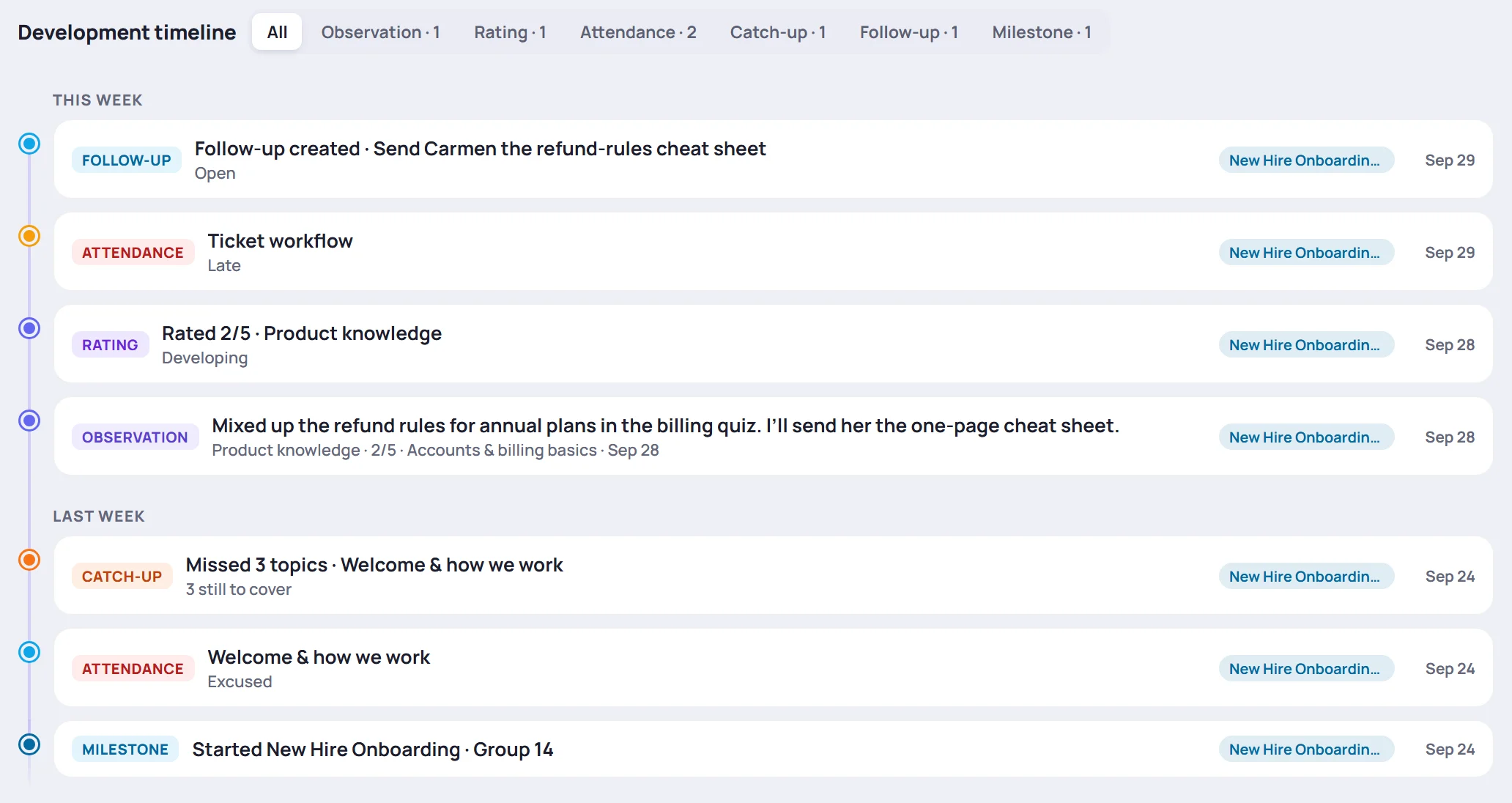
The Development timeline lists everything that happened, newest first, under This week, Last week, This month and Older:
| Entry | What it records |
|---|---|
| Observation | A note about them. Your own private notes appear too, marked Private. |
| Rating | A competency rating from an observation |
| Attendance | A session they weren't simply present at (late, absent, excused, left early) or were rated 2 or lower |
| Catch-up | Topics they missed, and each topic covered with them later |
| Certification, Certificate, Renewal | Attempts and results, certificates issued or revoked, renewals due |
| Follow-up | A task about them |
| Survey, Self-assessment | Survey answers linked to them, and their self-assessments |
| Path, Milestone | A finished learning path, and class starts and ends |
Click a pill to show one kind only, and click it again to go back to All. For a learner in several classes, a second row of pills filters by class. The newest 100 entries show first; Show … more loads the rest. Click an entry to open where it came from, such as the session.
Common questions
Why don't I see Edit or Erase…? Only Admins can change a learner's details or erase them.
Why can't I add an observation or a to-do? You need a role that can write notes, and the learner must be in an active class you lead or co-lead. Read-only roles, such as Supervisor, can read the profile but not add to it.
Can learners see their profile? No. Learners never sign in to Skovrum.