Coaching entries and reviews
Add comments, quarterly reviews and scored reviews of practice and live training to a trainer's profile, choose when the trainer sees them, and print a development report.
Your words may differ. Each workspace can choose its own words: a class might be a cohort, program or group, a learner a participant, trainee or new hire, a session a module or lesson. These guides use the default words. The steps are the same whatever your workspace calls them. Change your workspace's words
A trainer's development profile is built from entries. Each one is something you noted, reviewed or scored. You add them from the trainer's profile, and you decide when the trainer gets to read the scored ones.
Add an entry
- Open More → Development and click the trainer's card (see Team development).
- Click New entry.
- Choose the kind of entry, fill it in, and click Add to profile.
There are four kinds:
| Kind | Use it for | What you fill in |
|---|---|---|
| Comment | A quick note for their profile | The comment (required) |
| Quarterly review | A structured review of a quarter | Review period, Strengths, Growth areas, Goals for next quarter, Overall summary and an optional overall rating |
| Practice facilitation | A practice run, such as a teach-back before they deliver a topic for real | Topic presented (required), the scorecard and Comments |
| Live training review | Watching them deliver to real learners | Topic presented (required), the scorecard (at least one area), Comments and Class observed |
A fifth kind, Peer observation, is written by a colleague, never from this form. See Peer observation.
Quarterly reviews
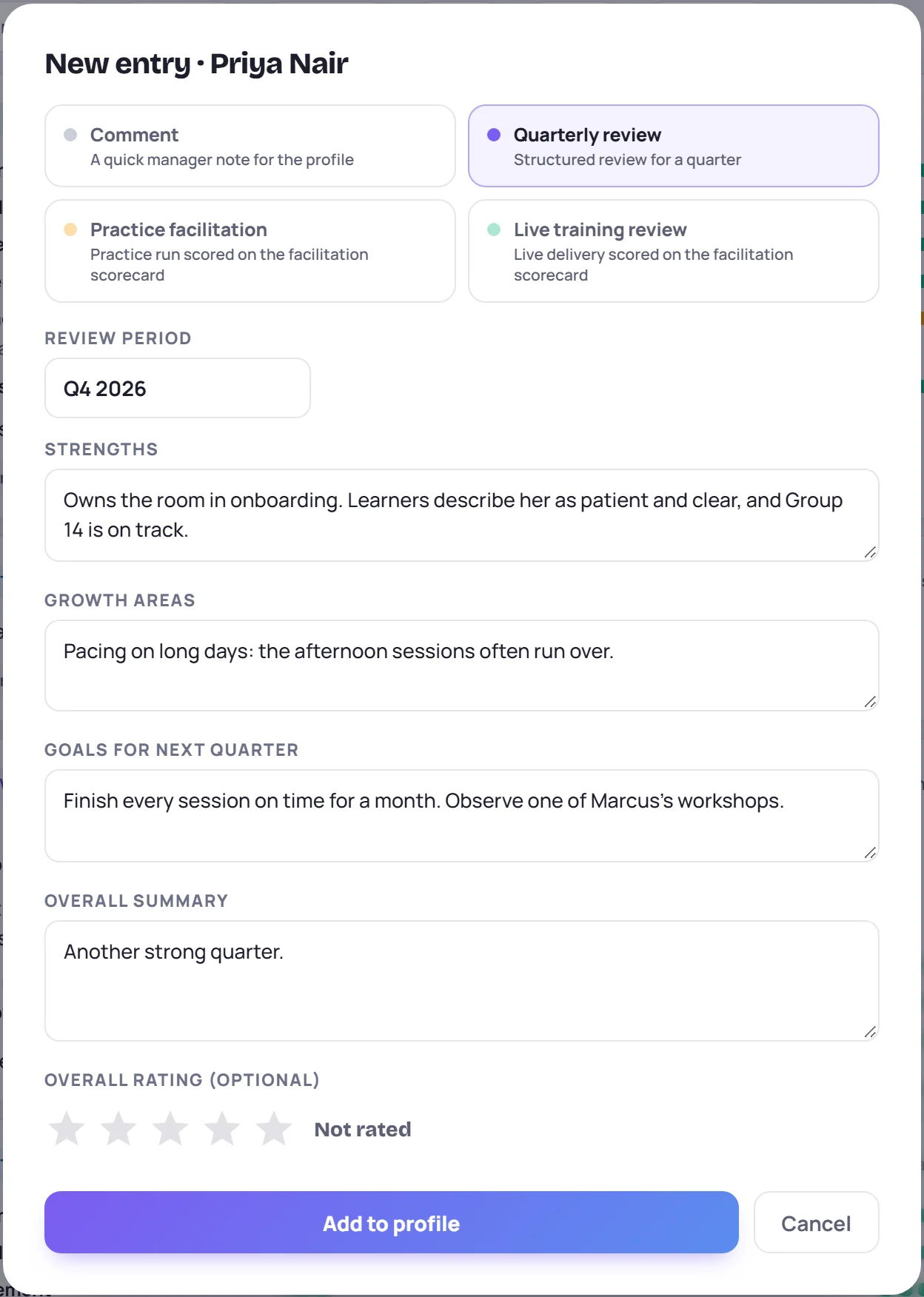
Review period starts as the current quarter, such as Q4 2026. You can type anything, such as H2 2026. The latest review's period appears on the trainer's card and as Last review on their profile.
Fill in any of the four text boxes, but at least one. The Overall rating is optional. Click the left half of a star for a half point, and click the same star again to clear it.
Practice and live reviews: the scorecard
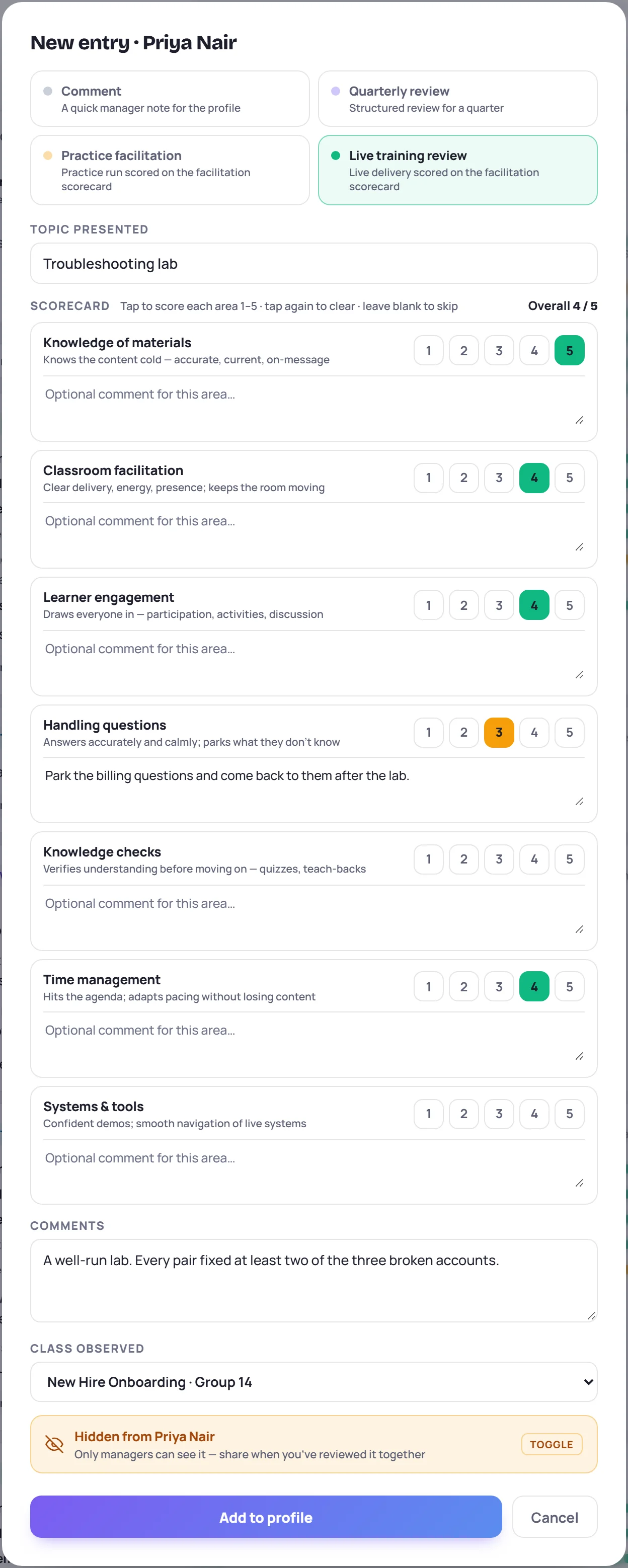
Both kinds use the same facilitation scorecard, with seven areas:
| Area | What it looks at |
|---|---|
| Knowledge of materials | Knows the content well, and it's accurate and current |
| Classroom facilitation | Clear delivery, energy and presence |
| Learner engagement | Draws everyone in through participation, activities and discussion |
| Handling questions | Answers accurately and calmly, and parks what they don't know |
| Knowledge checks | Checks understanding before moving on |
| Time management | Keeps to the agenda and adapts the pace without losing content |
| Systems & tools | Confident demos and smooth use of live systems |
Click 1 to 5 to score an area, and click it again to clear it. Skip any area you didn't see. Each area also has a box for a comment. Overall is the average of the areas you scored, and it becomes the entry's score.
A live training review needs at least one score. On a live review you can also choose the Class observed, which shows on the entry.
Who sees an entry
Coaches see every entry on every profile. The trainer sees only the entries about themselves that are visible. Other trainers never see someone else's profile.
| Kind | When the trainer sees it |
|---|---|
| Comment, Quarterly review | As soon as you save it |
| Practice facilitation, Live training review | Only when you make it visible. New ones start Hidden. |
On a practice or live review, the switch at the bottom of the form says Hidden from the trainer or Visible to them. Click it to change. Keeping a review hidden lets you write it during the session and share it after you've talked it through together.
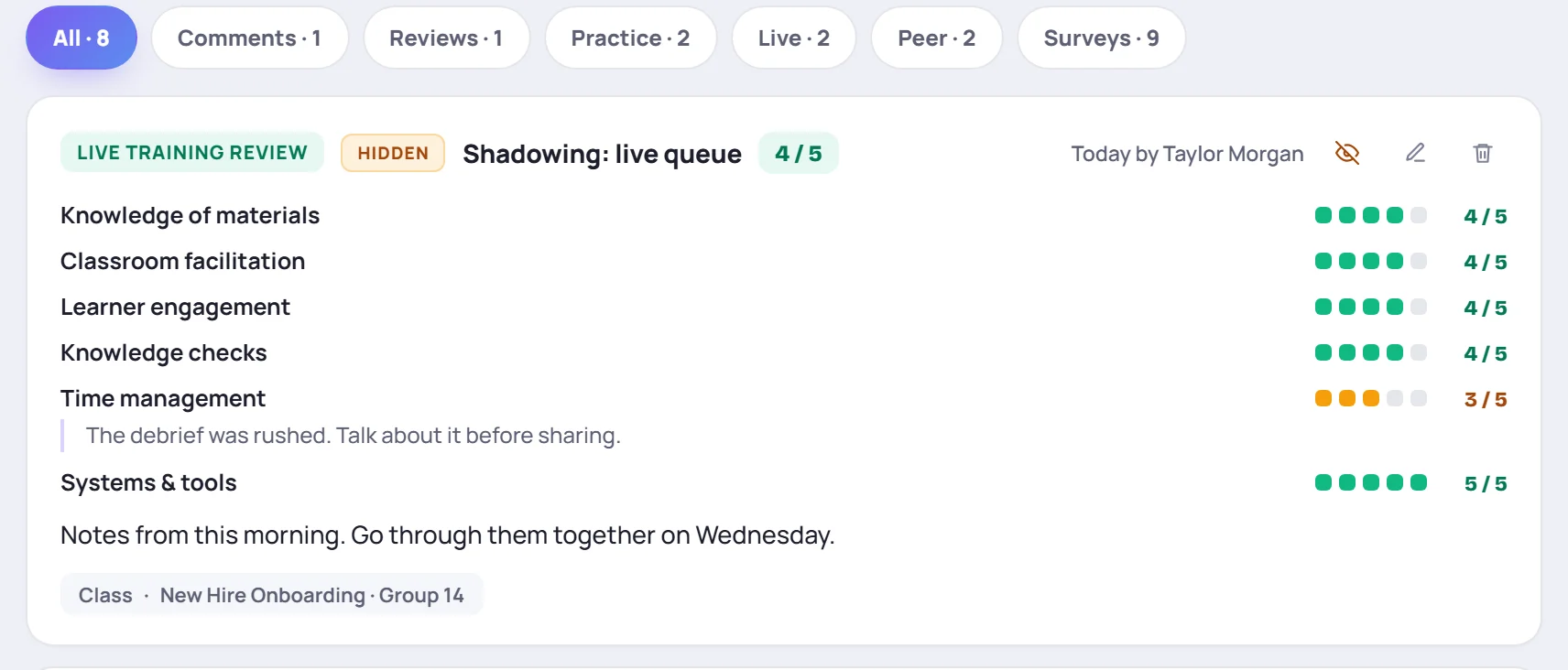
On the profile, a hidden entry has a Hidden label. Click its eye button to show it to the trainer, and click again to hide it. Each change is recorded in the audit log.
Edit or delete an entry
Click the pencil on an entry to change it, then Save changes. The entry keeps the date it was first added.
Click the bin to delete an entry. It's removed straight away, without asking first, so take care.
You can't edit a colleague's peer observation, but you can delete it.
Print a development report
Click Export on the trainer's profile. Choose This quarter, Last quarter, Year to date, All time or Custom (with From and To dates), then click Generate report.
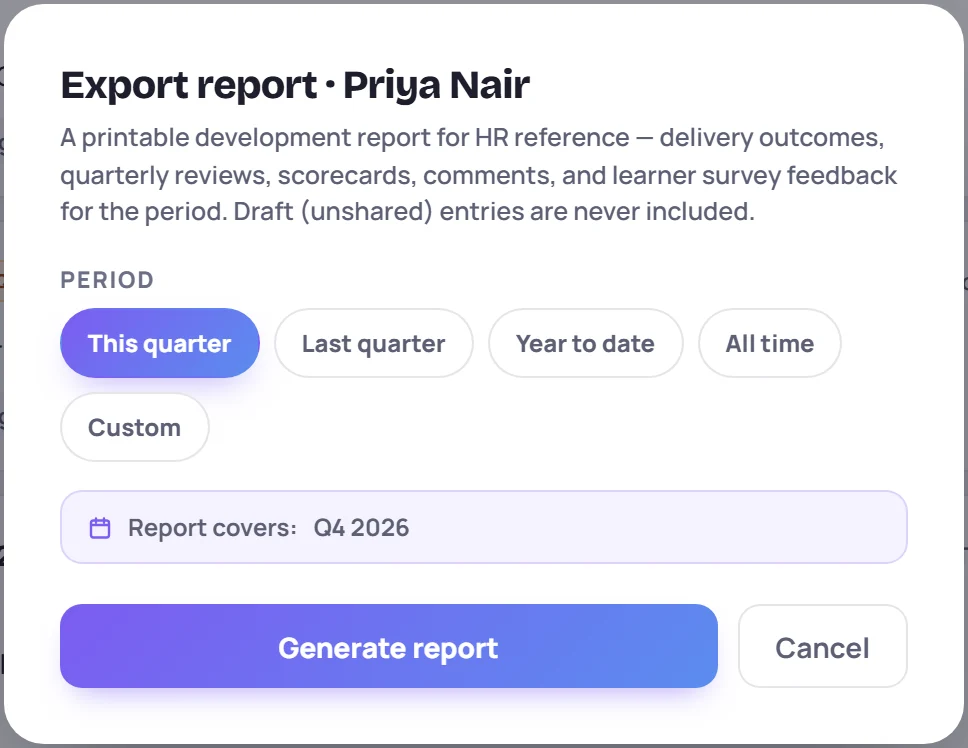
A printable report opens in a new tab, and your browser's print dialog opens with it. Print it or save it as a PDF. If nothing opens, allow pop-ups for Skovrum. For the chosen period the report includes:
- Delivery impact: learners, classes, sessions, pass rates, scores, attendance and progress ratings.
- Coaching summary: how many entries and reviews, with the practice and live averages.
- Quarterly reviews, Facilitation evaluations (practice and live reviews with their scorecards) and Manager comments.
- Learner survey feedback: the ratings of this trainer, and every survey response in full.
Hidden entries are never included, and peer observations aren't printed. Entries are placed in a period by the date they were added.
Trainers can export the same report about themselves from My Development.
Common questions
Can I backdate an entry? No. An entry is dated when you add it. Put the period it's about in the review period or the comment.
Can I hide a comment or a quarterly review after saving it? No. Only practice and live reviews can be hidden. If you saved something by mistake, delete it.
Does the trainer get a notification about a new entry? No. They see it the next time they open My Development. That's why a scored review starts hidden: you can talk it through together first.