Tasks and follow-ups
The team's shared list of follow-ups, with priorities, due dates and assignees, on the Tasks screen and on Today.
Your words may differ. Each workspace can choose its own words: a class might be a cohort, program or group, a learner a participant, trainee or new hire, a session a module or lesson. These guides use the default words. The steps are the same whatever your workspace calls them. Change your workspace's words
Tasks are the team's follow-ups: booking a room, sending slides, chasing a manager. There is one shared list for the whole team, so everyone can see what's open, who's on it and when it's due. A task can belong to a class or be General.
The Tasks screen
Click Tasks in the sidebar.
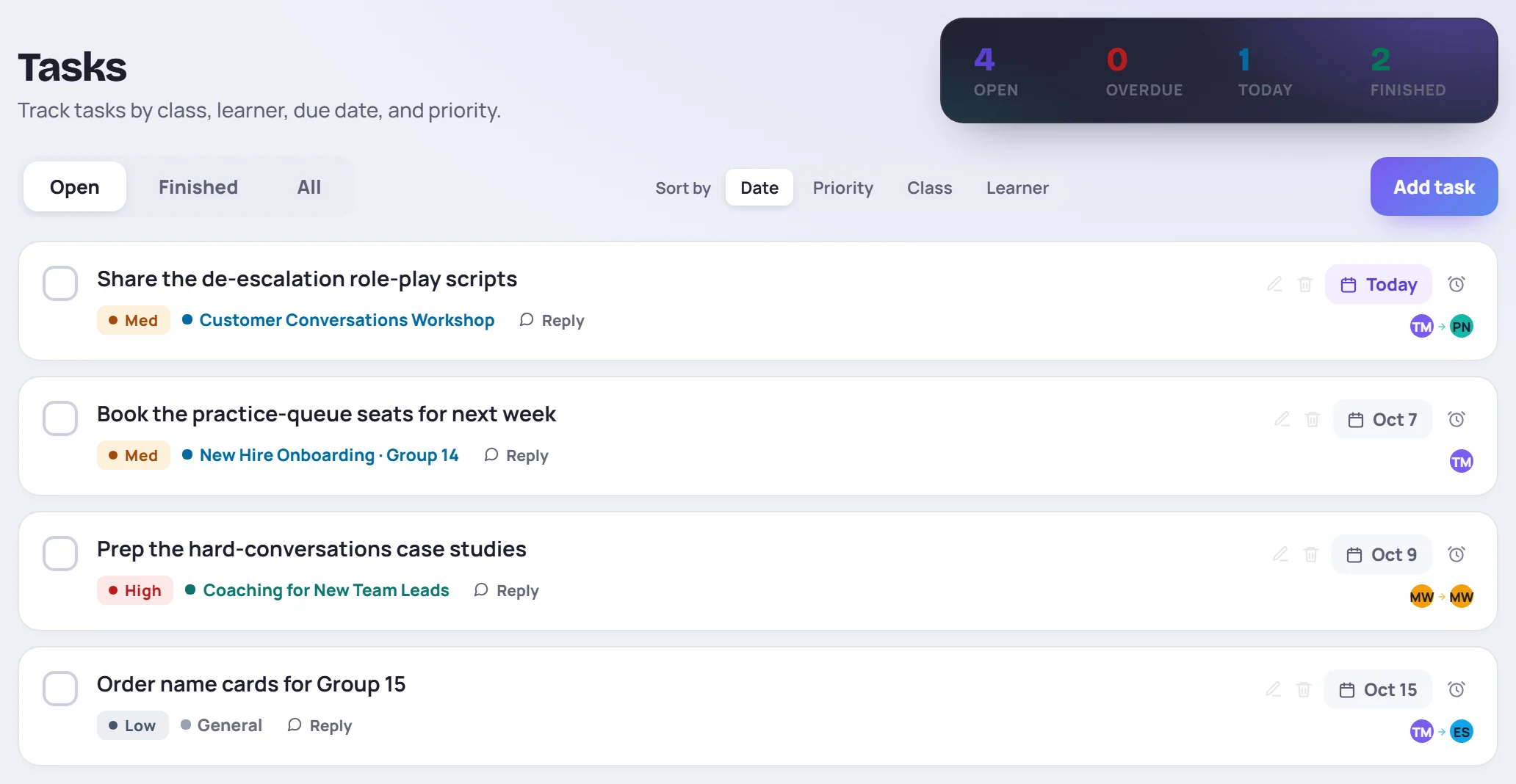
- The counts at the top: Open, Overdue, Today (due today) and Finished.
- Open, Finished and All choose which tasks are listed.
- Sort by Date, Priority, Class or Learner.
Each task shows its priority, its class, when it's due and, on the right, who created it and who it's assigned to (TM → PN means Taylor Morgan created it for Priya Nair). Hover over the initials to see the names.
Learner to-dos, the follow-ups about one learner, are listed separately below the tasks.
Add a task
Click Add task, or press N anywhere in Skovrum when you're not typing.
- Describe the task.
- Choose its class, or leave it as General.
- Set the due date. It starts at today.
- Choose a Priority: High, Med (the default) or Low.
- Optionally, under Assign to, click someone's initials to give it to them. Click again to unassign.
- Click Save task, or press Enter.

Task added appears with when it's due. A task can also come from your session notes, as an action item. It's the same kind of task and appears here too.
Work through your tasks
| To | Do this |
|---|---|
| Check a task off | Click the box on the left. Click again to reopen it. |
| Change its priority | Click the priority. Each click moves it on: High, Med, Low. |
| Change the due date | Click the date and pick a new one. |
| Snooze it | Click the alarm clock and choose Tomorrow or Next week. |
| Discuss it | Click Reply. See Replies. |
| Edit or delete it | Click the pencil or the trash icon. |
The due date reads Today, Tomorrow, Yesterday, a date, or Overdue in red. Snooze moves the due date to tomorrow or to a week from today.
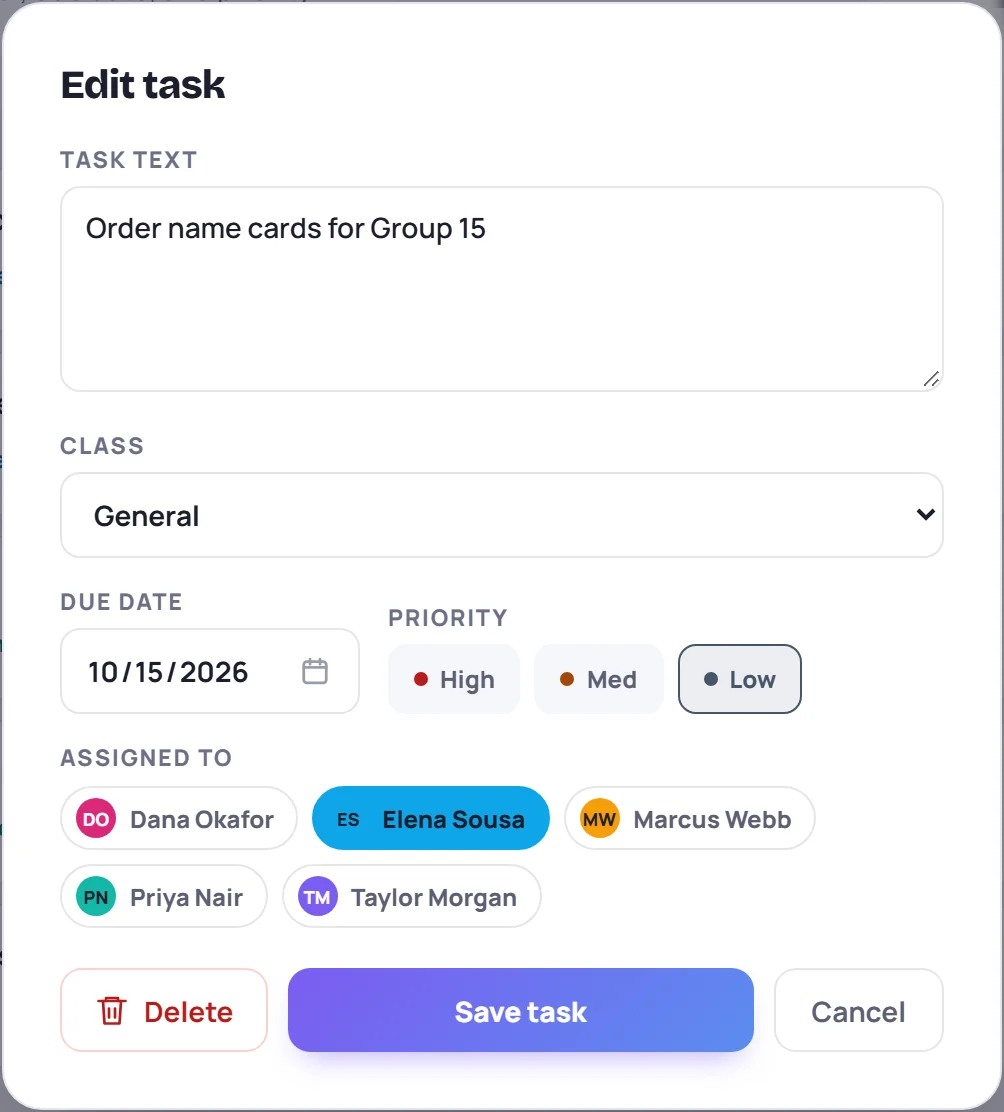
Edit task lets you change the text, class, due date, priority and who it's assigned to, or Delete it. A task created from a session's notes stays with that session's class.
Who can change a task
- The person who created it, and Admins, can change anything and delete it.
- The person it's assigned to can check it off or reopen it.
- Anyone else's change is undone, with a message that it couldn't be saved.
Deleting a task that came from session notes removes it from the notes too.
On Today
The Tasks card on Today lists the team's tasks, soonest first, with the same Open, Finished and All switch. You can check tasks off, change their priority or date and snooze them right there.
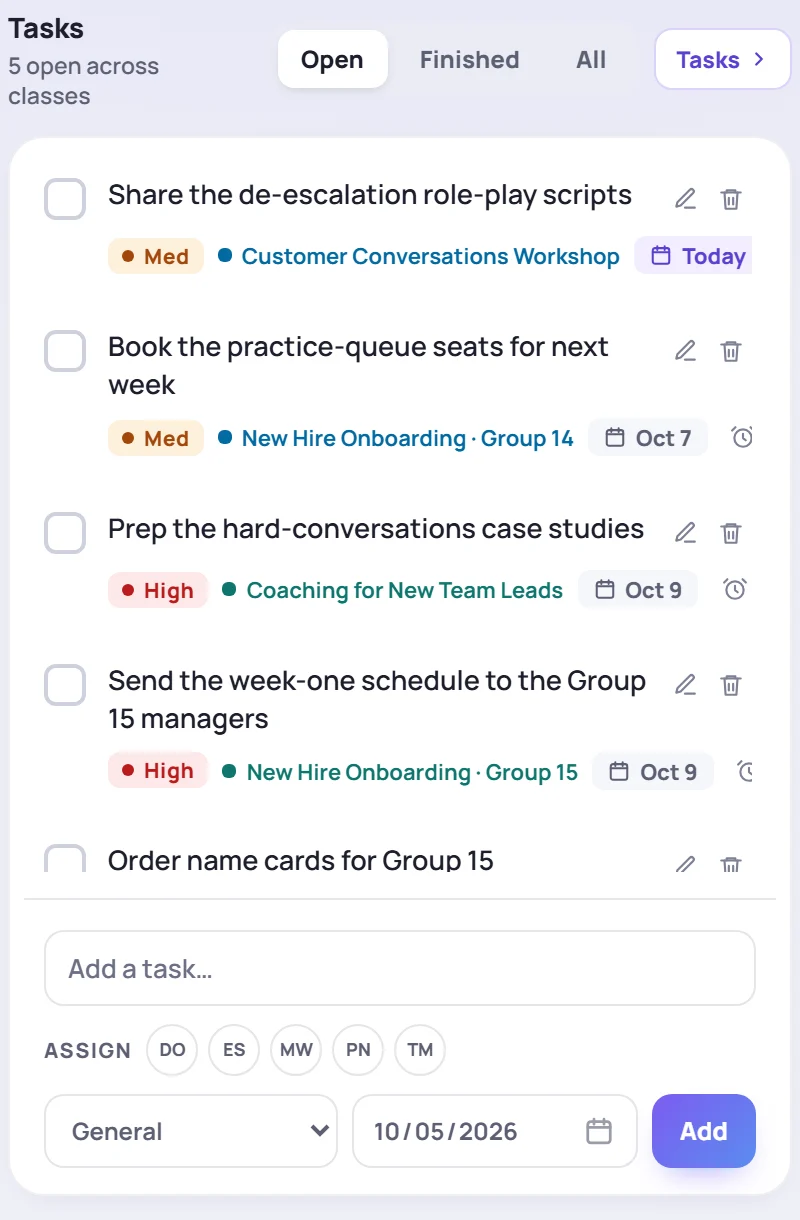
To add one quickly, type in Add a task…, optionally pick who to Assign it to, a class and a date, and click Add (or press Enter). It gets Med priority. Click Tasks at the top of the card to open the full screen.
Reminders
- The bell lists tasks that are overdue or due in the next seven days, if they're unassigned or assigned to you: Overdue task, Due today, Due tomorrow or Upcoming task. See Notifications.
- The daily email, if you've turned it on, lists your assigned tasks that are due today or overdue. See Daily email.
- The calendar shows tasks on their due dates. See The calendar.
Common questions
I checked a task off and it unchecked itself. Only the person who created it, the person it's assigned to and Admins can check it off. Anyone else's change is reverted.
Can I see only my tasks? The list is shared, but your initials show which tasks are yours, and the bell only reminds you about tasks that are assigned to you or to nobody.
Why can't I pick a class when adding a task? The list only offers classes you lead or co-lead. Choose General for anything else.