Roles and permissions
What the built-in Admin, Trainer and Supervisor roles can see and do, in plain words, and how to choose the right one for each person.
Your words may differ. Each workspace can choose its own words: a class might be a cohort, program or group, a learner a participant, trainee or new hire, a session a module or lesson. These guides use the default words. The steps are the same whatever your workspace calls them. Change your workspace's words
Every user in your workspace has one role. The role decides which classes they can see, what they can change there, what they can export, and whether they can manage the workspace itself. Skovrum comes with three roles that suit most teams. On the Team and Business plans you can add your own (see Custom roles).
The three built-in roles
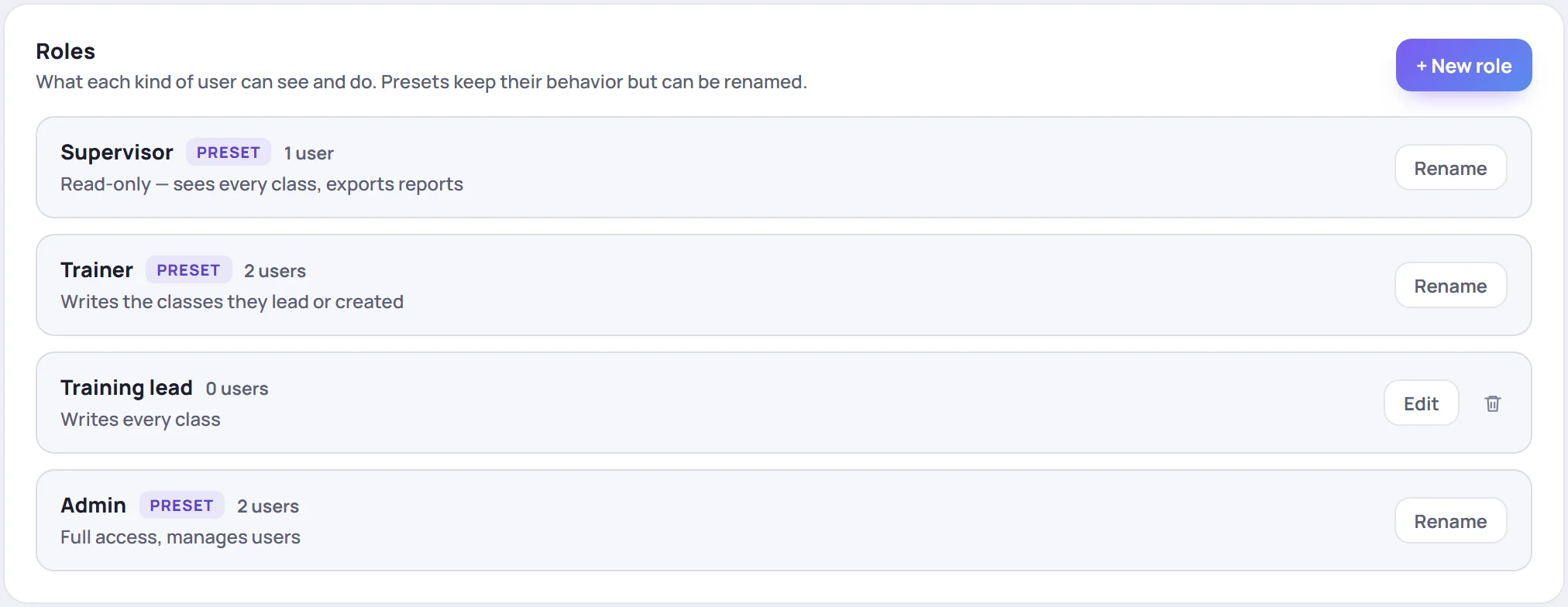
| Role | Who it's for | In one line |
|---|---|---|
| Admin | Whoever runs the workspace: training managers, team leads, you | Full access, manages users |
| Trainer | The people who run classes | Writes the classes they lead or created |
| Supervisor | Leads and stakeholders who need to see the work but not change it | Read-only, sees every class, exports reports |
Admin and Trainer are writers: each one uses a trainer seat on your plan. Supervisor is read-only: it uses a read-only seat instead. See Seats and read-only viewers.
Admin
An Admin can do everything in Skovrum: every class, every learner, every setting. Two things only an Admin can do, whatever other roles exist:
- Make someone an Admin.
- Download and restore full backups.
A workspace always has at least one active Admin. The last one can't be deactivated or given another role.
Trainer
A Trainer sees every class and learner, but changes only the classes they lead, co-lead or created. In those classes they take notes, take attendance, record scores, manage the roster, issue certificates and email surveys. They can create classes and choose who leads them.
They can't delete classes, edit learners' details, change other people's notes, or reach Manage, analytics or trainer development.
Supervisor
A Supervisor sees every class and can export reports and spreadsheets for all of them, including the affiliate roll-up report. They can use AI summaries and answer questions on the Questions board. They can't change anything else: no notes, attendance, tasks or classes.
A Supervisor can't see Analytics. If a lead needs it, give them a custom role with View analytics.
Everything each role can do
These are the permissions exactly as the role editor names them.
| Permission | Admin | Trainer | Supervisor |
|---|---|---|---|
| Create & edit: notes, sessions, tasks, attendance and certs | Every class | Classes they lead or created | No |
| Create classes | Yes | Yes | No |
| Assign trainers | Yes | Yes | No |
| Add & enroll learners | Yes | Yes | No |
| Issue certificates | Yes | Yes | No |
| Email learners (survey emails and links) | Yes | Yes | No |
| Delete classes | Yes | No | No |
| Manage learners: edit details, archive anyone, delete learners without history | Yes | No | No |
| See private learner context | Yes | Yes | Yes |
| Export reports & data | Every class | Classes they lead or created | Every class |
| AI summaries | Yes | Yes | Yes |
| Affiliate roll-up report (the client report) | Yes | No | Yes |
| Moderate content: edit or delete others' notes, replies, attachments and tasks | Yes | No | No |
| Post announcements | Yes | No | No |
| Answer questions | Yes | Yes | Yes |
| Manage users & roles | Yes | No | No |
| Manage catalog | Yes | No | No |
| Trainer development | Yes | No | No |
| View analytics | Yes | No | No |
| Full backups | Yes | No | No |
Every role sees every class. Some features also depend on your plan: announcements, trainer development, custom roles, the audit log and the team Questions board need the Team or Business plan. See What's in each plan.
What "lead or created" means
A Trainer's classes are the ones where they are the primary trainer, a co-trainer, or the person who created the class. Make someone a class's co-trainer and they can work in it straight away.
Things no role can do
- Read someone else's private notes. A private note is seen only by the person who wrote it, Admins included.
- See anyone's password. Admins can sign people out and send password links, but Skovrum keeps only a one-way hash of each password. See Security questions.
Give someone a role
- A new person: choose the role in Add user when you invite them.
- Someone already in the workspace: in Manage → Users, click the pencil on their row, choose the Role and click Save login.

The change applies without them signing out. See Invite and manage users.
Rename a built-in role
If your team says Coordinator rather than Supervisor, rename the role. Click Rename on its row in Manage → Roles, type the new name and click Save role.
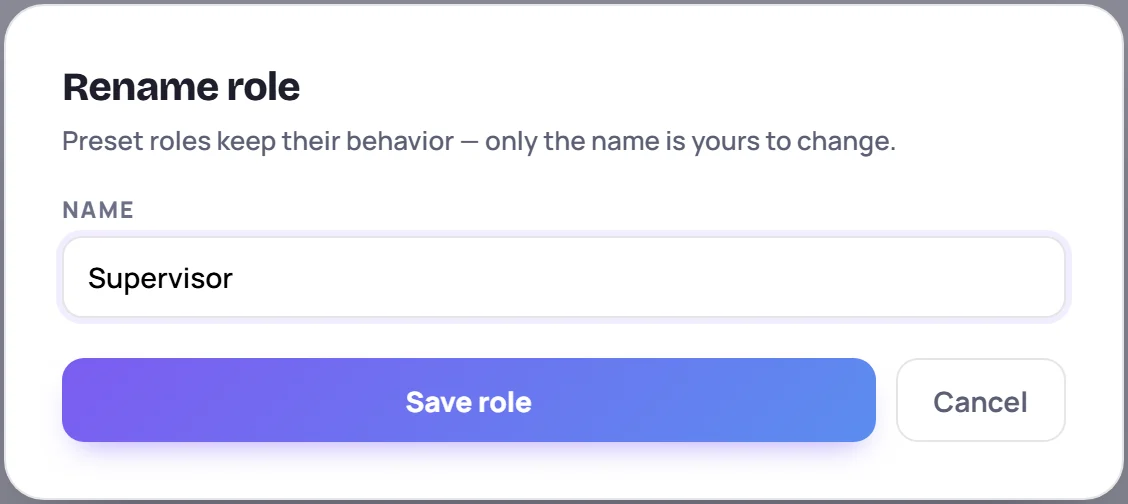
Renaming changes only the name. A built-in role always keeps the permissions in the table above, and it can't be deleted. Renaming works on every plan.
Which role should I choose?
| The person… | Give them |
|---|---|
| Sets up the workspace, invites people, manages the catalog | Admin |
| Runs classes and takes notes | Trainer |
| Needs to watch progress and pull reports, without changing anything | Supervisor |
| Needs something in between, such as a lead who manages the catalog but not users | A custom role (Team and Business plans) |
Give the smallest role that lets someone do their job. You can change it at any time.
Common questions
Why can't a Trainer edit a class they can see? They don't lead it. Make them its co-trainer, or ask an Admin to make the change.
Can a Supervisor take notes? No. Supervisor is read-only. If a lead also teaches, give them the Trainer role, or a custom role that writes.
Why does someone see a Manage screen with only a Data tab? Their role can manage the catalog but not users. See Courses, certifications, tags and countries.
Someone can't find a feature. It may be their role, or your plan. See Why can't I see a feature?