Build a survey template
Create the reusable feedback forms your trainers send to learners, choose which class types use them, and preview what learners will see.
Your words may differ. Each workspace can choose its own words: a class might be a cohort, program or group, a learner a participant, trainee or new hire, a session a module or lesson. These guides use the default words. The steps are the same whatever your workspace calls them. Change your workspace's words
A survey template is a reusable learner form. Trainers don't write survey questions themselves: they pick a template in a session's survey panel and share a link made from it (see Share a survey link). So the templates you build here decide what every learner in your workspace is asked. A short template usually takes about five minutes to build once you know which questions you want.
Find your templates
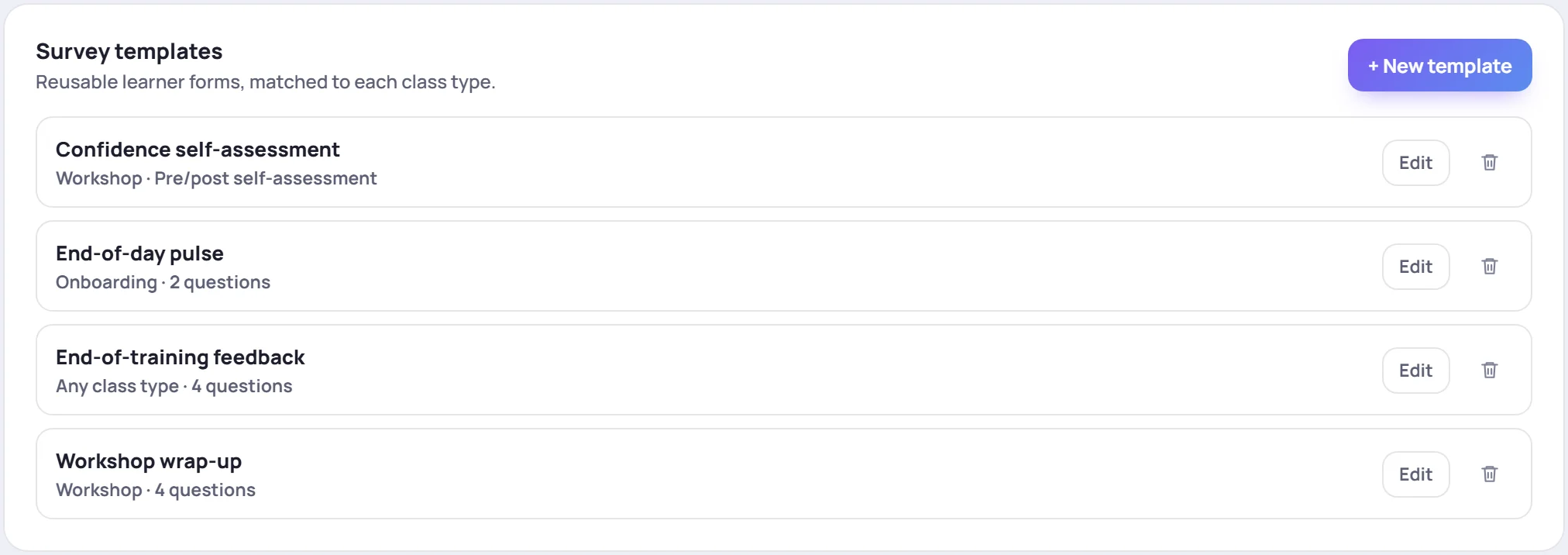
Go to Manage in the sidebar and open the Data tab. Survey templates is the first card.
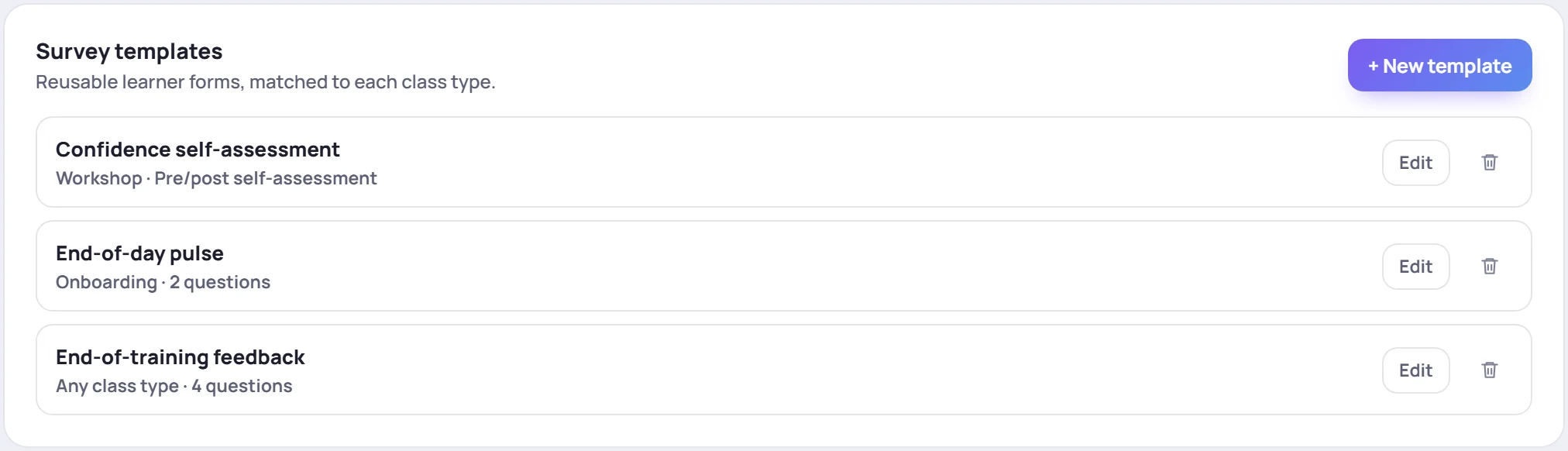
Each template shows its class type and either its number of questions or Pre/post self-assessment. A new workspace starts with three:
| Template | Class type | What it asks |
|---|---|---|
| End-of-training feedback | Any class type | A trainer rating, the pace, what they'll do differently, and an optional name |
| End-of-day pulse | Onboarding | A rating for the day and what could make tomorrow better |
| Confidence self-assessment | Workshop | Confidence in each competency, before and after the class |
You can edit these like any template you make.
Create a template
- Click + New template.
- Type a Template name. Learners see it as the survey's title, so make it something they'll recognize, such as Workshop wrap-up.
- Choose the class type in the box next to it: Any class type, Onboarding, Workshop or Development. Only classes of that type are offered this template.
- Leave Feedback survey selected. (The other choice, Pre/post self-assessment, is explained further down.)
- Add your questions (see the next section).
- Click Save template.
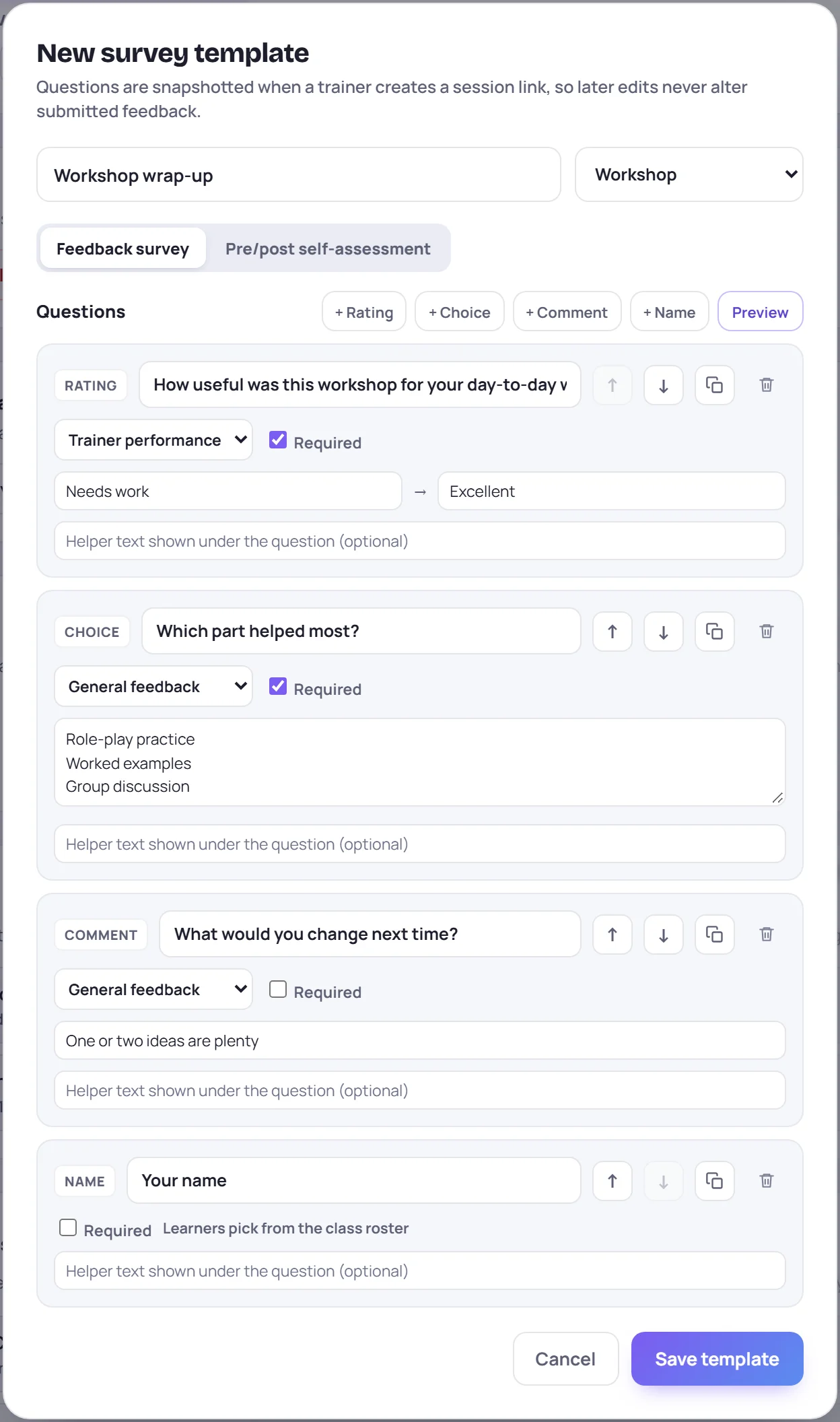
A new template starts with one rating question, How would you rate the training?, which you can change or remove.
Question types
Add questions with the buttons above the list. A template holds up to 20.
| Button | What learners get | What you set |
|---|---|---|
| + Rating | Five stars to tap, from 1 to 5 | The labels under each end of the scale. They start as Needs work and Excellent. |
| + Choice | One option to pick from a row of buttons | The options, one per line. You need between two and eight, and no two can be the same. |
| + Comment | A box to write in | An optional Placeholder hint shown in the empty box |
| + Name | An optional list of the class roster to pick their own name from | Nothing else. See "Names and anonymity" below. |
Every question also has:
- The question text. Every question needs one before you can save.
- Required. Learners can't send the form until they've answered a required question. New questions start unticked.
- Helper text shown under the question (optional). A short line of guidance.
- Counts toward (not on Name questions). See the next section.
- The arrows to move it up or down, a button to duplicate it, and the trash can to remove it.
Choose what a rating counts toward
The Counts toward list tells Skovrum what a rating question measures. It matters for the rating questions in particular:
| Choice | The rating feeds |
|---|---|
| Trainer performance | The trainer's survey rating in Analytics and on their development profile |
| Session quality | The session-quality average shown beside it on the trainer's development profile |
| General feedback | Only the class's own survey averages |
Every rating, whatever you choose, still counts in the class's Surveys tab: each response's average, each session's average and the rating trend. So use Trainer performance only for questions that really rate the trainer, such as How would you rate your trainer?, and keep questions about the content on Session quality or General feedback.
Preview what learners will see
Click Preview above the questions. The builder switches to a read-only list of the questions as learners will meet them, with the required ones starred. Click Edit questions to go back.
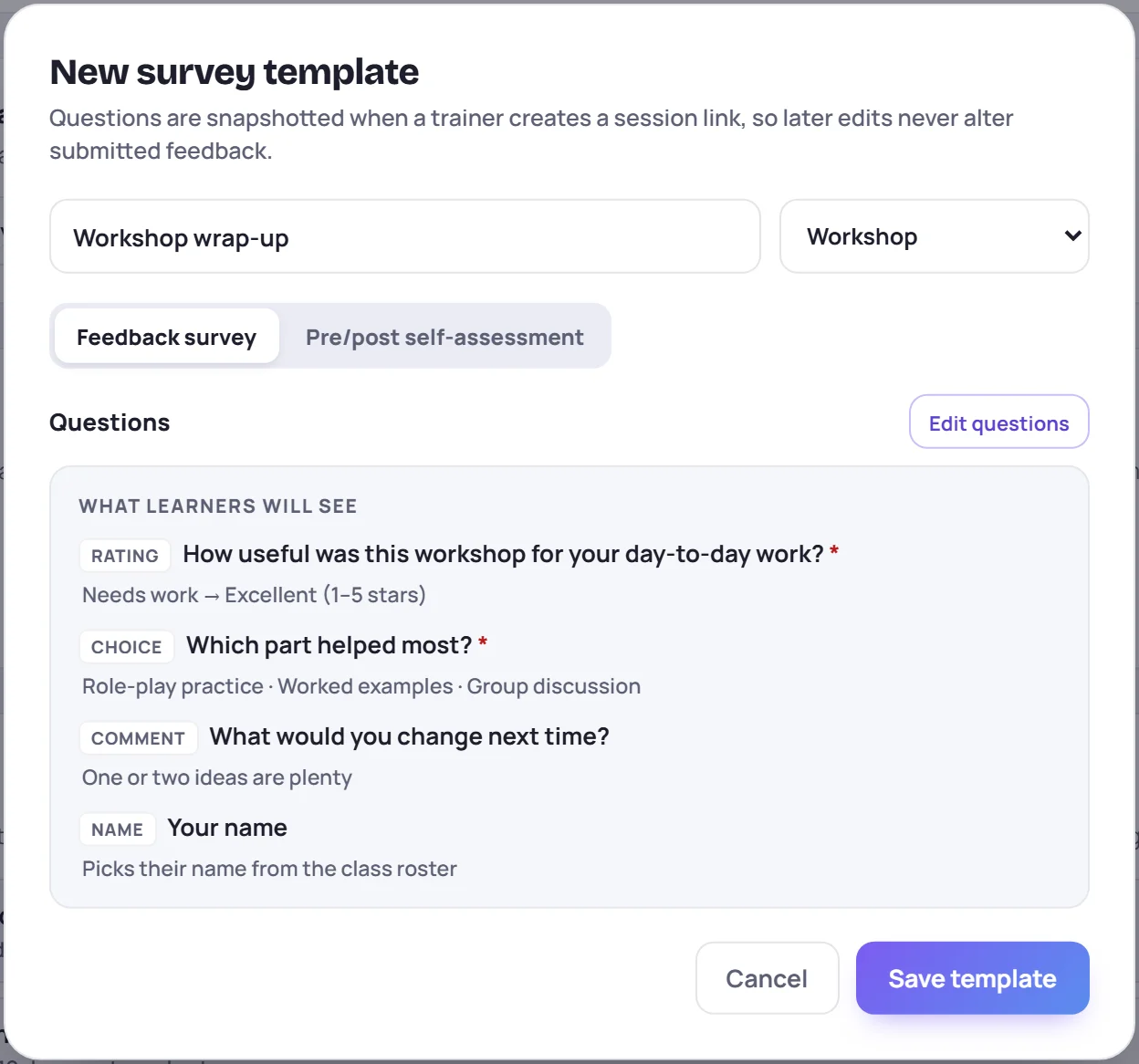
To see the real form, create a link from a session (see Share a survey link) and open it.
Names and anonymity
Feedback surveys are anonymous unless the learner chooses otherwise. A Name question lets them pick their own name from the class roster, shown as a first name and last initial, such as Tara O. It is always optional, even if you tick Required: learners can leave it on Prefer not to say.
When a learner picks their name, the response is linked to their learner record and appears on their timeline. Leave the Name question out if you want every answer to stay anonymous. See What learners see.
Make a self-assessment template
A self-assessment asks learners how confident they feel in each competency, once before the class and once after. Choose Pre/post self-assessment under the name.
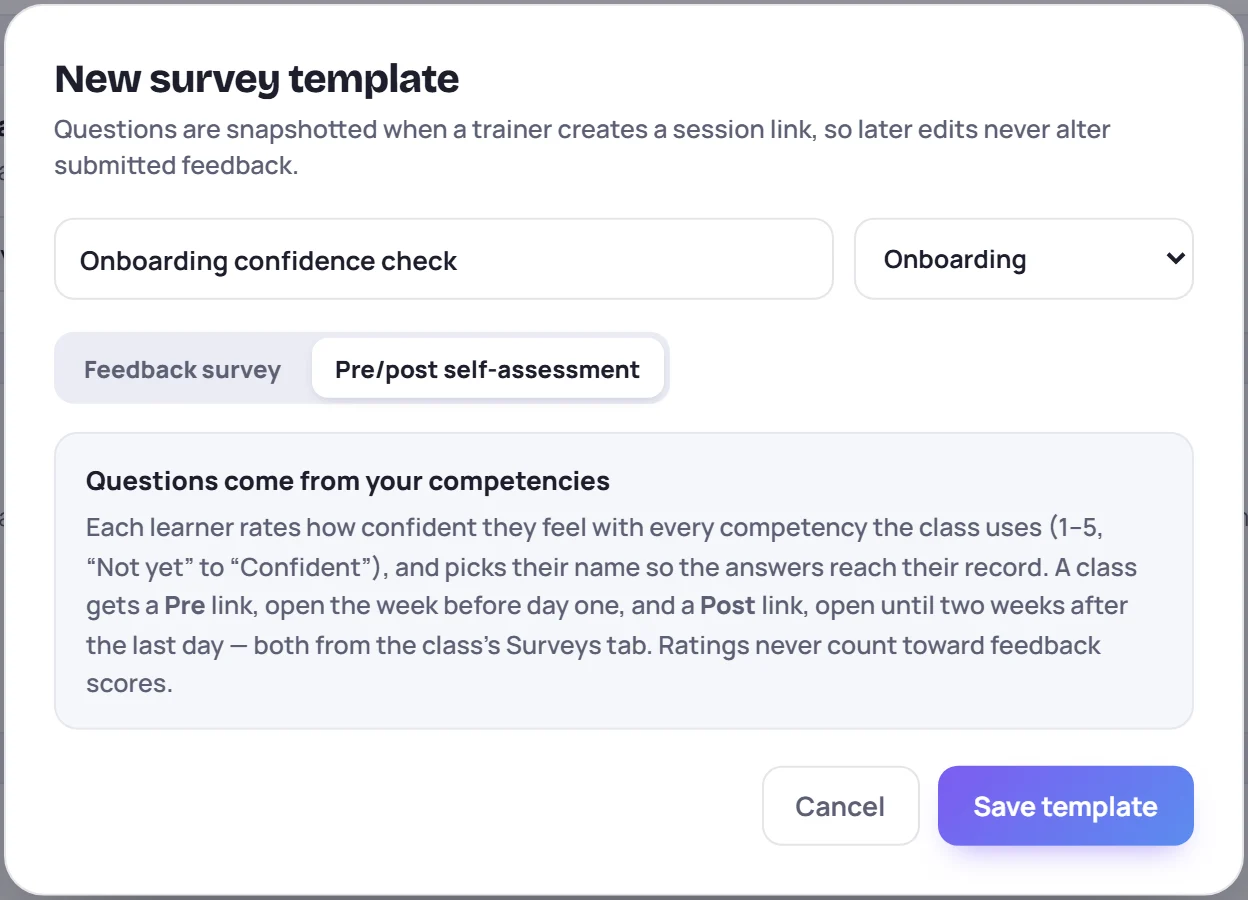
There are no questions to write. When a trainer creates the class's link, Skovrum asks one question per competency the class uses, plus the learner's name, which is required here. So keep your competencies up to date instead. Set the class type as usual: a class uses the self-assessment for its own type, or one for Any class type if there isn't one.
When you edit an existing self-assessment, Duplicate for another class type makes a copy, so another class type can have its own. See Pre/post self-assessments.
Where trainers meet your templates
A feedback template shows up anywhere a survey is chosen for a class of its type:
- A session's survey panel, under Add a custom survey, where trainers create links (see Share a survey link).
- The wrap-up's Today's survey line, which creates the link straight away when only one template fits the class.
- The Survey list in a class's survey email settings, and in the new-class form's Survey emails card (see Email surveys automatically).
- Default survey in workspace settings.
A self-assessment template shows up only on the class's Surveys tab.
Tips for a good template
- Keep it short. Learners usually answer at the end of a session, often on a phone, so a few well-chosen questions beat a long form.
- Make one rating the headline. The session's average uses every rating question, so a single clear rating, such as How useful was today?, keeps the average meaningful.
- Ask one open question. A Comment question gives the AI comment themes something to summarize.
- Make one template per purpose. A daily pulse for onboarding and an end-of-course survey for every class type are easier to compare than one template that tries to do both.
Edit or delete a template
Click Edit on a template, change it, and click Save template.
Edits never reach links that are already out. A session's link keeps the questions the template had when the link was made, so answers already given always match their questions. New links use your edited version.
To delete a template, click the trash can and confirm. A template that any session has already made a link from can't be deleted at the moment: Skovrum shows Could not delete survey template. Edit it instead, or leave it unused.
Common questions
Why don't trainers see my template? Check its class type. A session's survey panel only lists templates for that class's type and those for Any class type. Self-assessments are never listed there: they live on the class's Surveys tab.
Can I change a question after learners have answered? Edit the template, and the change applies to links made from then on. A link that is already out keeps its questions. If a session's link has no answers yet, you can revoke it and create it again from the survey panel: the new link uses the edited questions (and has a new address). Once a link has answers, its questions stay as they were.
Which template do new classes use for survey emails? The new-class form starts with the Default survey from workspace settings, switched on if Email it to learners automatically is ticked there. See Email surveys automatically.