Teach in live mode
Teach full screen with a timed agenda, one-tap attendance and ratings, and keyboard shortcuts for the whole hour.
Your words may differ. Each workspace can choose its own words: a class might be a cohort, program or group, a learner a participant, trainee or new hire, a session a module or lesson. These guides use the default words. The steps are the same whatever your workspace calls them. Change your workspace's words
Live mode is the session screen rearranged for the time you're actually in front of the room. It fills the screen with three things: the agenda with a clock for each topic, a tile for every learner, and the parking lot with a quick note. Everything you do in live mode is saved in the usual places (the session's plan, attendance, notes and parking lot), so nothing needs copying afterwards.
Go live
On the session, click Go live in the toolbar, or press L. You can also choose Go live from the command palette (Cmd/Ctrl+K).
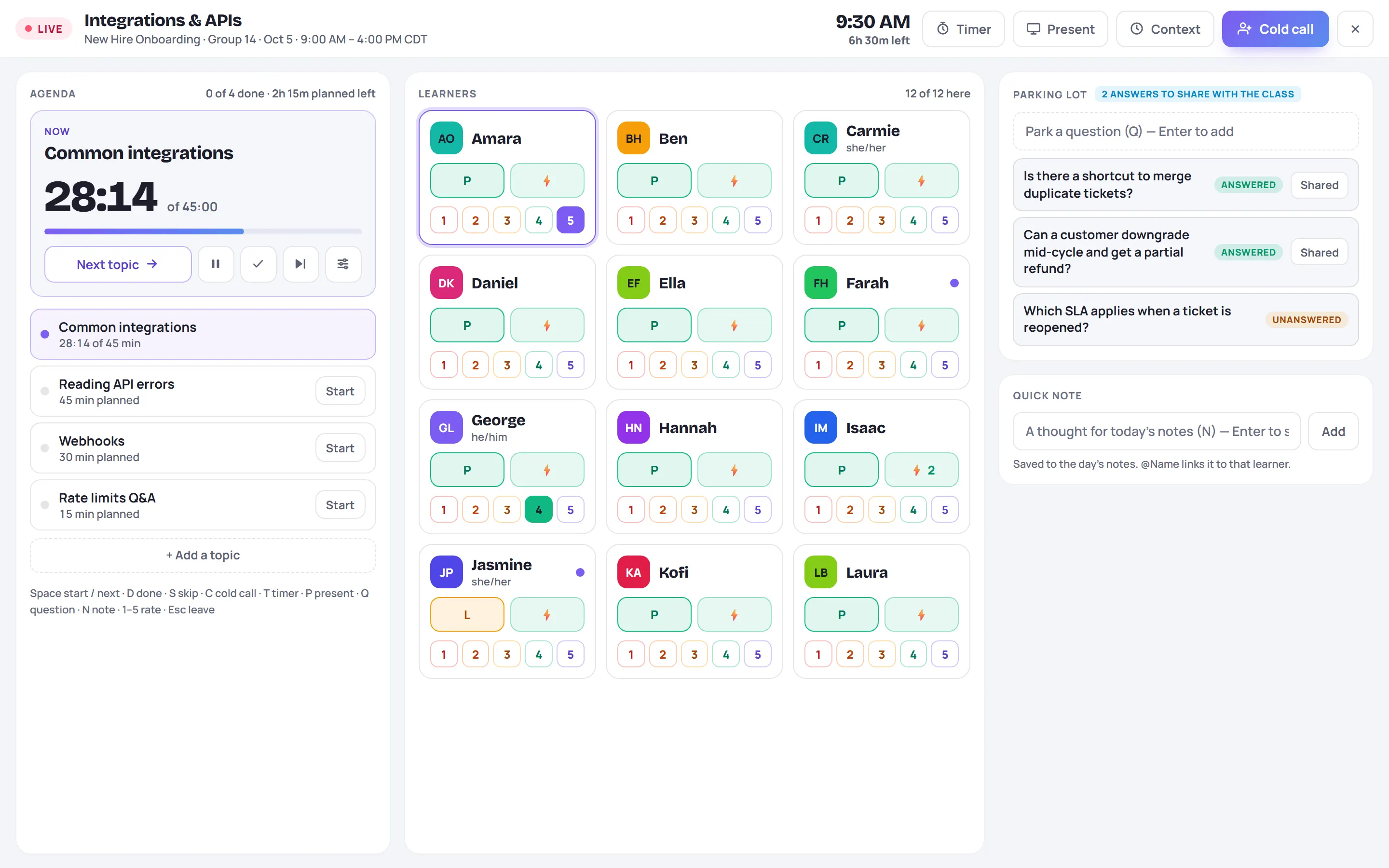
The bar across the top shows:
- LIVE, the session's name, its class, date and times.
- The time now, in the class's time zone, with how long the session has left (6h 30m left). In the last 10 minutes it turns amber. Before the session it says Starts in … and afterwards Over by … in red.
- Timer, Present, Context and Cold call buttons, and × to leave.
While live mode is open, Skovrum asks the browser to keep the screen awake, where the browser supports it.
To leave, click × or press Esc (it first closes anything open on top). The session screen comes back as you left it.
The agenda
The left-hand column is the session's plan, the same topics as on the Plan chip. See Today's topics. The current topic sits at the top in a large card:
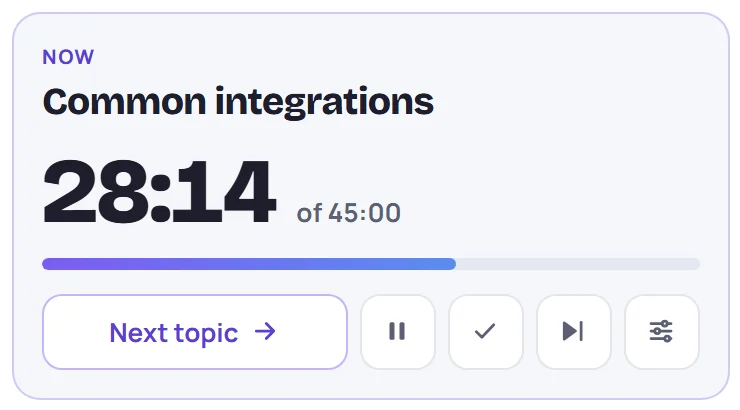
- The topic clock counts up from when you start the topic, against its planned time (of 45:00). The bar fills as it goes; past the planned time the clock turns red and says how far over you are.
- Start starts the clock (it reads Resume after a pause). Once it runs, the big button becomes Next topic, which marks this topic done and starts the next one.
- Pause stops the clock.
- ✓ marks the topic done without starting the next.
- Skip sends the topic to the end of the agenda without marking it. If the clock was running, it carries on with the next topic.
Below the card, every topic is listed with its time: 28:14 of 45 min while it runs, 45 min planned before, Took 52 min · planned 45 once done. Click Start on any topic to jump to it, or Reopen on a finished one to mark it not done.
Done topics are ticked off on the session's plan, with the minutes they actually took. A topic finished in under 30 seconds is ticked without minutes. At the top of the column, 0 of 4 done · 2h 15m planned left keeps the running total.
Fix the clock or the planned time
Forgot to press Start, or spent ten minutes on a tangent? Click the sliders button on the topic card.
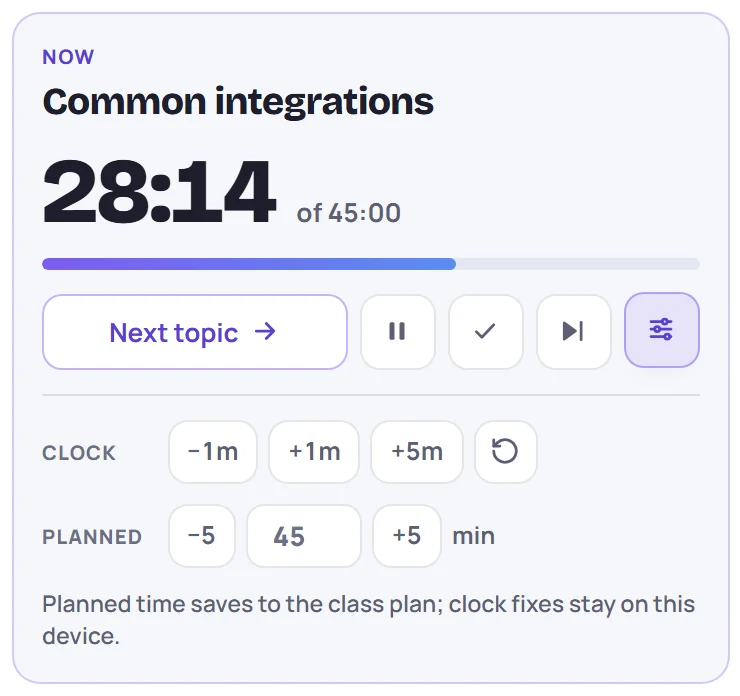
- Clock takes a minute off, adds one or five minutes, or resets the topic's clock to 0:00. Clock fixes stay on this device.
- Planned changes the topic's planned minutes. If you lead the class, this saves to the class's plan. If you're running only this session (a substitute, for example), the change applies today on this device only. The panel says which.
Add a topic you didn't plan
The room went somewhere you didn't expect? Click + Add a topic under the agenda.
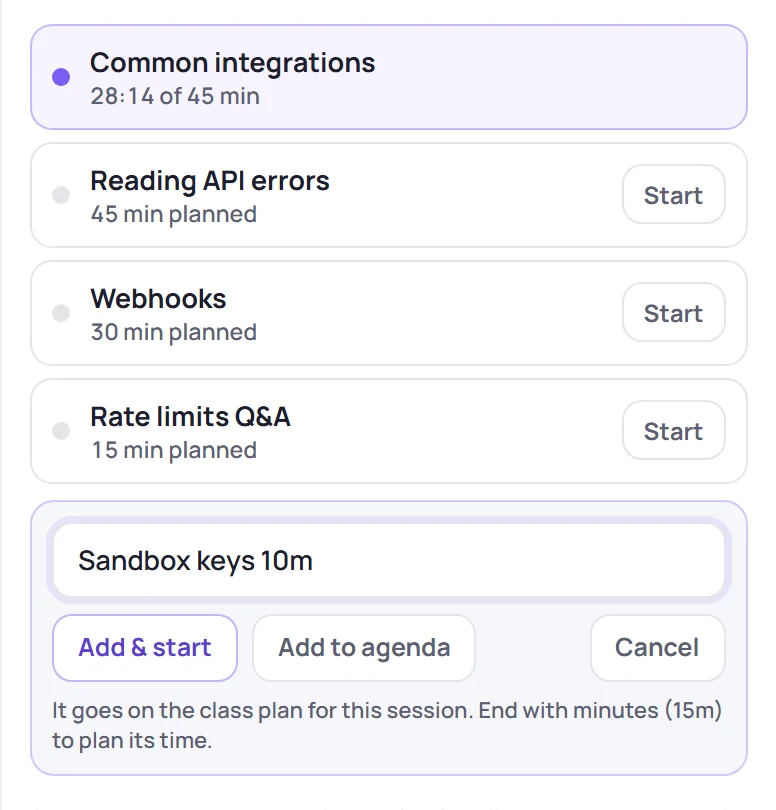
Type the topic. End it with the minutes to plan its time, such as 15m, 20 min or 1h 30m. Then click Add & start (or press Enter) to start its clock now, or Add to agenda to put it at the end. It's added to the class's plan for this session. Only the class's leads and Admins can add topics.
The learner tiles
The middle column has a tile for each learner in the session, with their first or preferred name and pronouns. 12 of 12 here counts the learners who aren't marked absent, excused or gone early. Those who are fade out.
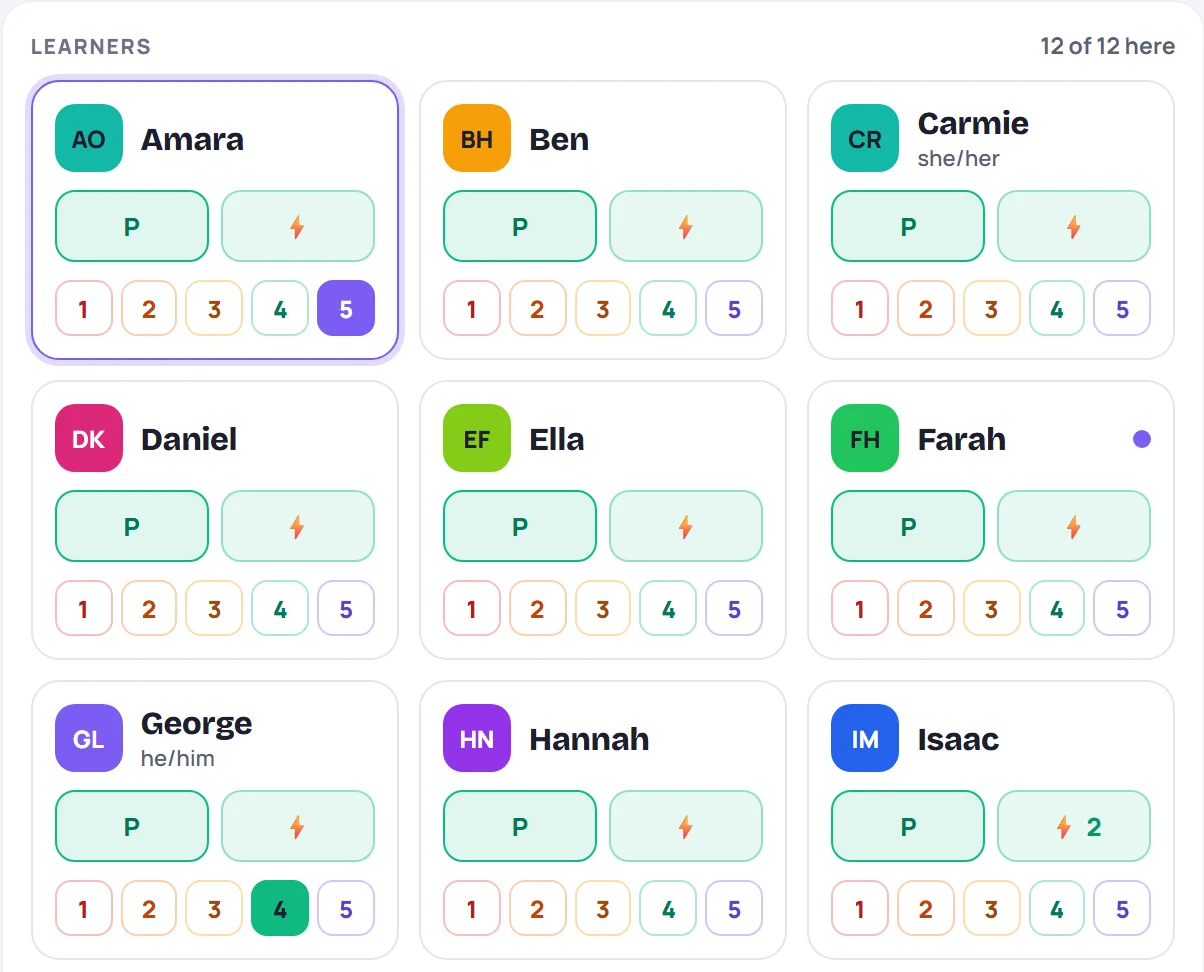
On each tile:
- The attendance button (P, L …) opens Mark attendance, just as on the session screen. See Take attendance.
- ⚡ adds an engagement tap. The number shows how many so far.
- 1 to 5 gives today's progress rating. Click the same number again to clear it. Rating a learner who isn't Present opens Mark attendance with the rating filled in, so you can add the reason.
- A purple dot means the learner is on the Keep an eye on list from the last session. Hover over it for the reason.
- Watch marks a learner flagged as on watch, and Called once counts cold calls.
Click a tile to select it (it gets a purple outline). Then press 1 to 5 to rate that learner from the keyboard.
Parking lot and quick note
The right-hand column is for capturing things without leaving the room: park a learner's question, or jot a note for today. See Cold call, timer and quick notes.
Context
Context opens a panel with what you'd want to know before calling on anyone. It's read-only.
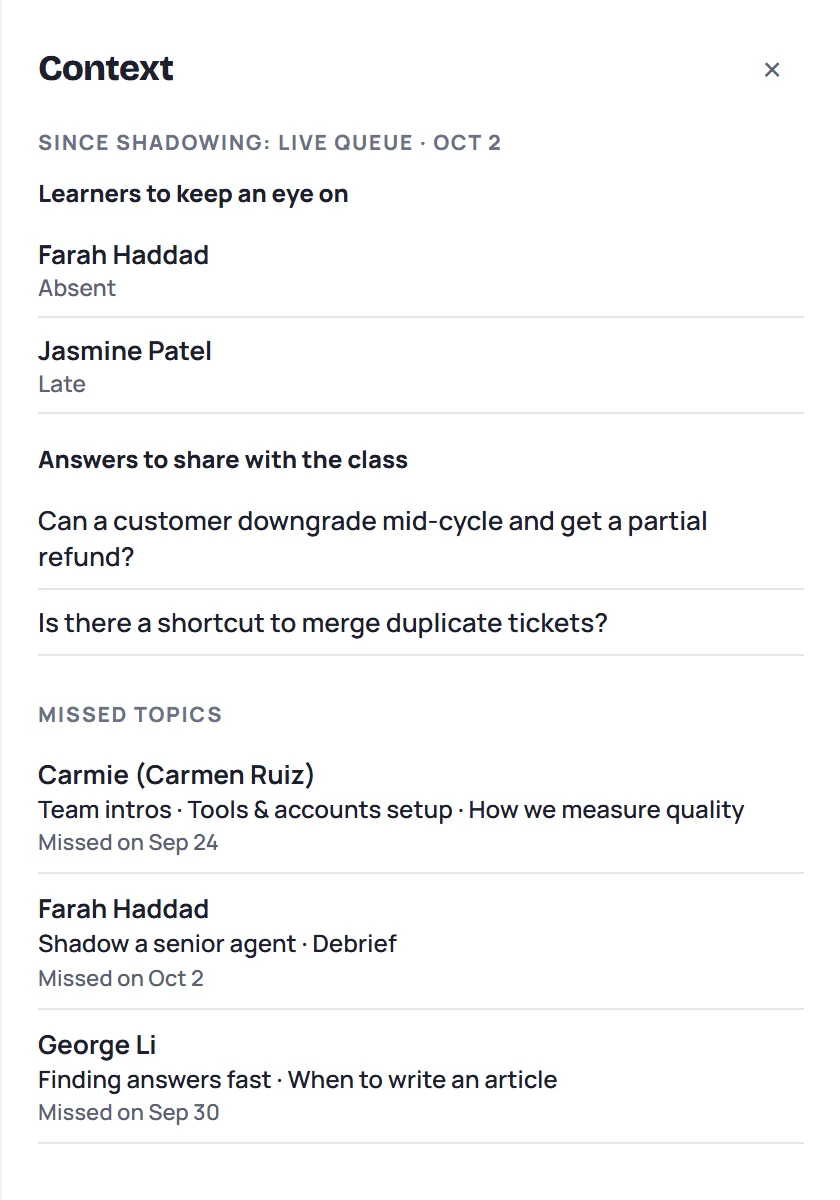
- The previous session's Since card: learners to keep an eye on, open follow-ups, notes for this session, answers to share and topics not covered. See Since last session.
- Missed topics: each learner in the room who missed topics on an earlier day, which topics and when. See Missed topics and catch-ups.
Keyboard shortcuts
In live mode these keys replace the usual single-key shortcuts. They don't apply while you're typing in the parking lot or the quick note (press Esc to leave the field).
| Key | What it does |
|---|---|
| Space | Start the topic, or, when it's running, mark it done and start the next |
| D | Mark the topic done |
| S | Skip the topic for now |
| C | Cold call (press again to pick someone else) |
| T | Open the countdown timer |
| P | Show the agenda in a presenter window |
| Q | Go to the parking lot |
| N | Go to the quick note |
| 1–5 | Rate the selected learner |
| Esc | Close what's open, or leave live mode |
A short version of this list is printed under the agenda.
Your clock stays on this device
The topic clock, skipped topics, clock fixes, cold-call counts and the timer are kept on the device you're teaching from. If you reload the page or close live mode by accident, they're still there when you go live again. On another computer, live mode starts fresh, although everything already saved (topics ticked, attendance, notes) is there.
When you wrap up the session, the clock is cleared and live mode closes.
On a tablet or phone
The layout adapts to the screen:
| Screen | Layout |
|---|---|
| Laptop or desktop | Three columns side by side (a narrow window uses the tabs below) |
| Tablet, landscape | Agenda and learners side by side; Notes & questions opens the parking lot and quick note over them |
| Tablet, portrait | One panel at a time, with Agenda, Learners and Questions tabs, plus a bar of topic buttons (Start, Done, Skip, Cold call, Timer) at the bottom |
| Phone | One panel at a time, with Agenda, Learners and Questions tabs |
Buttons are larger on a tablet so they're easy to hit while standing.
Common questions
Do I need live mode to take notes during a session? No. Live mode is optional. Everything it does can be done on the ordinary session screen; live mode just puts the timing tools in front of you.
Why isn't Go live showing? You can go live only on a session you lead or co-lead (or any session, as an Admin), and not from the class-wide notes.
I left the clock running overnight. If a topic's clock has run for more than a day, finishing it ticks the topic without minutes, so your timings aren't spoiled.