Workspace settings
Your organization's name and time zone, the defaults new certifications and classes start from, survey emails, clients and business units, and your plan, all in Manage → Workspace.
Your words may differ. Each workspace can choose its own words: a class might be a cohort, program or group, a learner a participant, trainee or new hire, a session a module or lesson. These guides use the default words. The steps are the same whatever your workspace calls them. Change your workspace's words
Manage → Workspace holds the settings that apply to your whole workspace. Most of them are defaults: what a new class or a new certification starts with. Changing a default never changes classes or certifications you already have.
The settings cards share one Save settings button, under Your words. Nothing changes until you click it. Everyone else sees the change within about a minute, or when they next reload Skovrum.
Your organization
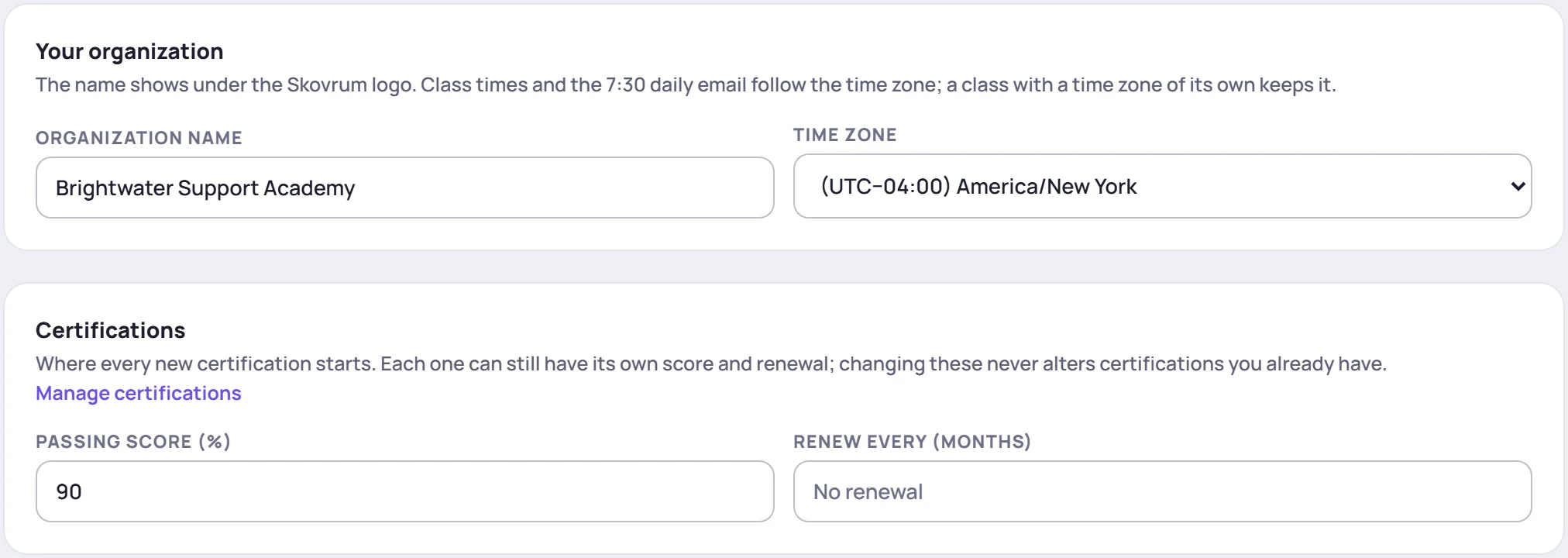
Organization name shows under the Skovrum logo in the sidebar. It's also used in invitation emails, and on certificates if your workspace issues them in its own name (see Your logo and colors).
Time zone is your organization's clock. Class times follow it, and so does the daily email. If this computer is in a different zone, a Use button under the field offers it.
What changing the time zone does to your classes
A class can have a time zone of its own, set when it's created. Those classes keep theirs.
For classes without their own zone, Skovrum keeps them on the old one, so no session moves: a session at 9:00 stays at 9:00 on the clock it was planned on. Before saving, Skovrum tells you how many classes this affects. New classes use the new zone.
The one exception is a brand-new workspace whose time zone was never confirmed. There, existing classes simply follow the new zone.
Certifications
The Passing score (%) (0 to 100) and Renew every (months) (1 to 600, or empty for no renewal) that every new certification starts with. Each certification can still have its own, and these never change certifications you already have. Manage certifications takes you to the list in Manage → Data. See How certifications work.
Surveys
What a new class starts with for its end-of-session survey. Trainers can change it for any class.

| Setting | What it sets |
|---|---|
| Default survey | The survey template new classes use, or No default survey |
| Send it | When the session ends, or 5, 10, 15, 30 or 60 minutes before the end |
| Link open for (days) | How long each survey link accepts answers, 1 to 365 days |
| Email it to learners automatically | Whether new classes email the survey to their learners at that time |
The automatic email is off unless you switch it on, and it needs a default survey. It applies to classes created after you save. Change an existing class from any of its sessions' survey panel. See Email surveys automatically.
Clients and business units
Switch this on if you train people for several clients, sites or business units. Each class then belongs to one, and you can filter and report by it. See Clients and business units.
Your words
Choose what your workspace calls classes, learners, trainers and sessions. See Your workspace may use different words.
Your team and your first class
Under Save settings, two shortcuts show how many people are in the workspace and how many classes exist. Manage users opens Manage → Users, and New class opens the new-class form.
Branding
On the Business plan, the Branding card sets your logo, color, email sender, support contact and certificate issuer. It has its own Save branding button. See Your logo and colors.
Your plan
The card at the top of the tab shows your plan, how many seats and how much file storage you use, and what your plan includes.
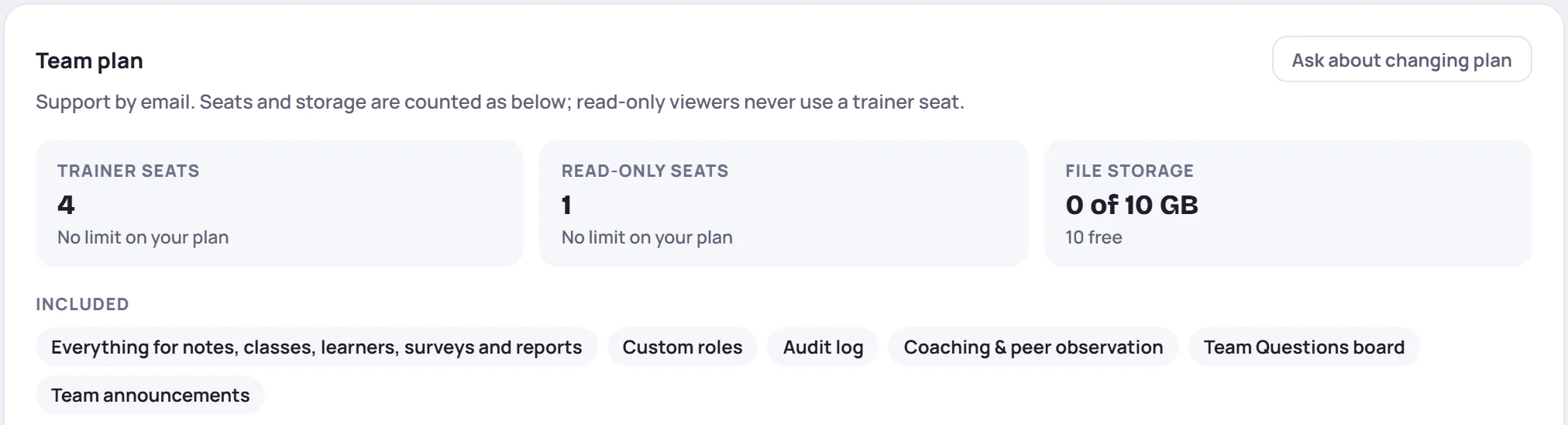
- Trainer seats count people whose role can write. Read-only seats count read-only viewers. See Seats and read-only viewers.
- Ask about changing plan emails Skovrum. A workspace paid by card has Manage billing and plan instead. See Billing.
- Below it, Do more with Skovrum lists what a bigger plan adds.
See What's in each plan.
The setup checklist
A new workspace shows its Admins a Set up your workspace checklist on Today (see Set up your workspace: where to start). Saving this tab ticks off its first three steps.
If you hid the checklist before finishing it, this tab says so:

Click Show it again to put it back on Today.
Common questions
Why didn't my classes' times change when I changed the time zone? That's on purpose. Classes keep the clock they were planned on. Change a class's own time zone when you edit it. See Edit a class.
I switched on automatic survey emails. Why don't my current classes send them? The switch is a default for new classes. Turn it on for an existing class from one of its sessions' survey panel.
Can a Trainer change these settings? No. Trainers can change a class's survey settings, but not the workspace's.