Account settings
Change your name, color and password, sign out on other devices, and switch between light and dark.
Your words may differ. Each workspace can choose its own words: a class might be a cohort, program or group, a learner a participant, trainee or new hire, a session a module or lesson. These guides use the default words. The steps are the same whatever your workspace calls them. Change your workspace's words
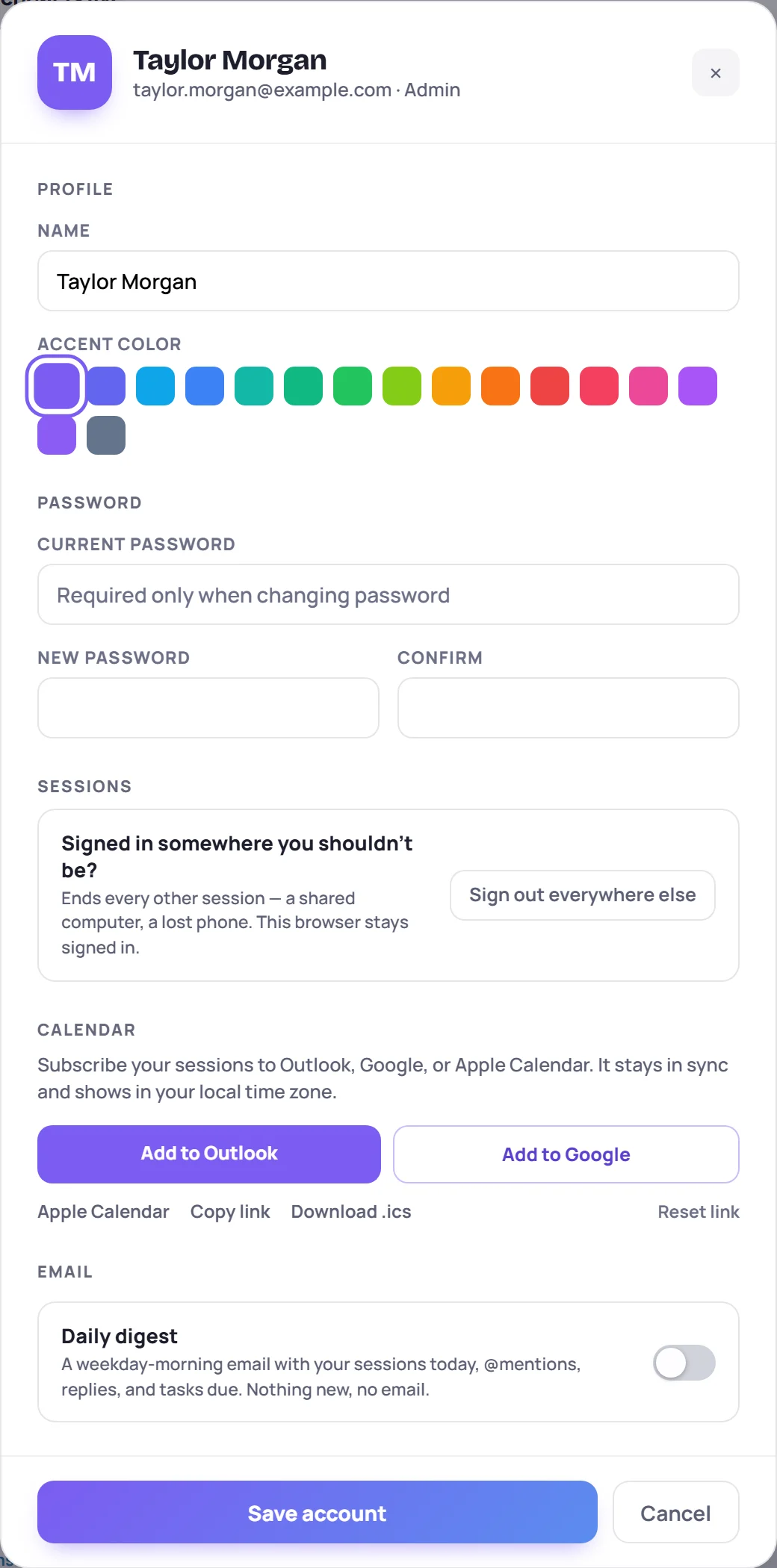
Your account settings hold everything that's about you rather than the workspace. To open them, click the gear next to your name at the bottom of the sidebar.
Change your name or color
- Name is how you appear to everyone in the workspace: on notes, tasks and the Users list.
- Accent color is the color of your initials badge wherever your name appears.
Click Save account to keep the changes.
Your email address is your sign-in, so you can't change it here. Ask an Admin to change it for you in Manage → Users.
Change your password
- Type your Current password.
- Type the new one in New password and again in Confirm. It needs at least 8 characters.
- Click Save account.
Changing your password signs you out on every other device. You stay signed in where you are. Forgotten your current password? Sign out and use Forgot password? on the sign-in screen. See Sign in and passwords.
Sign out on other devices
Left Skovrum open on a shared computer, or lost a phone? Click Sign out everywhere else, then confirm with Sign out others. Every other browser and device is signed out. This one stays signed in.
Calendar and daily email
The same window has your personal calendar feed and the switch for the daily digest. Both take effect straight away, without Save account.
Light or dark
Click the moon (or sun) button at the top right of the screen to switch between light and dark. Your choice is saved to your account, so it follows you to other devices.
Sign out
Click the arrow next to the gear at the bottom of the sidebar. If you have changes that haven't reached Skovrum yet, it asks you to wait until they have. See Working offline.