Try the demo
Get a link to the shared demo workspace, a sample training team you can click through before you buy.
Your words may differ. Each workspace can choose its own words: a class might be a cohort, program or group, a learner a participant, trainee or new hire, a session a module or lesson. These guides use the default words. The steps are the same whatever your workspace calls them. Change your workspace's words
The demo is a working Skovrum workspace filled with a sample training team: classes, learners, sessions, notes, surveys and certifications. You can click anything and change things. There's no sales call and nothing to install. Asking for a link takes about 30 seconds.
Get your demo link
Go to skovrum.com/demo and fill in the form.
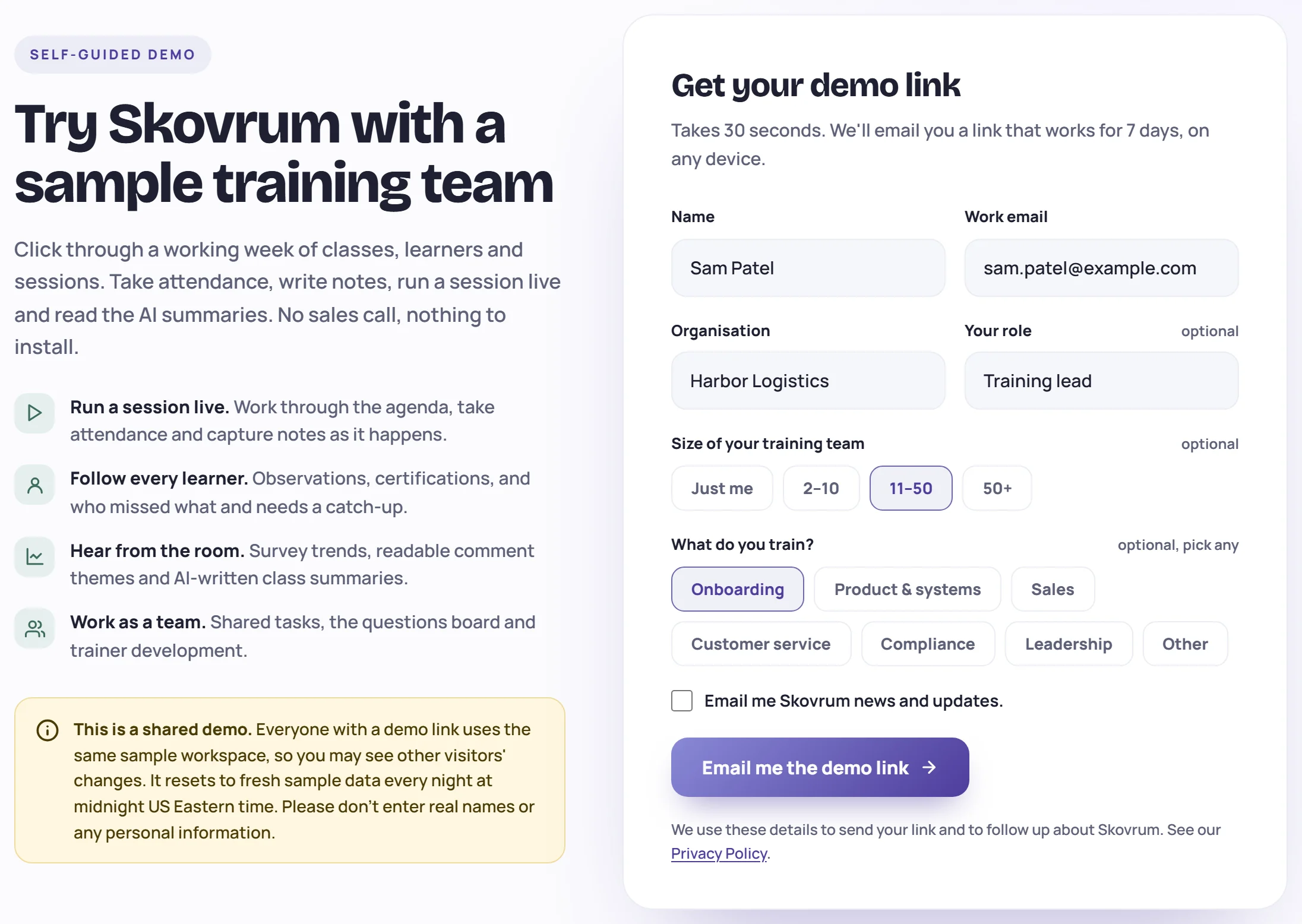
- Enter your Name, Work email and Organisation. Your role, the Size of your training team and What do you train? are optional.
- Click Email me the demo link.
Your demo link is on its way. It should arrive within a minute. If it doesn't, check your spam folder.
Open the demo
The email is titled Your Skovrum demo link. Click Open the demo.
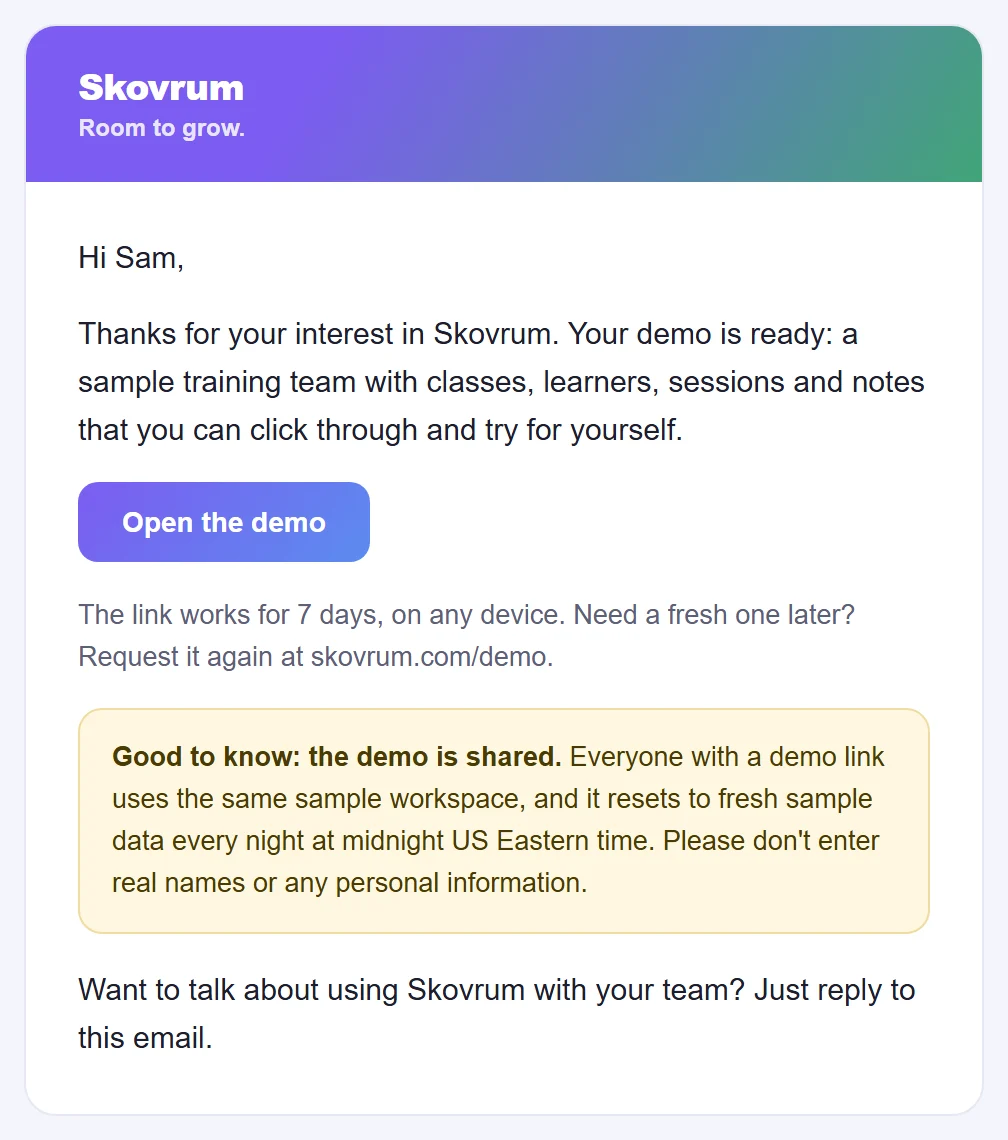
The link works for 7 days, on any device. Open it again whenever you want to come back in. If it has expired, the demo page asks for your details again and emails you a fresh one. If you sign out, the demo shows The Skovrum demo with Get a demo link: open the link from your email again to come back in.
The demo opens at demo.skovrum.com. A welcome message tells you who you are (Taylor Morgan, a training lead) and suggests three things to try:
- Classes → ONB-14: open a session and press Go live. See Teach in live mode.
- Learners: observations, attendance and certifications.
- A class's Report: an AI-written summary. See The class report.
Click I understand, let me explore, or Take the tour for a guided walk around the screen. Every screen has its own tour: press ? in the top bar, then Take a tour.
A shared demo
Everyone with a demo link uses the same sample workspace, signed in as the same person.
- Other visitors may see your changes, and you'll see theirs. That includes private notes and My Notebook, since every visitor is the same user.
- It resets every night at midnight US Eastern time, back to fresh sample data. The sample week is always the current week.
- Don't enter real names or personal information. A banner at the top of every screen reminds you.
What the demo leaves out
The demo runs on the Business plan, so you can try every feature, apart from things that would affect other visitors or send anything out:
| Not in the demo | Why |
|---|---|
| Inviting users, changing roles, workspace settings and branding | They would change the workspace for everyone |
| Deleting classes, learners, sessions or anything in the catalog, and merging or erasing learners | Try archiving instead |
| Editing survey templates and posting announcements | Shared by every visitor |
| Uploading files | Turned off in the shared demo |
| Survey emails, the daily email and the calendar feed | The demo never sends email |
| Backups, and changing the demo account's name, color or password | Not available in the demo |
Join links on demo classes must be example.com addresses. AI summaries are limited to 5 a day for each visitor.
Ready for your own workspace?
Click Talk to us about your team in the demo's banner, or choose a plan and reserve or buy your own workspace. See Choose a plan and reserve or buy. Your own workspace starts empty, apart from a few starter pieces (see What's in a new workspace).