Announcements
Post a message that appears on everyone's Today screen, in their notifications and at the top of their notebook.
Your words may differ. Each workspace can choose its own words: a class might be a cohort, program or group, a learner a participant, trainee or new hire, a session a module or lesson. These guides use the default words. The steps are the same whatever your workspace calls them. Change your workspace's words
An announcement reaches everyone in your workspace at once: a room change, a new process, the next quarter's dates. It sits at the top of their Today screen until they dismiss it.
Post an announcement
Announcements are written in My Notebook, like any note.
- Click My Notebook in the sidebar.
- Click Announce next to Save note. The box is marked ANNOUNCEMENT — visible to all trainers.
- Add an Optional title. People see it in bold, so make it say what's changed.
- Write the message. You can use
#tags and**bold**. - Click Save note, or press Ctrl+Enter (⌘+Enter on a Mac).
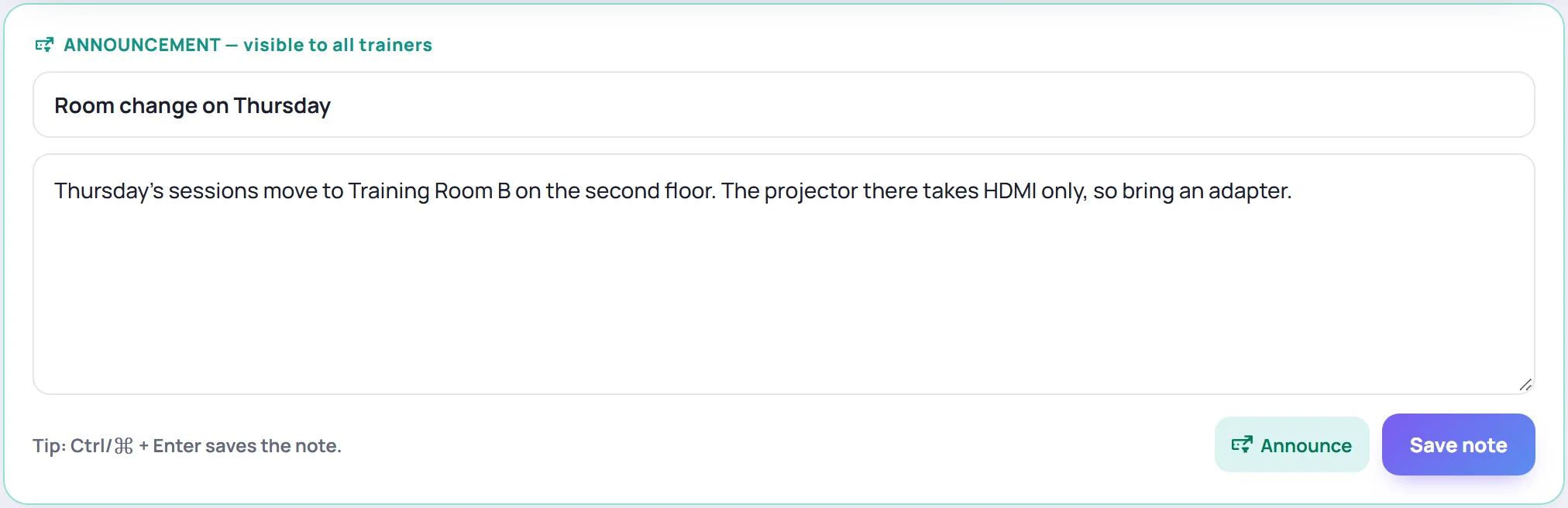
Skovrum confirms Announcement posted. Click Announce again before saving to make it an ordinary private note instead.
Where people see it
- On Today, above everything else, with your title, the date and the message. Up to three of the newest announcements show there.
- Under the bell, as an Announcement notification.
- At the top of My Notebook, for everyone who can write notes.

Each person can dismiss it from Today with ×. That hides it for them only.
Change or remove one
Find it at the top of your My Notebook and use the pencil to edit it, or the bin to delete it. Deleting it takes it off everyone's screens. Admins can edit or delete any announcement. Other people can change only their own.
Common questions
Can I send an announcement by email? No. Announcements appear in Skovrum only.
I don't see Announce. Your role can't post announcements, or your workspace is on the Solo plan. See Why can't I see a feature?