Quick capture
Jot down a private note or a learner's question from any screen with one shortcut, without losing your place.
Your words may differ. Each workspace can choose its own words: a class might be a cohort, program or group, a learner a participant, trainee or new hire, a session a module or lesson. These guides use the default words. The steps are the same whatever your workspace calls them. Change your workspace's words
Quick capture is a small box that opens over whatever screen you're on. Write a line, press Enter, and you're back where you were.
Open it
Press Ctrl+Shift+K (⌘+Shift+K on a Mac). It works on every screen, unless another window is already open.
You can also open the command palette with Ctrl+K (⌘+K) and choose New private note… or Ask a question….
Save a private note
The box opens on Note. Type and press Enter.
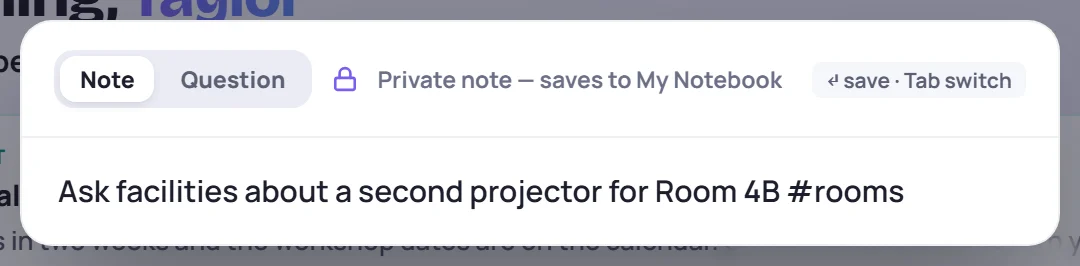
The note goes to My Notebook and is private, so only you can see it. Its first words become its title. Type # in the text to tag it.
Park a learner's question
Press Tab to switch to Question, type the question and press Enter. Type @ to name the learner who asked.
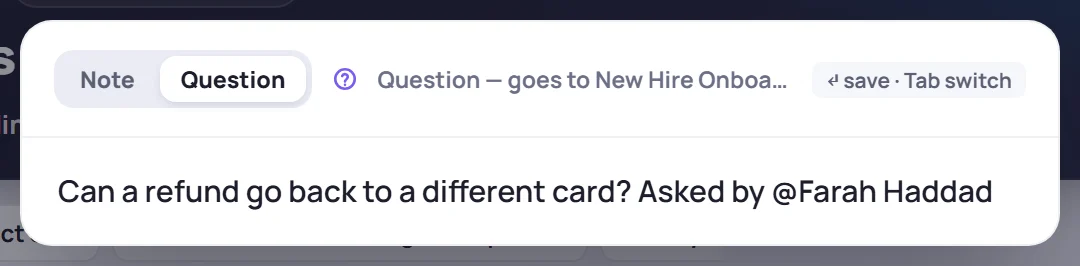
Where it goes depends on where you are. The line next to the switch tells you:
| You're on | The question goes to |
|---|---|
| A session or class you can write in | That class's parking lot |
| Anywhere else | The team Questions board |
The team Questions board is on the Team and Business plans. On Solo, open a class or session first to park a question there.
Keys
| Key | What it does |
|---|---|
| Ctrl/⌘+Shift+K | Open quick capture |
| Tab | Switch between Note and Question |
| @ | Name a learner or trainer |
| Enter | Save |
| Esc | Close without saving |