The class screen
A tour of a class's own page, from the buttons and summary at the top to its six tabs.
Your words may differ. Each workspace can choose its own words: a class might be a cohort, program or group, a learner a participant, trainee or new hire, a session a module or lesson. These guides use the default words. The steps are the same whatever your workspace calls them. Change your workspace's words
Every class has its own page. It brings together the class's learners, their scores and attendance, what's being taught, survey feedback and the questions learners have asked.
To open it, click Classes in the sidebar and then click the class's card. You can also press Ctrl+K (⌘+K on a Mac) and type part of its name. See Find, filter and pin classes.
The top of the page
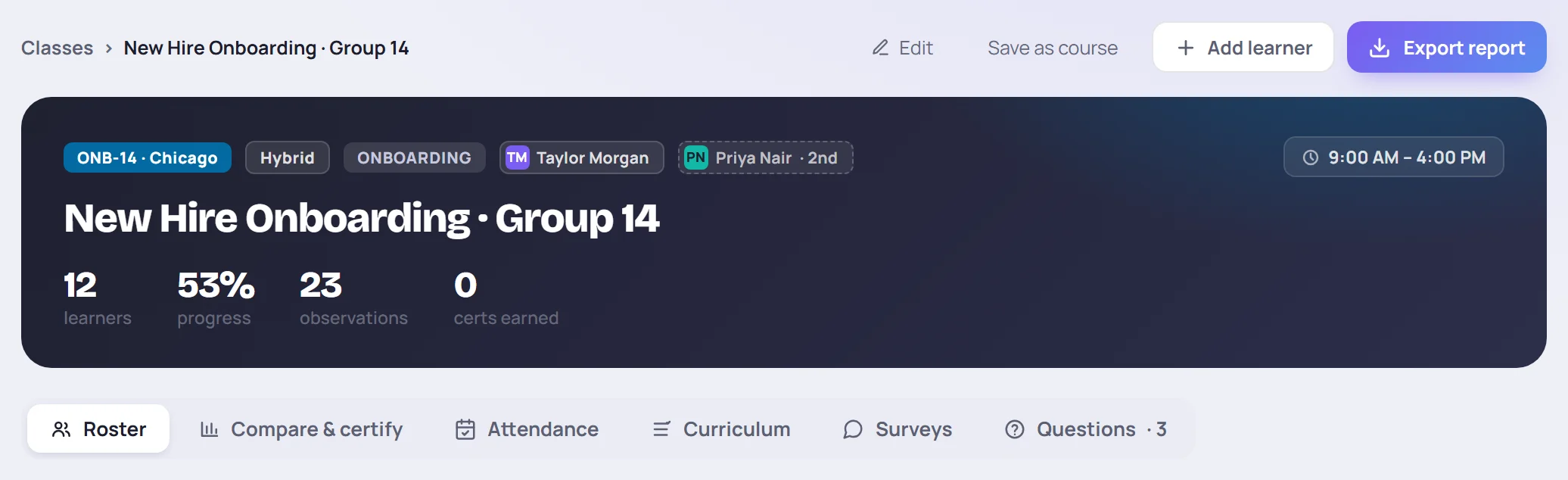
The buttons in the top right depend on your role and on the class:
| Button | What it does | When you see it |
|---|---|---|
| Edit | Change the name, trainers, delivery, dates, times, tags, certifications and sessions. See Edit a class. | You can change this class. |
| Save as course | Save this class's setup so future runs can start from it. See Courses and past classes. | Your role manages the catalog, and the class isn't linked to a course yet. |
| Add learner | Add someone to the roster. See Add learners. | Your role can change rosters and you can change this class. |
| ★ Certificates | Issue or reprint the course certificate for everyone who finished. See Certificates. | The class is linked to a course and has ended. |
| Handoff packets | One printable handoff packet per learner. | The class has ended. |
| Export report | Open the printable class report. | Your role can export reports for this class. |
The dark banner sums the class up. Along the top are its code and location, its delivery (In person, Virtual or Hybrid), a Join ↗ link for online classes, the class type, the primary trainer and any second trainer (marked 2nd). If different sessions have different second trainers, you'll also see varies by day. The class's daily times are on the right.
Below the name are four numbers:
- learners on the roster.
- progress, the share of the class's weekdays that have already passed. It measures time, not topics. Topic progress is on the Curriculum tab.
- observations recorded in the class.
- certs earned across the roster.
Roster
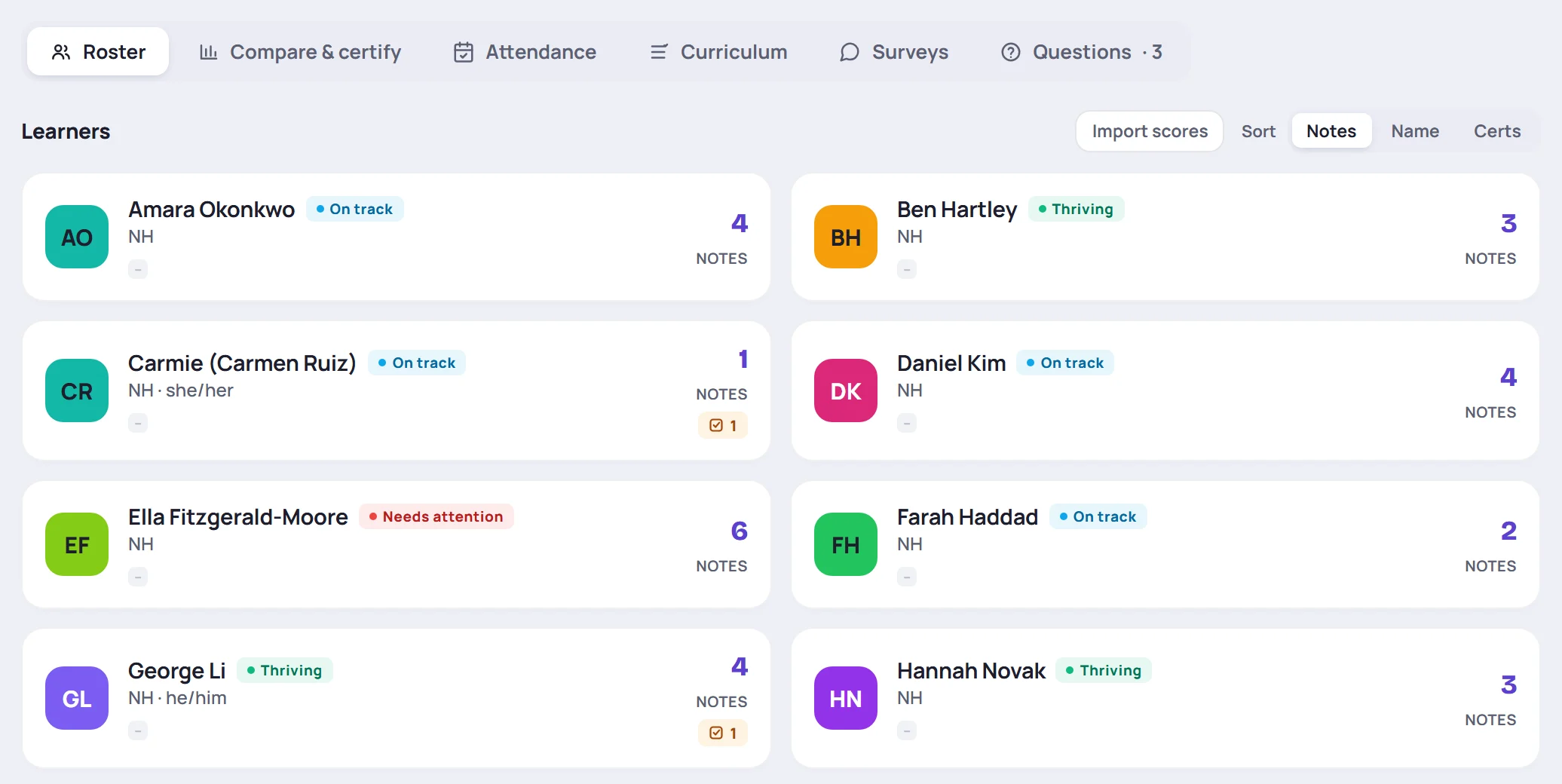
The Roster tab shows one card per learner. Each card has the learner's name, their health label (such as On track or Needs attention), their role, a small square per certification, and how many NOTES mention them. A count with a check mark is their open to-dos in this class. Click a card to open the learner's profile.
Use Name to sort the cards A to Z, or Certs to put the learners with the most certifications first. Import scores appears when the class has certifications and you can change it. See Record scores.
Compare & certify
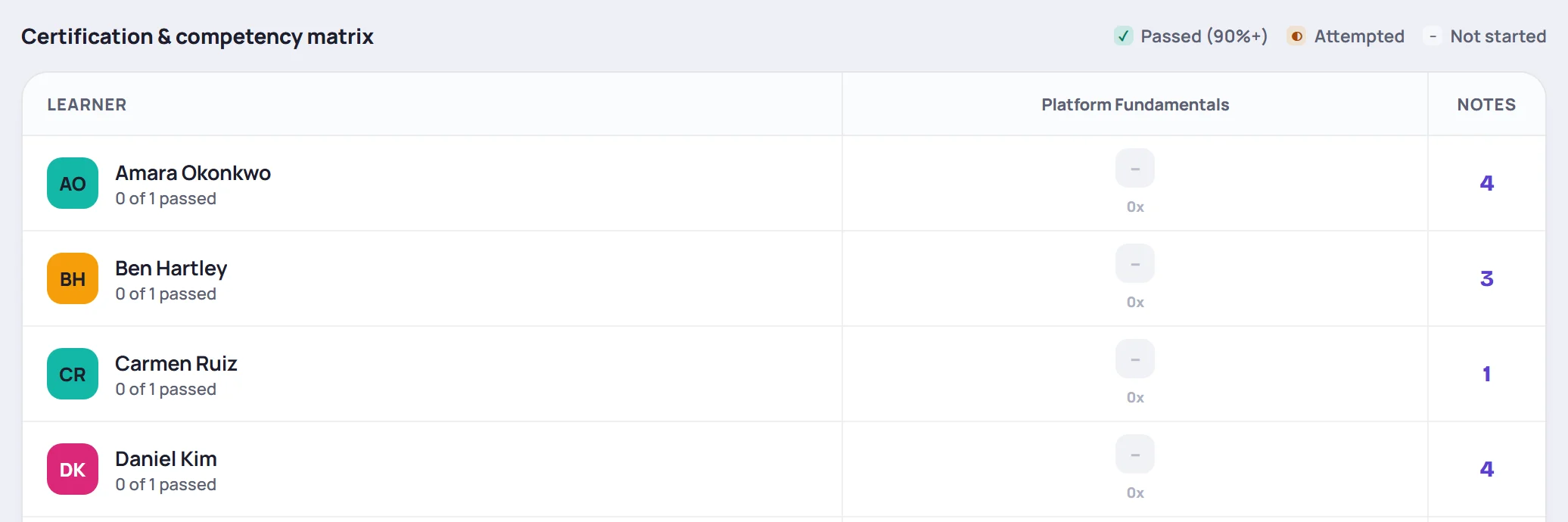
This tab is a grid with a row per learner and a column per certification. Each cell shows whether the learner has passed, attempted or not started that certification, with their best score and number of attempts. Click a cell to record or look at a score. The last column counts each learner's notes.
Attendance
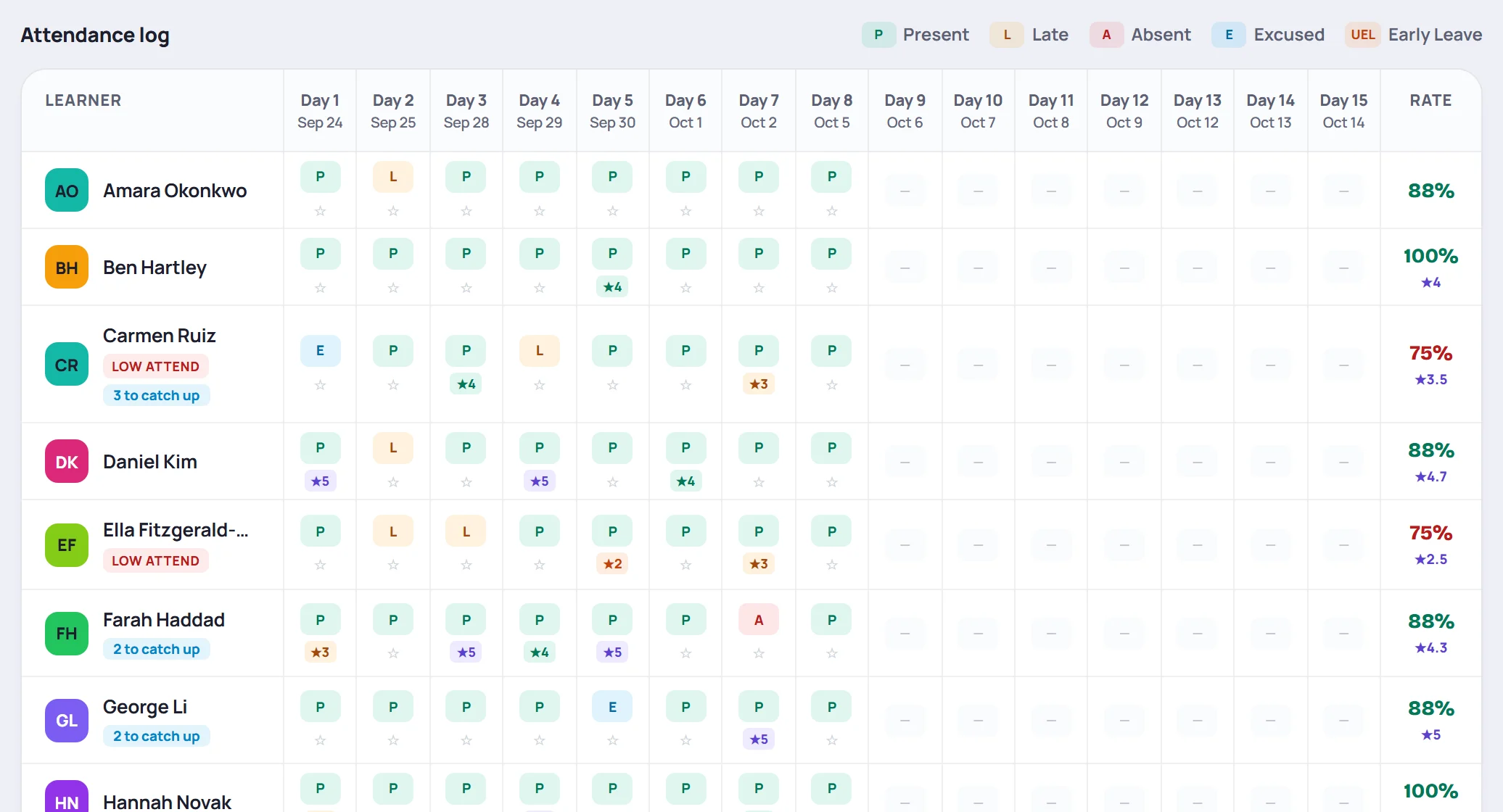
The Attendance log has a column per session. Each cell shows a status: P (Present), L (Late), A (Absent), E (Excused) or UEL (Early Leave), and a star rating if one was given. An orange dot means the entry has a note.
Click a cell to change it. The Rate column shows each learner's attendance rate and their average rating. Learners below 80% are marked LOW ATTEND. A blue to catch up label counts topics they missed. See Take attendance and Missed topics and catch-ups.
Curriculum
The Curriculum tab lists the topics for each day of the class, with a progress bar. You can paste topics, apply or save a template, and spread topics across days. See Build the curriculum.
Surveys
The Surveys tab starts with the class's Self-assessment card, where learners rate their own confidence before and after the class. See Pre/post self-assessments. Below it, Learner surveys lists the feedback for each session, with a Rating trend and, when there are comments, ✨ AI comment themes. See Read survey responses.
Questions
The Questions tab is the class's Parking lot: questions learners asked that you want to come back to. The number on the tab counts the questions that are open or answered. See Use the parking lot.
Common questions
Where are the class's sessions? Each session is a column on the Attendance tab and a day on the Curriculum tab. To open one, click Session Notes in the sidebar, or click it on Today or in the Calendar.
Why can't I see Edit or Add learner? Your role can't change this class. Trainers can change only the classes they lead or co-lead. Ask an Admin to add you as a trainer on the class.