Working with a co-trainer
Add a second trainer to a class or to a single session, and what a co-trainer can do.
Your words may differ. Each workspace can choose its own words: a class might be a cohort, program or group, a learner a participant, trainee or new hire, a session a module or lesson. These guides use the default words. The steps are the same whatever your workspace calls them. Change your workspace's words
A class has one primary trainer, the person it belongs to for reviews and reports. It can also have a secondary trainer, or co-trainer, who runs the sessions alongside them.
Add a co-trainer to a class
Choose a Secondary trainer when you create the class, or later with Edit on the class screen (see Edit a class). They're added to every session of the class.
The class banner shows them next to the primary trainer, marked 2nd:

Change the co-trainer for one day
Open the session's schedule from the pencil on the Calendar, or by clicking the session's times on the session screen. Pick someone else under Second, or — Nobody —, and click Save. You can change who is Leading that day the same way.
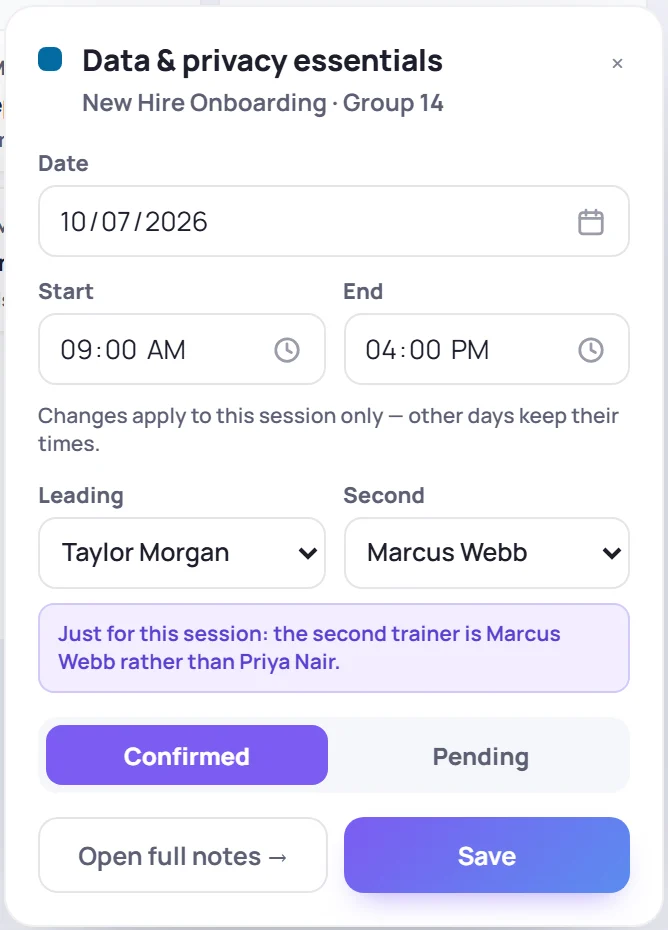
A note reminds you that the change is Just for this session. The same person can't be both trainers on a session. When different days have different co-trainers, the class banner shows varies by day.
What a co-trainer can do
A co-trainer can do everything the primary trainer can in that class: edit it, add learners, take notes and attendance, record scores, build the curriculum and export its reports. This applies to the whole class, even if they're the second trainer on only one session.
The sessions they co-lead also appear in their calendar feed.
Common questions
Who shows on the class card and in the Trainer filter? The primary trainer. To hand a class over completely, change the Primary trainer.
Can a class have more than two trainers? Not at the same time. Each session has one trainer leading and at most one second, but you can use different people on different days.