Your first week as a trainer
What to read, and in what order, to run your first sessions in Skovrum with confidence.
Your words may differ. Each workspace can choose its own words: a class might be a cohort, program or group, a learner a participant, trainee or new hire, a session a module or lesson. These guides use the default words. The steps are the same whatever your workspace calls them. Change your workspace's words
Your Admin has invited you and you've signed in. This page walks you through a trainer's first week: getting your bearings, then what to do before, during and after each session. Each step links to a full guide.
Day one: get your bearings
Start with two short reads:
- Find your way around: the sidebar, the Today screen, and the command palette (Ctrl/⌘+K) that jumps to any class, learner or session.
- How everything connects: classes, sessions, learners and where your notes end up.
Then find your classes. Click Classes in the sidebar; the ones you lead have your name on them. Pin the ones you'll open most with the star. If your workspace uses other words for class, learner or session, see Your workspace may use different words.
Before each session
Your sessions for the day are on Today. Click Open to go to one.
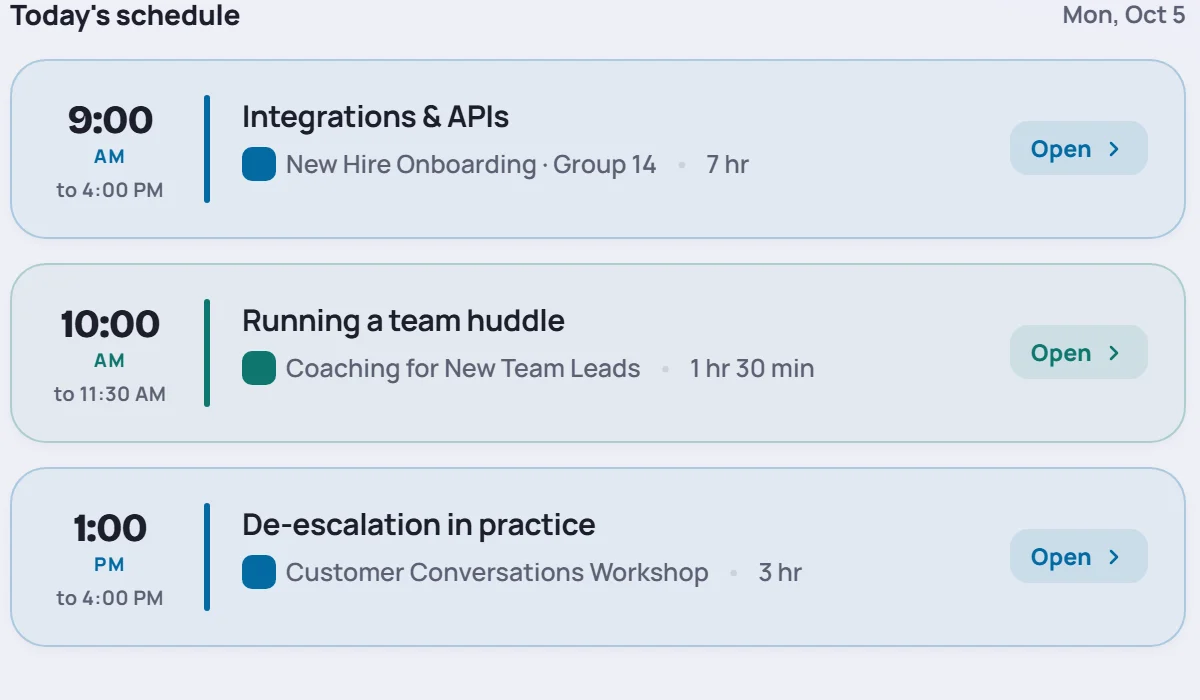
Take two minutes to read what's waiting at the top of the session:
- Since last session sums up the previous session: notes left for you, open follow-ups and who was absent. See Since last session.
- Plan lists today's topics from the curriculum. See Today's topics.
- Parking lot holds learners' questions still waiting for an answer. See Use the parking lot.
The session screen explains everything else on that page.
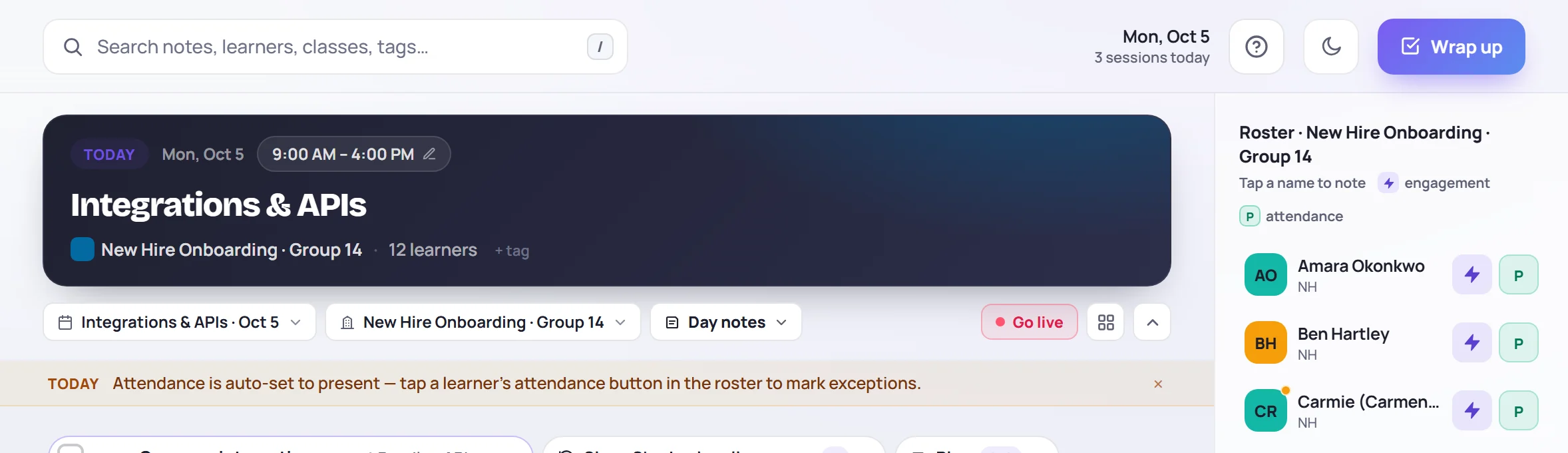
During the session
You can work on the session screen, or switch to live mode for a focused view while you teach.
- Take notes in the box at the bottom. Mention a learner with
@to turn a note into an observation on their profile. See Take notes during a session. - Attendance for today's session starts with everyone present. Click a learner's attendance button in the roster only for the exceptions: late, excused or absent. See Take attendance.
- Live mode (Go live, or press L) gives you the agenda, a topic clock, quick ratings and a cold-call picker. See Teach in live mode.
Notes save as you go, and if your connection drops they wait on your device until you're back online.
After the session
Click Wrap up in the top-right corner. It checks what you recorded (attendance, day notes, learner follow-ups and engagement taps), offers today's survey link, and lets you leave Notes for next session for whoever teaches next, which may be you tomorrow. See Wrap up a session.
Through the week
- Tasks collects the action items you and your team create. Check things off as you go. See Tasks.
- Learner profiles show everything about one person across all their classes: observations, attendance, scores and what they've missed. Click any learner's name to open theirs. See The learner profile.
- The bell tells you when someone mentions you or replies to you. See Notifications.
When you're ready for more
- Observations and competencies: rate learners against your workspace's skills.
- Record scores and issue certificates.
- Share a survey link to hear what learners thought.
- Keyboard shortcuts: every key worth knowing.
- The daily email: a morning summary of your sessions and tasks.