Email surveys automatically
Have Skovrum email each session's survey link to learners just before the session ends, skip a session, or email a link yourself.
Your words may differ. Each workspace can choose its own words: a class might be a cohort, program or group, a learner a participant, trainee or new hire, a session a module or lesson. These guides use the default words. The steps are the same whatever your workspace calls them. Change your workspace's words
A class can email its survey to learners at the end of every session, so you never have to remember to share the link. Skovrum sends each learner the session's link a set number of minutes before the session ends. It's the same link you'd copy from the session's survey panel (see Share a survey link), so everyone gets one address, whether they scan it in the room or open the email later.
How it works
- A class has one survey email setting: which survey, when, how long the link stays open, and an optional note.
- For each session, Skovrum works out the send time from the session's end time, in the class's time zone.
- At that time it emails the session's survey link to every learner who should get it (see "Who gets the email" below). Each learner gets it once.
- Their answers land on the class's Surveys tab, like any other response (see Read responses).
Turn it on for a class
You can switch survey emails on when you create the class, in the new-class form's Survey emails card. For a class that already exists, start from any of its sessions:
- Open any of the class's sessions, click Session tools and choose Survey links.
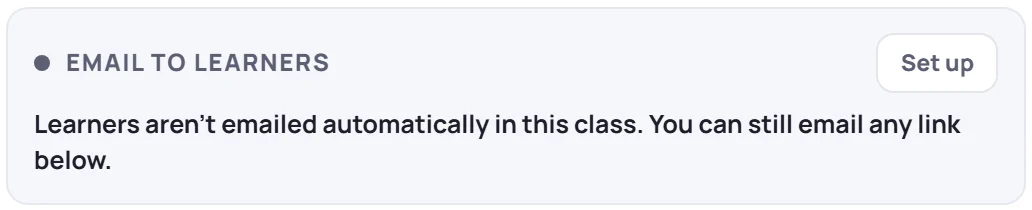
- The Email to learners box at the top says whether the class emails its survey. Click Set up.
- Tick Email learners at the end of every session, then fill in the settings:
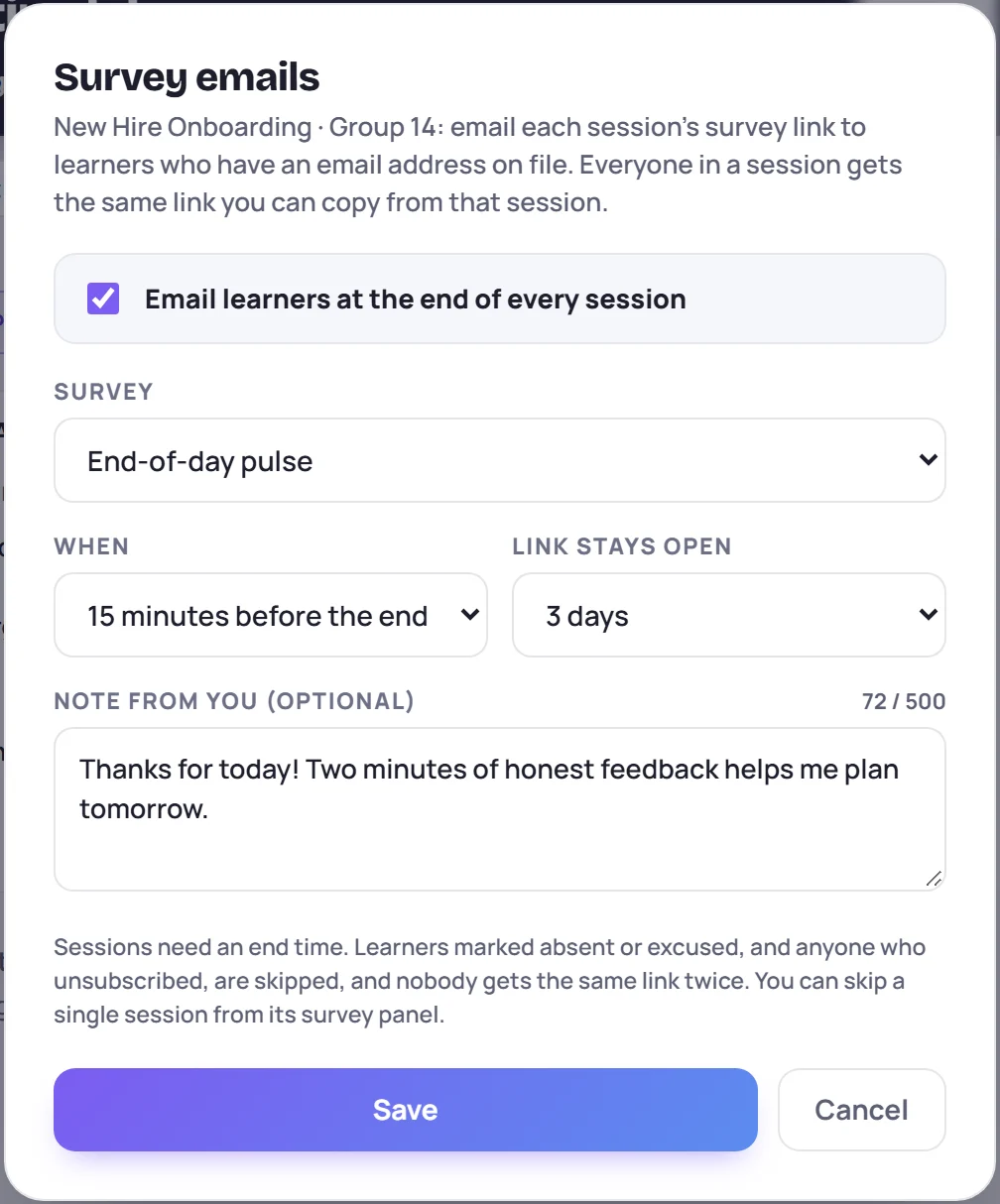
| Setting | Choices |
|---|---|
| Survey | Any active feedback survey template for this class's type, or for any class type |
| When | When the session ends, or 5, 10, 15, 30 or 60 minutes before the end. 15 minutes before the end is the default. |
| Link stays open | 1 day, 3 days, 1 week, 2 weeks or 30 days after the session date. This applies when Skovrum makes the session's link for the email. |
| Note from you (optional) | Up to 500 characters, shown in the email above the button |
Click Save. Survey emails on for this class confirms it.
The box now says when the next email goes out and to how many learners:

To change the settings later, click Class settings in the same box. To stop the emails, untick Email learners at the end of every session and click Save.
Sessions need an end time
The send time is counted back from the session's end time. A session without one can't be emailed: its box says Add an end time to this session. If you choose more minutes than the session lasts, the email goes out when the session starts. A session that ends earlier than it starts is treated as running past midnight.
What learners receive
The email comes from the trainer's name, for example Taylor Morgan via Skovrum, and replies go to the trainer. The subject is Quick feedback: followed by the session's name. It greets the learner by first name (or preferred name), thanks them for joining the session, and has a Take the survey → button. It also shows:
- the date the link closes;
- whether the survey asks for a name: Adding your name is optional, or Your answers don't include your name;
- your note, if you wrote one;
- an Unsubscribe from survey emails link.
Your note appears only in the automatic emails, not in emails you send with the Email button described below.
Who gets the email
Skovrum emails everyone enrolled in the class on the session's date, except:
| Left out | Why |
|---|---|
| Learners marked absent or excused for that session | They weren't there to give feedback. Learners not marked yet still get it, since attendance is often taken late. |
| Learners with no email address, or one that isn't valid | There's nowhere to send it. The panel lists them by name. |
| Learners who unsubscribed | Their address is opted out of all survey emails from your workspace. |
| Archived learners, and learners marked as termed | They're no longer active. |
| Anyone already emailed this link | Nobody gets the same link twice. Two learners who share an address get one email. |
Under the status line, the box counts who is left out, for example No email on file: Ben Hartley · 1 learner marked absent or excused · 1 unsubscribed. See Why didn't a learner get the survey?.
Skip one session
Some sessions don't need a survey, such as an assessment day. Open that session's survey panel and click Skip this session.

Only that session is skipped. Click Send for this session to undo it.
A session that's cancelled sends nothing either.
Email a link yourself
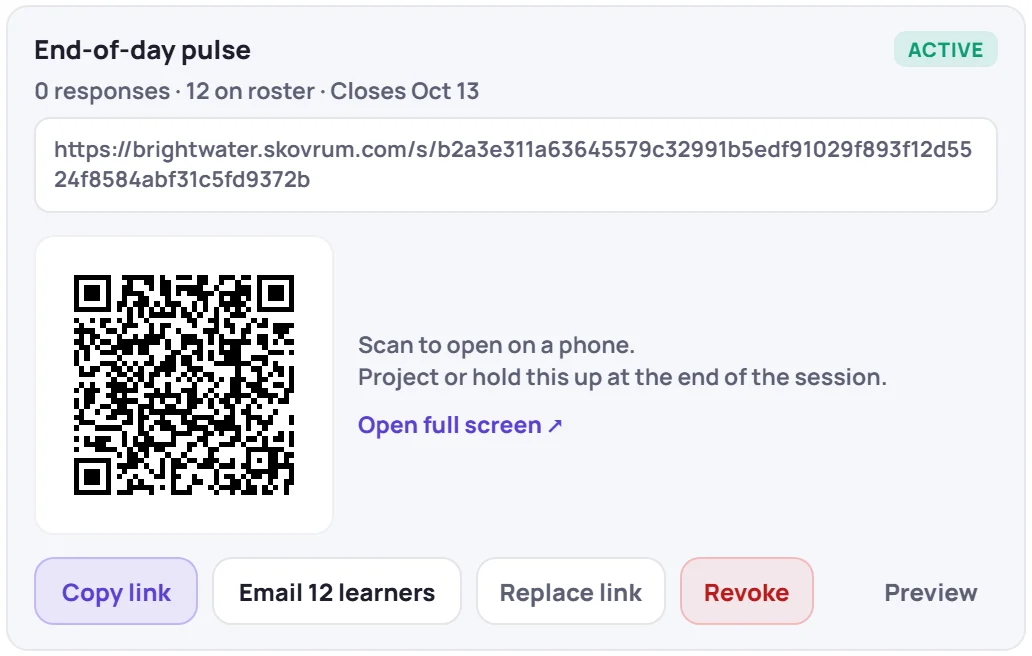
You don't have to wait for the automatic email. Every live link in a session's survey panel has an Email N learners button, whether or not the class emails automatically. N is the number of learners who would get it now, using the same rules as above.
Click it, and Skovrum asks before sending:

Click Send email. A message confirms how many were emailed, such as Survey emailed to 12 learners. The link's line then shows Emailed to 12 learners. If someone joins the class later, the button changes to Email 1 more.
You can only email a link while it's open: from the day before the session until it closes. An email you send goes out in your name.
What the status box can say
| You see | It means |
|---|---|
| Emails "…" to N learners at … | It's scheduled. |
| Emailing "…" to N learners within the next few minutes. | The send time has come. Emails go out within about five minutes. |
| Emailed "…" to N learners. | It's sent. |
| Skipped for this session. | Someone clicked Skip this session. |
| Add an end time to this session … | The session has no end time. |
| This session's link for "…" was revoked … | The link was revoked, so nothing goes out. Create it again in the panel to turn the email back on. |
| … is archived or doesn't fit this class type. | The class's survey can't be used any more. Choose another in Class settings. |
| The automatic send time has passed. | It wasn't sent in time, for example because emails were switched on after the session ended. Use Email N learners on a link instead. |
| Learners aren't emailed automatically in this class. | Survey emails are off for the class. |
Set the default for new classes
An Admin can make survey emails the starting point for every new class. In Manage → Workspace, the Surveys card sets the Default survey, when to Send it, and how many days the Link open for (days). Tick Email it to learners automatically to have the new-class form start with survey emails switched on.

This only fills in the new-class form. Existing classes keep their own settings, and anyone creating a class can change them. See Workspace settings.
Common questions
If I already shared the link in class, do learners get a second one? No. If you created the session's link for the same survey with Create & copy, the email sends that link, with the closing date you gave it.
Does the link in the email work for people who weren't emailed? Yes. It's the session's shared link, so anyone who has it can answer while it's open.
Can a learner sign back up after unsubscribing? Right after unsubscribing, the confirmation page has an Undo button. There's no setting in the app to resubscribe someone.