The team Questions board
Send a question to the whole team, ask one from scratch, and find answers other trainers already gave.
Your words may differ. Each workspace can choose its own words: a class might be a cohort, program or group, a learner a participant, trainee or new hire, a session a module or lesson. These guides use the default words. The steps are the same whatever your workspace calls them. Change your workspace's words
The Questions board is where the whole team answers questions together. A trainer sends it something a learner asked that they couldn't answer, and anyone who knows replies. The answer is kept, so the next trainer who teaches that topic finds it waiting.
Open the board
Click Questions in the sidebar.
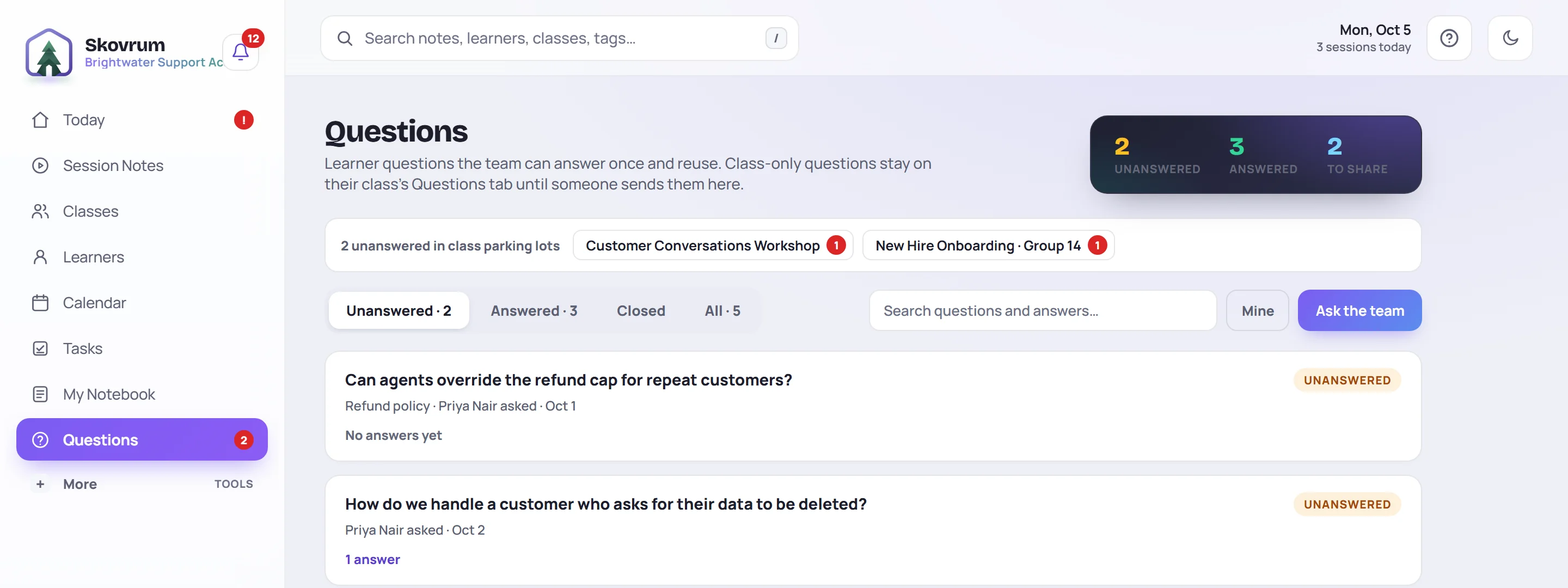
- The counts at the top show the team's Unanswered and Answered questions, and how many of your own answered class questions are waiting for you to share (To share).
- The strip under the title lists classes whose parking lots have unanswered questions, such as 2 unanswered in class parking lots. Click a class to open its Questions tab. Those questions aren't on the board until someone sends them there.
- The tabs filter by status. Unanswered lists the oldest first, so nothing waits forever. Answered includes questions already shared with their class. Closed and All do what they say.
- Search questions and answers… looks through the question, its context, its topic and every answer.
- Mine shows only questions you asked or answered.
Click a question to open it and read or add answers. See Answer, accept and share.
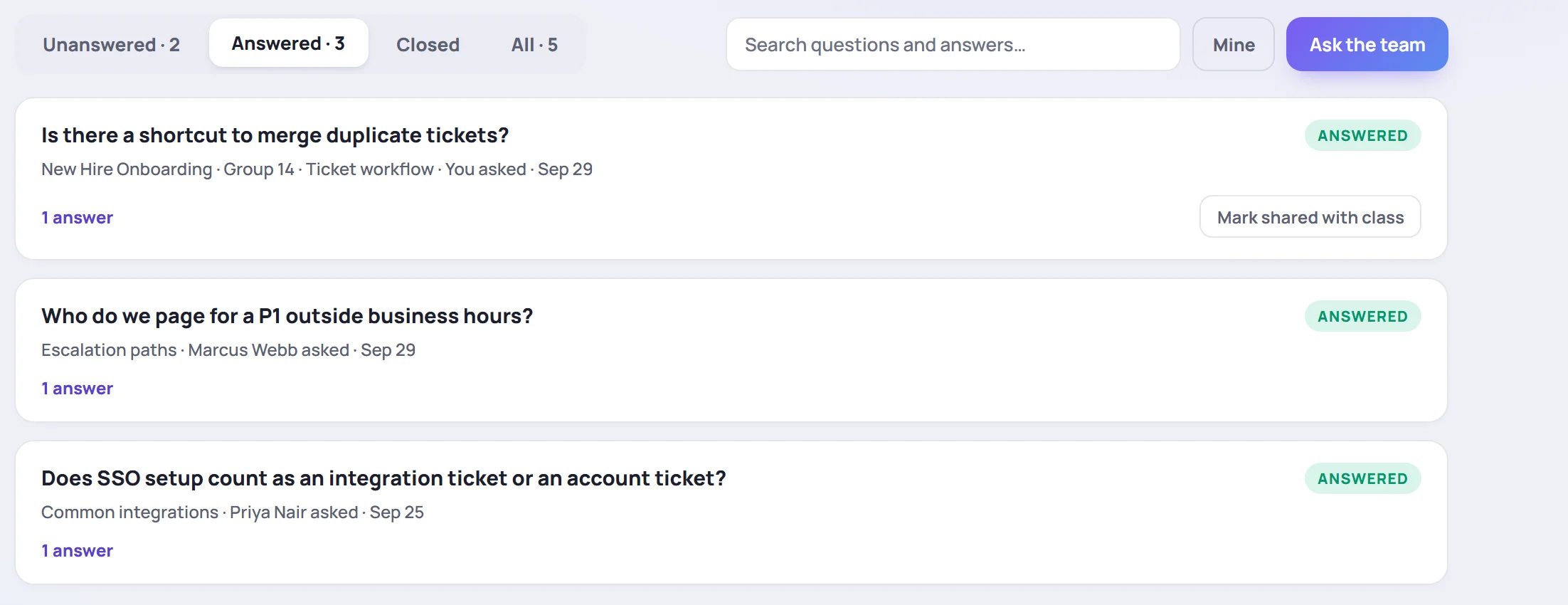
Send a class question to the team
A question parked in a class is Class only at first. To get help, open the class's Questions tab and click Ask the team on the question, or open the question and click Ask the team there.
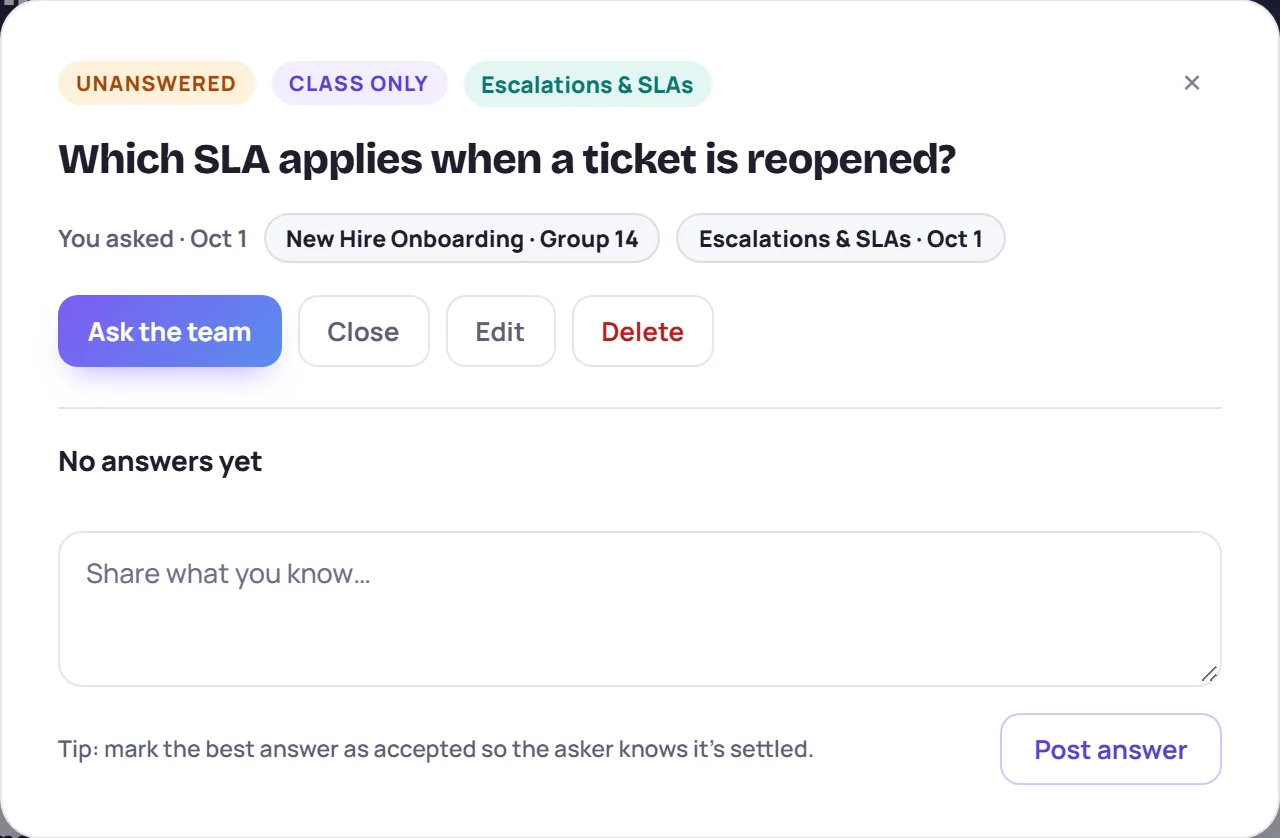
The question moves to the board and is marked Team board. It stays on the class's Questions tab too, so you can still share the answer with the class when it comes. Sending a question to the team can't be undone.
The person who asked it, the trainers who lead the class, and Admins can send a question to the team.
Ask the team a new question
To ask something that didn't start in a class's parking lot, click Ask the team on the board.
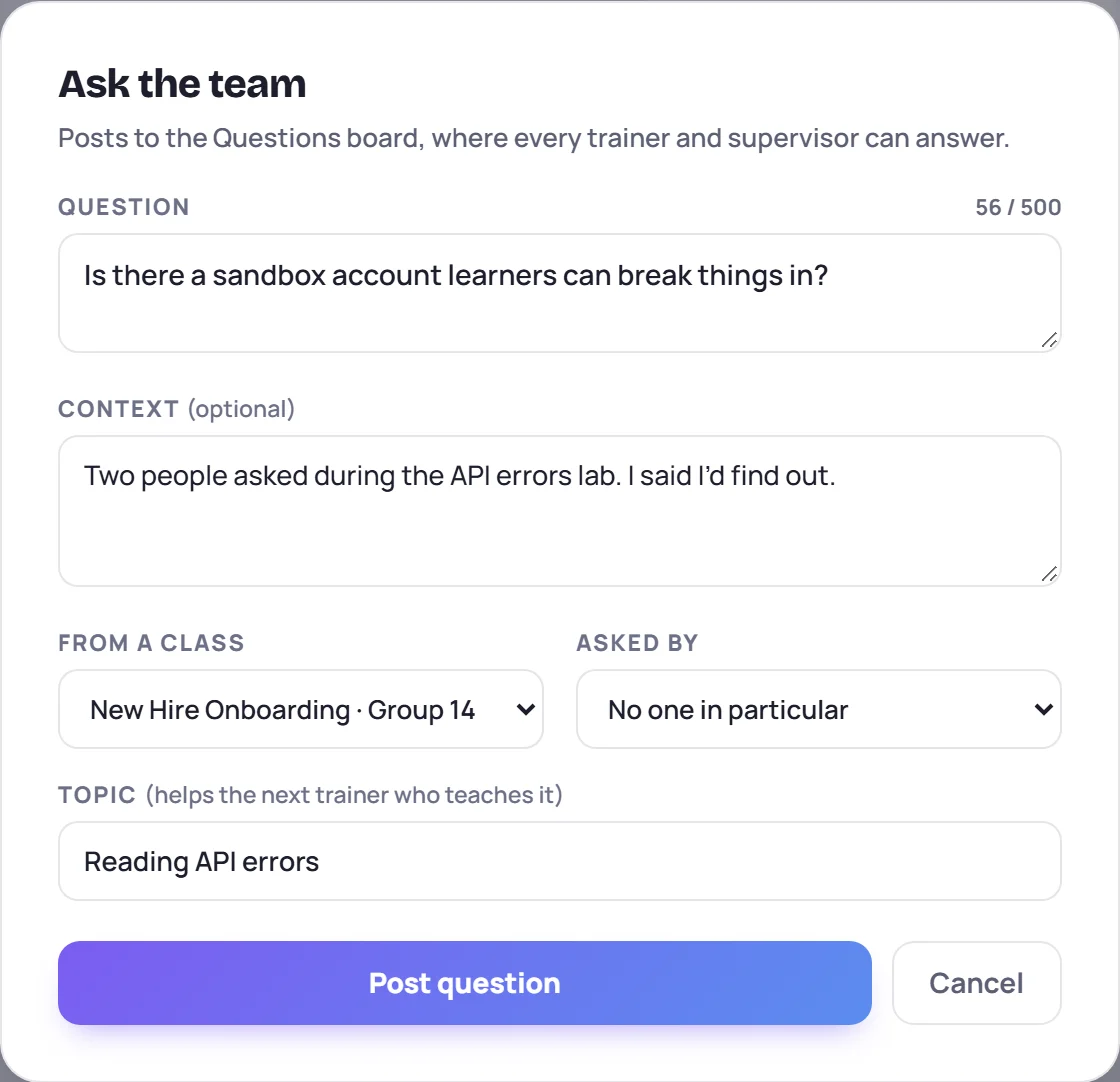
- Type the Question (up to 500 characters).
- Add Context if it helps: what prompted it, or what you already said. Type
@to mention a teammate. - Under From a class, choose the class it came from, or leave No class — a general question. The list shows the classes you can edit. With no class, pick a Class type instead, or leave Any class type.
- If you chose a class, Asked by lets you pick the learner who asked.
- Fill in the Topic (it helps the next trainer who teaches it). Suggestions come from the class's topics and curriculum.
- Click Post question, or press Ctrl+Enter (⌘+Enter on a Mac).
While you type, Already asked? lists answered questions worded the same way. Check them before you post.
You can also ask from anywhere with the command palette (Ctrl/⌘+K, then Ask the team a question…), or with quick capture switched to Question on a screen that isn't a class or session.
Who sees what
| Question | Who can read it |
|---|---|
| Class only (still in its parking lot) | Everyone who can see the class |
| Team board | Everyone in the workspace |
The built-in roles, Admin, Trainer and Supervisor, see every class, so they see every question. A custom role limited to the classes its members lead still sees every team question, but a question that came from a class they can't see shows From a class you don't lead instead of the class, session and learner.
Keeping the board tidy
- Edit a question to fix its wording, context or topic. The asker and Admins can edit.
- Close a question that no longer needs an answer, with an optional reason.
- Delete removes a question and its answers for good. The asker can delete it until a teammate answers. After that, only an Admin can.
Common questions
Why isn't my class's question on the board? Questions start in their class's parking lot. Click Ask the team on it to send it here.
Can I take a question off the board again? No. Once it's on the team board it stays there. You can close it.
Do people get told about new questions? Not one by one. The daily email lists team questions that have waited over 48 hours for an answer when their topic is planned for a session you lead in the next seven days. Mentioning someone with @ sends them a notification.